InDesign, long recognized as a powerhouse for print design, possesses capabilities that extend to the digital realm, particularly in generating HTML. While not a direct replacement for dedicated web design software, InDesign can serve as a valuable tool for creating mock-ups, presentation work, and even for repurposing print content for the web. This article delves into the practical applications and considerations when using InDesign for website-related projects, exploring its built-in HTML export features, the insights of experts, and the availability of third-party solutions.
Setting Up InDesign for Web Intent
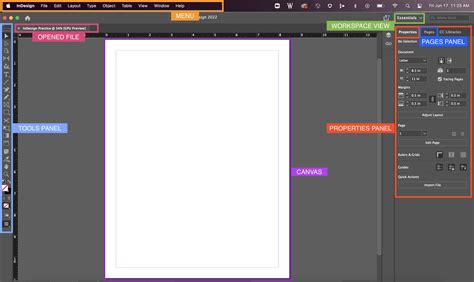
The journey into using InDesign for web-related outputs begins with a simple yet crucial step: selecting the correct document intent. Upon creating a new document in InDesign CC (and subsequent versions), users will find an "Intent" pop-up menu. Choosing "Web" from this menu pre-configures the document with basic webpage criteria and offers standard web page dimensions. While the default 800x600 resolution might feel reminiscent of earlier web eras, it serves as a starting point for testing and understanding the export process.
When laying out an initial test page, a designer might include various elements such as non-system text, image boxes, solid color fills, and vector shapes created with the pen tool. The initial results of exporting such a page to HTML can be, to put it mildly, disappointing. Early iterations of InDesign's HTML export often struggled to render elements accurately, with filled boxes and complex shapes failing to appear altogether. Even when elements did render, their positioning could be significantly off, leading to a disjointed and unprofessional output. For instance, a filled box and a pen tool element might not show up in the first webpage sample, while a box containing a JPEG image might appear, albeit in the wrong location.
Further attempts with updated versions, such as InDesign CC 2014, showed improvements. The export option in this version demonstrated a better ability to render solid fill boxes and even gradient fills within vector elements. However, the fundamental issue of incorrect layout persisted, indicating that the native HTML export was not a seamless solution for directly translating print designs to functional webpages.
HTML : Export HTML and CSS from Photoshop or InDesign
The Expert Perspective: Navigating the Nuances of HTML Export
Recognizing that the native export functions were not yielding satisfactory results, the next logical step involved seeking expert advice. The landscape of information regarding InDesign's HTML export capabilities is surprisingly sparse, highlighting a niche area where practical knowledge is highly valued. Michael Murphy, a designer with significant technical expertise in this domain, emerged as a key resource. Murphy's insights, shared through his lynda.com courses "InDesign CS6 to HTML" and "InDesign for Web Design," provide a clearer understanding of how to approach this workflow effectively.
Murphy emphasizes that when repurposing InDesign content for HTML, there are primarily two built-in export paths: EPUB (which includes Fixed Layout and Reflowable options in CC 2014) and HTML. A critical prerequisite for both these destinations is the consistent application of styles-Character, Paragraph, and Object styles-throughout the project. Crucially, these styles must be connected to their HTML equivalents. For example, paragraph styles should map to the <p> tag, headings to <h1>, <h2>, <h3>, and so on, while italics and bold text should correspond to <em> and <strong> tags, respectively. This style-driven approach helps maintain the content's structure and organization, but not necessarily its visual appearance.
InDesign can generate CSS for both EPUB and HTML exports. However, the CSS it produces is primarily geared towards preserving the settings applied to a print layout. Given the fundamental differences between print and screen-based reading experiences, this approach often fails to produce optimal web results. Murphy's advice strongly suggests that achieving a polished, end-to-end web output from InDesign without manual intervention is unlikely. Significant tinkering with the CSS, and potentially the HTML markup itself, is often necessary.
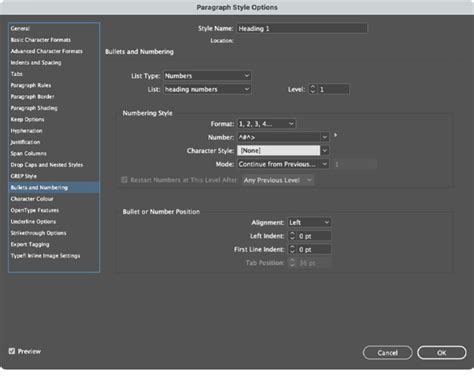
A more effective strategy, as outlined by Murphy, involves targeting an existing CSS framework. This could be a boilerplate CSS used for EPUB projects or the CSS already in use by a website or its content management system. In such scenarios, the designer can establish connections between InDesign styles and their corresponding HTML tags and CSS classes. These connections are managed within the "Export Tagging" areas of the Paragraph, Character, and Object Style Options dialogs. For Object Styles, each applied style can be treated as a <div> in the HTML, allowing for specific tagging and styling.
Realistic Expectations and Workflow: The Cold, Hard Truths
The inherent nature of web development means that it's a constantly evolving target. Consequently, InDesign's HTML export is not designed to produce ready-to-use web layouts directly from print designs. Instead, its strength lies in extracting content-text and images-in the desired order, accompanied by appropriate HTML markup. While this output requires further refinement, it offers a significantly faster and less repetitive alternative to manual coding, especially when the content's formatting and hierarchy have already been established within InDesign.
Michael Murphy illustrates this point with his own workflow, where he exports a full month's worth of magazine articles from their InDesign layouts to HTML for web posting. By integrating export tagging into his document templates and styles, this process becomes swift, relatively clean, and minimizes repetitive tasks and the potential for human error. Therefore, fully leveraging InDesign's HTML export capabilities hinges on setting realistic expectations and committing to the necessary upfront preparation within documents, templates, and styles. It's not a one-off solution but a systematic approach that requires a well-defined workflow.
Beyond Native Export: The Role of Plugins
For individuals who may find the technical intricacies of CSS and HTML markup daunting, a viable alternative exists in the form of third-party plugins. The "In5" plugin, developed by Ajar Productions, offers an enhanced export option that appears alongside InDesign's native export features. The In5 dialog box provides a more comprehensive set of options compared to the built-in tool, including sections dedicated to SEO, among others. When configured and used correctly, In5 can produce highly usable webpages and even entire sites, making it a valuable asset for those operating in this specialized niche.
InDesign as a Tool for Design Concepts and Client Presentations
Beyond direct HTML export, InDesign serves as an exceptionally effective tool for sharing design concepts and creative ideas with clients, particularly when the goal is not to produce a fully coded website from scratch. InDesign provides a high degree of design control, akin to Illustrator's capabilities, making it ideal for laying out visuals that clearly communicate a designer's vision to clients.
The use of character styles within InDesign is particularly beneficial. These styles can be meticulously set up to be easily transferable to CSS during the later stages of web production. This means that when a client requests modifications-for instance, a larger primary navigation font or a change in text color-these adjustments can be made rapidly within InDesign. The designer can then update the corresponding CSS rules, streamlining the revision process and saving significant time.
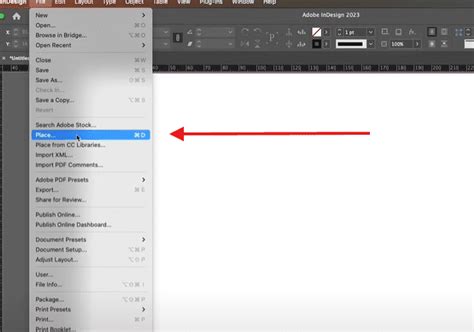
Furthermore, InDesign's robust image control features eliminate the need for extensive cropping or resizing of images when creating mock-ups. Designers can place images directly into their layouts and make adjustments as needed. The color palette in InDesign can be switched to RGB, and the application even includes swatch books for web-safe colors, further facilitating the design of digital assets.
Exploring InDesign Templates for Inspiration and Project Kick-starts
InDesign templates are invaluable resources for gaining inspiration and accelerating the initiation of design projects. These pre-designed layouts offer a solid foundation, allowing designers to quickly customize them to suit their specific needs. A wide array of categorized templates is available, catering to diverse project types.
Templates for Inspiration and Quick Starts
The availability of templates spans numerous categories, each offering unique design aesthetics and structural frameworks. These include:
- Magazine Templates: Designed for publications ranging from fashion and lifestyle to art and travel, these templates offer elegant layouts, ample space for imagery, and structured content areas. Examples include "Clean & Stylish Magazine Layout," "Modern Photography Portfolio," "Traveller Magazine," and "Universal Magazine."
- Resume Templates: For professionals looking to create impactful resumes, templates like "Be Bold," "Add Showcases," "Elegant," and "Minimalist" provide distinct styles, from bold typography to clean, single-page designs.
- Book Templates: Whether for e-books, novels, poetry collections, or cookbooks, templates such as "Simple ePub," "Easy to Read ePub," "The Poetry Book," and "Cook-book" offer layouts optimized for readability and visual appeal.
- Brochure Templates: From minimalist and pastel designs to those suited for business, fashion, or local shops, brochure templates like "Elegant, Pastel Brochure," "Landscape Brochure," and "Fashion-ready" provide versatile options for promotional materials.
- Portfolio Templates: For designers and photographers, portfolio templates like "Photography Portfolio," "Designer Portfolio," and "Lookbook" are crucial for showcasing work effectively, balancing content with white space to draw attention to visuals.
- Business Card Templates: Even for small elements like business cards, InDesign offers templates like "For The Local Business" and "For Freelance Professionals," providing stylish and professional designs.
- Flyer Templates: Whether for real estate, corporate events, art exhibitions, or farmers' markets, flyer templates such as "Real Estate Flyer," "Corporate Flyer," and "Farmers Market" offer well-organized and visually engaging layouts.
- Trifold Templates: These versatile templates, including "Clean Trifold," "Modern," and "Business Trifold," are suitable for promoting products, services, or events with structured panels for information.
- Newspaper Templates: For those looking for a classic feel, "The Classic Old Style" template provides a foundation for traditional newspaper layouts.
- Report Templates: Business reports, annual reports, and presentations benefit from templates like "Modern," "Data Driven," and "Clean And Elegant," which offer structured layouts for conveying information effectively.
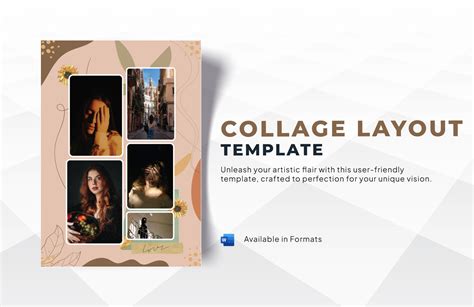
These templates not only serve as starting points but also demonstrate best practices in layout, typography, and image placement, offering valuable learning opportunities for designers. Many resources exist online for finding free and premium InDesign templates, further democratizing access to professional design assets.
In conclusion, while InDesign's direct HTML export may not be a panacea for creating production-ready websites, its utility in mock-up creation, client presentations, and content repurposing is undeniable. By understanding its capabilities, leveraging expert advice, and utilizing tools like plugins and pre-designed templates, designers can effectively integrate InDesign into their digital design workflows. The key lies in adopting a realistic approach, focusing on structured workflows, and being prepared for necessary post-export refinements.