You know that feeling, right? You open up Lightroom, ready to dive into editing, and there it is - the default 'Adobe Color' profile staring back at you. For many, it's a perfectly good starting point, but what if you're craving something a little different from the get-go? Maybe you prefer the warmth of 'Adobe Standard,' or perhaps you're keen to explore the nuances of 'Camera Matching' profiles. It’s a common question that pops up in photography forums and editing groups: how do you change that initial default? While Lightroom doesn't have a single, glaring 'Change Default Profile' button that’s immediately obvious, the process is more about setting your own default for future imports or adjustments.
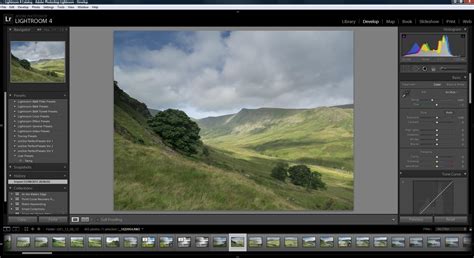
Understanding Raw Profiles and Their Impact
Profiles in Lightroom are essentially pre-processing instructions for your RAW files. They dictate how the raw data captured by your camera's sensor is interpreted and rendered into a viewable image. The default 'Adobe Color' profile, while widely used, might not align with every photographer's aesthetic preferences or the specific characteristics of their camera. For instance, Rod Lawton, a photography journalist with nearly 40 years of experience, notes that for his Panasonic Lumix G9, the default 'Adobe Color' profile results in blue skies taking on a distinct cyan hue and an overall excessive contrast. He found that by switching to Lightroom's 'Camera Matching' profiles, such as 'Cinelike D' or 'Natural,' he achieved a significantly better color rendition and a more malleable contrast, saving him considerable editing time. This highlights that 'Camera Matching' profiles are often far better than the default 'Adobe Color' profile, allowing your RAW files to look more closely to how the camera maker intended.
The Adobe Color profile is applied by default in Lightroom. You view a RAW image in Lightroom, it applies the default Adobe Color profile and you don’t even bother to question it. However, the observation that these profiles can be significantly different and save editing time is crucial for efficient workflow.
Navigating Lightroom's Default Settings
The core of changing the default profile lies in setting your own default develop settings. When you import photos, Lightroom applies a set of develop settings. If you want a different profile to be the starting point for all your new images, you can actually set that. One of the most straightforward ways to achieve this is by setting a default develop setting.
For those using Lightroom Classic, the process is quite similar. You'll find preferences and settings that allow you to tailor the application to your needs. The beauty of Lightroom lies in its flexibility. Whether you're a seasoned pro or just starting out, being able to tweak these foundational settings means you can truly make the software work for your vision, not the other way around.
Setting Raw Defaults for Specific Cameras
Lightroom Classic's Raw Defaults options, accessible through Preferences > Presets, provide an easier and more intuitive way to assign and manage the default rendering of your raw files across multiple camera models. This feature enables you to set custom defaults instead of having to first import files and then change settings.
To set different Raw Defaults for each camera model, you can enable “Override global setting for specific cameras.” Within the Preferences > Presets tab, you can then choose to automatically apply a specific preset, or select "Camera Settings" as the default. The latter option will apply a camera-matching profile if one has been created by Adobe that corresponds to the picture style you may have set in your camera (such as Camera Standard).
The Camera Model and the Default applied are displayed in a box to the right, making it easy to keep track of multiple cameras with different settings applied. To reset, change, or delete a Default setting, click the downward-facing chevron to the right of the camera model/default and select the desired option. Once Raw Defaults are set, all newly imported files will be rendered using the custom Raw Defaults.
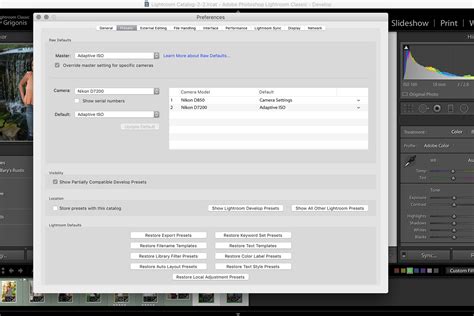
You can set default settings for your raw images based on the camera model. Select a camera model from the Camera drop-down menu. Optionally, if you want to create default settings for a camera based on the serial number, select "Show serial number."
The Role of Presets in Defaulting Profiles
If you want to use a specific profile, like Adobe Standard, as your default, and you're not finding a direct "Camera Settings" option that provides it, creating a preset is the way to go. You'll need to first create a preset that contains only the desired Treatment & Profile settings. Then, you can specify that preset in the Raw Defaults.
To create a preset:
- Make the desired changes to a photo, including setting the profile to your preferred choice (e.g., Adobe Standard).
- Give the preset a name.
- Select a Group to place it into.
- Enable (check) the settings you want to be saved as part of the preset.
- Click "Create."
Once your preset is created, navigate to Preferences > Raw Default and select this newly created preset to be applied automatically.
It's worth noting that many photographers will not need to create their own custom preset, as Adobe now provides a new set of Default presets that might suffice.
Advanced Customization: ISO Adaptive Presets
Lightroom Classic, specifically from version 9.3 onwards, introduced ISO Adaptive Presets. These allow a single preset to apply different edit settings to different photos depending on their ISO settings. For example, you can create an ISO Adaptive Preset that applies different levels of noise reduction or sharpening to high ISO versus low ISO images.
To create an ISO Adaptive Preset:
- Select two or more images with different ISO values that were taken with the same camera.
- In the "New Develop Preset" dialog, select the desired settings to include in the preset.
- Ensure "Create ISO adaptive preset" is enabled under ISO Settings.
- Click "Create."
If two or more images with different ISO values are not selected, the "Create ISO adaptive preset" option will be disabled. This advanced feature allows for highly nuanced default settings tailored to the specific shooting conditions captured by your camera.
Raw defaults in Lightroom Classic
Addressing Historical Changes and User Experiences
There's a history to why these defaults might change. The narrator in an Adobe blog post mentions that the default changed from Adobe Standard to Adobe Color. While there isn't always official documentation explaining every subtle shift, it's often assumed that Adobe aims to "improve" the image from import, potentially in response to comparisons with other RAW editors.
Users have reported experiences where their defaults have changed unexpectedly. For instance, one user noted that after updating to Lightroom Classic 12.0.1 and converting their catalog, photos processed in LR 5.7.1 had the 'Adobe Standard' profile, while newly processed images in LrC 12.0.1 were using 'Camera Standard,' which they found to be noticeably different and "too cooked/hot." They found that the first 100 or so processed images in LrC 12.0.1 retained the 'Adobe Color' profile. This suggests that catalog conversions and software updates can sometimes influence existing default settings.
Another user mentioned that they had previously set 'Adobe Standard' as their default in LR 5.7.1 but found that even after trying to keep it as the only favorite, the default remained 'Adobe Color' in newer versions. This underscores the importance of understanding the Preferences > Presets > Raw Defaults section for explicitly controlling these settings.
The Nuance Between Adobe Color and Adobe Standard
While some users express a strong preference for 'Adobe Standard' over 'Adobe Color,' one user's comparison revealed that 'Adobe Color' isn't as drastically different from 'Adobe Standard' as they initially thought. This suggests that personal perception and workflow play a significant role in which profile feels like the "right" default. The key takeaway is that both profiles are valid starting points, and the ability to choose is paramount.
Practical Application: Changing Defaults for Existing Images
If you have a batch of images already imported that you want to apply a different profile to, you don't need to re-import them. You can select all the images you want to change, switch to the Develop module, turn on "Auto-Sync," and then select the profile you wish to apply to all the selected images. Auto-sync will efficiently apply that change to all selected images simultaneously.
The "Camera Matching" Advantage
As Rod Lawton points out, Lightroom’s ‘Camera Matching’ profiles are often superior to the default ‘Adobe Color’ profile. If you want your RAW files to look how the camera maker intended, using these profiles is a wise choice. For his Panasonic Lumix G9, the 'Natural' profile provided better color rendering and softer, more malleable contrast compared to the default 'Adobe Color.' This emphasizes the benefit of exploring these camera-specific profiles as potential defaults.
Conclusion: Tailoring Lightroom to Your Vision
Ultimately, the ability to change the default profile in Lightroom, whether it's from 'Adobe Color' to 'Adobe Standard,' a 'Camera Matching' profile, or a custom preset, is a testament to the software's adaptability. By understanding the Raw Defaults settings in Lightroom Classic and leveraging the power of presets, photographers can ensure that their editing workflow begins with a foundation that truly aligns with their artistic vision, rather than settling for a one-size-fits-all approach. This control over initial rendering saves time, reduces frustration, and allows for more creative freedom from the very first click.