Lightroom, a powerhouse for photographers, aims to enhance workflow through features like a secondary display. However, users have encountered persistent and frustrating issues where this functionality malfunctions, particularly when dealing with multiple monitors or macOS's Desktop Spaces. These glitches can manifest as unresponsive areas on the screen, misplaced pop-up windows, and an overall disruption to the editing process. This article delves into the common problems, their potential causes, and the workarounds that users have discovered, offering a comprehensive guide for those struggling with Lightroom's secondary display behavior.
The Elusive Secondary Display Window
A core feature intended to streamline editing is the ability to designate a second monitor for specific Lightroom panels, such as the Loupe view. This allows users to dedicate a separate screen to image previews or other tools, keeping the primary workspace uncluttered. However, for some users, this feature behaves erratically.
One frequently reported issue involves the secondary display window appearing on the main monitor, even when a separate physical second monitor is not in use. When this "virtual" second monitor window is invoked, it can obscure critical elements of the Lightroom interface on the primary display. While users can often close this window and regain access to the hidden interface elements, a more persistent problem arises after interacting with macOS's Desktop Spaces.
The "Dead Space" Phenomenon
The crux of the problem lies in what users describe as a "dead space" that appears on the main display after switching between Desktop Spaces. After invoking the secondary display window on the primary monitor, closing it, and then switching to another Desktop Space (e.g., for Photoshop or another application) and returning to Lightroom, the area previously occupied by the secondary window becomes unresponsive to mouse clicks. This means that images or interface elements located in this "dead space" cannot be selected or interacted with.
This issue has been observed on macOS 10.8.2, with users employing configurations like an iMac 27" with a single monitor. The problem persists even when Lightroom is maximized to fill the screen, and it necessitates a workaround to restore functionality.
Workarounds for the "Dead Space"
Frustrated by the unresponsive areas, users have devised several methods to circumvent this bug. These workarounds, while functional, highlight the underlying instability of the feature.
Re-invoking and Re-closing the Secondary Window
The most immediate workaround involves re-opening and then re-closing the secondary display window. This action often prompts Lightroom to re-render the affected area, making it responsive to mouse clicks once more. However, this is a repetitive and time-consuming process, especially if one frequently switches between applications or Desktop Spaces. It becomes a significant impediment to a fluid workflow.
Strategic Window Placement
Another approach is to position the secondary display window as far off-screen as possible. By moving the window to the very edge of the monitor, users aim to prevent it from overlapping any critical interface elements that they might need to click. This strategy can work as long as Lightroom remains open. However, upon quitting and relaunching Lightroom, the window's saved coordinates are often reset, and the entire window may reappear within the usable screen area, reactivating the "dead space" problem.
Multi-Monitor Complexities and Misplaced Modals
The issues with Lightroom's secondary display functionality are not confined to single-monitor setups. Users with multiple monitors frequently encounter different, yet equally vexing, problems.
Photoshop Pop-ups on the Wrong Screen
A common complaint, particularly among Photoshop users, is the behavior of modal windows. These are dialog boxes that require user interaction before proceeding. In multi-monitor setups, Photoshop pop-ups often appear on the user's secondary monitor (e.g., a MacBook screen) instead of the primary, larger 4K monitor where the user is actively working.
This can lead to a frozen Photoshop interface, as the application waits for a modal to be closed, which is easily missed if it appears on an unexpected screen. Small modals can blend into the background of other applications, making them difficult to spot. Users have expressed a strong desire for applications to consistently open modals on the screen where the main application window is active.
Lightroom's Main Window Behavior
In multi-monitor environments, the placement and behavior of Lightroom's main window can also be problematic. Users have reported that the main Lightroom window can sometimes shift unexpectedly to the monitor where the macOS Dock is located, even if the user has configured Lightroom to always launch on a specific, larger external monitor. This can occur even when the Dock is set to auto-hide or is only present on one display.
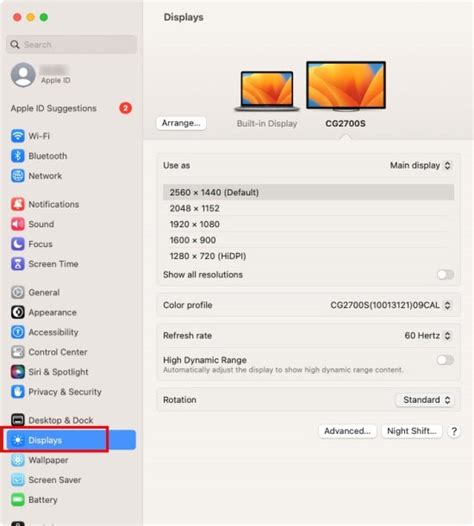
The primary monitor, defined by the location of the macOS menu bar, often dictates where applications initially launch. If Lightroom is intended to run on a secondary, larger monitor, but the menu bar remains on the primary, smaller monitor, Lightroom may default to launching on the primary. This can be addressed by moving the menu bar to the desired primary display in macOS's Display System Preferences.
Investigating macOS Display Settings and Preferences
The intricacies of macOS's display management play a significant role in these issues. Settings within System Preferences, particularly under "Mission Control" and "Displays," can influence how applications and windows behave across multiple monitors and Desktop Spaces.
Mission Control and Spaces
Mission Control is macOS's feature for managing open windows, applications, and full-screen apps across multiple displays and Desktop Spaces. Settings within Mission Control, such as "Automatically rearrange Spaces based on most recent use," have been suggested as potential factors. While some users report that this setting does not significantly impact their issues, others have found that enabling or disabling it can alter window behavior.
The "Displays Have Different Spaces" option in Mission Control is also relevant. When enabled, it allows for the menu bar and Dock to be visible and usable on all displays. However, it can also influence how applications manage their windows across these distinct spaces.
Display Arrangement and Primary Monitor
The "Arrangement" tab within the Displays System Preferences is crucial for understanding multi-monitor setups. This section visually represents the physical arrangement of monitors and designates which display is considered "primary" (the one with the menu bar). Correctly configuring this arrangement, and ensuring the desired monitor is set as primary, is vital for applications to launch and behave as expected.
For users with monitors of different sizes, the arrangement becomes even more critical. They may prefer to have the Dock on a smaller monitor to preserve the screen real estate of a larger, primary workspace.
Lightroom Versions and Operating System Compatibility
It's important to acknowledge that software bugs are often tied to specific versions of applications and operating systems. The issues described have been reported across various macOS versions, including 10.8.2, 10.13 High Sierra, and 10.14 Mojave. Similarly, different versions of Lightroom, including Lightroom 4.2 and Lightroom CC/Classic, have been implicated.
Adobe has been aware of these issues, with some users reporting that Adobe acknowledges them as common problems related to how Lightroom scales differently from other applications in the Creative Suite. However, the lack of a definitive fix and the difficulty in reproducing the bugs for Adobe support can be a source of significant user frustration.
The Impact of Updates
Users have noted that these problems can emerge or change after software updates. A workflow that previously functioned without issue might become unstable after a Lightroom or macOS update. This suggests that Apple's ongoing refinements to full-window mode and dual-monitor support, and Adobe's efforts to keep pace with these changes, can sometimes introduce new conflicts.
Troubleshooting DPI Scaling on Windows
While the initial focus has been on macOS, similar display scaling issues can occur on Windows, particularly with high-resolution displays. Users running Lightroom CC on Windows 10 have reported problems with scaling and window placement on external monitors.
High DPI Scaling Behavior
Windows offers several options for overriding high DPI scaling behavior. These include:
- Scaling performed by: Application: This setting attempts to have the application itself handle scaling. Users have reported that this can lead to slightly out-of-focus images and extremely small cursors or interface elements on high-DPI displays.
- Scaling performed by: System: This forces Windows to handle the scaling. Reported side effects include unclear images and interface elements that appear as tiny, unmanageable icons.
- Scaling performed by: System (enhanced): An enhanced system scaling option that can sometimes lead to even larger menu items.
Adjusting these settings can have varied and sometimes detrimental effects, making the application's appearance and usability worse on one or both monitors.
Scenario-Based Issues on Windows
On Windows, specific scenarios highlight scaling problems:
- Opening on Laptop, Moving to Monitor: When Lightroom is opened on a high-resolution laptop screen and then moved to an external monitor, the application can appear severely out of scale, rendering the work area unusable.
- Opening on Monitor, Moving to Laptop: Conversely, opening Lightroom on an external monitor and then moving it to the laptop screen can result in an extremely zoomed-out appearance, making interaction difficult.
These Windows-specific issues underscore the challenges application developers face in ensuring consistent display behavior across a wide range of hardware and operating system configurations.
How to Setup DUAL Monitor in Adobe Premiere Pro
The Underlying Complexity of Display Management
The persistent nature of these Lightroom secondary display issues points to the inherent complexity of modern display management. Operating systems and applications must contend with:
- Multiple Monitor Configurations: Varying resolutions, refresh rates, and physical arrangements of monitors.
- Desktop Spaces/Virtual Desktops: The ability to create distinct virtual workspaces.
- High DPI Scaling: Ensuring crisp and usable interfaces on high-resolution displays.
- Application-Specific Windowing: How individual applications manage their windows, pop-ups, and panels.
When these elements interact, especially in a feature as nuanced as a secondary display panel, the potential for bugs increases. The fact that Adobe has struggled to reliably reproduce these issues suggests that they may be triggered by a specific confluence of hardware, software versions, and user interaction patterns.
For users experiencing these problems, diligent troubleshooting, exploring macOS and Windows display settings, and understanding the nuances of application behavior across multiple screens are key. While Adobe continues to refine its software, user-shared workarounds remain an invaluable resource for maintaining a productive workflow.