The Brush tool in Adobe Photoshop, and its more accessible sibling, Photoshop Elements (PSE), stands as a cornerstone for digital artists, designers, and hobbyists alike. Its versatility makes it akin to a digital stamp, offering a dynamic way to infuse creativity into your projects. Brushes are, in essence, specialized graphics bundled within Adobe's proprietary file format, identified by the ".abr" extension. Much like scrapbook kit files are designated by ".JPG" or ".PNG," brush files are universally recognized by ".abr." This guide will delve into the intricacies of loading and managing these powerful tools, ensuring you can harness their full potential.
Understanding Photoshop Brushes: More Than Just Pixels
At their core, Photoshop brushes are more than just static images; they are dynamic tools capable of simulating a vast array of artistic mediums and effects. They can manifest as decorative elements, intricate scribbles, stylized text, whimsical doodles, photographic elements, expressive paint strokes, or even energetic splatters. This inherent flexibility is what makes them indispensable for tasks ranging from detailed photo retouching to the creation of elaborate digital artwork and the vibrant world of digital scrapbooking.
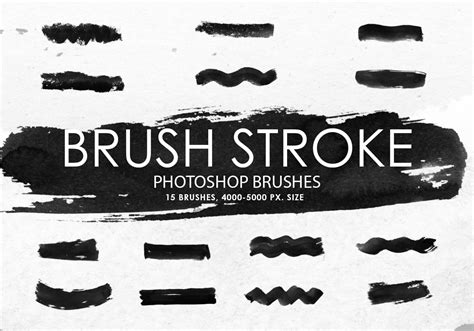
The power of brushes lies in their ability to be customized and applied with varying pressure, opacity, and flow, mimicking the nuances of traditional art supplies. Whether you're aiming for the subtle texture of a watercolor wash or the sharp definition of a calligraphic stroke, Photoshop brushes provide the digital means to achieve it.
The Two Paths to Brush Integration: Temporary Loading vs. Permanent Installation
Photoshop Elements, and by extension, Adobe Photoshop, offers two primary methods for incorporating new brush sets into your workflow: temporary loading and permanent installation. Each method presents distinct advantages and disadvantages, catering to different user preferences and system capabilities.
Temporarily Loading Brushes: Flexibility with Memory Management
Temporarily loading brushes into Photoshop Elements is a method that makes brush sets available for immediate use. However, this availability is transient; the brushes will remain accessible only until you switch to a different brush set or close the application entirely. This approach is particularly beneficial for users conscious of their computer's memory resources. By not permanently embedding brush sets, you ensure that your system's memory remains more readily available for other demanding tasks within Photoshop Elements. This can lead to a smoother, more responsive experience, especially when working on complex projects or on machines with limited RAM.
The process for temporary loading typically involves accessing the Brush Presets panel (often found under the "Edit" or "Window" menu, depending on the Photoshop version). Within this panel, you can usually find an option to "Load Brushes" or "Import Brushes." Selecting this option will prompt you to navigate to the location of your ".abr" file, and upon selection, the brushes will be added to a temporary group within your brush library.
Installing Brushes: Convenience at a Potential Performance Cost
Conversely, installing brush sets in Photoshop Elements ensures that they are permanently integrated into your brush library. This means that even if you load other brush sets or restart the application, your installed brushes will always be readily available. This offers unparalleled convenience, especially for artists who frequently utilize a specific collection of brushes.
However, this persistent availability comes with a trade-off. Each brush set that you install contributes to the overall memory footprint of Photoshop Elements. As the number of installed brush sets grows, so does the memory required by the application upon launch. For users with a vast collection of brushes, this can lead to a noticeable increase in the time it takes for Photoshop Elements to start up, and potentially a general sluggishness in its overall performance. Therefore, a careful consideration of your system's capabilities and your personal usage patterns is crucial when deciding whether to install or temporarily load brush sets.
The Step-by-Step Process of Installing Brushes
For those who opt for permanent installation, the process is relatively straightforward, though it requires navigating to a specific system folder. Before you begin, it's essential to make a copy of the ".abr" file for the brush set you intend to install. This ensures that you always have a backup of the original file, safeguarding against accidental deletion or corruption.
The installation process typically involves accessing your computer's file management system.
Navigating to the Brushes Folder
The core of the installation process lies in placing the ".abr" file into the correct "Brushes" folder within your Photoshop installation directory. The exact location of this folder can vary slightly depending on your operating system (Windows or macOS) and the specific version of Photoshop or Photoshop Elements you are using.
For Windows users:
- Open Windows Explorer.
- Navigate to the Photoshop installation directory. This is commonly found in
C:\Program Files\Adobe\Adobe Photoshop [Version Number]orC:\Program Files (x86)\Adobe\Adobe Photoshop [Version Number]. - Within the Photoshop directory, look for a folder named "Presets."
- Inside the "Presets" folder, you will find a "Brushes" folder. This is where your ".abr" files need to be placed.
For macOS users:
- Open Finder.
- Navigate to your Applications folder.
- Locate the Adobe Photoshop application.
- Right-click (or Control-click) on the Photoshop application icon and select "Show Package Contents."
- Inside the package contents, navigate to
Contents/Resources/Brushes.
Important Note on Hidden Files:In some Windows configurations, the "Presets" or "Brushes" folders might be hidden by default. To access them, you may need to adjust your folder view settings. In Windows Explorer, go to the "View" tab and check the box for "Hidden items." This will reveal files and folders that are typically concealed.
Copying and Pasting the Brush File
Once you have located the correct "Brushes" folder, the final step is to drag and drop your copied ".abr" file into this folder. Alternatively, you can copy the ".abr" file and then paste it into the "Brushes" folder.
After placing the ".abr" file into the designated folder, you will typically need to restart Photoshop or Photoshop Elements for the newly installed brushes to appear in your Brush Presets panel. Once restarted, you should find your new brush set listed, ready for use.
Advanced Brush Techniques and Considerations
Beyond the basic loading and installation, understanding how brushes function can unlock even more creative possibilities.
Brush Dynamics and Settings
Photoshop's Brush Settings panel (often accessible by double-clicking a brush thumbnail or via the "Window" menu) is a treasure trove of customization options. Here, you can fine-tune various "dynamics" that control how the brush behaves as you paint. These include:
- Shape Dynamics: Controls size jitter, angle jitter, and roundness jitter, allowing for variation in brush stroke appearance.
- Scattering: Distributes brush tip instances along the stroke, creating effects like stippling or textured lines.
- Texture: Applies a pattern to the brush stroke, adding depth and complexity.
- Dual Brush: Combines two brushes to create intricate and unique textures.
- Color Dynamics: Varies the foreground and background color, hue, saturation, and brightness as you paint, leading to more organic color blending.
- Transfer: Controls opacity jitter and flow jitter, simulating the effect of varying pressure or ink flow.
- Other Dynamics: Options like Noise, Wet Edges, Build-up, and Smoothing further refine brush behavior.
Experimenting with these settings is key to developing a personalized brush library that perfectly suits your artistic style.
Brush Presets and Saving Custom Brushes
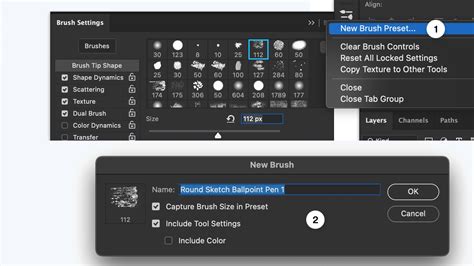
As you customize brushes, you can save your unique configurations as new brush presets. This is invaluable for replicating specific effects or for creating a personal toolkit of specialized brushes. To save a custom brush, select your desired brush settings, then go to the Brush Settings panel and click the "New Brush Preset" button. You can name your brush and choose whether to include tool settings.
Brush Organization and Management
As your brush collection grows, organization becomes paramount. Photoshop Elements and Photoshop offer ways to manage your brush presets:
- Grouping: You can create custom groups within the Brush Presets panel to categorize your brushes (e.g., "Splatters," "Textures," "Hand-drawn"). This makes it much easier to find the brush you need quickly.
- Deleting: Unused or unwanted brush sets can be deleted to free up space and reduce clutter in your panel.
- Exporting: You can export your custom brush sets as ".abr" files, allowing you to share them with others or back them up.
Embracing the Creative Potential of Brushes
The ability to load and manage brushes effectively is a fundamental skill for any Photoshop user. Whether you're a digital scrapbooking enthusiast looking to add decorative flair, a graphic designer seeking unique textures, or a digital painter aiming for nuanced brushwork, understanding Photoshop's brush system is key. By mastering the temporary loading and permanent installation methods, and by delving into the advanced customization options, you unlock a universe of creative possibilities, transforming your digital canvas into a dynamic and expressive workspace. The sheer variety of pre-made brushes available, coupled with the power to create your own, ensures that your artistic journey in Photoshop will always be fresh and engaging.