Scalable Vector Graphics (SVG) is a web-friendly vector file format that has gained significant traction, particularly among web designers. Unlike pixel-based raster files such as JPEGs, vector files store images using mathematical formulas based on points and lines on a grid. This fundamental difference grants SVGs a crucial advantage: they can be scaled up or down without any loss of resolution. This means that whether you need to display a logo on a small business card or a large billboard, an SVG will always maintain its crispness and clarity.
The Genesis and Evolution of SVG
The history of the SVG file format traces back to the late 1990s. At that time, the World Wide Web Consortium (W3C) initiated a call for proposals from developers, seeking a new and advanced vector graphic format for the burgeoning internet. While SVGs were conceived with great potential, their widespread adoption took some time to materialize. There was relatively little support for them for an extended period. However, this changed significantly around 2017, when the benefits of using SVGs in modern web browsers began to be widely recognized and appreciated.
Understanding the Advantages of SVG
The appeal of SVGs extends beyond their remarkable resizing capabilities. One of their most significant advantages, especially for web accessibility and SEO, lies in their underlying structure. SVGs are written in XML code. This means that any text information embedded within an SVG is stored as literal text, rather than being converted into shapes or paths. This has profound implications.
For web accessibility, screen readers can accurately scan and interpret any words contained within SVG images. This is incredibly beneficial for individuals who rely on assistive technologies to navigate and understand web content.
Furthermore, this text-based nature of SVGs is a boon for search engine optimization (SEO). Search engines like Google can read and index the text within SVG files. This allows for keywords to be detected, potentially leading to a higher ranking for webpages that utilize SVG charts and graphs for presenting information. This capability can significantly enhance a webpage's visibility in search results.
SVG vs. Raster Files: A Clear Distinction
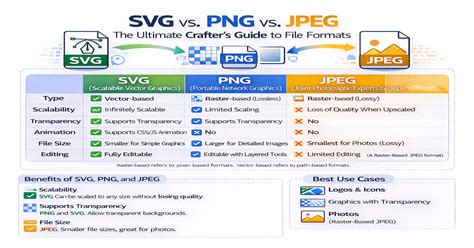
To fully appreciate SVGs, it's essential to understand their contrast with raster files. Raster files, like JPEGs and PNGs, are composed of a fixed grid of pixels. When you enlarge a raster image beyond its original dimensions, the individual pixels become more apparent, leading to a loss of detail and a blurry, pixelated appearance. In essence, if you stretch a PNG file too far or squeeze it too small, it becomes blurry and pixelated.
SVGs, on the other hand, do not contain any pixels. They are defined by mathematical equations. Consequently, they will never lose resolution, regardless of how much you resize them. This inherent scalability is what makes them ideal for graphics that need to be displayed at various sizes, such as logos, illustrations, and charts.
Practical Applications of SVG Files
While SVG images are predominantly used on the web, their utility extends beyond the online realm. For instance, because they don’t become distorted when resized from their original dimensions, SVG files are exceptionally useful as templates for printing on various items, including clothing like T-shirts. The consistent quality across different scales makes them a versatile choice for print design as well.
The SVG file format isn't just for static images. Developers can introduce dynamic elements, creating SVG animations. These animations can range from relatively basic functionalities, such as a slider function to move between different slides in an infographic, to more complex interactive graphics. This opens up a wide array of possibilities for engaging and dynamic web content.
Identifying an SVG File
The easiest way to identify an SVG file is by checking its file extension. An SVG file will always be listed with the .svg extension. Additionally, you can often spot vector images like SVGs by enlarging them to 200% or higher on your computer screen. Unlike raster images that will become pixelated, vector graphics will remain sharp and clear.
The Size of SVG Files
The size of an SVG file is directly dependent on the amount of image data it contains. However, it is generally lower than most other file types. Complex graphics that feature a multitude of paths and anchor points will naturally require more storage space than simpler, cleaner designs. This efficiency in file size, combined with their scalability, makes SVGs an attractive option for web development.
Opening and Editing SVG Files: The Photoshop Challenge
The question of how to open SVG files in Photoshop is a common one, and the answer has historically been somewhat complex. While Adobe Illustrator, another Adobe product, can readily open SVG files, Photoshop's native support has been limited, especially in older versions.
For users of Adobe Photoshop CS2 or CS3, directly opening an SVG file was not a straightforward process. Even later versions, such as Adobe CS5, presented challenges. This led many users to seek alternative solutions.
Workarounds and Alternative Software
Given Photoshop's historical limitations with SVG files, several workarounds and alternative software options have emerged:
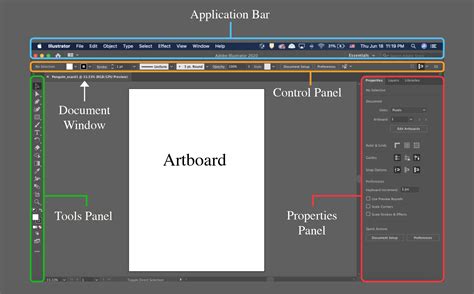
Adobe Illustrator: The most recommended approach for users who have access to Adobe Illustrator is to open the SVG file there first. Once opened in Illustrator, you can then select the text and choose to "create outlines." This action converts the text into vector paths, which helps to avoid font substitution problems when viewing your artwork on other computers that may not have the specific fonts installed. After preparing the file in Illustrator, you can save it, or export it as a different format that Photoshop can easily handle, such as a high-resolution PNG or JPEG. Alternatively, you can copy and paste the artwork from Illustrator into Photoshop as a Smart Object. This method is often described as "quick and dirty but it works."
To save in Illustrator: Select File > Save As.To export edited SVG: Select File > Export > Export As and select SVG as the format.To open an SVG in Illustrator: Select the file and open your SVG in Illustrator. Use the Selection Tool (or Direct Selection Tool) to select individual paths, shapes, or groups within the SVG.
Inkscape: For those who do not have access to Adobe Illustrator, Inkscape is a free and open-source vector graphics editor that provides excellent SVG support. You can download Inkscape and use it to open SVG files. From Inkscape, you can then export the SVG in a format that Photoshop can readily import, such as a raster image (PNG, JPEG) or even a PDF. This is often considered the best option for users seeking a free solution.
GIMP: Another powerful free and open-source image editor, GIMP (GNU Image Manipulation Program), can also be used to open and rasterize SVG files. Once opened in GIMP, you can then save the file as a PSD (Photoshop Document) or another compatible format for editing in Photoshop.
SVG Kit for Adobe Creative Suite: For users who require more direct SVG integration within the Adobe ecosystem, there are third-party plugins available. The "SVG Kit for Adobe Creative Suite" was a paid option that aimed to provide Photoshop and Elements with the ability to open SVG files. While it was a paid solution, a free trial was often available, allowing users to test its functionality.
Modern Photoshop Capabilities
It's important to note that Adobe's software has evolved. Newer versions of Adobe Photoshop have improved their native support for SVG files. While it might not be as seamless as opening an SVG in Illustrator, modern Photoshop versions can often import SVG files directly. When you attempt to open an SVG in recent Photoshop versions, you might be presented with options to rasterize the image at a specific resolution or import it as a shape layer, preserving its vector nature within Photoshop's capabilities.
How to Convert or Save Files as SVG Format in Photoshop | SVG Support in Photoshop.
Understanding the Limitations
Despite these advancements, it's crucial to understand that Photoshop is fundamentally a raster-based image editor. While it can handle vector elements and import SVGs, its core strengths lie in pixel manipulation. For extensive vector editing, such as intricate path adjustments or complex vector illustration, Adobe Illustrator remains the industry standard. When you import an SVG into Photoshop, it might be rasterized into pixels or imported as a smart object, which retains some vector properties but doesn't offer the full vector editing experience of dedicated vector software.
In summary, while Photoshop's direct SVG handling has been a point of contention, a variety of methods and tools exist to effectively open and work with SVG files, whether through direct import in newer versions, leveraging other Adobe products, or utilizing free and open-source alternatives.