As you browse the web, you might have noticed images displayed with the .webp file extension. This modern image format, developed by Google, is designed to enhance web performance by offering superior compression compared to traditional formats like JPEG, PNG, and GIF, while maintaining high image quality. WebP aims to make web pages load faster and provide a richer online experience through smaller, higher-quality images.
What is a WebP File?
A WebP image is a file format developed by Google with the specific goal of reducing image file sizes while simultaneously preserving image quality. WebP images are engineered to make the internet faster and more engaging by providing smaller, yet high-quality images that developers can readily implement. In essence, WebP is a contemporary image format tailored for the web, offering better compression than established formats like JPG, PNG, and GIF. The reduction in file size when compared to a standard JPG file is typically around 30%.
The WebP format is capable of reducing image file size up to 34% smaller than JPEG and PNG images while retaining high-quality. The compression process of WebP images is based on the prediction of pixels from their surrounding blocks. This allows pixels to be used multiple times in a single file. WebP format also supports animated images and is expected to support more features in the future. It is still under development by Google and has great prospects for utilization on the Internet for image sharing.
WebP files were designed entirely with the internet in mind. With the help of predictive coding, WebP files compress photos and graphics without reducing the quality of their appearance. While GIFs have long been the dominant format for memes and other basic online animations, WebP files offer an alternative.
Each WebP file consists of VP8 or VP8L image data. Over the years, the format has evolved to keep pace with shifting consumer habits and emerging digital trends. WebP is an open-source model, which means anyone can work on the format and make improvements to it. The maximum size of WebP images is 16,383 x 16,383 pixels. WebP images are a type of raster file. Raster is one of the two main categories of image files - the other being vector. The main difference between the two is that raster files consist of individual pixels whereas vector graphics consist of mathematical equations and paths.
WebP vs. Traditional Image Formats
WebP offers several advantages over older image formats. It can function as a replacement for JPEG, PNG, and GIF, consolidating the benefits of these formats into one.
WebP vs. JPG
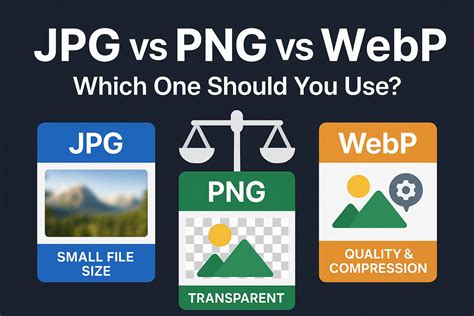
Both WebP and JPG can feature lossy and lossless compression. Lossless compression means all original data is retained when the file is uncompressed, while lossy compression sacrifices some image quality for a smaller file size. In this comparison, WebP generally excels. JPGs have historically been used for high-detail images but occupy significant storage space. WebP provides comparable quality with a reduced file size, leading to faster loading times. A WebP file is generally much smaller than a traditional JPEG.
WebP vs. PNG
WebP can also offer transparency, similar to PNG, allowing for images with no background. This makes it versatile for web design elements.
WebP vs. GIF
For animated images, WebP offers a more efficient alternative to GIF, providing better compression and potentially higher quality for animations.
In summary, WebP offers the best of all worlds: a lossless version for incredibly detailed images without the added file size of a JPG, or a lossy version that beats a PNG in terms of space-saving.
How to Save a WebP File
Saving a WebP image from the internet is as straightforward as saving any other image format. Most modern web browsers have integrated support for WebP, meaning you can usually save them directly.
Method 1: Drag and Drop
This is often the simplest method. If your browser and operating system allow it, you can directly drag the WebP image from the webpage onto your desktop or into a designated folder.
Method 2: Right-Click "Save Image As"
This is a more universally applicable method.
- Right-click on the WebP image you wish to save.
- From the context menu, select "Save Image As."
- A dialog box will appear, allowing you to choose the location on your computer where you want to save the file. The file format should default to WebP.
- You can rename the file if desired.
- Click "Save."
You can save a WebP image to your computer the same way you save any normal image off the internet by right-clicking the image and clicking “Save Image As.”
How to Check if an Image is a WebP Image
Sometimes, an image might appear to have a .jpg or .png extension but is actually a WebP file. Here's how you can verify this, using Google Chrome as an example:
- Open the webpage containing the image in Google Chrome.
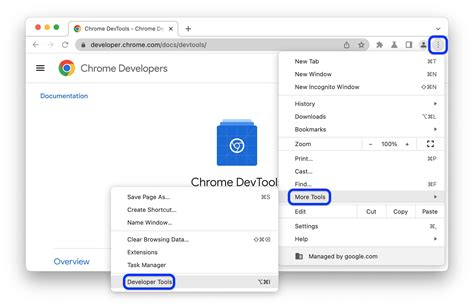
- Right-click anywhere on the page and select "Inspect" to open the Chrome Developer Tools.
- Navigate to the "Network" tab within the inspector.
- Reload the webpage. This will load all the elements of the page into the Network view.
- Locate and select the image file you want to check from the list of loaded files.
- Go to the "Headers" tab.
- In the "Response Headers" section, look for the
content-typeline. If it saysimage/webp, then the image is indeed a WebP file, even if its displayed extension might be different.
For example, an image might have a .png extension in its URL, but its content-type in the browser's developer tools could clearly indicate image/webp.
How to Open and View WebP Files
Once you have saved a WebP file, you can open and view it using various software tools and web browsers.
Web Browsers
Many modern web browsers natively support WebP files. Simply double-clicking a WebP file in your file explorer will often open it in your default web browser.
- Google Chrome: Natively supports WebP.
- Microsoft Edge: Natively supports WebP.
- Mozilla Firefox: Natively supports WebP.
- Opera: Natively supports WebP.
- Safari: Support for WebP has been progressively added, with later versions offering full compatibility.
Desktop Software
Numerous applications can open WebP files.
On Windows:
- Microsoft Edge: As mentioned, it natively supports WebP.
- Google Chrome: Can be used to open WebP files.
- Mozilla Firefox: Can be used to open WebP files.
- Adobe Photoshop: Requires a specific WebP File Format plug-in.
- XnView MP: A free image viewer and converter that supports WebP.
- ImageMagick: A powerful command-line image manipulation tool that handles WebP.
- WebP Codec: Specific codecs can be installed to enable WebP support in various Windows applications.
- File Viewer Plus: Available from the Microsoft Store, this application provides support for opening WebP files.
- Windows Photo Viewer: Some users report that Windows Photo Viewer (an older application, distinct from the modern "Photos" app) can open WebP files, especially on Windows 10 and Windows 11. This might require setting it as the default application for image viewing.
- Paint (MS Paint): While not always natively integrated, with certain updates or by using conversion tools, Paint can sometimes be used. However, direct opening might be inconsistent.
- GIMP: A free and open-source image editor that supports WebP.
On macOS:
- Google Chrome: Can be used to open WebP files.
- Mozilla Firefox: Can be used to open WebP files.
- Adobe Photoshop: Requires the WebP File Format plug-in.
- Pixelmator Classic: A popular image editor for Mac that supports WebP.
- XnView MP: Available for macOS, supporting WebP.
- ImageMagick: Can be used via the command line.
- Opera: Can be used to open WebP files.
- Preview: Modern versions of macOS's built-in Preview application support WebP files. Older versions might require an update or a plug-in.
On Linux:
- Google Chrome: Natively supports WebP.
- Mozilla Firefox: Natively supports WebP.
- Opera: Natively supports WebP.
- XnView MP: Available for Linux, supporting WebP.
- ImageMagick: A robust option for Linux users.
- WebP Codec: Installing the relevant codecs will enable support in various Linux applications.
How to Convert WEBP to JPG (the fastest method)
How to Edit WebP Files
Editing WebP files can be done with a variety of graphics applications, depending on your operating system.
On Windows, you can edit WebP files with graphics applications such as GIMP, ImageMagick, or Microsoft Paint, which natively open WebP files. If you want to open the file with a different application on Mac and Windows, use Google Chrome to download WebP images as JPEG or PNG in the first place. Tools like Adobe Photoshop require a plugin to work with WebP files.
For more advanced editing, software like Adobe Photoshop (with the appropriate plugin), GIMP, or Affinity Photo are excellent choices. These tools offer a full suite of editing capabilities, allowing you to adjust colors, crop, resize, and apply various filters and effects to your WebP images.
Browser Support for WebP
WebP has achieved widespread adoption across major web browsers, ensuring a smooth viewing experience for most internet users.
WebP Lossy Support
- Google Chrome (desktop): Version 17+
- Google Chrome for Android: Version 25+
- Microsoft Edge: Version 18+
- Firefox: Version 65+
- Opera: Version 11.10+
- Native web browser, Android: Version 4.0+ (ICS)
WebP Lossless, Alpha, and Animation Support
- Google Chrome (desktop and Android): Version 32+
- Microsoft Edge: Version 18+
- Firefox: Version 65+
- Opera: Version 19+
- Native web browser, Android: Version 4.2+ (JB-MR1)
- Pale Moon: Version 26+
This broad support means that most users visiting websites that utilize WebP images will be able to see them without any issues.
Converting WebP to Other Formats (JPG, PNG, GIF)
While WebP is excellent for web use, there might be instances where you need to convert your WebP files to more traditional formats like JPG or PNG. This is often necessary for compatibility with older software or specific workflows.
Online Conversion Tools
Numerous free online tools can convert WebP images to JPG, PNG, GIF, and other formats. These are convenient for occasional conversions and do not require installing any software. Simply search for "WebP to JPG converter" or "WebP to PNG converter" online. You upload your WebP file, select the desired output format, and the tool will provide a downloadable converted file. Many of these services ensure secure handling of your files, often deleting them after a short period.
Example Online Services:
- Jumpshare: Offers a free online WebP file viewer and supports conversion to over 200 file formats. Files are uploaded via a secure HTTPS connection and deleted after 24 hours.
- Various other websites provide similar conversion services, often with batch conversion capabilities.
Desktop Software for Conversion
Many of the same applications that open WebP files also offer conversion capabilities.
On macOS:
- Open the WebP file in Preview.
- Go to
File>Export. - Choose your desired file type (e.g., JPEG, PNG) from the dropdown menu.
- Adjust the quality setting if available (higher quality means a larger file size). Generally, a quality setting around 80% or higher is visually indistinguishable from the original.
- Click
Save.
On Windows:
- Open the WebP file in MS Paint.
- Go to
File>Save As. - Select your desired file type (e.g., JPEG, PNG) from the "Save as type" dropdown.
- Choose a location and filename.
- Click
Save.
Adobe Photoshop: With the WebP plugin installed, you can open WebP files and then use File > Save As or File > Export As to convert them to other formats.
Automated Optimization Solutions
For websites with a large number of images, manual optimization and conversion are not scalable. Solutions like Quicq (Afosto's image optimization service) automate this process. Quicq uses smart compression technology to deliver every image in the smallest possible format without visible loss of quality. It automatically detects the optimal image format based on the visitor’s device and browser, serving the most efficient version instantly. This approach leverages formats like WebP and even newer ones like AVIF, which offer superior compression.

WebP and the Future of Web Images
The internet is in a constant state of evolution, with a perpetual drive to improve loading times and key metrics that enhance user experience. Images remain a significant component of online content. Formats like AVIF are already emerging, promising even better compression than WebP. As the web continues to advance, image formats like WebP will play a crucial role in delivering faster, more efficient, and visually rich online experiences. The ongoing development and open-source nature of WebP suggest its continued relevance and improvement in the years to come.