When engaging with digital art and design, the stylus is an artist's most crucial tool. For users of XP-PEN drawing tablets, the availability and compatibility of replacement pens are paramount to maintaining workflow and artistic expression. This article delves into the various XP-PEN replacement pen models, their features, and crucial compatibility information, drawing upon user experiences and official specifications to guide users in selecting the right stylus for their needs.
Understanding the XP-PEN P01 Battery-Free Stylus
The P01 Battery-free Stylus has been a popular choice for many XP-PEN users, lauded for its comfortable grip and the quality of its included nibs. Users have expressed satisfaction with its performance, noting it as a "swell replacement" for older or damaged pens. For instance, one user, after owning their Star06 Tablet for over two years, found the P01 to be an immediate and effective replacement, connecting right away upon opening the packaging. This seamless integration is a significant advantage for artists who rely on their tools without interruption.
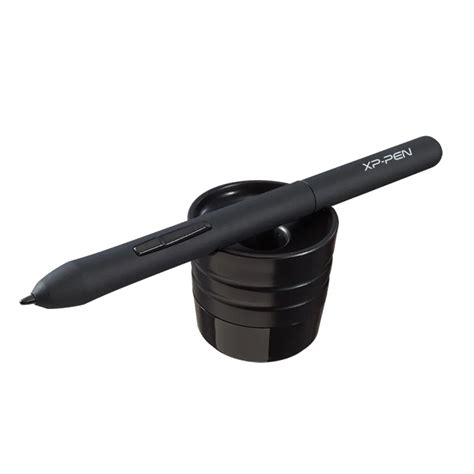
The P01's battery-free technology is a key feature, meaning it draws power directly from the drawing tablet, eliminating the need for charging or replacing batteries. This not only adds to its convenience but also contributes to a lighter and more ergonomic design. The "comfortable grip" mentioned by users is essential for long drawing sessions, reducing fatigue and allowing for greater control and precision. Furthermore, the "nice nibs" contribute to a natural drawing feel, mimicking the experience of traditional art tools.
However, the primary concern for many users is compatibility. A common question revolves around whether the P01 Battery-free Stylus works with specific tablet models, particularly newer ones like the Deco Fun L. Official clarifications confirm that the P01 is compatible with the Deco Fun L, alleviating concerns for users looking to upgrade or replace their stylus for this particular tablet. Similarly, users with the Star03 and Star06 tablets have inquired about replacements for broken pens, and the P01 has been a viable option, with XP-PEN support readily available to assist. The P01 has also been indicated as compatible with models such as the XP-PEN Star G640S, Star 06C, Deco 03, Deco 01 V2, Artist 13.3 V2, and Artist 15.6. Its compatibility extends to a broader range of devices including the Deco Fun series, Star 03, Star 06, Star G430, Star G430S, Star G540, Star G640, Star 01, and Star 02 models.
Despite its popularity, it's crucial to note that the P01 might not be universally compatible. For example, users with the XP-PEN Note+ tablet, which uses a stylus designed for writing on paper, have found that the P01 is not a suitable replacement. XP-PEN has also stated that they do not sell replacement nibs for the Note Plus Pen separately at the moment, highlighting the need to ensure the stylus model matches the specific tablet's requirements.
Exploring the Advanced XP-PEN X3 Pro Series Styluses
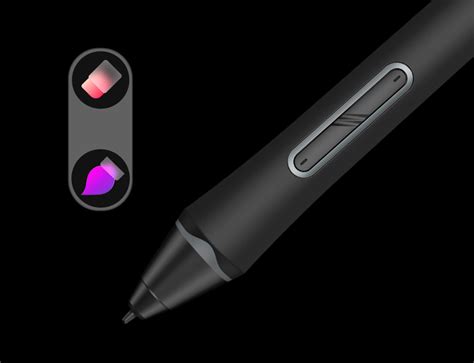
For those seeking cutting-edge technology and enhanced performance, the XP-PEN X3 Pro series of styluses offers a significant leap forward. The X3 Pro Smart Chip Stylus, with its impressive 16K pressure levels, redefines the digital pen experience. This advanced stylus is designed for a wide array of XP-PEN devices, catering to both drawing tablets and display models.
The X3 Pro series is engineered to work with specific product lines, ensuring optimal performance and feature utilization. This includes models such as the XPPen Deco L, Deco LW, Deco M, Deco MW, and the Artist 10/12/13/16 (2nd Generation) drawing displays. For larger display units, compatibility extends to the XPPen Artist 22 (2nd Generation) and Artist 24 drawing displays, as well as the Innovator 16 drawing display model. The series also supports various tablet models, including the Deco mini4, Deco mini7, Deco mini7W, Star G960S Plus, Artist Pro 16TP, Star G960, Star G960S, and the Note Plus digital notebook smartpad. Professional-grade displays like the Artist 12 Pro, Artist 13.3 Pro, Artist 15.6 Pro, Artist 22R Pro, and Artist 24 Pro are also compatible, alongside the Deco Pro Series drawing tablets and the Artist 15.6 Pro drawing screen. Further compatibility includes the Deco 02, Artist 12, Star G640S, Star 06C, Deco 03, Deco 01 V2, Artist 13.3 V2, and Artist 15.6 models. The X3 Pro series also encompasses the Artist 16 Pro, Artist 22 Pro, Artist 22E Pro, Artist 10S, Artist 13.3, and Artist 15.6 drawing displays, as well as the Deco 01, Star 04, and Star 05 graphic tablets.
A key aspect of the X3 Pro series is the "smart chip" technology, which is central to its advanced capabilities, including the high pressure sensitivity. This technology aims to provide a more nuanced and responsive drawing experience, allowing for finer control over line weight and opacity. However, the specific form factor of these styluses can vary. For instance, the X3 Pro Slim Stylus (PD51) is a distinct model within the series. Users have inquired about its compatibility with models like the Artist 13.3 Pro, Artist 12 (2nd Gen), and Artist 16 Pro gen 2. It's important to note that the X3 Pro Slim Stylus (PD51) is not compatible with the Artist 15.6 Pro V2 or the XP-PEN Deco 01 V3, for which the P05D is the recommended pen.
Procreate: Pressure Curve Explained! (2019)
For users with the Artist 24 Pro (non-Gen 2), there's a specific inquiry about slim pens. While the X3 Pro series of styluses are compatible with the Artist Pro 24 (Gen 2), including the X3 Pro Smart Chip Stylus (PD21), X3 Pro Slim Stylus (PD51), and X3 Pro Roller Stylus, confirmation for the non-Gen 2 model is crucial.
Furthermore, user feedback has brought to light specific design considerations within the X3 Pro series. One user noted that their Artist 16 Pro gen 2 stylus had an eraser and a single button, and they were concerned about compatibility with a slim stylus, especially since stylus caps are not manufactured separately. This highlights the importance of visual confirmation and detailed model specifications when purchasing a replacement.
Another significant point of discussion within the X3 Pro series relates to "nib wiggle." Some users have observed a noticeable "play" or "slop" in the fit of the nib within the stylus barrel, leading to side-to-side movement while drawing. This is a point of comparison with other brands, where less flex might be present. In response to this, XP-PEN has indicated that the X3 Pro Smart Chip Stylus (PD21) and X3 Pro Roller Stylus (PD22) require adaptation for enlarged felt pen refills. This detail is important for users who are sensitive to the feel of the nib and its connection to the stylus body. The X3 Pro series is also designed for specific newer models like the Deco Pro (Gen2), Artist Pro 14 (Gen 2), Artist Pro 16 (Gen 2), Artist Pro 19 (Gen 2), and the Magic Drawing Pad (model 1221).
Ensuring Compatibility: A Step-by-Step Approach
The complexity of stylus compatibility across different drawing tablet and display models necessitates a methodical approach for users seeking replacement pens.
Identify Your Tablet/Display Model: The first and most critical step is to accurately identify the exact model of your XP-PEN drawing tablet or display. This information is usually found on the back of the device, in the user manual, or within the device's settings if it's a display. For example, knowing if you have a "Star06" versus a "Star06C" or a "Deco 01 V2" versus a "Deco 01 V3" is crucial.
Consult the Official XP-PEN Website: The most reliable source for compatibility information is the official XP-PEN website. They typically have detailed product pages for each stylus and a dedicated compatibility list or search tool. This will allow you to input your tablet model and see which styluses are supported.
Review Product Descriptions Carefully: When looking at a specific replacement pen, read its product description thoroughly. It will often list the compatible tablet series or specific models. For instance, the P01 Battery-free Stylus is widely compatible with many entry-level and mid-range models, while the X3 Pro series is generally geared towards newer and more advanced devices.
Examine User Reviews and Q&A Sections: As demonstrated by the provided information, user reviews and Q&A sections on retail platforms can be invaluable. Users often ask direct questions about compatibility with specific models, and either other users or the manufacturer's representatives provide answers. Searching these sections for your tablet model can yield quick and practical insights. For example, a user asking "Does it work on the XP-Pen g640S?" is seeking direct confirmation for a specific device.
Contact XP-PEN Support Directly: If you are uncertain about compatibility after consulting available resources, do not hesitate to contact XP-PEN customer support. They are equipped to provide definitive answers and can guide you to the correct replacement stylus. Phrases like "Please feel free to contact us if you have more questions. We would like to assist you the best we can" are common assurances from XP-PEN support, indicating their willingness to help.
Consider Stylus Features: Beyond compatibility, think about the features you need. Do you require battery-free operation? Is high pressure sensitivity (like the 16K levels of the X3 Pro) important for your artistic style? Do you prefer a thicker or slimmer grip? Some styluses, like the X3 Pro series, offer advanced features such as a smart chip or roller nibs, while others, like the P01, focus on reliable, no-frills performance.
By following these steps, users can confidently select the correct XP-PEN replacement pen, ensuring a smooth and uninterrupted creative process. The investment in the right stylus is an investment in the quality and efficiency of one's digital art.
tags: #xp #pen #replacement #pen