The Paint Bucket tool in Adobe Photoshop is a fundamental yet powerful utility for efficiently filling areas with color or patterns. While often perceived as a simple tool for straightforward fills, its nuanced settings allow for sophisticated control, enabling users to achieve a wide range of artistic and practical results. Understanding its options, particularly Tolerance and Contiguous, is key to unlocking its full potential, especially when working with complex or multi-toned areas.
Locating and Selecting the Paint Bucket Tool
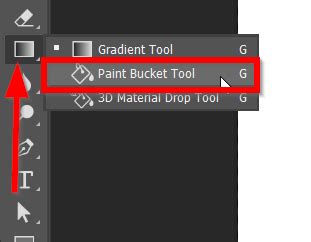
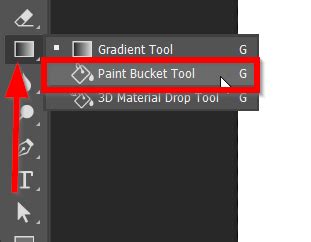
For those new to Photoshop, finding the Paint Bucket tool might initially seem like a challenge. It is not always displayed individually in the toolbar; instead, it often resides within a submenu. Specifically, the Paint Bucket Tool icon can typically be found grouped with the Gradient Tool. To access it, locate the Gradient Tool in the left-hand toolbar, then click and hold its icon to reveal the submenu, from which you can select the Paint Bucket Tool. The shortcut key for the Gradient Tool is 'G', and the Paint Bucket tool is accessible from this group.
Core Functionality: Filling with Color or Pattern
The primary function of the Paint Bucket tool is to fill selected areas. When you select the Paint Bucket tool from the Toolbar, you are presented with two main fill options: Foreground Color or Pattern.
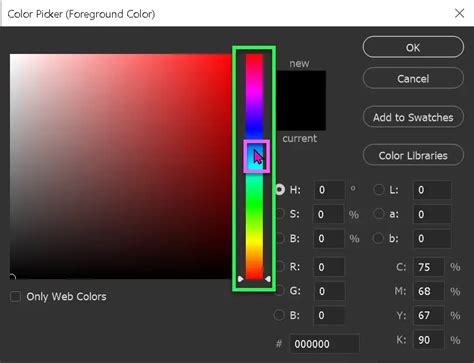
Foreground Color: This option allows you to fill the selected area with the color currently designated as your foreground color. You can easily select your desired foreground color by clicking on the color swatch in the Photoshop interface. A Color Picker window will appear, allowing you to precisely choose your color using a color slider and various color models.
Pattern: Alternatively, you can choose to fill with a pattern. If you select the Pattern option, a second button will become available in the options bar. Clicking this button will reveal a dropdown list of pre-defined patterns, and you can select the one that best suits your needs. You can also create and save your own custom patterns for future use.
Understanding the Paint Bucket Tool Options Bar
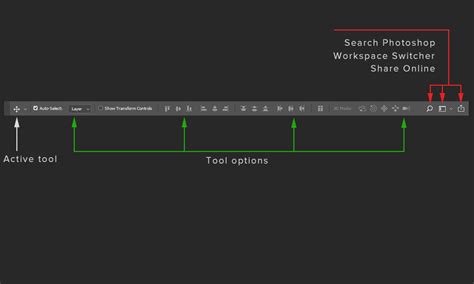
Once the Paint Bucket tool is active, the Options Bar, located at the top of the Photoshop workspace, becomes your control center. Here, you can fine-tune how the tool behaves:
Fill Type: Foreground or Pattern
As mentioned, the first setting allows you to select either Foreground Color or a Pattern for your fill.
Blending Mode
The Blending Mode setting dictates how the pixels you fill interact with the existing pixels on the layer. The default is "Normal," which applies the fill opaquely. However, Photoshop offers a wide array of Blending Modes, such as "Darken," "Multiply," "Color Burn," "Lighten," "Screen," "Color Dodge," and "Linear Dodge," among others. Selecting different Blending Modes can create sophisticated visual effects, altering the tone and color of the filled area in relation to the underlying image content. For instance, "Multiply" tends to darken the area, while "Screen" tends to lighten it.
Blending Modes - Photoshop for Beginners | Lesson 5
Opacity
The Opacity slider controls the transparency of the fill. Setting Opacity to 100% means the fill will be completely opaque, with no transparency between the fill and the base layer. Reducing the Opacity value will make the fill increasingly transparent, allowing the underlying image content to show through. This is crucial for subtle fills or when layering colors.
Tolerance
Tolerance is arguably the most critical setting for controlling the extent of the fill. It determines how much of the existing selected pixels will be filled based on their color similarity to the pixel you click. Pixels will only be filled if they fall within the specified number of tones of the area where you click. The Tolerance value can range from 0 to 255.
- Low Tolerance: A lower Tolerance value means that only pixels very similar in color to the pixel you click will be filled. This is useful for precise fills on areas with distinct color boundaries. For example, if you have an image with pure white and pure black, a low tolerance will ensure that only the black pixels are filled when you click on black.
- High Tolerance: A higher Tolerance value allows the Paint Bucket tool to fill a broader range of similarly colored pixels. If the Tolerance is set very high (e.g., close to 255), and the layer contains a relatively uniform color, the entire layer might be filled with a single click, as all pixels fall within the wide tolerance range.
The example of filling with pink demonstrates this: with a low Tolerance, only a few pink pixels were filled due to the "Contiguous" setting being on. However, when the Tolerance was increased to 80, a much larger area was selected and filled.
Contiguous
The Contiguous setting directly impacts which pixels are considered for filling.
- Contiguous Enabled (Checked): When Contiguous is turned on, the Paint Bucket tool will only fill pixels that are directly touching or adjacent to the pixel you click, provided they are within the Tolerance setting. This is ideal for filling distinct, connected areas.
- Contiguous Disabled (Unchecked): If Contiguous is turned off, the tool will fill any pixels anywhere in the image that are within the Tolerance setting, regardless of whether they are touching the clicked pixel. This means that if you have multiple separate areas of a similar color throughout your image, and Contiguous is off, all of them could be filled with a single click.
The examples provided show that when Contiguous was turned OFF, the whole layer was filled because it was originally a plain color within the default Tolerance of 32. However, when Contiguous was turned ON, very few pixels were filled with pink, indicating that only those directly connected and within the tolerance were affected.
All Layers
The "All Layers" checkbox provides an option to extend the fill operation across multiple layers.
- All Layers Enabled (Checked): When "All Layers" is selected, the pixels that will be filled are calculated based on the content of all visible layers in your document. This allows for a fill that considers the combined appearance of your entire layered composition.
- All Layers Disabled (Unchecked): By default, or when unchecked, the Paint Bucket tool will only affect the pixels in the currently selected layer.
Anti-aliasing
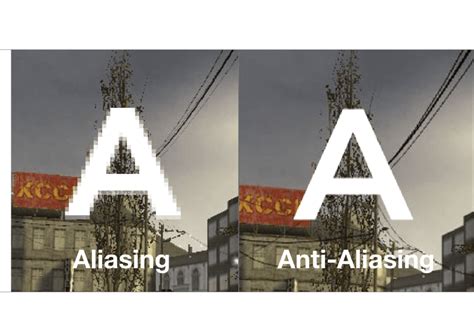
Anti-alias is a feature designed to smooth out pixelated lines and jagged edges, creating a softer, more natural appearance. When Anti-aliasing is checked, the edges of the filled area will be blended with the surrounding pixels, reducing the blocky, stair-step effect often seen in digital graphics. It's important to note that Anti-alias is also an option in other selection tools, such as the Elliptical Marquee tool, and it can significantly improve the visual quality of fills, especially on curves and diagonals.
Advanced Usage and Troubleshooting
While the Paint Bucket tool is often used for simple fills of solid colors, its power is truly revealed when tackling more complex areas, such as textures or gradients. As demonstrated with the examples of grass and leaves, understanding and adjusting the Tolerance and Contiguous settings is crucial for achieving desired results.
Filling Complex Areas
When working with images that contain variations in tone and color, like the examples of grass and leaves, a careful approach to Tolerance and Contiguous is necessary. Clicking once in each place with appropriate settings can lead to filling large, interconnected areas. The key is to experiment with the Tolerance value; a higher value will capture more variations, while a lower value will be more selective. Similarly, enabling or disabling Contiguous will determine whether the fill spreads to adjacent pixels or affects similar colors throughout the entire image.
Troubleshooting Common Issues
Occasionally, you might find that the Paint Bucket tool isn't behaving as expected, or perhaps not filling at all. Here are some common solutions:
- Check the Layer Panel: Ensure that the correct layer is selected in the Layers Panel. The Paint Bucket tool will only operate on the currently active layer unless the "All Layers" option is enabled.
- Review Tool Options Bar Settings: Verify that the Tolerance, Opacity, and Contiguous settings are not set too low or in a way that would prevent the fill. Low Opacity can make a fill appear invisible, and very low Tolerance might not capture enough similar pixels.
- Examine the Blending Mode: A non-standard Blending Mode could be interacting with the underlying pixels in an unexpected way, affecting the appearance or extent of the fill.
- Layer Type: Ensure that you are working on a Raster Layer (pixel-based) and not a Vector Layer. The Paint Bucket tool primarily operates on pixels. If you are working on a vector shape, you might need to rasterize it first or use different methods for applying color.
- Locked Layers: Check if the layer you are working on is locked. Locked layers prevent editing and therefore will not accept fills from the Paint Bucket tool.
Beyond the Basics: Tool Presets and Resetting Tools
Photoshop offers features to streamline your workflow with frequently used tools.
- Tool Presets: You can create and save a "Tool Preset" for the Paint Bucket tool (or any other tool). This allows you to store specific combinations of settingsâsuch as Tolerance, Opacity, Blending Mode, and Contiguousâthat you use regularly for particular tasks. This enables you to quickly switch between different configurations for the Paint Bucket tool, making your workflow more efficient.
- Resetting Tools: If you ever find yourself with settings that are not producing the desired results, you can easily reset any tool back to its default configuration. This is done by right-clicking on the Tool Presets button in the Options Bar and selecting "Reset Tool." You can also reset all tools by Control-clicking (or Command-clicking on Mac) the tool icon in the Options Bar.
The Paint Bucket tool, while seemingly simple, provides a versatile method for filling areas in Photoshop. By understanding its options and how they interact, users can move beyond basic fills to achieve more nuanced and creative results, enhancing their digital artwork and design projects. Whether filling a solid background or adding color to intricate details, mastering the Paint Bucket tool is an essential skill for any Photoshop user.
tags: #paintbucket #tool #photoshop