Adobe Photoshop CS5.1 Extended, a powerful image editing software, has been a reliable tool for many users for years. However, some users have encountered a peculiar and frustrating issue where the program repeatedly requests the serial number upon each launch, even after it has been correctly entered and validated. This article aims to delve into the potential causes of this persistent prompt and explore various troubleshooting steps that can help resolve this problem, drawing upon user experiences and technical insights.
Understanding the Problem: The Recurring Serial Number Request
The core of the issue lies in Photoshop's inability to retain the entered serial number across application sessions. Typically, once a valid serial number is entered and accepted, the software should not prompt for it again unless there's a significant system change or a licensing issue. The fact that it reappears after closing and reopening Photoshop suggests a problem with how the software is storing or accessing its licensing information.
One user reported that this issue arose "out of the blue (no major changes or new installations on my computer)." This indicates that the problem isn't necessarily tied to a specific user action, but rather could be a result of background processes, minor system updates, or even corrupted configuration files. The user also mentioned attempting to resolve the issue by renaming a cache.db file, a common troubleshooting step for various software glitches, but this proved ineffective. The persistence of the problem, even after this attempt, highlights the need for a more targeted approach.
The user's setup, running Windows 8.1 with both 64-bit and 32-bit versions of Photoshop CS5.1 installed, is also a relevant detail. While the software "used to work without any problems or complications," the presence of both versions might, in some rare cases, lead to conflicts or confusion in how licensing information is managed.
Investigating Potential Causes
Several factors could contribute to Photoshop persistently asking for a serial number:
- Corrupted Preferences or Configuration Files: Photoshop, like most complex software, relies on preference files to store settings, including licensing information. If these files become corrupted, the program may fail to read the serial number correctly.
- Registry Issues: On Windows, the registry stores a vast amount of configuration data for installed programs. Errors or inconsistencies in the registry related to Adobe or Photoshop could lead to licensing problems.
- Permissions Problems: Incorrect file or folder permissions could prevent Photoshop from writing or reading the necessary licensing data to its designated storage locations.
- Conflicting Software or Processes: While the user reported no major new installations, it's possible that a background process, a security update, or even an antivirus program might be interfering with Photoshop's ability to manage its license.
- Adobe Genuine Software Integrity Service: Adobe applications often rely on background services to verify license status. Issues with these services, such as them not running or being corrupted, could trigger repeated activation prompts.
- User Profile Corruption: In some cases, a corrupted user profile on Windows can cause application-specific issues, including licensing problems.
Step-by-Step Troubleshooting Guide
Addressing this issue requires a systematic approach, starting with simpler solutions and progressing to more complex ones.
1. Verify Photoshop and Adobe Genuine Software Integrity Service Status
The first step is to ensure that the Adobe Genuine Software Integrity Service is running correctly. This service is crucial for validating your Photoshop license.
- Accessing Services:
- Press
Windows Key + Rto open the Run dialog. - Type
services.mscand press Enter. - In the Services window, locate "Adobe Genuine Software Integrity Service."
- Check its "Status." If it's not "Running," right-click on it and select "Start."
- Also, ensure its "Startup type" is set to "Automatic." If not, right-click, select "Properties," and change the "Startup type" to "Automatic," then click "Apply" and "OK."
- Press
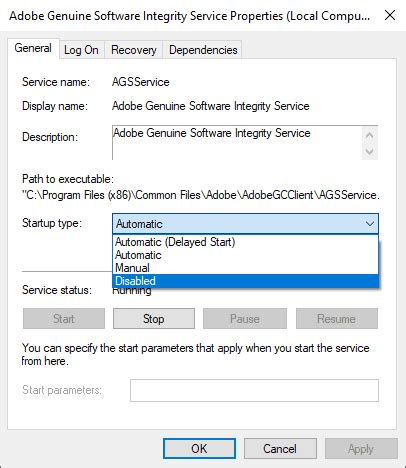
- Restarting the Service: Even if the service is running, try restarting it. Right-click on "Adobe Genuine Software Integrity Service" and select "Restart."
2. Reset Photoshop Preferences
Corrupted preference files are a common culprit for many software glitches. Resetting them can often resolve the serial number issue.
Locating Preference Files: The location of preference files can vary slightly depending on your Windows version and Photoshop installation. Generally, they are found in:
C:\Users\[Your Username]\AppData\Roaming\Adobe\Adobe Photoshop CS5.1C:\Users\[Your Username]\AppData\Local\Adobe\Adobe Photoshop CS5.1- Note: The
AppDatafolder is hidden by default. You may need to enable "Show hidden files, folders, and drives" in Folder Options.
Resetting Steps:
- Close Photoshop completely.
- Navigate to the Photoshop CS5.1 preference folders mentioned above.
- Look for files and folders related to preferences. A common approach is to rename the entire Photoshop CS5.1 folder to something like
Photoshop CS5.1_old. This forces Photoshop to create new default preference files upon its next launch. - Alternatively, you can delete specific preference files like
Adobe Photoshop CS5.1 Prefs.pspandAdobe Photoshop CS5.1 x64 Prefs.psp(if applicable). However, renaming the entire folder is generally safer as it allows you to revert if necessary. - Restart Photoshop. It will likely create new default preferences. You may need to re-enter your serial number once more.
3. Clean Reinstallation of Photoshop CS5.1
If resetting preferences doesn't work, a clean reinstallation can often resolve deeper issues. This involves not just uninstalling the software but also removing residual files and registry entries.
Uninstall Photoshop:
- Go to "Control Panel" > "Programs" > "Programs and Features."
- Find "Adobe Photoshop CS5.1 Extended" and uninstall it.
- If you have both 32-bit and 64-bit versions installed, uninstall both.
Remove Residual Files: After uninstallation, manually check and delete any remaining Adobe Photoshop CS5.1 folders in the
Program FilesandProgram Files (x86)directories, as well as theAppDatafolders mentioned earlier.Clean the Registry (Use with Caution): This step requires caution, as incorrectly modifying the registry can cause system instability.
- Press
Windows Key + R, typeregedit, and press Enter. - Navigate to
HKEY_CURRENT_USER\Software\Adobe\Photoshop. - Navigate to
HKEY_LOCAL_MACHINE\Software\Adobe\Photoshop. - Carefully delete any keys related to Photoshop CS5.1. It is strongly recommended to back up the registry before making any changes. To do this, right-click on the key you intend to delete and select "Export."
- Press
Reinstall Photoshop: Download a fresh installer for Photoshop CS5.1 Extended if possible, or use your original installation media. Run the installer and enter your serial number during the activation process.
4. Check for Windows Updates and Driver Issues
While the user mentioned no major changes, ensuring Windows is up-to-date is always a good practice. Sometimes, outdated drivers, particularly for graphics cards, can cause unexpected software behavior.
- Windows Updates: Go to "Settings" > "Update & Security" > "Windows Update" and check for available updates.
- Graphics Drivers: Visit the website of your graphics card manufacturer (NVIDIA, AMD, Intel) and download the latest drivers for your specific model and operating system.
5. Run Photoshop as Administrator
Temporarily running Photoshop with administrative privileges can help determine if the issue is related to permissions.
- Right-click on the Photoshop CS5.1 shortcut.
- Select "Run as administrator."
- If this resolves the issue, it indicates a persistent permissions problem that may require more in-depth system configuration.
6. Adobe Creative Suite Cleaner Tool
Adobe provides a dedicated cleaner tool to remove remnants of Creative Suite installations, which can be more thorough than manual deletion.
- Search for "Adobe Creative Suite Cleaner Tool" on the Adobe support website.
- Download and run the tool, selecting Photoshop CS5.1 for removal.
- Follow the on-screen instructions to clean up the installation.
- After running the cleaner tool, restart your computer and then attempt to reinstall Photoshop CS5.1.
How to Install | Adobe Photoshop CS5 | easily |
7. Consider System Restore
If the problem started recently and you have System Restore points enabled, you might consider reverting your system to a state before the issue began.
- Search for "Create a restore point" in the Windows search bar and open it.
- Click on "System Restore."
- Follow the prompts to choose a restore point dated before the serial number issue started.
Important Note: System Restore will undo system changes, installed programs, and updates made after the chosen restore point.
Legal Serial Numbers and User Responsibility
The user explicitly states that their "Serial number is valid and legal" and provides a list of potential registration codes. It is crucial to emphasize that using illegal or pirated serial numbers can lead to software malfunctions, security risks, and legal repercussions. The provided list of serial numbers, while extensive, should be treated with caution. Users should always use the serial number associated with their legitimate purchase of Photoshop CS5.1. The issue described is not typically a problem with a valid serial number itself but rather with the software's ability to register and remember it.
Conclusion: A Path to Resolution
The persistent request for a serial number in Photoshop CS5.1 Extended, while frustrating, is often resolvable through a methodical troubleshooting process. By systematically addressing potential causes such as corrupted preferences, service issues, or installation conflicts, users can often restore normal functionality. The key is to be patient, follow the steps carefully, and ensure that all residual files and registry entries are thoroughly removed during a clean reinstallation. For those who continue to experience difficulties, contacting Adobe Support (though support for CS5.1 may be limited) or seeking assistance from reputable software troubleshooting forums could provide further guidance.