Adobe Photoshop, a titan in the realm of digital image manipulation for over three decades, has once again redefined the creative landscape with the introduction of its AI-powered Generative Fill feature. This groundbreaking technology, integrated into the latest versions of Photoshop, harnesses the power of machine learning to enable users to effortlessly add, remove, or alter image elements with unprecedented speed and realism. Initially unveiled in beta in early 2023 and formally released later that year, Generative Fill has rapidly become a transformative tool for both amateur enthusiasts and seasoned professionals, democratizing complex editing tasks and opening new avenues for artistic expression.
The Core of Generative Fill: AI-Driven Image Synthesis
At its heart, Photoshop's Generative Fill is a sophisticated application of artificial intelligence, specifically machine learning. The technology analyzes an image pixel by pixel, meticulously understanding and replicating elements such as lighting, perspective, color palettes, and shadow details. This deep comprehension allows it to generate new image content that seamlessly integrates with the existing composition, often resulting in remarkably realistic and visually coherent outputs. The process is designed to be non-destructive; every generated element is placed on its own distinct layer, complete with a layer mask. This crucial feature ensures that the original image remains untouched and that any generated content can be easily modified or reverted, providing immense flexibility for further creative exploration using Photoshop's extensive suite of tools, including blending modes and filter effects.
The power of Generative Fill lies in its ability to drastically reduce the time and effort required for tasks that were once laborious. Previously, adding or removing elements from an image involved intricate manual work, often relying on tools like the clone stamp to meticulously match surrounding pixels, while also painstakingly recreating appropriate lighting and shadows. Generative Fill automates these complex steps, ensuring a flawless integration of new or removed elements. This efficiency is a primary driver of its adoption, allowing creators to achieve sophisticated results in a fraction of the time.
Unlocking Creative Potential: Diverse Applications of Generative Fill
Generative Fill offers a vast spectrum of applications, empowering users to manipulate images in ways previously unimaginable. Its versatility extends from subtle refinements to complete transformations.
Extending Image Canvases and Compositions
One of the most celebrated uses of Generative Fill is its ability to seamlessly extend the boundaries of an existing image. By utilizing the crop tool to expand the canvas, users can create additional space around their subject. Upon selecting this newly added area and invoking Generative Fill, Photoshop intelligently generates content that matches the original image's style, lighting, and perspective. This "outpainting" capability is invaluable for reframing shots, adapting images for different aspect ratios, or simply giving subjects more breathing room within the frame. For instance, extending the canvas to the left of a portrait subject can create space for them to look into, or expanding the bottom of an image can reveal a full body where only a torso was initially visible.
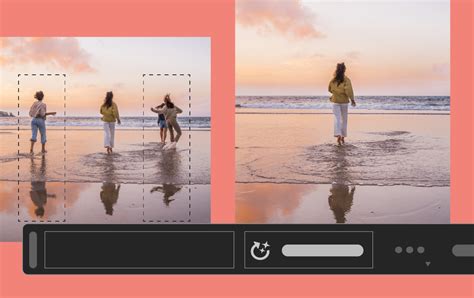
The process typically involves expanding the canvas using the crop tool, then making a selection in the newly created empty space. Clicking "Generate" without a text prompt allows Photoshop to analyze the surrounding pixels and fill the selection with contextually appropriate content. The feature provides multiple variations, allowing users to choose the most fitting result. This non-destructive workflow ensures that the original image is preserved, and the generated content resides on its own layer, offering full editability.
Transforming and Replacing Backgrounds
Generative Fill excels at dramatically altering the context of an image by replacing its background. This is particularly useful for isolating subjects and placing them in entirely new environments. The workflow typically involves selecting the subject, then inverting the selection to isolate the background. With the background selected, a text prompt can be entered describing the desired new backdrop. Photoshop then generates content to replace the original background, creating a composite image that appears as if it were originally shot in the new setting. This feature can transform a simple studio shot into a dramatic landscape or a mundane scene into an exotic locale.
Removing and Replacing Objects with Precision
The ability to remove unwanted objects from an image is another significant advantage of Generative Fill. Unlike traditional tools that attempt to patch over imperfections with surrounding pixels, Generative Fill analyzes the context and generates what logically should be in the removed object's place. This results in a more natural and seamless removal. For example, a distracting element in the background or a minor blemish on a subject can be eliminated with a simple selection and generation.
Furthermore, Generative Fill allows for the replacement of existing objects with entirely new ones. By selecting an object, such as a piece of clothing or an accessory, and providing a text prompt for the desired replacement, Photoshop can synthesize a new item that fits within the scene. This opens up possibilities for altering outfits, changing the type of food on a plate, or swapping out accessories.
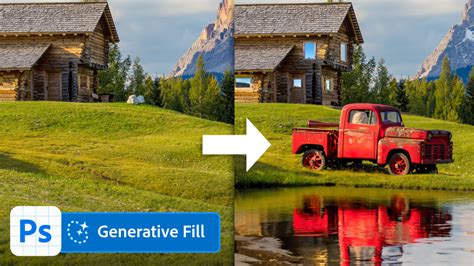
When removing objects without a specific prompt, Generative Fill intelligently fills the selected area with pixels that blend harmoniously with the surroundings. This is a significant advancement over older content-aware fill methods, which could sometimes leave visible artifacts or unnatural-looking patches.
Creating Images from Scratch and Compositing Elements
Beyond editing existing images, Generative Fill can also be used to create entirely new images or composite elements onto a blank canvas. By defining areas on a blank canvas and providing descriptive text prompts, users can generate landscapes, objects, or even entire scenes. This is particularly powerful for conceptualizing and visualizing ideas rapidly. For instance, a user could create a majestic mountain range on a blank canvas by making a selection and entering a prompt, then add accents like a lake or a figure within the scene through subsequent selections and prompts.
High-Quality Compositing with Generative Fill? - Photoshop Tutorial
When creating images from scratch, especially those larger than 1024 pixels, users might observe a decrease in quality. Therefore, maintaining a focus on resolutions within this range is often recommended for optimal results in generated content.
Mastering the Art: Tips for Effective Generative Fill Usage
To harness the full potential of Generative Fill, understanding its nuances and employing effective techniques is crucial.
The Importance of Selection Shape and Size
The shape and size of the selection made for Generative Fill significantly influence the outcome. For instance, when adding an accessory like a hat, drawing a selection that closely matches the intended shape and size of the hat will yield more accurate results. Smaller selections tend to generate smaller design elements, while larger selections can accommodate larger objects or more complex scene elements.
Strategic Prompting for Optimal Results
The way users phrase their text prompts is critical. Adobe advises against using instructional words like "create," "alter," or "make." Instead, descriptive adjectives and nouns tend to produce superior results. For example, instead of prompting "make the dog bigger," it's more effective to select the dog and prompt for a specific breed or pose if a change is desired. This approach helps the AI understand the desired visual characteristics rather than the action of modification.
When aiming to remove an element without adding a replacement, simply leaving the text prompt field blank and clicking "Generate" is the most effective method. This signals to Photoshop that the intention is to fill the selected area with content that blends seamlessly with the surrounding image, rather than introducing new elements.
Leveraging Photoshop's Tools in Conjunction with Generative Fill
Generative Fill is not a standalone solution but a powerful addition to Photoshop's existing toolkit. Combining it with other selection tools, such as the Object Selection Tool or Quick Selection Tool, can lead to more precise control over the areas being modified. For users who find the "marching ants" selection outline difficult to see, the Object Selection Tool offers a more visually distinct method for defining areas.
Even when Generative Fill produces a near-perfect result, minor imperfections might occasionally appear. Photoshop's Remove Tool, another AI-powered feature, can be used on a separate layer to clean up these minor distractions without affecting the original Generative Layer, ensuring a polished final image.
Combining Photos and Merging Elements
Generative Fill is also adept at blending multiple images or elements from different sources. By placing images on the same layer and making a selection that encompasses pixels from both, Generative Fill can create a seamless transition between them. This is particularly useful for merging distinct visual styles or combining characters from different sources, such as video game art generated in tools like Midjourney.
When extending an image on both sides simultaneously, users have two primary methods: a faster, single-generation approach that covers both sides at once, or a more flexible method where each side is generated separately. The latter approach allows for independent refinement of each extended area and the use of distinct prompts for each side, offering greater control over the final composition.
Accessing and Utilizing Photoshop's Generative AI
To experience the transformative power of Photoshop's AI Generative Fill, a subscription to Adobe's Creative Cloud platform is generally required. Photoshop is available as a standalone product, with subscription costs varying but typically starting around $21 per month. For those looking to experiment before committing, Adobe offers a 7-day free trial of Photoshop AI, providing full access to its features.
For users who wish to explore the capabilities without a full Photoshop subscription, Adobe offers the Firefly web app. This free platform allows for experimentation with generative AI features, providing a taste of what Photoshop's integrated tools can achieve.
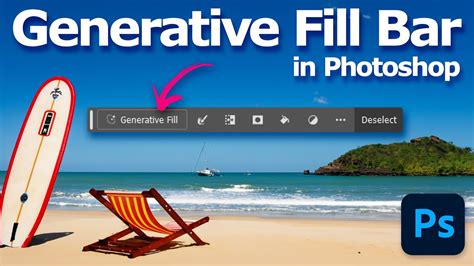
To begin using Generative Fill within Photoshop, users need to ensure they have the latest version installed. This can be done through the Creative Cloud desktop app. Once Photoshop is installed and opened, the Generative Fill contextual taskbar will appear, offering intuitive access to the feature's controls and settings.
Copyright and Usage Rights: A Clear Path Forward
A significant development accompanying the widespread adoption of Generative Fill has been the clarification of usage rights for AI-generated content. Initially, there were concerns regarding the commercial use of images created with Adobe's AI tools. However, Adobe has since confirmed that any images created using Photoshop's Generative Fill can now be used for commercial purposes. This is because Adobe has trained its generative AI models exclusively on licensed Adobe Stock images, thereby mitigating concerns about copyright infringement. This assurance provides creators with the confidence to incorporate AI-generated elements into their professional work without legal repercussions.
Limitations and Future Potential
While Photoshop's AI Generative Fill is an extraordinary tool, it is not without its limitations. Current constraints include a maximum image size of 1024 pixels for optimal quality in generated content, and while improvements are ongoing, results for faces, hands, and animals can sometimes be less predictable or require more refinement.
Despite these limitations, the rapid pace of AI development suggests that these issues will likely be addressed in future updates. Adobe continues to integrate AI into its Creative Cloud suite through features like Neural Filters, Generative Expand, and Adobe Sensei, constantly pushing the boundaries of digital artistry. The ongoing development of Adobe Firefly, with tools for 3D to image, sketch to image, text to pattern, and text to vector, further signals a future where AI plays an increasingly integral role in creative workflows.
The introduction of "Content Credentials" embedded within exported or saved images signifies Adobe's commitment to transparency, clearly indicating when AI tools have been used in the creation or editing process. This feature is crucial for maintaining trust and authenticity in the digital media landscape.
In conclusion, Photoshop's Generative Fill represents a paradigm shift in image editing and creation. It democratizes advanced editing techniques, accelerates creative workflows, and empowers users to bring their visions to life with unparalleled ease and realism. As the technology continues to evolve, its impact on the creative industries is poised to be profound and far-reaching.