Achieving a transparent background in your digital designs is a fundamental skill for any graphic designer or content creator. This is particularly true when working with multiple elements or preparing images for diverse digital platforms. Photoshop, a leading industry standard, offers robust tools to facilitate this process, especially when leveraging its Artboard feature. Understanding how to effectively create and export transparent backgrounds from Photoshop artboards is crucial for seamless integration into various design projects, from social media posts to product mockups.
The Power of Transparency in Design
The ability to remove backgrounds from images and create transparency is essential for modern design workflows. It allows the subject of a photo to be isolated and placed into a variety of new designs and destinations, ensuring the focus remains precisely where it belongs-on the main subject. This is invaluable in product photography and graphic design, where a distracting background can detract from the product or message. With image editing tools, you can actually make backgrounds disappear completely. This capability significantly enhances creative freedom, enabling designers to combine elements from different sources without jarring visual clashes.

Utilizing Photoshop's Remove Background Tool
Photoshop's "Remove Background" tool is a powerful, AI-driven feature designed to streamline this process. It allows users to highlight the subject of their photo and create a transparent background. This tool is incredibly efficient, enabling users to take the background out of a picture faster than ever before. The process is as simple as selecting your image, and with a few clicks, the background is removed. This is further enhanced by Adobe Sensei-powered tools that automatically detect backgrounds and subjects, removing them in the Layers panel. Designers can then showcase their style and boost brand identity by using transparent backgrounds.
Advanced Background Removal Techniques
Beyond the automated "Remove Background" tool, Photoshop offers more granular control for intricate edits. Mask layers are indispensable for hiding and revealing selected portions of a background non-destructively, allowing for adjustments without permanent alteration. Global refinement sliders enable users to smooth and feather the edges of their selections, ensuring a professional finish. For more precise selections, the ability to "paint" a selection with a fully customizable round brush tip offers a high degree of control. Furthermore, tools like the Magic Wand allow for the quick removal of solid color backgrounds with a single click, selecting all pixels of the same color in the image. For freehand selections, users can employ their mouse or stylus to make selection borders. The "Refine Edge" tool is then crucial for fine-tuning rough or smooth edges of selections made with various selection tools, ensuring a perfect cutout.
Adobe Photoshop 2025 tips and tricks Remove Background
Working with Artboards for Efficient Design
Photoshop's Artboard feature revolutionizes the way designers manage multiple related designs within a single document. Artboards function like separate canvases within one PSD file, allowing for the creation of various layouts, screen mockups, or different versions of a design. This is particularly useful when preparing assets for a website or a series of social media posts.
The Artboard Transparency Dilemma
A common point of confusion and frustration for users, especially those working with Photoshop 2021 and earlier versions, has been the behavior of artboards concerning transparency during export. Some users reported that even when they expected transparency, their exported PNG files contained a white background. This issue led to significant frustration, with users noting that what should have taken seconds took minutes of troubleshooting. The core of the problem often lies in understanding that while the canvas itself might appear transparent, the artboard's background content can default to white or require specific settings to ensure true transparency.
One user described the experience: "I can't agree more. This has been an absolutely destructive addition. Why would you ever assume and hard code a white background into an artboard? What is this? I've got same error in PS 21 (ver 22.5.1), but cannot solve it." This highlights a critical point: the perceived transparency in the workspace doesn't always translate to the exported file without explicit configuration.
Solutions and Workarounds for Artboard Transparency
Several solutions and workarounds have emerged from the design community to address this challenge:
Grouping and Exporting: A frequently suggested workaround, particularly for Photoshop 2021, is to group all the content within an artboard. Then, right-clicking on the group and selecting "Export As" can yield the desired transparent result. As one user shared, "Group all the Artboard's content, then R.Click on the group => Export As, and enjoy :)" This method has been a temporary solution for many facing export issues.
Exporting Artboards to Files: For a more structured export of multiple artboards, the "File > Export > Artboards to Files" option is recommended. Within this dialog, users should select "PNG 24" from the File Type dropdown. Crucially, they must click/check the "Export Options" box and then select "Transparent." Finally, clicking "Run" will export each artboard as a separate PNG with transparency enabled.
Setting Artboard Background Properties: The key to achieving transparency often lies in the Artboard's properties. When an artboard is selected in the Layers panel, the Properties panel (Window > Properties) will display its settings. Here, users can find an "Artboard Background Color" field. By default, this might appear white, but it's not technically pure white. To ensure true transparency, this setting should be adjusted or confirmed. Some users suggest that the default artboard background color appears white, but if no color is added, it will remain transparent. However, the visual representation in Photoshop might be misleading.
Displaying Transparency Grid: Designers can make their artboard display transparent by accessing the Ruler & Grids option on the Properties Panel. With this change, instead of the background that appears to be white, you'll clearly see that the background is in fact transparent. This visual aid helps confirm that the transparency is correctly set before export.
New Document Setup: When creating a new file, selecting "Background Contents" to "Transparent" from the "NEW" document menu is the most straightforward way to ensure a transparent canvas from the outset.
Illustrator vs. Photoshop Nuances: It's worth noting that while the core principles of transparency apply across Adobe products, there can be specific nuances. For instance, JPEG files cannot have transparent backgrounds and will default to white, whereas PNGs support transparency. When exporting artwork, especially from Illustrator, ensuring the format is PNG and the background is set to transparent is vital.
Leveraging AI for Smarter Workflows
Adobe Photoshop, with the assistance of Artificial Intelligence (AI), continues to evolve, offering increasingly sophisticated tools for background manipulation. AI-powered features can automatically isolate any subject from a distracting background, simplifying complex tasks. This not only saves time but also improves the accuracy of the selection, especially for subjects with intricate details like hair or fur.
Beyond Basic Transparency: Enhancing Your Designs
Once your subject is isolated with a transparent background, the creative possibilities expand significantly. Adobe Express, a complementary tool to Photoshop, offers a suite of features to further enhance these transparent assets.
Unleashing Creativity with Adobe Express
Adobe Express provides a user-friendly platform to unleash your creativity. You can add a shape crop to frame your newly cropped photo, apply filters for artistic effects, or add GIFs and animations for dynamic designs. The platform is designed to be quick and easy, allowing you to bring your imagination to life.
- Quick Action Tools: Adobe Express offers dozens of quick action tools, including a free blur background tool, which can be used to further enhance the focus on your subject.
- Template Library: Explore a vast library of templates to get started on a wide range of projects, from flyers and social posts to album covers and profile photos.
- Personalization: Add other pre-loaded design assets, fonts, icons, or GIFs to personalize your image and create a unique design.
- Cross-Platform Editing: Edit further using the full Adobe Express app on your desktop or mobile device, ensuring flexibility in your workflow.
File Type Considerations for Transparency
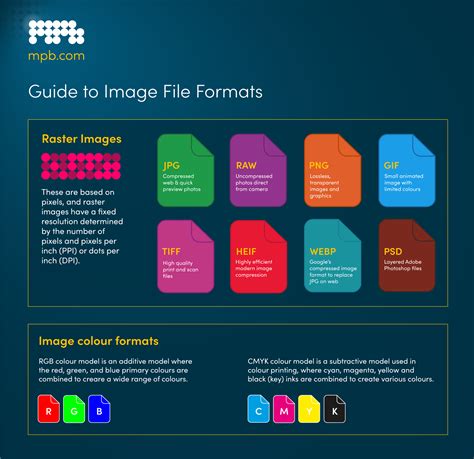
When working with transparent backgrounds, the choice of file format is paramount. PNG (Portable Network Graphics) is the standard for web graphics requiring transparency. It supports alpha channel transparency, meaning pixels can be fully transparent, partially transparent, or opaque. This is crucial for seamless integration into websites and other digital designs. GIFs (Graphics Interchange Format), while supporting transparency, have limitations. GIFs do not support alpha transparency; every pixel is either 100% transparent or not transparent at all, with no in-between states. This can lead to jagged edges around transparent areas. Therefore, for high-quality transparent images, PNG is generally the preferred format.
Conclusion: Mastering Transparency for Professional Results
Achieving transparent backgrounds in Photoshop, especially when utilizing artboards, involves understanding the nuances of the software and employing the right tools. From the automated "Remove Background" feature powered by AI to manual masking and selection techniques, Photoshop offers a comprehensive toolkit. While issues with artboard transparency in older versions of Photoshop have been reported, workarounds and updated features in newer versions provide reliable solutions. By mastering these techniques and understanding file format considerations, designers can ensure their subjects stand out, their brand identity is boosted, and their creative visions are brought to life across all digital channels. Whether you're a beginner or an experienced professional, the ability to effectively create and export transparent backgrounds is an indispensable skill in today's design landscape.
tags: #photoshop #artboard #transparent