The "Auto-Align Layers" feature in Adobe Photoshop is a powerful tool designed to automatically synchronize selected layers, making it significantly easier to composite images, create panoramas, or correct perspective distortions. However, users sometimes encounter a frustrating problem where this essential function is greyed out, rendering it unusable. This article delves into the common reasons behind this issue and provides comprehensive solutions to get your alignment workflow back on track.
Understanding the Prerequisites for Auto-Align Layers
Before diving into troubleshooting, it's crucial to understand the fundamental requirements for the "Auto-Align Layers" command to be available and functional. If these basic conditions aren't met, the tool will inevitably appear greyed out.
One of the most frequent reasons for "Auto-Align Layers" being disabled is the failure to select all the relevant layers. Photoshop needs to know which layers you intend to align. Therefore, ensure that all layers you wish to combine or synchronize are actively highlighted in the Layers panel. This can be done by clicking on the first layer, then holding down the Shift key and clicking on the last layer in a contiguous block, or by holding down the Ctrl (or Cmd on Mac) key and clicking on individual, non-contiguous layers.
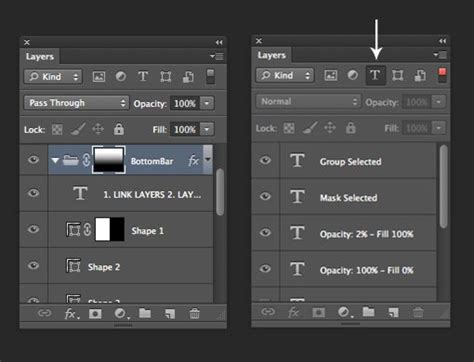
Another critical, yet often overlooked, requirement pertains to the opacity of the layers. For "Auto-Align Layers" to work correctly, all selected layers must be set to 100% opacity. If any of the layers have reduced opacity, the alignment algorithm may struggle to find common points of reference, leading to the feature being disabled. Users have reported that even seemingly minor deviations from 100% opacity can cause this issue. Therefore, it is essential to verify that each selected layer's opacity slider is set to its maximum value.
Specific Scenarios and Their Solutions
Beyond the general prerequisites, several specific scenarios can lead to the "Auto-Align Layers" function being greyed out. Addressing these particular situations often resolves the problem.
Rasterizing Smart Objects and Aligning to Canvas
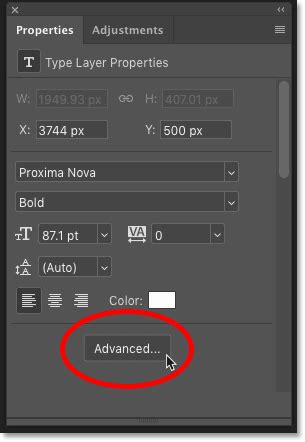
A common pitfall arises when dealing with Smart Objects. If you have a Smart Object within your layer stack that you intend to align with other layers, you may need to rasterize the Smart Object first. However, simply rasterizing isn't always enough. After rasterizing, the "Align To" option within the Properties panel becomes accessible. It is imperative to select "Align To: Canvas" from this dropdown menu. Users have found that selecting "Align To: Selection" can sometimes lead to unexpected results or prevent the auto-align function from working as intended. The correct selection of "Canvas" ensures that the rasterized layer is aligned relative to the entire document canvas, which is often the desired outcome when combining multiple images. This particular solution has been highlighted by users as a definitive fix, emphasizing the importance of checking this setting after rasterization.
Issues with Lightroom and Photoshop Integration
A significant number of users have reported encountering the "Auto-Align Layers" greyed out issue when their Photoshop workflow begins with images exported from Adobe Lightroom. There appears to be an intermittent bug within certain versions of Photoshop, particularly on Windows, that causes problems when Photoshop is launched directly from Lightroom.
The suggested workaround for this integration issue is to close both applications entirely. Then, open Photoshop first and leave it running. After Photoshop is open and active, proceed to open Lightroom. This sequence of launching the applications can bypass the bug that prevents "Auto-Align Layers" from functioning correctly when Photoshop is initiated as a secondary application from Lightroom. This method has been reported to resolve what users describe as a "total nightmare" and a "primary tool I pay for in my Photoshop subscription."
Version Compatibility and Bugs
Software, especially complex applications like Photoshop, can sometimes suffer from bugs that affect specific features. Users have noted that issues with "Auto-Align Layers" can sometimes be linked to specific versions of Photoshop and its companion applications like Bridge.
One user reported an escalating series of problems: Bridge initially prevented Photoshop alignment until Photoshop was "upgraded." After upgrading Photoshop, Bridge still indicated an upgrade was needed. Further upgrades of both applications and a system reboot were required. Subsequently, the user discovered that the "photomerge into Photoshop" option had disappeared from the 2023 version of Bridge, seemingly because Photoshop now had its own "auto-align" feature. However, this built-in feature "NEVER WORKS" for them. This experience highlights the potential for version-specific bugs and compatibility issues between different Adobe Creative Cloud applications. If you are experiencing persistent problems, ensuring you are on the latest stable version of Photoshop and Bridge, or conversely, considering a rollback to a previous stable version if a recent update introduced the bug, might be necessary.
How To Update Adobe Photoshop to the Newest Version
Checking Layer Properties and Constraints
Beyond the opacity, other layer properties can sometimes interfere with the auto-align process. While less common, it's worth ensuring that no unusual layer blending modes or clipping masks are inadvertently preventing the alignment. Additionally, check if any layer has specific transform constraints enabled that might be limiting its movement.
Advanced Troubleshooting Steps
If the above solutions do not resolve the greyed out "Auto-Align Layers" issue, consider these more advanced troubleshooting steps.
Resetting Photoshop Preferences
Corrupted preferences can sometimes lead to unexpected behavior within Photoshop, including the disabling of features. Resetting Photoshop's preferences to their default settings can often resolve such issues. To do this, close Photoshop. Then, hold down Ctrl + Alt + Shift (Windows) or Cmd + Option + Shift (Mac) immediately after launching Photoshop. You will be prompted to confirm that you want to delete the settings file. Click "Yes." This action will revert all Photoshop settings to their factory defaults.
Checking Photoshop Installation Integrity
In rare cases, the Photoshop installation itself might be corrupted. If resetting preferences doesn't help, you might consider uninstalling and then reinstalling Photoshop. Ensure you use the Adobe Creative Cloud desktop app to manage your installations, as this helps maintain a clean uninstall and reinstall process.
Examining Layer Structure and Content
While the primary focus is on the layers themselves, the overall structure of your Photoshop document can sometimes play a role. For instance, if you are trying to align layers within a complex group or if there are very unusual layer types present, it might cause conflicts. Try simplifying your document by merging unnecessary layers or flattening parts of the image if possible (though this should be a last resort as it can lead to a loss of flexibility).
The problem of "Auto-Align Layers" being greyed out can be a source of significant frustration, especially when it's a critical tool for your workflow. By systematically working through the prerequisites, specific scenarios, and advanced troubleshooting steps outlined above, you can significantly increase your chances of identifying and resolving the issue, restoring the full functionality of this valuable Photoshop feature. The key often lies in meticulous attention to detail regarding layer selection, opacity, and understanding potential software integration quirks.