Changing the background color of a photo can be a complex and time-consuming task, but with the right tools and techniques, it doesn't have to be. Whether you're aiming to rescue your favorite pictures from photobombs, enhance your brand consistency, or simply elevate the aesthetic of your content, modifying background colors can take your images to new heights in mere seconds. This guide will share everything you need to know to effectively change the background color of a photo using Picsart, a powerful and versatile editing platform. From creating eye-catching social media posts to decluttering product pictures, altering background colors can be a game-changer for your visual content.

The Significance of Background Colors in Visual Content
Backgrounds play a crucial role in how an image is perceived, evoking different moods and feelings. For instance, a light background might convey a sense of simplicity and clarity, making it ideal for minimalist designs or portraits. Conversely, a dark background can create a more dramatic, sophisticated, or professional atmosphere, which is often preferred for fashion photography or corporate branding.
When it comes to social media posts and product photography, background color is paramount in enhancing the visibility and impact of your content. Choosing the right background color can significantly improve text readability, making it easier for viewers to consume the information presented. A well-chosen background can make text pop, ensuring your message isn't lost amidst a cluttered or clashing visual.
For influencers, small business owners, and freelancers alike, maintaining a consistent visual identity is essential for brand recognition and recall. The ability to change background colors seamlessly allows you to align your content with your brand colors, reinforcing your brand's aesthetic across all platforms. This consistency builds trust and familiarity with your audience.
Furthermore, strategically changing the background color is an effective way to draw attention to specific elements within a design or document. By isolating your subject against a contrasting or complementary background, you can guide the viewer's eye and emphasize key details, whether it's a product feature, a person's face, or a crucial piece of text.
The diverse nature of digital platforms also necessitates adaptability. If you're sharing content across different channels, you've likely noticed that each platform often has its own color schemes and design standards. Being able to easily adjust background colors ensures your visuals are optimized for each specific channel, maintaining their impact regardless of where they are viewed.
Picsart: Your Toolkit for Background Color Transformation
So, how exactly do you change the background color of a photo? Picsart offers a robust suite of tools designed to make this process straightforward, regardless of your editing experience.
Utilizing Picsart's Background Remover Tool
One of the most effective ways to alter your photo's background is by first removing the existing one. Picsart’s background remover tool is designed for this purpose, simplifying the process considerably.
- Open the Picsart App: Begin by launching the Picsart application on your mobile device.
- Start a New Project: Tap the
+icon, typically located at the bottom of the screen, to initiate a new editing session. - Select Your Image: Choose the photo you wish to edit from your device's photo library.
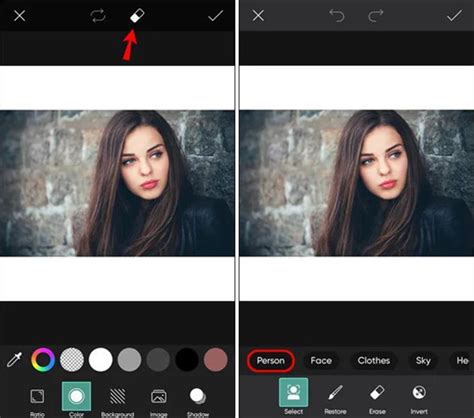
- Access the Background Remover: Navigate through the editing toolbar and locate the "Remove BG" or "Background Remover" tool. This AI-powered feature will automatically detect and remove the background from your image.
- Refine the Selection (If Necessary): While the AI is highly effective, you may need to make minor manual adjustments to ensure a clean cut around your subject. Use the brush tools to add or erase parts of the selection.
- Add Your New Background: Once the original background is removed, you’ll be presented with a transparent canvas. Now, it's time to add your new background. You can choose from Picsart's extensive library of backgrounds, upload your own image, or even select a solid color.
- Apply and Save: After selecting and positioning your new background, tap "Apply" to save these changes. When you’re finished with all your edits, tap "Next" to proceed to the saving and sharing options.
Creating a Perfect White Background
White backgrounds are essential for a wide range of purposes, from official school portraits to distraction-free product pictures. If you don't have a white backdrop readily available when shooting, Picsart provides a great solution. You can snap a quick photo and then easily edit the background to white using the same background removal and color-filling techniques described above. After changing the background to white, remember to tap "Next" to finalize and save your image.
Enhancing Your Image After Background Changes
Simply changing the background color is often just the first step. To truly make your photos stand out, consider these post-editing enhancements:
- Experiment with Image Settings: After changing the background, utilize Picsart's adjustment tools to fine-tune your image. Tools like brightness, contrast, saturation, and sharpness can help enhance the overall look and feel of your photo, ensuring your subject and the new background harmonize perfectly.
- Add Trendy Design Elements: Picsart offers a vast library of stickers, text overlays, and other design elements. Incorporating these can add flair and personality to your image, making it more engaging for your audience.
- Get Creative with Special Effects: Some effects are specifically designed to enhance your photo's background. Look for options such as "Background Blur," "Bokeh," or any effect that adds a dynamic or artistic element to the surroundings. These can create a professional, polished look.
- Layer on Filters: Applying filters can dramatically alter the mood and aesthetic of your image. Experiment with different filters and adjust their intensity to elevate your background. Don't hesitate to layer multiple filters for unique effects.
- Blur the Background: Background blur is a powerful technique that adds a sense of depth and dimension to an image. It helps to isolate your subject and draw the viewer's attention to them, creating a more professional and visually appealing composition.
Add Bokeh Effect & Blur Background To Your Photos | PicsArt Background Blur Tutorial
Advanced Background Techniques and AI Generation
Beyond basic color changes, Picsart empowers you with advanced features for creating truly unique visuals.
AI Background Generation
Searching for the perfect backdrop for your photos? Look no further than Picsart’s AI background generator. This innovative tool allows you to create custom backgrounds based on text prompts. By generating backgrounds with AI, you can save significant time and resources compared to scouting and capturing real-world backgrounds. Whether you need a specific texture, a fantastical scene, or a clean gradient, AI can bring your vision to life.
Color Matching for Visual Cohesion
Let's be real: we all want our photos to be aesthetically pleasing. There's nothing more satisfying than getting all of our photos to be a visually cohesive masterpiece. If you can relate to the obsession with finding a consistent visual aesthetic for photos, Picsart's color matching tools might be your new go-to.
Color matching photos can be a helpful tool in creating a unified design palette. Here’s how you can use the Shape tool for a basic color fill:
- Start a New Project: Open the Picsart mobile app and tap the plus sign (+) to start a new project.
- Select Your Image: Choose an image from your photos folders to open it in the Editor.
- Access the Draw Tool: Scroll across the Editor toolbar and tap on the "Draw" icon.
- Select the Shape Tool: Within the Draw tools, select the "Shape" tool.
- Choose Your Color: Tap on the color chooser in the bottom left corner. Select the desired color for your background fill.
- Draw the Shape: Use your finger to draw a square or rectangle that covers the entire canvas. This will fill your background with the chosen color.
- Adjust Stroke (Optional): If you wish to add an outline, tap on the "Shape" tool again and select the "Stroke" option to adjust the thickness for the outline.
- Finalize: Tap the checkmark to confirm your shape. You can then proceed to save your image.

Frame Color Customization in Collages
Picsart's frame color customization feature, particularly available for Android devices, adds another layer of creative control, especially when building collages. This option is accessible wherever the “Add Photo” option is available, allowing you to tailor frames to complement your images or the backgrounds of your collages.
Here's how to utilize frame color customization:
- Start a Collage: From the Home Screen, press "Collage" and then select "Background" from the pop-up menu.
- Choose a Background: Select the background of your choosing for your collage.
- Add Your First Picture: Upload the first picture to your collage.
- Select the Frame Icon: Tap on the "Frame" icon.
- Choose a Frame Style: Select the desired frame style for your photo.
- Adjust Frame Color: You can now adjust the color of your frame by clicking on the "Color Palette" icon. Choose from a wide array of colors to perfectly match your aesthetic.
- Position and Confirm: After selecting a frame and adjusting its color, line up your photo within the frame. Confirm the frame, followed by the photo itself, by pressing the checkmark twice.
- Add More Photos: To add additional photos, use the "Add Photo" icon.
- Arrange and Finalize: Rotate, reposition, and resize your photos as needed to create your desired collage layout. You can even create the illusion that your photos are pinned up on a billboard. When you are finished, press confirm.
Picsart: A Creative Ecosystem
Picsart is more than just a photo editor; it's a comprehensive photo and video editing platform and a thriving creative community. As a top 20 most downloaded app worldwide with over 150 million monthly active users, its AI-powered tools empower creators of all levels to design, edit, draw, and share content anywhere. The platform has amassed one of the largest open-source content collections globally, featuring an extensive array of photos, stickers, backgrounds, and templates. This vast resource pool serves both consumers and professionals, fulfilling a wide spectrum of personal and professional design needs.
Picsart's influence extends to collaborations with major artists and brands, including BLACKPINK, Taylor Swift, Lizzo, Ariana Grande, and Warner Bros., underscoring its position as a significant player in the digital creative space. From changing background colors to generating out-of-this-world AI backgrounds, Picsart truly has you covered, offering a complete solution for all your photo editing and creative endeavors.