Encountering a "Scratch disk full" or "Scratch Disk Low" error message in Adobe Photoshop can bring your creative workflow to an abrupt halt. This frustrating issue can prevent you from continuing your work, or in more severe cases, even launching the application itself. The error dialog box might display messages such as "Could not initialize Photoshop because the scratch disks are full" or "Could not complete your request because the scratch disks are full." You might also see a popup at startup that states "Scratch Disk Low." Photoshop may subsequently freeze, crash, or refuse to launch altogether. Understanding the nature of scratch disks and implementing effective troubleshooting and preventative measures is crucial for a smooth Photoshop experience.
Understanding the Role of Scratch Disks in Photoshop
At its core, a scratch disk is a dedicated storage space used by certain applications, like Photoshop, for temporary file storage and processing of large or complex tasks. When Photoshop works with substantial files or performs intricate operations, it utilizes this designated area on your hard drive or another storage device to hold the data it's actively manipulating. This temporary storage is essential because it frees up your system's RAM for other processes, allowing Photoshop to function more efficiently. The "disk" in "scratch disk" refers to the physical data storage device, not anything that is physically scratched.
The scratch disk is created by allocating a certain amount of free space on your hard drive. Photoshop is a complex program that works with large files, so it designates a hard disk as a scratch disk to hold the data that it works with. The hard disk that it uses is usually your computer’s built-in disk, but it’s possible (and fairly common) to connect an external hard drive to your computer and designate it as Photoshop’s scratch disk location. If you’re getting “scratch disk full” errors, your hard disk (which is likely your computer’s built-in storage space) is just running out of available space. Photoshop doesn’t have enough space to store its temporary files, and it cannot operate normally.
Diagnosing the "Scratch Disk Full" Error
The "Scratch disk full" error message signifies that the program you are using, in this instance Photoshop, has exhausted the available space on the hard drive designated for storing its temporary files. One likely cause of this error message in Photoshop is that temporary files from old projects are consuming too much space. Of course, there may be other culprits for the error message.
When the error occurs, you'll witness a dialog box with the message "Could not initialize Photoshop because the scratch disks are full" or "Could not complete your request because the scratch disks are full," or a popup at startup that says "Scratch Disk Low." Photoshop may freeze, crash, or refuse to launch entirely.
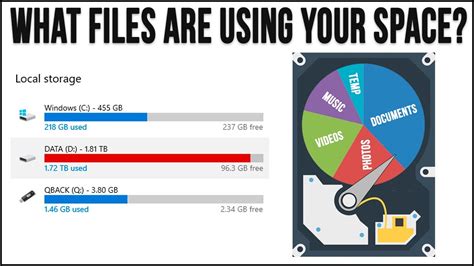
To gain a better understanding of your device's resources and limitations, it's beneficial to learn how to check your system's storage. On macOS, you can open System Settings, navigate to General, and then click on Storage. This will reveal how much storage space remains on your hard drive. For Windows users, click the Start button, open Settings, go to System, and then click Storage. Both storage menus provide a breakdown of what is consuming space on your hard drive.
Freeing Up Storage Space: The Primary Solution
The most critical step in resolving "scratch disk full" errors is to free up storage space on your computer's hard drive. Photoshop requires a minimum of 6GB of space to create a scratch disk, but 20GB is highly recommended for optimal performance. However, it's important to remember that scratch disk space is essentially hard drive space.
There are several effective ways to clear space on your hard drive. An easy way to start is by deleting any old videos or games you no longer play. You can also open Finder (on Mac) or File Explorer (on Windows) and sort files by size, deleting any you don’t need.
On Mac, you can also check your System Data storage (previously called "Other storage"), where less common file types are stored. You can also search for hidden files that may be taking up space. Any existing hidden files will appear as grayed-out folders. Before you begin, make sure to save your important Photoshop files just in case. If your computer moves files into Trash (Mac) or Recycle Bin (Windows), ensure you empty these folders after deleting the files, as they still occupy hard drive space.
Consider removing applications you no longer use, unnecessary photos, videos, and documents. If you use your computer for iMessage (Mac), even messages can consume significant space. If you prefer not to delete items, consider moving them to a separate hard drive. These are readily available for purchase in various sizes. External drives are excellent for storing photos, videos, documents, and similar items.
Tip: If you frequently import photos into Adobe Lightroom without using an external hard drive, the photos will be stored in folders created by Lightroom. It's easy to forget these exist, and they often take up a lot of storage space on your hard drive, especially if you work with RAW files. It is useful to find out where Lightroom is storing files. If you need more storage space, move these files to a separate hard drive or delete them if you are sure you no longer need them.
Optimizing Photoshop's Cache and Preferences
Beyond general file cleanup, Photoshop itself has internal mechanisms that can be optimized to manage scratch disk usage.
Clearing Photoshop's Cache: If you can open Photoshop, try clearing its cache. Be aware that this action will likely remove any opportunities to "undo" changes to an image because it will clear the edit history. To do this, go to Edit, click on Purge, and select All. This process is the closest you can get to emptying the scratch disk within Photoshop itself, though there’s no way to automatically and completely empty it on Mac.
Resetting Photoshop Preferences: The Photoshop preference file can become corrupted, especially after crashes or system shutdowns. This corruption can affect how Photoshop handles scratch disks. According to Adobe, "when Photoshop or the system crashes, Photoshop’s preference file can get corrupted and this can affect Photoshop’s handling of scratch disks." To reset preferences, open Photoshop Settings and go to General. Click “Reset Preferences on Quit.” When you quit and relaunch Photoshop, new preference files will be created, and the old ones will be deleted.
Advanced Troubleshooting and Prevention Techniques
Several advanced strategies and preventative measures can further mitigate "scratch disk full" errors.
Changing Scratch Disk Location and Allocating Multiple Disks: Photoshop allows you to designate specific drives as scratch disks. If your primary drive is consistently filling up, you can change the scratch disk location to another drive with more available space. To open Scratch Disk Preferences, go to Settings and click on Scratch Disks. You can also change scratch disks by holding Command+Option (Mac) or Control+Alt (PC) while launching Photoshop, which is particularly useful if you’re having trouble opening the application. From the Scratch Disk settings window, you'll see a list of drives and their available space. You can select a different scratch disk if one is available, such as an external hard drive with ample free space.
Furthermore, Photoshop permits the allocation of multiple scratch disk locations. This means that if one drive fills up, Photoshop can utilize another drive with available space. Many users opt to use an external hard drive with free space every time they use Photoshop to ensure sufficient capacity for scratch disks. Various formats of external hard drives are available, offering a practical solution for expanding your scratch disk capabilities.
Scratch Disk FULL Adobe Photoshop | FAST FIX
Adjusting Performance Settings (RAM and History States): In addition to the scratch disk, Photoshop utilizes RAM (Random Access Memory) for handling large files and complex tasks. Within the Performance settings window, under Memory Usage, you can adjust the slider to increase the RAM allowance for Photoshop. Newer versions of Photoshop provide an ideal range for Photoshop operation. The default is typically 70% of available memory, and Adobe recommends keeping this value below 85% to ensure enough memory remains for the rest of your system to operate smoothly.
The History States feature in Photoshop automatically saves your work at various stages, allowing you to undo numerous actions. However, these history states can consume significant scratch disk space during complex operations. You can also change the number of history states that Photoshop saves, which is defaulted to 50. If you wish to save space, lowering this number will reduce the amount of space Photoshop uses by saving fewer history states. Of course, there are drawbacks to having too few history states, especially if you are making small, iterative changes to a file.
Managing Auto-Recovery Settings: Photoshop's auto-recovery feature periodically saves your work in case of a crash or unexpected shutdown. While this can be a lifesaver, it also consumes space on your scratch disk. You can adjust this setting by going to Settings, clicking on File Handling, and locating the option "Automatically Save Recovery Information Every." You can choose to uncheck this option entirely, which will disable automatic recovery saving. If it is checked, you can change the time interval between saves. Disabling the feature entirely will most effectively help prevent scratch disk issues, but if Photoshop crashes, no recovery information will be saved. Simply changing the saving interval to a longer duration would have less impact but would help the scratch disk fill up at a slower rate. It is generally recommended to manually back up your important files regularly and only disable auto-recovery if you are absolutely certain you do not want automated backups.
The Benefits of Solid State Drives (SSDs)
If your Mac lacks the necessary hard drive space to create an adequate scratch disk, a Solid State Drive (SSD) can offer a significant advantage. An SSD can be combined with your Mac's existing hard drive to expand the scratch disk space. While SSDs are typically more expensive than traditional Hard Disk Drives (HDDs), they offer superior performance for demanding tasks like photo and video editing in Photoshop and Premiere.
Maintaining a Tidy and Efficient System
Beyond Photoshop-specific settings, maintaining a generally clean and well-organized computer system contributes to better overall performance and can indirectly alleviate scratch disk issues. Dedicated cleanup tools, such as AVG TuneUp, can assist in this regard. These tools can help find and remove clutter, hidden digital leftovers, and prevent junk files from accumulating. Features like automatic maintenance and photo finders can further help keep your system running fast and clear of clutter.
Conclusion: Proactive Management for Uninterrupted Creativity
Issues with the scratch disk are common among Photoshop users, particularly those who work with numerous large files. Photographers, for instance, tend to deal with a significant volume of data, making it easy to lose track of available free space. By proactively managing your disk space, optimizing Photoshop's settings, and considering hardware upgrades like external drives or SSDs, you can significantly reduce the likelihood of encountering "scratch disk full" errors. Keeping enough free disk space will not only help prevent these errors but will also contribute to your computer running more smoothly overall. Photoshop is a complex program with many features that require scratch disk space. By adjusting these features and ensuring adequate resources are available, you can prevent scratch disk errors and maintain an uninterrupted creative workflow.