For many, the allure of digital art begins with the powerful capabilities of Adobe Photoshop. Armed with a graphics tablet, a curated collection of brushes, and a newfound enthusiasm fueled by online tutorials, the aspiration to create stunning digital artwork is palpable. However, a common hurdle emerges for those who feel they lack the innate "natural artistic talent" to translate the vivid images in their minds onto the digital canvas. The good news is that drawing, at its core, is a hobby that can be cultivated, much like any other skill, through dedication and practice. This guide, drawing upon the wisdom of seasoned digital artists, is designed to equip you with the foundational knowledge and practical tips to embark on your journey to becoming a more proficient artist within Photoshop. We will delve into straightforward methods to enhance your Photoshop drawing abilities, covering everything from the fundamental act of sketching animals and embellishing portraits to the nuanced art of adding light and shade, and mastering the diverse functionalities of different brushes. Consider this your intensive introduction to elevating your artistic prowess.
The Foundation of Digital Art: Understanding Brushes and Their Power
The journey into digital drawing with Photoshop often begins with the seemingly simple act of selecting a brush. Yet, the sheer variety and complexity of brush options can be overwhelming. Beyond the default round and square brushes, Photoshop offers a universe of custom brushes that can mimic traditional media like charcoal, pastels, watercolors, and even more abstract textures. Understanding how to harness these tools is paramount. For instance, a soft, airbrush-like brush can be invaluable for creating smooth gradients and subtle shading, while a textured brush can add grit and character to a sketch, evoking the feel of a real-world medium.
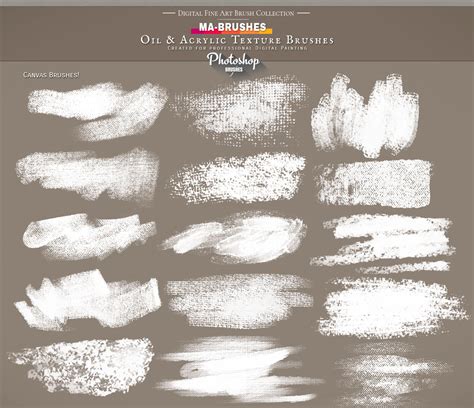
The key lies in experimentation. Don't be afraid to download and explore brush packs. Many artists share their custom brushes online, often for free. These can range from intricate patterns to realistic textures of fur, hair, or foliage. Once you've acquired a brush, take the time to understand its properties. Within the Brush Settings panel, you can adjust parameters such as diameter, hardness, spacing, shape dynamics, scattering, texture, dual brush, color dynamics, transfer, and more. Each of these settings can drastically alter the brush's behavior, allowing for an incredible range of effects. For example, adjusting "spacing" can create a continuous line from a stamp-like brush, while "scattering" can distribute brush marks randomly, useful for creating textures like grass or snow.
From Concept to Canvas: The Art of Sketching in Photoshop
Even if you don't consider yourself a natural drawer, the process of sketching is a crucial first step in digital art. In Photoshop, sketching can be approached in several ways. Some artists prefer to start with a very rough, gestural sketch using a basic hard round brush. This initial stage is about capturing the overall form and pose without getting bogged down in details. The lines here are often loose and energetic, serving as a blueprint for the more refined stages to come.
For those who struggle with freehand drawing, Photoshop offers tools to assist. You can import reference images and trace over them lightly, or use the Pen Tool to create precise vector paths that can then be converted into brush strokes. However, the goal isn't to avoid drawing altogether, but rather to leverage Photoshop's capabilities to support your artistic vision.
When sketching animals, for instance, focus on understanding their anatomy and posture. Break down complex shapes into simpler geometric forms. Observe how light falls on their bodies to inform your line weight and shading. Similarly, for portraits, the initial sketch is about capturing the likeness and personality of the subject. Pay attention to the proportions of the face and the subtle nuances of expression.
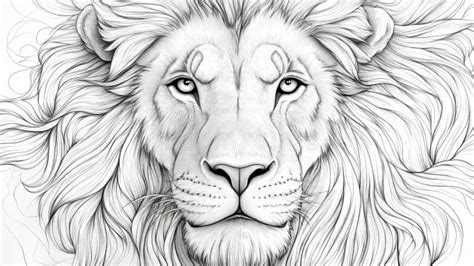
The beauty of digital sketching is its non-destructive nature. Layers allow you to sketch on one layer and then refine or paint on another without affecting your initial lines. You can also easily erase, move, or resize elements of your sketch as needed, making the iterative process of creation much more forgiving than traditional media.
Mastering Light and Shade: Adding Depth and Realism
One of the most significant ways to elevate your digital artwork from flat to dynamic is through the skillful application of light and shade. This is where your understanding of form and volume truly comes into play. Light and shadow are not merely aesthetic choices; they are fundamental to defining the three-dimensional nature of your subjects.
To begin, identify your light source. Where is the light coming from? This will determine where highlights appear and where shadows fall. Think about the form of your subject. Convex surfaces will reflect light more directly, creating brighter highlights, while concave surfaces will catch less light and fall into shadow more quickly.
Photoshop offers a variety of brushes and techniques for rendering light and shade. Soft brushes, often referred to as "airbrushes," are excellent for creating smooth transitions between light and shadow, mimicking the subtle gradations found in real-world lighting. Hard-edged brushes can be used to define sharp shadows or strong highlights, especially on materials with a high reflectivity.
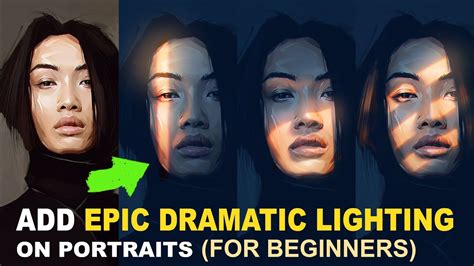
Consider the concept of "value," which refers to the lightness or darkness of a color. A strong understanding of value is crucial for effective shading. You can create a grayscale sketch first, focusing solely on the interplay of light and shadow, and then add color later. This approach helps to build a solid foundation of form before introducing the complexities of hue and saturation.
Furthermore, the concept of "form lighting" is essential. This refers to how light interacts with the inherent shape of an object. On a sphere, for example, you'll typically see a bright highlight, a reflected highlight (often from the surface the sphere is resting on), a mid-tone, a core shadow, and an occlusion shadow where the object meets the surface. Understanding these principles, even in a simplified manner, will dramatically improve the believability of your rendered forms.
Embellishing Portraits: Beyond the Basic Likeness
Creating a compelling portrait in Photoshop involves more than just capturing a likeness. It's about conveying emotion, personality, and story. Once you have a solid sketch and have begun to establish light and shade, you can start to add the finer details that bring a portrait to life.
This is where the careful selection and application of brushes become critical. For rendering skin, textured brushes can add subtle imperfections and variations in tone that make it look more realistic. Brushes that mimic the look of hair can be used to create individual strands or to build up volume and texture in the subject's hair. Eyelashes, eyebrows, and the subtle details of the eyes are often key to capturing the subject's expression.
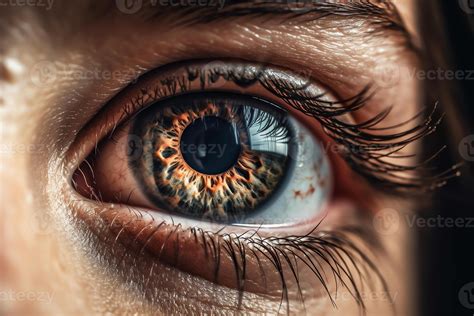
Don't forget the power of subtle color variations. Skin is not a uniform color; it has undertones of red, yellow, and blue. Blending these subtle color shifts can add a remarkable level of realism. Similarly, consider the environment and how it might affect the lighting on the subject's face. A cool ambient light might cast subtle blue tones into the shadows, while warm artificial light could introduce orange or yellow hues.
The "Pocketmags app" runs on all iPad and iPhone devices running iOS 13.0 or above, Android 8.0 or above and Fire Tablet (Gen 3) or above. For iOS, we recommend any device which can run the latest iOS for better performance and stability.
Photoshop Creative - A Comprehensive Resource
"Photoshop Creative" is positioned as the perfect magazine for anyone looking to deepen their understanding of Adobe's powerful application. Each issue is designed to be packed with inspirational tutorials that span the entire spectrum of the software's capabilities. These tutorials cover a wide range of topics, from engaging creative projects that push the boundaries of imagination, to practical, step-by-step guides on effectively using various tools and techniques.
Photoshop Elements: Introduction to the Layer Masks Tool
Regardless of your current usage of Photoshop â whether it's for professional design, digital painting, photo manipulation, or simply personal creative exploration â "Photoshop Creative" aims to be a valuable companion in your journey to becoming a more proficient and skilled digital artist. The magazine's focus is on providing actionable advice and inspiring examples that can be directly applied to your own work, fostering continuous learning and improvement.
Acquiring Your Creative Toolkit: Subscriptions and Delivery
For those interested in a consistent source of Photoshop knowledge, a subscription to "Photoshop Creative" is available. The magazine is published 12 times per year, offering a continuous stream of content. A typical subscription period is for one year, ensuring a full year's worth of tutorials and inspiration.
It's noteworthy that for orders placed on sudarshanbooks.com, the platform currently offers FREE DELIVERY on all items. This means you will not incur any shipping charges on any orders placed through their website. The majority of orders are processed and shipped promptly, with most orders leaving their facility within 1 to 3 working days of placement. Following shipment, delivery typically takes an additional 2 to 3 days. The company utilizes leading courier services, providing customers with the ability to track their orders online once they have been shipped, offering transparency and peace of mind throughout the delivery process. This logistical efficiency ensures that your creative resources arrive with minimal delay, allowing you to dive into learning and creating sooner.