Color management in digital imaging can often feel like navigating a labyrinth, especially when dealing with the nuances of print and online publishing. The concept of embedded color profiles in Photoshop, while fundamental to ensuring color consistency, can be a source of confusion for many users. This article aims to demystify ICC profiles, explain their role in Photoshop, and provide practical guidance on how to manage them effectively for both print and digital outputs, particularly when working with Adobe InDesign.
What are ICC Profiles and Why Do They Matter?
At its core, an ICC (International Color Consortium) profile is a set of data that describes the color characteristics of a device or a digital file. Think of it as a translator or a universal key that allows different devices and software to understand and reproduce colors consistently.
When you capture an image with a camera or create one in Photoshop, the pixels are represented by numerical values, typically Red, Green, and Blue (RGB) values ranging from 0 to 255. However, the raw numbers themselves don't inherently convey what those colors look like. Without an embedded ICC profile, a file is considered "untagged," meaning it lacks this crucial descriptive information. In such cases, software like Photoshop has to guess the intended color space, often defaulting to a standard like sRGB. This guessing game can lead to significant color shifts and unexpected results, especially when moving between different applications or preparing files for output.
The analogy of baking a cake with a recipe calling for "2 sugars" illustrates this point. Are we talking about 2 cubes, 2 teaspoons, or 2 cups? The ambiguity leads to an unpredictable outcome. Similarly, an untagged image leaves its color interpretation open to interpretation by the software or device viewing it.
Photoshop's Color Settings and Working Spaces
Photoshop utilizes "working spaces" to define the default color environments for different types of images. These are essentially predefined ICC profiles that Photoshop uses when opening untagged files or performing certain color operations.
Within Photoshop, you can access these settings via Edit > Color Settings. For RGB images, the default working space in North America is often set to sRGB. If the image were CMYK, the default might be US Web Coated SWOP V2. These presets are designed to offer a general-purpose standard, but they might not be suitable for all workflows, especially when precise color reproduction for specific printing conditions is required.
Each of these profiles represents a specific printing technology, ink type, paper stock, or regional standard. For example, profiles can differentiate between web offset presses, sheet-fed presses, coated or uncoated paper, and even variations in ink formulations used in different parts of the world. The complexity arises because accurately knowing which profile to use often requires direct communication with a prepress department or a deep understanding of the printing process.
The Pitfalls of Manual CMYK Conversion
A common scenario that leads to color management issues is the manual conversion of an RGB image to CMYK. Often, users are told that print requires CMYK, so they proceed to Image > Mode > CMYK Color. When this is done without careful consideration, Photoshop prompts a dialog box stating, "You are about to convert to CMYK using [Default CMYK Profile]. This may not be what you intend."
What's happening here is that Photoshop is converting the image from its current RGB working space (e.g., sRGB) to the default CMYK working space defined in your Color Settings (e.g., US Web Coated SWOP V2). If the actual printing process uses a different CMYK profile (which is very common, especially for digital printing presses that might be profiled to GRACoL or other standards), the colors can shift dramatically.
For instance, if you convert an sRGB image to US Web Coated SWOP V2 and then send it to a printer whose digital press is profiled to GRACoL, the colors will likely look significantly different from what you intended. You might then try to "correct" this by assigning a different profile, but this process of assigning a profile without proper conversion can be misleading and lead to further color inaccuracies.
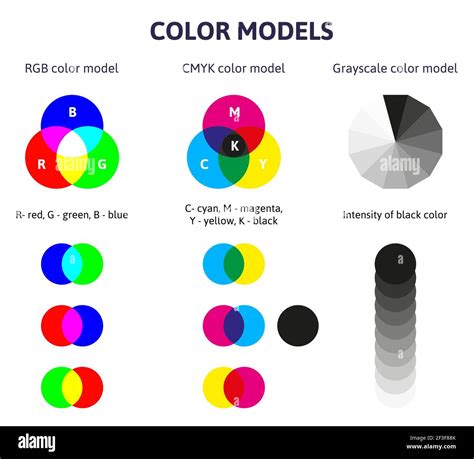
The video topic suggested for this section is: "Understanding the Difference Between RGB and CMYK Color Spaces for Print and Digital."
The "Embed Color Profile" Option Explained
The "Embed Color Profile" checkbox, found in Photoshop's "Save As" or "Export" dialogs, is a critical component of color management. When enabled, it instructs Photoshop to include the document's ICC profile within the saved file.
Why Embedding is Crucial
- Color Consistency: Embedding the profile ensures that the color information is self-contained within the file. When this file is opened on another computer or in another application (like InDesign), the software can read the embedded profile and interpret the colors accurately, based on the original intent.
- Printer Communication: For professional printing, an embedded profile is essential. It tells the printer the color space the image was designed in, allowing their prepress department to perform the most accurate conversion to their specific printing press profile.
- Online Display: While most web browsers default to sRGB, embedding the profile can still provide an extra layer of assurance, especially if the image is intended for platforms that might handle color more rigorously.
The "Untagged" Problem
If you consistently uncheck "Embed Color Profile," your files become "untagged." This means that when someone else opens your file, or when your file is used in a layout program like InDesign, Photoshop will have to guess the color space. This guess is usually based on the current working space in Photoshop's Color Settings. This is where the "2 sugars" problem re-emerges, potentially leading to colors appearing washed out, oversaturated, or simply incorrect.
Best Practices for Embedding Color Profiles
The consensus among color management experts is to always embed color profiles, especially when files will be used across different applications or output devices.
For Print and Online Projects
If you are working on a project that will be printed and published online, the most robust approach is to maintain your working files in a wide-gamut RGB color space, such as Adobe RGB (1998) or ProPhoto RGB, and ensure the profile is embedded.
- Edit in RGB: Edit your photos in a wide-gamut RGB space (like Adobe RGB). This preserves the maximum amount of color information.
- Embed the Profile: When saving your Photoshop files (e.g., as TIFF or PSD), always check the "Embed Color Profile" option.
- InDesign Workflow: Place these RGB images with embedded profiles into your InDesign layout.
- PDF Export: When exporting your InDesign document to PDF:
- For Print: In the PDF export settings, under "Output," choose the appropriate CMYK profile that your printer has specified. Ensure that "Convert to Destination (Preserve Numbers)" or a similar option is selected to perform the conversion correctly. The embedded RGB profile will be the source for this conversion.
- For Online: Export a separate PDF for online use. You can often choose to embed an RGB profile (like sRGB) or leave it as is if the target platform expects sRGB.
This workflow avoids the need to save duplicate files (one RGB, one CMYK) for each image. You manage one master RGB file with its embedded profile, and the conversion to CMYK happens at the final PDF export stage, tailored to your printer's requirements.
Common Issues and How to Resolve Them
"The file shows 'Untagged RGB'"
This indicates that the file lacks an embedded color profile.
- Solution: Open the image in Photoshop. Go to
Edit > Assign Profile. If you know the intended color space (e.g., sRGB or Adobe RGB), assign it. Then, go toEdit > Convert to Profile. Select the desired destination profile (e.g., Adobe RGB for a wider gamut, or sRGB for web). Crucially, ensure that when you save the file again, you check the "Embed Color Profile" box. If you are unsure of the original color space, assigning Adobe RGB (1998) is often a safe bet as a starting point before converting.
"Colors changed after exporting"
This often occurs when "Assign Profile" is used incorrectly instead of "Convert to Profile" during a color space change.
- Solution: Revert to your original file if possible. When changing color spaces (e.g., from RGB to CMYK, or from one RGB space to another), always use
Edit > Convert to Profile. This function correctly re-maps the color values from the source profile to the destination profile, preserving the appearance as much as possible. "Assign Profile" simply tells Photoshop to interpret the existing numbers as if they belonged to a different profile, which almost always leads to color shifts.
"The uploader says my file has no color profile"
This is a direct consequence of not embedding the profile during the save or export process.
- Solution: Double-check your "Save As" or "Export" dialogs in Photoshop. Ensure that the "Embed Color Profile" or "Include ICC Profile" option is checked. If you are exporting JPEGs, for example, this option is usually found within the JPEG Options dialog.
Managing Color for Different Outputs
The key takeaway is that RGB is generally preferred for editing and archiving because it offers a wider color gamut than CMYK. CMYK is a subtractive color model used specifically for printing, and its gamut is significantly smaller. Converting to CMYK too early can result in a permanent loss of color information that cannot be recovered.
By keeping your master files in RGB with embedded profiles, you retain flexibility. When you need to print, you perform a controlled conversion to the specific CMYK profile required by your printer. When you need an online version, you can export directly from your RGB file, often specifying sRGB as the target profile for maximum compatibility on the web.
The process of color management, including understanding ICC profiles, monitor calibration, and output device profiling, can indeed be intimidating. However, by consistently embedding color profiles in your Photoshop files and using the "Convert to Profile" command judiciously when changing color spaces, you lay a strong foundation for accurate and consistent color reproduction across all your projects, whether they are destined for a printed page or a digital screen.