The animated GIF, or Graphics Interchange Format, has become an indispensable part of modern digital communication. From expressing nuanced emotions in online conversations to creating eye-catching social media content, GIFs offer a unique blend of simplicity and dynamism. This tutorial will guide you through the process of creating your own animated GIFs using Adobe Photoshop CC, transforming static images or illustrations into captivating looping animations.
Understanding the GIF Format
Before diving into the creation process, it's essential to understand the fundamental characteristics of the GIF format. Developed by CompuServe in 1987, GIF is an image file format renowned for its ability to support animation and transparency, while also offering decent compression.
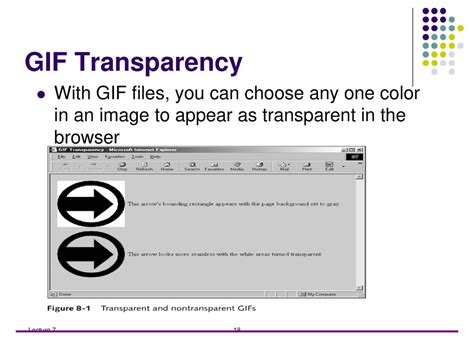
GIFs are capable of displaying up to 256 colors. While this may seem limited compared to formats like JPG which support millions of colors, it is more than adequate for simple graphics, logos, icons, and, crucially, animations where photographic realism is not the primary goal. The compression used in GIFs is generally lossless, meaning that the image data is not degraded during the compression process, though the limited color palette can sometimes lead to visual artifacts like dithering, especially in images with smooth gradients or photographic content.
The true power of the GIF format lies in its animation capabilities. It functions by displaying a sequence of individual frames, creating the illusion of movement when played in rapid succession. This is what allows a static illustration to come to life as a looping animation.
GIFs vs. Other Image Formats
It's important to distinguish GIFs from other common image file types, each suited for different purposes:
- JPG (Joint Photographic Experts Group): Ideal for photographs and complex images with millions of colors. JPGs use lossy compression, which significantly reduces file size but can result in a slight loss of quality. They do not support transparency or animation.
- PNG (Portable Network Graphics): A versatile format that supports transparency and a wide range of colors (up to 16 million). PNGs are lossless, meaning no quality is lost during compression. They are excellent for web graphics that require transparency, such as logos placed over backgrounds, but do not support animation.
- TIFF (Tagged Image File Format): Primarily used for high-resolution printing and professional photography. TIFFs are lossless and preserve the highest level of image quality, making them suitable for archival purposes and print workflows. They do not support animation.
While GIF has been around since the "digital Stone Age," its animation feature has ensured its continued relevance. Unlike video files, GIFs do not support audio. Their small file size and portability make them exceptionally well-suited for web use, particularly for short, attention-grabbing animations.
The Evolution and Popularity of GIFs
The journey of the animated GIF from a tool for displaying stock market quotations to a ubiquitous element of internet culture is a fascinating one. In its early days, animated GIFs were often crude and considered unprofessional. However, with the advent of faster internet speeds, the expansion of broadband, and the rise of social media platforms, GIFs began to gain traction.
Technical improvements made them easier to create and higher in quality. Social media sites embraced them, and designers and artists began to explore their creative potential. Entire platforms emerged dedicated to collecting and sharing GIFs. Today, animated GIFs are deeply embedded in our digital landscape, appearing in advertisements, marketing campaigns, and everyday online interactions. They serve as a quick, visual means of conveying jokes, ideas, and emotions, making them a powerful communication tool. Memes, often static images with captions, share this characteristic of quick visual communication, with GIFs offering a dynamic extension of this concept.
Preparing Your Frames for Animation
The foundation of any animated GIF is a series of individual frames. For the best results, these frames should be created in rapid succession, mimicking the feel of a short, looping video. A total of 15-24 still images typically works best for a smooth animation.
Method 1: Drawing Frames in Photoshop
If you're creating an animation from scratch, you'll be drawing your frames directly within Photoshop.
- Create a New Document: Begin by navigating to
File > New. Set your desired dimensions and resolution for your animation and clickCreate. - Open the Timeline Panel: To access Photoshop's animation tools, go to
Window > Timeline. This will open the Timeline panel, usually at the bottom of your workspace. - Create a Video Group: For drawing frames, you'll want to work with a Video Group. In the Timeline panel, click on the film roll icon next to "Layer 0" and select
New Video Group. This organizes your animation layers. - Add Layers for Frames: With your Video Group selected in the Layers panel, click the
+button to add a new layer. Each new layer will represent a frame in your animation. - Set Frame Duration: In the Timeline panel, you'll see your frames represented. Drag the right edge of a frame to the left or right to adjust how long it will be displayed.
- Duplicate Layers for Consistency: To ensure consistent frame durations, it's recommended to duplicate your first frame layer instead of creating new ones from scratch. This automatically applies the same duration to the duplicated layers.
- Utilize Onion Skinning: To help you draw subsequent frames with reference to the previous ones, use the "Onion Skin" feature. Ensure your timeline scrubber (the red line with the blue arrow) is positioned on the frame you are working on, then access the Onion Skin options (often found by clicking a menu icon within the Timeline panel). Keeping the default settings is usually a good starting point.
- Convert to Frame Animation: Once you have drawn all your frames, you'll need to convert your Video Timeline into a Frame Animation. Click the menu icon (four horizontal lines) in the top-right corner of the Timeline panel and select
Convert Frames. This will transform your video timeline into individual frames.
Method 2: Loading Existing Image Stacks
Alternatively, you can create an animated GIF from a series of existing images, such as photographs taken in burst mode or frames exported from a video.
- Gather Your Images: For the best results, use a series of images captured in rapid succession. Time-lapse sequences or images shot in burst mode work exceptionally well. Ensure that all your image files are the same size (check the pixel dimensions) to avoid scaling issues. Place all the frames you intend to use into a single folder.
- Load Files into Stack: Open Adobe Photoshop. Navigate to
File > Scripts > Load Files into Stack. This will open a dialog box where you can select all the image files you want to use. Hold down theShiftkey to select multiple images, then clickOK. Photoshop will load each image as a separate layer in a new document. - Open the Timeline Panel: Go to
Window > Timelineto open the Timeline panel. - Create Frame Animation: In the center of the Timeline panel, you'll typically see a button to "Create Video Timeline." Click the arrow next to it and select
Create Frame Animation. - Make Frames from Layers: In the top-right corner of the Timeline panel, click the menu icon (four horizontal lines) and select
Make Frames From Layers. Each of your image layers will now appear as an individual frame in the Timeline panel.
Fine-Tuning Your Animation
With your frames in place, it's time to refine the animation.
Tweening/Keyframing in Photoshop Animation- A Lazy Tutorial
- Adjust Frame Order and Duration: In the Timeline panel, you can easily reorder frames by simply dragging and dropping them. To adjust how long each frame is displayed, click on the duration listed below each frame thumbnail and select a new time from the dropdown menu.
- Ensure Smooth Transitions: For a professional look, pay close attention to how each frame transitions to the next. Smooth transitions contribute significantly to the overall quality of your animated GIF.
- Set Looping Options: At the bottom of the Timeline panel, you'll find looping options. Click the dropdown menu (which might say "Forever" by default) to choose how many times you want your GIF to loop. Options typically include playing once, a set number of times, or looping continuously ("Forever").
Exporting Your Animated GIF
Once you are satisfied with your animation, the final step is to export it as a GIF file.
- Save for Web (Legacy): Navigate to
File > Export > Save for Web (Legacy). This will open a dedicated dialog box optimized for web output. - Select GIF Preset: In the "Preset" dropdown menu, choose a GIF option. "GIF 128 Dithered" is often a good starting point, balancing quality and file size.
- Adjust Color Settings: You can further refine the appearance by adjusting the "Colors" setting. Reducing the number of colors can decrease file size but may introduce more dithering. Experiment to find a balance that works for your animation.
- Image Size: Under the "Image Size" section, you can adjust the physical dimensions of your GIF. If your original image files were very large, it's advisable to reduce the dimensions here for better online viewing and faster loading times.
- Preview Your GIF: The "Save for Web (Legacy)" dialog box includes a preview window where you can see your animation in action. This is crucial for checking the looping and frame transitions. Many standard image preview applications might not play the animation, so using the built-in preview is essential.
- Export and Save: Once you are happy with the preview, click
Save. This will prompt you to name your file, choose a destination folder, and then clickSaveagain to finalize the export.
By following these steps, you will be able to create your own custom animated GIFs in Adobe Photoshop CC, ready to share your creations and add a dynamic flair to your digital communications. Experiment with different frame rates, colors, and content to unlock the full potential of this enduring web format.