Tap into your creativity on the go with Photoshop Express-the fun, fast, and easy picture and video editor. Discover seamless one-touch photo transformations and simple video editing-used by millions of creative individuals. Photoshop Express delivers a wide and diverse selection of features and aesthetics at your fingertips. Create stand-out photo collage images, and fix and enhance your share-worthy moments for stunning social content. Photoshop Express is the photo and video editor app for users of all experience levels, from the absolute beginner to the seasoned professional.
The app is great for quickly editing your iPhone photos. This photo editing and Photoshop app has a wide range of easy-to-use filters and adjustment tools. And you can make unique edits or collages using the app’s creative tools. Even complete beginners can produce spectacular images in minutes. This comprehensive guide will walk you through how to use PS Express to create stunning iPhone photo edits, exploring its extensive features from basic adjustments to advanced AI-powered tools.
Getting Started with Photoshop Express
Downloading and installing the Photoshop Express app is straightforward. It’s available on iOS, Android, and Windows, you can find it on respective app stores. For iOS devices, Photoshop Express is available for both iPhone and iPad. The app requires iOS 15.0 or later for iPhone and iPod touch, and iPadOS 15.0 or later for iPad. The application size is 396.2 MB and it supports English and 26 other languages. The age rating is 4+, with content restrictions managed by the developer.
Upon opening Adobe Photoshop Express, you'll be presented with images from your photo library. At the top of the screen, you'll find two primary options: "Edit Images" and "Make Collage." Ensure "Edit Images" is selected to proceed with editing a single photograph. You can also open an image from a different photo album by tapping the arrow at the top of the photo library screen and then selecting "Albums."
Once an image is selected, the PS Express photo editor interface appears. A row of icons at the bottom of the screen provides access to various editing tool categories. Swipe across these icons to reveal more options. Tapping an icon will expand the editing tools within that specific category. If you wish to return to your photo library to select a different image, tap the arrow located at the top left of the screen.
Auto-Enhance: The One-Tap Solution
At the top of the editing screen, you'll notice a blue Auto-Enhance tool, represented by a wand icon. This feature automatically applies light and color adjustments in an attempt to improve your photo. By default, Auto-Enhance is switched on when you open a photo for editing, meaning PS Express tries to automatically fix your image before you even begin manual adjustments.
While this can be useful in certain situations, the app doesn't always achieve the desired edit. Often, it's more effective to make your own adjustments using the dedicated filters and adjustment tools. To disable automatic enhancement, simply tap the Auto-Enhance icon so it turns white. Your photo will then revert to its original, unedited state.
Mastering Photo Transformations with Photoshop Express
Photoshop Express offers a robust set of tools for transforming your images, from simple adjustments to sophisticated AI-driven enhancements.
Looks: One-Tap Filters for Instant Style
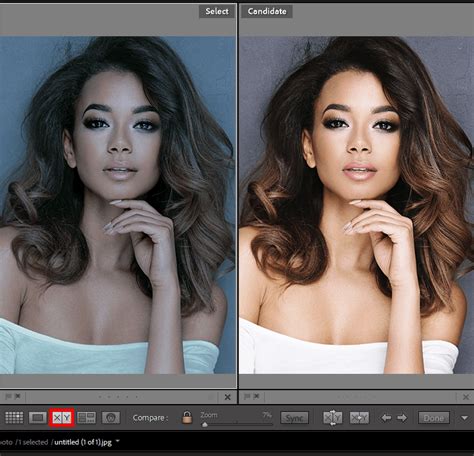
Are you looking for a quick way to change the look and mood of your photos? The one-tap filters, referred to as "Looks" within Photoshop Express, offer an easy solution. These filters apply a predefined set of edits to your photo, affecting aspects like color, exposure (brightness), and sharpness. With filters, you can rapidly convert a photo to black and white, add a specific color tone, warm up or cool down colors to alter the mood, or make colors more vibrant or muted.
Applying a Filter to Your Photo
To access these filters, tap the "Looks" icon (three overlapping circles) at the bottom left of the screen. A list of filter categories will appear beneath your photo: Basic, Charm, B&W, Portrait, Nature, Pop Color, Duo Tone, and Premium. Tap on a category, then scroll to view individual filters. Tap a filter to apply it to your photo. A slider beneath your photo allows you to adjust the intensity of the filter. Dragging right increases the filter strength, while dragging left decreases it. In most cases, reducing the filter strength is advisable to avoid an over-edited appearance.
Navigating the Nuances of Filters
It's important to note that some filters in Adobe Photoshop Express can be quite strong, potentially adding garish colors, dark vignettes, or excessive grain, which can make your photo appear over-processed. For instance, the "Superpunch" filter, as an example, can significantly alter an image by adding excessive contrast, leading to an overly bright sky and dark rocks, with a loss of detail in both highlights and shadows. The greens might also appear unnaturally vibrant.
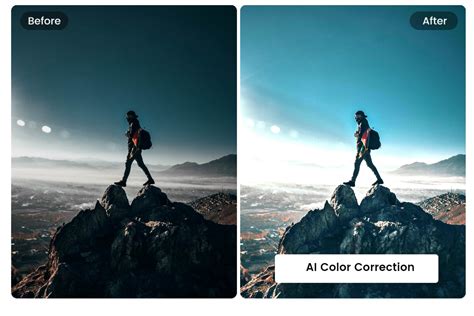
Conversely, filters like "Autumn," when used with a reduced intensity via the slider, can create a more subtle and pleasing edit. Photoshop Express also includes filters that intentionally create abstract effects, such as the Duo Tone filters, which completely change the colors in your photos. While these might not be suitable for everyday photo editing, they can be effective for creating modern, abstract edits with specific images. While Photoshop Express might not be universally considered the best filter app for iPhone, using its more subtle filters and adjusting their strength can yield great results.
Crop, Rotate & Transform: Perfecting Composition
The second icon in the bottom toolbar grants access to the Crop, Rotate, and Transform tools. These tools are essential for refining the composition of your photos.
Cropping Your Image
The Aspect Ratio option allows you to crop your photo, which is invaluable for removing unwanted distractions from the edges of the frame or improving the overall composition. Choose an aspect ratio from the bottom of the screen to crop to a predefined shape and size. Selecting "Unconstrained" allows you to crop without being restricted to a particular aspect ratio. Once an aspect ratio is chosen, drag the corner handles to adjust the crop.
Rotating & Straightening Your Photo
The Rotate option provides four tools for altering your photo's orientation: Straighten, Rotate, Flip Horizontal, and Flip Vertical. The Straighten tool is particularly useful for leveling horizons in landscape photos or ensuring straight lines in architectural shots. Tapping "Auto" to the left of the slider allows Photoshop Express to analyze your photo and attempt to straighten it. If the automatic adjustment isn't perfect, you can manually drag the slider to tilt your photo, using the grid overlay as a guide for precision.
The Rotate tool enables you to rotate your photo by 90-degree increments, allowing you to switch between vertical and horizontal orientations. The Flip Horizontal and Flip Vertical tools create mirror images of your original photo. Flipping an image horizontally can sometimes enhance its composition, for example, if you want the most prominent subject to be on the left, guiding the viewer's eye from left to right.
Transforming Your Image to Correct Perspective
Have you ever taken a photo of a tall building and noticed it appears to narrow towards the top? This perspective distortion occurs when you tilt your iPhone upwards while taking the shot. You can correct these perspective problems using the Transform tools in Adobe Photoshop Express. To straighten a building or any subject with perspective distortion, tap the Vertical Skew tool and drag the slider, or tap "Auto" to let Photoshop Express handle the adjustment. The Horizontal Skew tool helps to make it appear as if the photo was taken directly head-on, rather than from an angle. Additionally, "Full Auto" and "Balanced Auto" tools can automatically skew and straighten your image. It's recommended to try both options to see which works best for your specific photo. Be cautious with "Full Auto," as it can sometimes lead to distorted or stretched images; always review your image carefully after using this tool.
Adjustment Tools: Fine-Tuning Light, Color, and Effects
The third icon at the bottom of Photoshop Express (three sliders) opens the Adjustment Tools. These tools allow you to fine-tune settings such as light, color, and sharpness with intuitive sliders that control the intensity of each effect. These adjustments can help bring out detail and make your photos "pop."
The Adjustment tools are organized into five categories: Light, Color, Effects, Details, and Blur. Scroll across to explore the tools within each category. As with the PS Express filters, it's crucial to use these adjustment tools judiciously. Overuse at full strength can easily result in a grainy or over-processed image. It's best to use the sliders with caution, making only small, subtle changes to achieve beautiful iPhone photo edits.
Making Light Adjustments
The sliders in the Light category offer various ways to adjust the brightness of your photo:
- Exposure: Brighten or darken the entire image.
- Contrast: Modify the difference between the brightness of light and dark areas.
- Highlights: Adjust the brightness of the brightest areas.
- Shadows: Adjust the brightness of the darkest areas.
- Whites: Control the brightness of the very brightest areas, with a wider tonal range than Highlights.
- Blacks: Control the brightness of the very darkest areas.
Enhancing Colors in Your Photo
The sliders in the Color category provide control over these color settings:
- Temperature: Shift colors towards warmer (more orange) or cooler (more blue) tones.
- Tint: Introduce a green or purple cast to your photo.
- Vibrance: Adjust less-saturated colors without significantly affecting highly saturated ones, boosting colors subtly.
- Saturation: Control the overall intensity of all colors in your photo.
Improving Your Image with Effects
The sliders in the Effects category allow for adjustments to:
- Clarity: Enhance details and textures by increasing local contrast.
- Dehaze: Remove or enhance atmospheric haze in your photo.
- Fade: Soften the colors in your photo for a muted look.
- Grain: Add grain to achieve an old-fashioned film or vintage aesthetic.
- Vignette: Apply a dark or light vignette around the edges of your image.
Sharpening Detail & Eliminating Grain
The sliders in the Details category focus on sharpening your image:
- Sharpen: Enhance fine details within your photo.
- Reduce Luminance Noise: Correct grainy photos by smoothing out brightness variations in colored pixels.
- Reduce Color Noise: Address noise where multi-colored pixels appear as flat color, especially in darker areas.
Adding Blur Effects to Your Photo
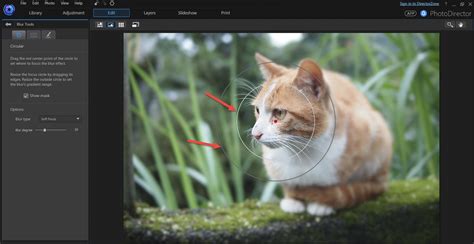
The Blur category enables you to blur all or part of your image. While blurring the entire photo is rarely desired, the Radial blur option can be particularly useful. Radial blur allows you to selectively blur parts of your image, effectively drawing the viewer's attention to the main subject.
When you select the Radial tool, two circles appear on your photo. Dragging the slider to the right increases the blur amount. The area inside the inner circle remains sharp, while the area outside the outer circle becomes blurred. The space between the two circles creates a transition zone from sharp to blurred. You can reposition these circles and pinch or zoom with two fingers to adjust the size of the blurred area. You can also control the transition's softness by adjusting the gap between the circles; a wider gap creates a gradual transition, while a narrow gap results in a harsher edge.
Advanced Editing Features: Going Beyond the Basics
Photoshop Express is more than just a collection of basic editing tools; it incorporates advanced features, including AI-powered enhancements and creative additions.
Spot Removal Tool: Erasing Imperfections
The Spot Removal tool is a handy feature for erasing small objects, spots, blemishes, dirt, and other minor distractions from your photos with a single tap. Tap the Spot Removal tool (band-aid icon) at the bottom of the screen. For best results when removing small details, zoom in on the spot you want to remove by placing two fingers close together on the screen and then dragging them apart. Use the slider to set the size of the Spot Removal tool, ensuring it's slightly larger than the blemish you intend to remove. Tap on the small object; the area will be replaced with pixels from its surroundings. You might need to tap a few times for complete removal.
Eye Tool: Correcting Red-Eye and Pet Eyes
The Eye tool in Adobe Photoshop Express is designed to fix common issues with eyes in photos, such as red-eye or overly bright pet eyes. Tap the Eye icon at the bottom of the screen and select either "Red Eye" or "Pet Eye." Then, tap on the eyes you wish to correct. The Red Eye tool also includes an option for automatic detection and correction.
How to Use the Red Eye Tool in PaintShop Pro
Text, Stickers & Borders: Adding Personal Touches
The Text, Stickers, and Borders tools allow you to add final creative flourishes to your images. You can add a text caption or a personal message, jazz up your photo with artistic or cartoon-style stickers, or apply a frame around the edge of your picture. While these elements may not be suitable for every photo, they can add a unique touch, helping to tell a story or convey a personal message.
Adding Text to Your Photo
To add text, tap the Text icon (T) in the bottom toolbar. You may need to scroll to find it. Within the Text tool, you'll find four categories: Styles, Font, Color, and Alignment. Browse through the Styles and tap on a text style you like. You can use the default text or delete it and type your own message. If you're unsure what to write, the preset styles can offer inspiration. To add your own text, tap the Pencil icon in the top-left corner of the text box. A screen will appear where you can type your text. Tap "Done" to add it to your photo. Use your fingers to resize, rotate, or reposition the text as needed. Customize your text further using the options below your photo: tap "Font" to select a different font style, "Color" to change the text color, or "Alignment" to align your text left, center, or right.
Adding Stickers to Your Image
The Stickers tool lets you add decorative or fun graphics to your photos. Tap the Stickers icon (a circle with a shape inside). You can then browse through various categories of stickers and tap on one to add it to your image. Once added, you can resize, rotate, and reposition the sticker.
Adding a Border Around Your Picture
The Borders tool allows you to add frames to your photos. You can choose from a variety of border styles and adjust their thickness. This can be a simple way to give your photo a finished look.
AI-Powered Creative Tools: The Future of Editing
Photoshop Express is increasingly integrating advanced AI capabilities powered by Adobe Firefly, bringing sophisticated editing features to your mobile device.
Generative Expand and Generative Fill
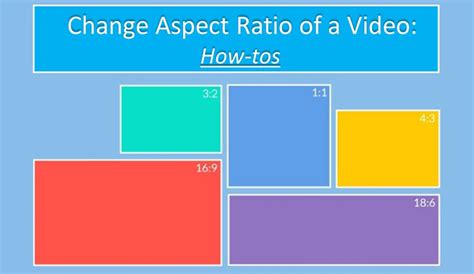
Generative Expand allows you to give your photos the exact proportions you need, making them a perfect fit for any timeline, dump, or project. This feature is incredibly useful for re-framing images or extending their boundaries seamlessly.
Generative Fill, also powered by Adobe Firefly, enables you to easily add elements to your image or quickly remove unwanted objects from the background. This AI capability revolutionizes how you can manipulate and enhance images, offering powerful editing possibilities.
Text to Image and AI Backgrounds
Imagine with Text to Image allows you to take your expression further by turning text prompts into eye-catching images, powered by Adobe Firefly. This opens up a new realm of creative possibilities, allowing you to generate visuals based purely on your imagination.
The AI Background feature lets you replace your background with unique settings, such as Nature, Liminal Spaces, or Fantasy environments, transforming the context of your photos instantly.
AI-Powered Camera Lenses and Makeup Tools
See life through a new lens with over 100 aesthetic, Insta-worthy AI-powered filters and effects. These lenses are designed to give your photos a professional and trendy look with minimal effort.
The app also offers advanced AI makeup tools. The Eye Makeup tool allows you to make eyes pop, catering to dramatic, natural, or vibrant looks. The Lipstick Glow-Up! feature lets you tweak the intensity of lipstick color with an easy slider, offering realistic cosmetic enhancements.
Other AI Features: Swap Outfit and Face Paint
The Swap Outfit feature transforms your outfit instantly with AI, allowing you to choose your perfect style without physically changing clothes. Face Paint offers a commitment-free way to get your face painted or a new tattoo, utilizing 3D face modeling and material paints for realistic applications. You can position your desired face paint by zooming and panning around the photo.
Video Editing Capabilities
Video Magic Has Arrived! Photoshop Express now extends its powerful editing capabilities to video. You can trim clips, adjust speed, and resize for high-resolution video exports. Furthermore, you can add thousands of audio tracks directly integrated from Adobe Stock to elevate your video edits. Animation Effects in Editor have also been introduced, allowing you to add dynamic animations to your video projects.
How to Use the Red Eye Tool in PaintShop Pro
Collages: Bringing Multiple Photos Together
Photoshop Express allows you to create gorgeous and share-worthy collages.
Creating a Single Image Collage
The "Make Collage" option allows for the creation of single-image collages, where multiple photos are integrated into a cohesive visual.
Creating a Multi-Photo Collage
To create a multi-photo collage, select the photos you wish to work with and choose one of the layout styles presented in the bottom panel. You can then edit and replace individual photos within the collage by selecting the edit icon. To swap photos, long-press any photo to drag and drop it onto another cell. You can also add background styles, text, and stickers to your collage, and change borders by applying and adjusting inner and outer borders. Stylize your text by choosing from available font styles.
Saving and Sharing Your Masterpiece
Once you've finished editing your photo or creating a collage, you'll want to save your work. Tapping the save icon allows you to save your edited photo. You can choose to overwrite your original photos or create a new copy. The image resize options will scale photos to the selected edge while preserving the photo's current crop ratio. You can also choose a quality scale to be applied to your photo when exporting or sharing.
Photoshop Express also offers seamless integration with Adobe Creative Cloud. You can connect to Lightroom and CC Library directly from within Photoshop Express, allowing for easy file management and access across devices.
Subscription and Data Information
Photoshop Express offers a free version with significant functionality, including basic editing tools, filters, and text application. For advanced features and additional content like premium filters and advanced healing tools, in-app purchases or a subscription plan may be required. Existing Creative Cloud members might have access to certain premium features as part of their plan.
The app collects data that may be linked to your identity, including Location, Contact Info, User Content, Identifiers, Usage Data, and Diagnostics. Adobe states that they do not sell or share personal information. More details can be found at www.adobe.com/go/ca-rights-linkfree.
Conclusion for the User
Photoshop Express is a powerful yet accessible photo and video editing application designed for users of all levels. Its intuitive interface, combined with a vast array of tools-from basic adjustments and filters to cutting-edge AI features-makes it an indispensable tool for enhancing images and creating stunning visual content on the go. Whether you're a casual user looking to quickly touch up a photo for social media or a more experienced editor seeking advanced creative control, Photoshop Express on your iPhone offers a robust and enjoyable editing experience.