In the realm of digital photography, Adobe offers a powerful suite of tools designed to enhance and manage your images. Among these, Adobe Photoshop Lightroom and Adobe Photoshop stand out as industry leaders, each catering to distinct needs and workflows. While both are capable of impressive image manipulation, understanding their core functionalities and intended purposes is crucial for any photographer seeking to optimize their post-processing and organization. This article delves into the nuances of Photoshop Express and Lightroom, exploring their strengths, weaknesses, and how they can best serve your creative vision, from quick mobile edits to comprehensive desktop workflows.
Understanding the Core Philosophies: Management vs. Manipulation
At a high level, the fundamental difference between Lightroom and Photoshop lies in their primary design goals. Lightroom excels as a robust tool for managing and processing large volumes of photographs. It's built to handle the thousands of images that accumulate on your devices, offering unparalleled organizational capabilities. Think of Lightroom as your digital darkroom and library, where you sort, categorize, and perform initial enhancements without ever altering your original files.
Photoshop, conversely, specializes in intricate, pixel-level image manipulation. It's the go-to application for achieving greater control and executing more expansive edits, transforming a select few images into flawless masterpieces. While Lightroom is often a one-stop shop for many photographic needs, Photoshop is the ultimate tool for detailed retouching, compositing, and creative alteration.
Lightroom: The Photographer's Organizer and Processor
Lightroom, available in both desktop (Lightroom Classic) and cloud-based (Lightroom CC) versions, is fundamentally designed around image management and efficient post-processing. Lightroom Classic, the desktop-based program, is ideal for photographers who store their photos locally on external or computer hard drives. Its most significant strength lies in its ability to handle and organize vast libraries of images.
Image Management and Organization
Many photographers begin their editing process with Lightroom precisely because it excels at handling large quantities of photos, allowing for a more rapid workflow. The software provides an efficient way to organize, manage, and locate images within a catalog that functions much like a digital library. You can rate your photos to identify the best shots, and utilize albums and collections to effectively manage photoshoots and ongoing projects. This structured approach ensures that your entire photographic archive is easily navigable and accessible.
The Develop Module: Enhancing Your Vision
After importing your files, the "Develop" module in Lightroom becomes your primary workspace for enhancing and editing photos. Here, you have a comprehensive suite of tools to tweak virtually every aspect of your image. You can refine the light and color balance, correct perspective distortions, sharpen details, and apply a wide array of creative effects to make your images truly shine.
Presets and Non-Destructive Editing
Lightroom presets are a powerful time-saving feature, enabling you to apply the same set of adjustments to one or countless images simultaneously, a process known as batch editing. You have the flexibility to create your own custom presets or download a diverse range of presets through features like the Discovery Interactive Edits.
Crucially, Lightroom employs non-destructive editing. This means that any changes you make to a photo are recorded in the catalog and do not permanently alter the original file. This offers immense flexibility, especially when working with RAW files, which provide a greater latitude for editing without any loss of original image data.
Lightroom Mobile and Lightroom Express: On-the-Go Editing
Adobe also offers mobile versions of its software. Lightroom mobile, accessible via a web browser and desktop, provides access to many of the same powerful tools found in its desktop counterparts, particularly for users with a Premium membership. It's designed for image management and post-processing on the go.
Photoshop Express, on the other hand, is a dedicated photo editing app for iPhone and Android phones, characterized by its user-friendly interface. It's ideal for quick edits on smartphone photos and allows for the addition of graphics and text. While Photoshop Express is excellent for creating social media content with integrated templates for collages and quick adjustments, it doesn't sync automatically with other Creative Cloud apps in the same way Lightroom does.
Photoshop Express Vs Photoshop | Which Photo Editing Tool Is Better in 2025?
Photoshop: The Master of Image Manipulation and Creation
While Lightroom focuses on organizing and processing photos, Photoshop ventures into the more expansive realms of image manipulation, creation, and intricate enhancement. It is the superior choice for images where pixel-level perfection is paramount. Professional photo retouchers, fine artists, and compositing artists often begin their workflow in Lightroom but will ultimately rely on Photoshop to achieve the most transformative edits.
Advanced Editing Capabilities
Photoshop's editing tools are designed to alter the look and content of a photo to a much greater degree than Lightroom. Its powerful features allow you to remove distracting objects with sophisticated tools like Content-Aware technology, or to combine multiple photos to create compelling composites, resulting in surreal or photorealistic images born from disparate sources. Graphic designers can seamlessly integrate images with text and vector graphics, while illustrators can reimagine existing photos to craft entirely new artistic creations.
Non-Destructive Workflows in Photoshop
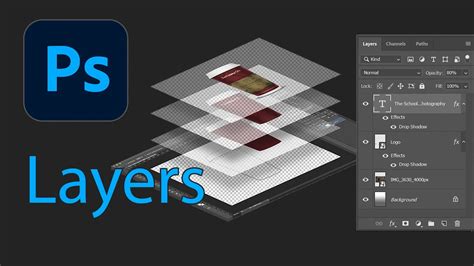
Similar to Lightroom's non-destructive approach, Photoshop also allows for a non-destructive workflow through the intelligent use of Layers and Smart Objects. You can stack adjustments, such as color or white balance corrections, on separate layers, or even composite different skies or elements into your image, all while preserving the integrity of the original file. This layered approach provides unparalleled control and the ability to revisit and modify any adjustment at any time.
Generative AI in Photoshop
A significant and rapidly evolving area of Photoshop's capabilities lies in its generative AI features. Tools like Generative Expand allow users to change the orientation or aspect ratio of their photos, with Photoshop using AI to seamlessly fill in the empty space. The Generative Fill and Generative Erase options further empower users to replace existing objects or add new ones with simple text prompts or selections, opening up new frontiers in creative image editing.
Key Differences Summarized
To further clarify the distinctions, let's break down the core differences between Lightroom and Photoshop Express, especially in their mobile incarnations:
- Primary Use: Lightroom is geared towards photo management, RAW file processing, and batch editing. Photoshop Express is primarily used for creating social media content and quick, impactful edits.
- Editing Capabilities: Lightroom offers robust photo editing tools and supports a complete editing workflow. Photoshop Express provides more tools specifically for editing images for social media, often with a simpler, more direct approach.
- RAW Support: Both Lightroom and Photoshop Express support RAW files. Lightroom's in-app camera can shoot in RAW format (DNG), offering a direct RAW capture workflow.
- User Interface & Ease of Use: Photoshop Express is designed to be fun and easy, with a shallow learning curve. Lightroom, while also approachable, offers more depth and requires a bit more learning to master its advanced features.
- Cloud Syncing: Lightroom's cloud-based versions and desktop applications sync seamlessly across devices, a significant advantage for multi-platform workflows. Photoshop Express does not have this automatic syncing capability unless integrated with other Adobe cloud services.
- Collage & Templates: Photoshop Express excels at creating digital collages using integrated templates, making it a strong choice for social media content creation.
- Background Removal & Object Manipulation: Photoshop Express features tools like a background remover for quick cutouts and generative AI for inserting or removing objects, significantly enhancing creative possibilities for social media.
- Learning Curve: Photoshop Express is designed for simplicity and immediate results. Lightroom, while user-friendly, offers a more comprehensive set of tools that may require a longer learning period.
Which Tool Should You Choose?
The decision between Lightroom and Photoshop Express hinges entirely on your specific needs and creative goals.
Choose Photoshop Express if:
- You need to make quick edits to photos on your mobile device.
- You primarily work with JPEGs or smartphone photos.
- You want to easily add filters, text overlays, or create fun collages.
- You prioritize simplicity and speed in your editing process.
- You are focused on creating content for social media platforms.
Choose Lightroom if:
- You shoot in RAW format and require advanced editing tools for maximum flexibility.
- Color accuracy, fine detail, and consistent styling are critical to your work.
- You edit photos regularly and need seamless syncing across multiple devices.
- Long-term photo organization and efficient library management are important.
- You need precise masking and local adjustments for detailed edits.
The Synergy of Both: A Powerful Combination
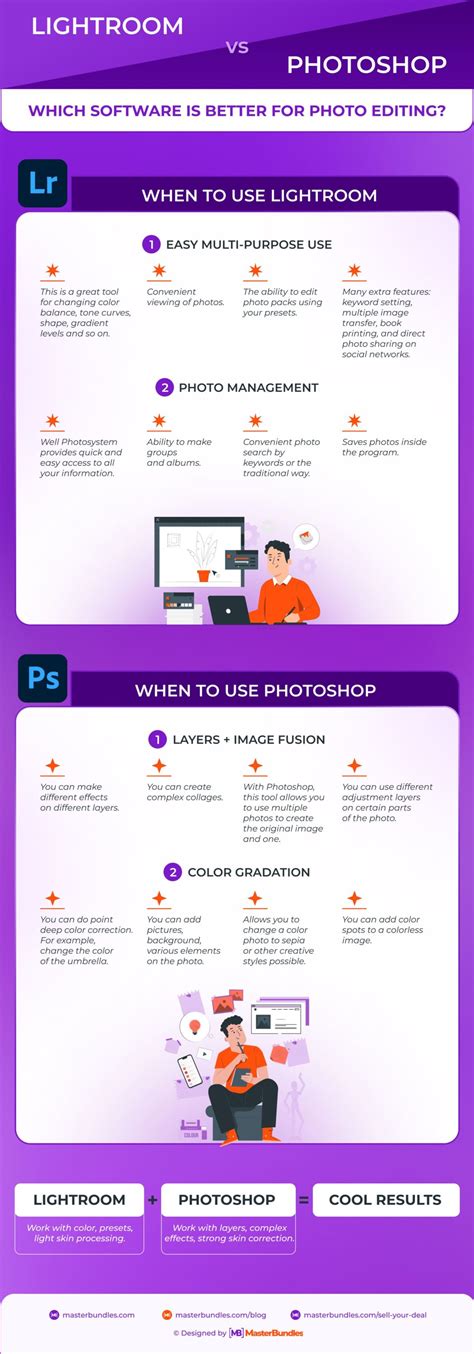
In many scenarios, the choice isn't an "either-or" decision. Lightroom and Photoshop are designed to work harmoniously together, creating a powerful and comprehensive ecosystem for photographers. You can begin by organizing and performing initial edits in Lightroom, then seamlessly transition to Photoshop for more complex manipulations or pixel-perfect retouching. Saving your work in Photoshop will update the image within your Lightroom catalog, maintaining a fluid workflow.
For instance, a photographer might use Lightroom to cull thousands of images from a wedding, apply basic adjustments like exposure and white balance to a selection, and then send a few select portraits to Photoshop for intricate skin retouching and background cleanup. This collaborative approach leverages the strengths of each application, ensuring efficiency and creative control.
Beyond the Basics: Exploring the Full Adobe Ecosystem
It's worth noting that Adobe's offerings extend beyond these two primary tools. Photoshop includes Adobe Bridge, a robust file management tool, and Adobe Camera Raw, which shares the same powerful image processing engine as Lightroom. For those seeking an even more streamlined experience, Adobe Photoshop Express and the mobile version of Lightroom offer powerful editing capabilities directly on smartphones and tablets.
Ultimately, the choice between Lightroom and Photoshop, or the decision to use both, depends on the goals of your creative projects and your personal workflow preferences. By understanding the distinct capabilities of each tool, you can design a post-processing strategy that allows you to create the images you envision, efficiently and effectively.
The Interface and Workflow: A Closer Look
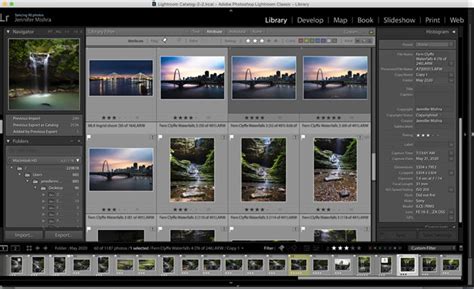
The interface of Lightroom Classic is characterized by its modular design, with distinct sections for Library, Develop, Map, Book, Slideshow, Print, and Web. The Library module is central to its organizational prowess, while the Develop module houses the extensive editing tools. This structured layout guides users through a logical workflow from import to export.
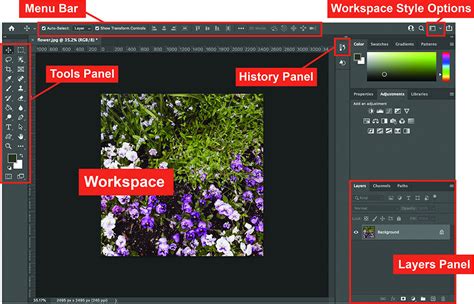
In contrast, Photoshop presents a more dynamic and flexible interface, centered around layers, masks, and a vast array of tools accessible from a toolbar. While it can perform all the adjustments available in Lightroom through its Camera Raw filter, its true power lies in its ability to manipulate images at a fundamental level, enabling complex compositing, digital painting, and intricate retouching that go far beyond the scope of Lightroom's primary functions.
The decision to start with Lightroom or Photoshop is a common one for new photographers. Since all of Lightroom's image manipulation tools are integrated into Photoshop's Camera Raw filter, one might assume Photoshop is the logical starting point. However, most photographers benefit from starting with Lightroom for several key reasons. Lightroom is generally easier to learn, and its interface is specifically tailored for photo organization and editing, making it sufficient for the vast majority of photographic needs. It provides a solid foundation for a photography workflow, promoting efficiency through its ability to process many photos quickly and non-destructively. The seamless integration between Lightroom and Photoshop allows for a fluid transition when more advanced manipulation is required, ensuring that you have the best of both worlds at your fingertips.