Transforming creative ideas into reality in Photoshop is an accessible goal, and the art of face swapping offers a particularly engaging avenue for exploration. This guide will walk you through the essential steps for achieving a convincing face swap, demystifying the process and empowering you to unlock a new level of digital artistry. By understanding the nuances of image selection, preparation, and blending, you can surprise yourself with the realistic and captivating results you can achieve.
The Cornerstone of a Convincing Swap: Image Selection
The foundation of any successful face swap lies in the careful selection of your source and target images. The quality and inherent similarities of these images significantly dictate the final outcome. Prioritizing certain characteristics will streamline the editing process and lead to a more natural integration.
High Resolution for Detail and Precision
Always begin with high-resolution images. These provide a wealth of detail, which is paramount for editing. A higher pixel count ensures that when you zoom in to make precise selections and adjustments, you have enough information to work with, leading to a cleaner and more accurate swap. Low-resolution images often become pixelated when enlarged or manipulated, compromising the integrity of the final composite.
Harmonizing Lighting Conditions
Lighting plays an indispensable role in achieving photo consistency. It is crucial to choose images where the lighting conditions are as similar as possible. This helps maintain a uniform appearance across both faces, preventing one from looking artificially lit compared to the other. Observe the direction and intensity of light on the faces; consistent highlights and shadows are key indicators of compatible lighting.
Aligning Facial Angles for Realism
The angle of the face in each photograph directly impacts the realism of the swap. Select images that feature similar facial angles. Whether you're working with front-facing portraits or side profiles, ensuring these angles align well will make the integration appear much more natural. Significant discrepancies in angle can lead to awkward distortions and an obvious artificiality.
Matching Skin Tones for Natural Flow
Matching skin tones is absolutely essential for a natural-looking result. Choose faces that exhibit similar undertones and overall coloring. This similarity drastically reduces the amount of color correction required later in the process. Significant differences in skin tone can be challenging to correct without introducing unnatural artifacts.
The Advantage of Neutral Expressions
Neutral expressions are generally easier to swap. Faces with pronounced smiles, frowns, or other strong emotions might not align well when transferred to a different head or context. Consistent facial expressions between your source and target images aid in creating natural transitions and prevent the swapped face from looking out of place.
Simplifying with Similar Features
When faces share similar features, the editing process becomes considerably simpler. Aligning eyes, noses, and mouths becomes more straightforward. Dissimilar features, such as dramatically different eye shapes or nose structures, may necessitate extensive and complex adjustments to achieve a believable result.
In essence, careful image selection significantly enhances the overall quality of your face swap. Begin by selecting high-quality images with clear, well-lit faces. Ensure both faces have similar angles and expressions for a seamless swap. This meticulous approach to sourcing your images will lay a robust groundwork for the subsequent editing stages.
Preparing Your Images for a Seamless Transformation
Before diving into the intricate editing process, preparing your images is an essential step to ensure a seamless transformation and avoid unnatural results. This preparation phase focuses on critical adjustments like cropping, resizing, and fine-tuning lighting and color.
Cropping for Focused Attention
Start by cropping both images to prominently feature the faces. The subject should ideally be positioned in the center of the frame, ensuring a clear focus on the element you intend to manipulate. The crop tool in Photoshop offers precision for this task, allowing you to isolate the facial areas effectively.
Resizing for Consistent Scale
Next, resize the images so that the faces are similar in size. Matching dimensions is crucial to avoid distortion when you begin to overlay and blend the images. An overly large or small face will immediately betray the swap.
Harmonizing Lighting and Exposure
Examine the lighting in each image. It is imperative that both faces exhibit similar lighting characteristics. Photoshop provides powerful tools to adjust brightness and contrast, which can be used to create harmony between the images. Aim for consistency in how light falls on the faces, including the presence and direction of shadows.
The Crucial Step of Color Matching
Focus on color matching to ensure the skin tones blend well. Utilize Photoshop's color correction tools to harmonize the palettes of the two faces. This step is vital for creating a believable integration, as stark differences in skin tone can be a significant giveaway.
Mastering the Selection: The Lasso Tool and Beyond
Face swapping in Photoshop can be both a fun and practical endeavor. Among the various selection tools, the Lasso Tool often emerges as a favorite due to its precision and control. Mastering this tool can significantly elevate your digital editing skills.
Isolating the Face with the Lasso Tool
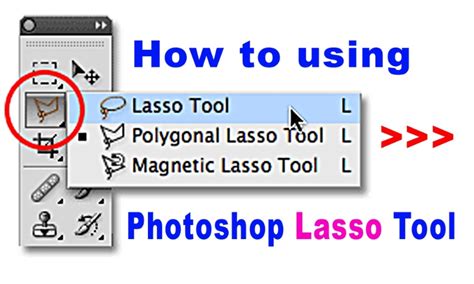
Begin by opening your primary image in Photoshop. Zoom in closely on the face you intend to swap. Activate the Lasso Tool from the toolbar. Carefully trace around the perimeter of the face you wish to extract. Start from one point and move steadily, aiming for a smooth outline. Avoid sharp angles or sudden, jerky movements. The goal is to create a closed loop, connecting the end point back to your starting point.
Refining the Selection with Feathering
Once the face is selected, it may require refinement to ensure a softer transition. Navigate to the "Select" menu, then choose "Modify," and finally select "Feather." This option softens the edges of your selection, creating a gradual blend rather than a harsh cut-out. A feather radius of 2-3 pixels often works well for a subtle, natural effect. Experiment with this value to achieve the best result for your specific image.
Aligning and Transforming the Swapped Face
After isolating and refining your selection, you'll need to check its alignment with the new image. Use the "Transform" tool (Command/Control + T) to adjust the size and position of the selected face. Remember that practice makes perfect; the Lasso Tool offers flexibility, and with continued use, you'll become more adept at creating clean selections.
The Art of Integration: Copying, Pasting, and Aligning
Copying and pasting the selected face is a crucial step in this digital art journey. This action involves transferring the isolated face onto your target image, forming the basis of the composite.
Transferring the Face to the Target Image
After carefully selecting the face using the lasso tool, copy it. Then, paste it onto your target image. Photoshop will automatically place it on a new layer. This separation into layers is fundamental for subsequent editing.
Sizing and Rotating for a Natural Fit
Adjust the size of the pasted face to match the dimensions of the target head. The Free Transform tool (Command/Control + T) is invaluable here. You can resize and rotate the face to ensure it aligns with the angle and perspective of the target image. This step is critical for creating a realistic effect. Be mindful not to stretch the face excessively, as this can lead to unnatural distortions.
Precise Alignment of Facial Features
Aligning facial features is paramount for a natural look. Begin by meticulously matching the eyes. Use the Move Tool to position them correctly within the target image's eye sockets. Next, focus on aligning the nose and mouth with their counterparts in the target image. Utilizing the opacity slider is a highly effective technique during this phase. By lowering the opacity of the face layer, you can see through it to the underlying image, allowing for more accurate alignment. Make small, precise adjustments using the arrow keys on your keyboard. Constantly check the overall symmetry of the face swap as you work.
Blending the Edges for a Seamless Transition
Blending the edges is a critical technique in face swapping with Photoshop. This process ensures a seamless transition between the two faces, preventing the swap from appearing unnatural or awkward. Mastering this technique significantly enhances the quality of your digital artwork.
Photoshop Layer Masks Explained in 2 Minutes
The Power of Layer Masks
Layer masks are indispensable for blending edges smoothly. They allow for selective editing without permanently altering the original image data. To begin, add a layer mask to the layer containing the swapped face.
Gradual Transitions with the Brush Tool
With the layer mask active, use the Brush Tool to paint over areas that require blending. Adjust the brush opacity to achieve gradual transitions. A lower opacity allows for softer, more subtle blending. Feathering the edges of the selection, either through the "Select and Mask" workspace or by applying a feather radius to the initial selection, also plays a crucial role. This softens the edges, avoiding harsh lines that disrupt the image's flow and creating a gentle merge. Experiment with different feather radius values until the transition appears natural and integrated.
Harmonizing Skin Tones for Believable Integration
Matching skin tones in Photoshop during a face swap is crucial for ensuring a seamless blend between the new face and the original image. Without this critical step, the face swap can appear jarring and unnatural.
Utilizing Hue and Saturation Adjustments
A highly effective tool for aligning skin colors is the Hue/Saturation adjustment. Access this through the Adjustments panel. Ensure the adjustment layer is clipped to the face layer you are working on, so it only affects that specific layer. Focus on the skin of the swapped face and begin by adjusting the Hue slider. This slider will alter the color tones, allowing you to match them to the original image's skin.
Fine-Tuning Saturation and Lightness
Next, adjust the Saturation slider to control the intensity of the colors. Finally, use the Lightness slider to fine-tune the brightness. Continue making these adjustments until both faces exhibit similar skin tones. Regularly preview your changes by toggling the visibility of the adjustment layer to observe the evolving harmony.
The Clone Stamp Tool for Subtle Blending
The Clone Stamp Tool is another valuable asset for further blending skin tones and textures. Select this tool from the toolbar. To use it effectively, choose a sample area with matching skin tones by holding down the Alt (Windows) or Option (macOS) key and clicking on the desired area. Then, carefully paint over the mismatched areas on the swapped face. Keep your brush size small for precise control, and work slowly to avoid mistakes. Zooming in will allow you to see finer details and ensure a more seamless integration.
The Final Polish: Refining Details for Authenticity
Once the primary face swap is complete, the job is not quite finished. The real magic happens in the final touches, where you refine your work to ensure the swap looks seamless and natural. With the right tweaks, your face swap can transform from a mere manipulation into a stunningly believable composite.
Smoothing Edges for Natural Transitions
The first thing to tackle is smoothing the edges where the two faces meet. This is often a dead giveaway if not done properly. Use the Blur Tool with a low strength setting to gently soften any hard edges, allowing them to blend into one another. Zoom in and out frequently to check your progress, ensuring the transition looks smooth both up close and from a distance.
Enhancing Details with Dodge and Burn
To make the face swap look more authentic, focus on enhancing the details by adjusting the lighting and shadows. The Dodge Tool (to lighten areas) and Burn Tool (to darken areas) are invaluable for this purpose. Use them strategically to highlight and darken areas as needed, matching the lighting conditions of the original image. For instance, if the original face has a shadow on the left cheek, ensure the swapped face exhibits a similar shadow to maintain consistency.
Color Balance for Subtle Adjustments
Sometimes, the skin tone might still differ slightly, and a subtle tweak to the color balance can do wonders. Use Photoshop's Color Balance adjustment layer to make minor corrections to the red, green, and blue channels. This allows for precise adjustments to the overall color cast of the swapped face, ensuring it harmonizes perfectly with the surrounding image.
The details truly matter in creating a convincing composite. By diligently applying these final touches, you can transform a simple face swap into a masterpiece of digital manipulation.
A Step-by-Step Workflow for Face Swapping
To solidify the understanding of the process, let's outline a practical workflow using a common scenario: swapping the face of one person onto another.
For this tutorial, you will need two images of people. One image should contain the body and background details you wish to retain, and the second image should have the face you want to add. We will use two stock photos for demonstration.
Step 1: Open Your Images
In Photoshop, open both your chosen images. It's advisable to have them open in separate tabs or windows for easy switching.
Step 2: Select the Face to Swap
Activate the Lasso Tool (L) in Photoshop. Navigate to the image containing the face you want to use. Carefully select the inner part of this face. To refine your selection, you can use the "Add to selection" or "Subtract from selection" options available in the tool's options bar at the top of the screen. Precision here is key.
Step 3: Transfer the Selected Face
Once you have made your selection, click and drag it directly onto the other image (the one with the body you want to keep). Release the mouse button, and the selected face will appear as a new layer on top of the background image.
Step 4: Adjust the Face to Fit
Lower the opacity of this new face layer to approximately 60%. This allows you to see through the face layer and more easily match its features to the underlying face.
Use the Free Transform tool (Command/Control + T). This tool enables you to resize and rotate the face as needed. A good starting point is to align the eyes of the new face with the eyes of the original face on the background layer, as eyes serve as reliable reference points.
While still in Free Transform mode, you can further refine the shape. Go to Edit > Transform > Warp. The Warp tool allows for more nuanced distortions, enabling you to better match the contours and curvature of the underlying head. Once you are satisfied with the shape and position, press Enter or click the checkmark in the top menu bar to commit the transformation.
Return the opacity of the face layer back to 100%. Re-evaluate the fit and use Free Transform again if any further adjustments to rotation or scale are necessary.
Step 5: Color and Lighting Adjustments
Match Color: If the skin tones and colors of your images are noticeably different, the "Match Color" feature can be very helpful. With the face layer selected, go to Image > Adjustments > Match Color. In the dialog box, use your document as the source and the background layer as the target. Adjust the sliders for Luminance, Color Intensity, and Fade until the skin tones blend more harmoniously.
Shadows and Highlights: To better match the lighting conditions, go to Image > Adjustments > Shadows/Highlights. Experiment with the values in this dialog box. The "Shadows" slider can bring out detail in darker areas, while the "Highlights" slider can control the brightness of lighter areas. Adjust these until the light and shadow patterns on the swapped face complement those on the body.
Step 6: Refining Edges Further
Eraser Tool: You can use the Eraser Tool (E) with a hard brush (100% hardness) to meticulously erase specific edges of the face layer if needed. This is a more direct method for removing unwanted pixels.
Duplicate Background: For advanced blending techniques, duplicate your background layer (Command/Control + J). This duplicate will be used in a later step.
Step 7: Adjusting Midtones
Select your face layer. Go to Image > Adjustments > Levels (Command/Control + L). Adjust the midtone slider (the middle triangle under the histogram) slightly to better match the overall tonal range of the background image.
Step 8: Creating a Selection for Background Refinement
With your face layer still selected, create a selection of it by holding down the Alt (Windows) or Option (macOS) key and clicking on the face layer's thumbnail in the Layers panel. This will create a selection around the face.
Now, select your duplicated background layer. Go to Modify > Contract. Enter a value of 3 pixels (this value might need adjustment depending on your image resolution). This contracts the selection inwards from the edge of the face.
Step 9: Erasing from the Background Subject
Turn off the visibility of your face layer and the original background layer for now (click the eye icon next to their thumbnails). Ensure you are working on the duplicated background layer. Press the Delete key. This will erase the area of the original face from the duplicated background, leaving only the body and background details.
Step 10: Advanced Layer Blending
Turn your face layer back on. Hold down the Shift key to select both the face layer and the duplicated background layer together.
Go to Edit > Auto-Blend Layer. Ensure that "Panorama" is selected as the blend method, and check both boxes at the bottom ("Blend Layers" and "Seamless Tones"). Click OK.
Photoshop will create a new layer that intelligently blends the two layers together, often creating a new layer mask. This process can significantly improve the seamlessness of the transition.
Step 11: Final Edge Refinements and Color Matching
Fixing Visible Edges: You may notice some residual hard edges in the newly merged layer. To address this, duplicate the merged layer (Command/Control + J). Change the blending mode of this duplicate layer to "Color Dodge." Lower the opacity of this duplicate layer to around 30% and the fill to 50%. This can help to subtly brighten and blend edges.
Softening Hard Contrasts: Working on the main merged layer, select the Blur Tool. Use a medium-sized, soft brush with a strength of around 30%. Carefully go over areas where the contrast and edges appear too hard. This will gently soften these transitions, further integrating the swapped face.
Your final result should now exhibit a much more convincing and seamless face swap. Compare your work to the original images and make any final minor adjustments as needed.
Further Resources and Mastery
If you found this tutorial helpful, consider exploring other Photoshop tutorials to expand your skill set. For instance, understanding how to convert layers into Smart Objects can allow for non-destructive edits, meaning you can always go back and make changes without permanently altering the original pixel data.
Selections and Masking Mastery
For those serious about mastering the foundational techniques of Photoshop, a comprehensive "Selections and Masking Mastery Course" can be invaluable. Such courses often include step-by-step lessons, downloadable practice files, and custom brushes, providing a structured path to proficiency.
The Expertise of Jesús Ramirez
Digital graphics experts like Jesús Ramirez, founder of the Photoshop Training Channel, offer extensive resources. His channel is a popular source for learning advanced Photoshop techniques, including intricate selections and masking.
Beyond the Tutorial: Creative Applications and Learning
The process of face swapping extends beyond simple technical execution. It can be a powerful tool for creative expression and even for educational purposes.
Personalized Historical Context
In educational settings, projects like "Once Upon a Time in China" at the University of Rochester utilize Photoshop to foster historical empathy. Students insert their own faces into historical images, creating a personal connection to the past. This project requires students to find quality background images and learn basic graphic design skills, demonstrating the broader applicability of these techniques.
Fostering Historical Empathy
By literally placing themselves into historical contexts, students are encouraged to develop a deeper understanding of the lives and challenges of people in different eras. This method transforms abstract historical facts into tangible, relatable experiences. The essays students write about their fictional historical personas often reveal a nuanced understanding of historical complexities, moving beyond simplistic hero narratives to explore the humbler, more complicated aspects of the past. This approach reinforces the understanding that contemporary challenges are not unique to our times.
The Value of Digital Literacy in Education
The use of tools like Photoshop in educational projects highlights the growing importance of digital literacy. Students learn not only technical skills but also critical thinking and creative problem-solving. The ability to manipulate and composite images effectively is a valuable skill in many fields, from marketing and design to scientific visualization and historical research. The project's success, evidenced by a significant percentage of students enrolling in further history courses, suggests that engaging with historical content through digital tools can make learning more memorable and impactful.
By mastering Photoshop's face-swapping capabilities, you unlock a powerful tool for creative expression, storytelling, and even educational engagement. The journey from selecting the right images to the final polish is one of meticulous detail and creative problem-solving, leading to results that can be both astonishing and deeply impactful.