In the realm of digital imaging, Photoshop stands as a cornerstone, offering unparalleled creative control. However, this power comes with a crucial understanding of its file formats. Navigating the diverse array of options presented when saving your work can be daunting, yet mastering them is essential for seamless workflows, optimal quality, and effective sharing. This guide aims to demystify these formats, categorizing them by their role in your creative process: from the original source or capture files, through the working or master files, and finally to the output files tailored for specific devices.
Understanding Source and Capture File Formats
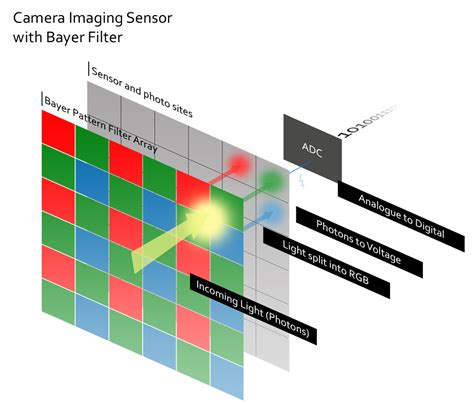
The journey of an image often begins with its capture. Today, the vast majority of photographs are recorded as either JPEG, Apple's HEIC format, or as RAW files.
The Ubiquity of JPEG and HEIC: Convenience and Compression
JPEG and HEIC files dominate the images captured on mobile devices, and JPEG is a near-constant option on larger DSLR or mirrorless cameras. Their widespread popularity stems from two primary advantages: remarkably small file sizes and rapid write speeds to storage media. This allows for the storage of a vast number of photos on a single device or card and ensures that images can be recorded quickly without interrupting the shooting process.
However, the reason these files are so compact is that both JPEG and HEIC formats employ a process called "lossy compression." This method discards information from the image to reduce its size. The degree of compression, which is not always directly controllable by the user, can lead to a wide spectrum of image quality. At its best, the quality can be so high that it's difficult to discern any compression artifacts. Conversely, at higher compression levels, noticeable issues like banding between colors or large, uniform color blocks can emerge.
The most significant implication of lossy compression for image editing is the reduced flexibility it affords. Files saved in these formats have significantly less latitude for adjustments to color, tone, and contrast within Photoshop. This is because the discarded information is irretrievable, limiting the software's ability to manipulate the image data without further degradation.
The Photographer's Preference: RAW Files
Recognizing the potential pitfalls of lossy compression, many photographers opt to capture images using RAW file formats whenever possible. RAW files, unlike JPEG and HEIC, do not discard information through lossy compression. While they may utilize compression, it is a different, "lossless" type that preserves all image data, ensuring the quality of the image remains uncompromised.
This inherent completeness of RAW files provides a far greater degree of flexibility for editing and enhancements after capture. There is simply more information - more colors and tones - to work with, allowing for more robust adjustments without introducing artifacts.
Most camera manufacturers develop their own proprietary RAW file formats. For instance, Nikon cameras use the .NEF file extension, Canon employs CR2 or CR3, and Sony utilizes ARW. Despite these different extensions, they are all fundamentally considered RAW files.
The Digital Negative: DNG
A notable exception and a significant development in the RAW landscape is the DNG format, or "Digital Negative." Developed by Adobe, DNG is also a RAW file format, but it distinguishes itself by being non-proprietary. Adobe made this format openly available to all software developers, facilitating widespread adoption and interoperability.
Consequently, not only do several camera manufacturers capture directly into the DNG format, but it is also now available on several mobile devices. Furthermore, any RAW file from any camera manufacturer can be converted to the DNG format using tools like Lightroom Classic, Lightroom, Camera Raw, or the free Adobe DNG Converter. This offers a universal archival solution for RAW data, mitigating concerns about proprietary formats becoming obsolete.
Working and Master File Formats: Preserving Your Creative Vision
Once an image has been captured and potentially processed, it needs to be saved in a format that preserves the intricate details of your work, especially when dealing with layered documents in Photoshop. These "working" or "master" files are the bedrock of your creative projects.
PSD: The Native Photoshop Powerhouse
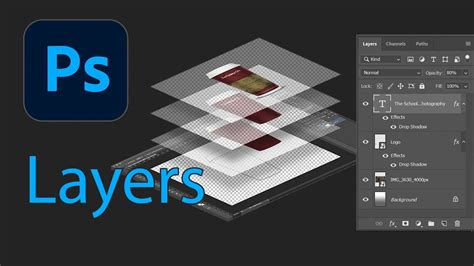
Photoshop's own native file format, PSD (Photoshop Document), is the quintessential working file. It is designed to save all of Photoshop's advanced features, including layers, masks, adjustment layers, type layers, shapes, paths, and smart objects. The advantage of this is that it allows you to retain the ability to make edits and modifications to any element of your image at any time without starting from scratch.
PSD files use lossless compression to reduce file size without compromising image quality. This means that all the information within your layers is preserved. The primary limitation of the PSD format is its file size ceiling, which is typically capped at 2 gigabytes.
TIFF: The Universal Layered Format
The Tagged Image File Format (TIFF) is another robust option for saving working files. Similar to PSD, TIFF files can preserve Photoshop's features such as layers and masks. They also employ lossless compression. A key advantage of TIFF is its larger file size capacity, supporting files up to 4 gigabytes. This makes it a suitable choice for exceptionally large or complex projects.
While TIFF can save layered information, it's crucial to note that compatibility with other applications can vary. Layered TIFF files might only be fully recognized within the Creative Cloud ecosystem. For broader compatibility, especially when sending files for printing, it's often recommended to flatten the image before saving as a TIFF, though this sacrifices the ability to edit individual layers later.
Adobe Cloud Documents: Bridging the Gap
Adobe's Cloud Documents represent a specialized format engineered to facilitate the seamless transfer of large files across different devices. This is particularly beneficial for workflows involving Photoshop on both desktop and iPad.
When a document is saved as a Cloud Document, it resides on Adobe's cloud storage rather than locally on your device. These files offer unique features, such as the ability to save only edited portions, significantly enhancing the efficiency of sharing large files between devices. They also provide automatic version tracking as you work and enable collaborative editing options.
Output File Formats: Sharing and Displaying Your Creations
The final stage in the image workflow involves preparing your work for its intended destination, whether it's for printing, web display, or specific devices. These "output" file formats are often derivatives or copies of your master files, optimized for their specific use.
Flattened Files for Output
In most instances, you will save a derivative or a copy of your image, resized and optimized for the target device. These output file formats are frequently "flattened," meaning they do not contain any layers. They also compress images, making files smaller and thus easier to upload or transfer more quickly. Exporting or saving a copy in these formats ensures that you can always return to your working file (your master) if you need to make further changes.
Print-Ready Formats
When submitting images for printing, it's always best to inquire about the preferred format of the lab or service provider. Ideally, they might request flattened TIFF or PSD files to maintain the highest possible quality. However, it's often more practical and faster to upload and print JPEG files. If you are sending JPEGs for print, ensure that the quality setting remains high to avoid unwanted banding or artifacting.
PDF: Versatility for Print and Sharing
Adobe's PDF (Portable Document Format) is a highly versatile format that should not be overlooked. While local photo labs may not always accept it, PDF is an excellent choice for sharing images with individuals who do not have Photoshop. Unlike JPEG, saving as PDF does not degrade image quality. Furthermore, like JPEG, PDF files can be viewed by virtually anyone with a computer. PDF also offers support for spot color channels, alpha channels, and paths, features that are not supported by some other formats like EPS.
EPS: For Vector and Text Integration
Encapsulated PostScript (EPS) is a file format that can contain both vector and bitmap graphics. It is particularly useful when an image includes text, as it can preserve type layers without flattening them before saving. However, if an EPS file is reopened in Photoshop, the type layers will be merged, so it's crucial to maintain the original layered file. EPS is a common vector file type used in the print industry, though its use has seen a decline.
Screen and Web Optimized Formats
When saving files for viewing on a screen, such as a phone, computer, or for posting online, JPEG remains the most common format due to its ability to create small files that download quickly.
JPEG: The Web Standard
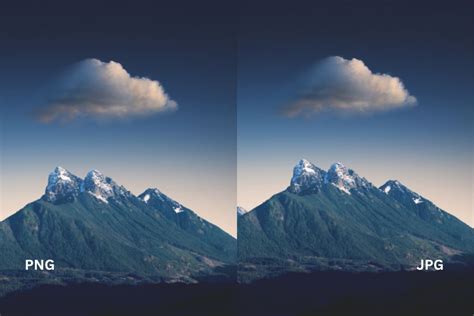
As mentioned, JPEG is the de facto standard for displaying photographs and other continuous-tone images on the web and other online services. It supports RGB, CMYK, and Grayscale color modes but does not support transparency, alpha channels, or layers. While it retains all color information in an RGB image, it compresses file size by selectively discarding data. A higher level of compression results in lower image quality, and a lower level of compression results in better image quality. It is advisable to avoid repeatedly saving JPEG images over themselves, as they will lose quality over time. Saving JPEGs as PSD files can help preserve their quality.
PNG: Transparency and Quality for the Web
The PNG (Portable Network Graphics) format is a popular choice for saving type or graphics for the web that require transparent areas. It is an excellent solution for displaying logos or text with transparent edges, as PNG renders smooth edges around transparency. PNG is typically used with flat art or graphics, not photographs. PNG comes in two main types: PNG-8, which is a substitute for GIF with a smaller file size and no animation support but basic transparency, and PNG-24, a high-quality lossless format that supports 256 levels of transparency. PNG-24 is a good alternative to JPEG for web use, though files can be larger.
GIF: Animation and Limited Color
The GIF file format has a unique ability to contain animations within the file, making it a common choice for creating ad banners and other short animations for on-screen viewing. GIF files are compressed using lossy compression, but in a different way than JPEG. To save as a GIF, an image must be converted to an indexed color mode, which allows for a maximum of 256 colors. This makes it less ideal for photographs but effective for type and graphics. While GIF supports transparency, it only supports one level, which can result in jagged edges on non-rectangular graphics.
Specialty File Formats
Beyond the common formats, Photoshop supports several specialized options catering to specific needs.
OpenEXR (EXR): High-Fidelity Visual Effects
OpenEXR (EXR) is a format primarily used in visual effects workflows. It supports transparency and is exclusively for 32-bit per channel images, providing exceptional depth and fidelity for high-end graphics applications like 3D rendering and animation.
Radiance (HDR): High Dynamic Range Imaging
The Radiance (HDR) format is a 32-bit per channel format initially created for the Radiation system. It is designed to capture and store images with a very high dynamic range, preserving detail in both the brightest highlights and darkest shadows.
IFF: General-Purpose Data Storage
IFF (Interchange File Format) is a general-purpose data storage format capable of associating and storing multiple data types. While not as common for image editing workflows, its flexibility allows for diverse data encapsulation.
PICT: macOS Intermediary Format
The PICT format was historically used in macOS graphics and page-layout applications as an intermediary file format for transferring images between applications. Its relevance has diminished with modern cross-platform file formats.
CT Format: High-End Image Processing
The CT format is associated with high-end image processing, particularly on Scitex computers, often found in professional printing and pre-press environments.
WBMP: Mobile Device Optimization
WBMP (Wireless Application Protocol Bitmap) format is the standard for optimizing images for mobile devices. Its focus is on creating small, efficient image files suitable for the limited bandwidth and processing power of early mobile devices.
PBM: Monochrome Bitmaps
The PBM (Portable Bitmap Library or Portable Binary Map) file format supports monochrome bitmaps, essentially black and white images with no shades of gray. It is a simple format primarily for black and white graphics.
Canon HIF/HEIC: Limited Support
It is important to note that Canon HIF/HEIC files are not directly supported within Photoshop. Users typically need to convert these files to a more compatible format before importing them.
Canon CR2/CR3, Nikon NEF, Sony ARW: Proprietary RAW
As previously discussed, Canon's CR2 and CR3, Nikon's NEF, and Sony's ARW are proprietary RAW file formats. While they contain the unprocessed sensor data, they require specific software or converters to be opened and edited.
JPS: Stereoscopic Images
JPS, or JPEG Stereo, is a specialty format used to create stereoscopic images, where the left half of the image is one view and the right half is another, creating a 3D effect.
Large Document Format (PSB): Handling Gigantic Images
For exceptionally large images that exceed the 2GB limit of PSD files, or dimensions exceeding 30,000 pixels in width or height, Photoshop offers the Large Document Format (PSB). This format is designed to handle truly massive image files, essential for applications like printing extremely large banners or working with high-resolution panoramic composites. While nearly identical to PSD, its primary advantage is its expanded file size and dimension capabilities. However, PSB files may have slightly less compatibility with other Adobe products compared to PSD.
Which File Formats Should You Use For Print?
Choosing the Right Format: A Workflow-Based Approach
Ultimately, the "best" file format is entirely dependent on the intended use of your image.
For maximum quality and ongoing editing: Always prioritize saving your master working files in PSD format. This ensures that all layers, masks, and adjustments are preserved, allowing you to return to your work at any time to make further modifications without degradation. If you anticipate needing to share layered files with clients or collaborators who may not use Photoshop, a layered TIFF can be a good alternative, though PSD offers the most comprehensive feature support.
For archiving: PSD and TIFF are excellent choices for archiving your master files due to their lossless nature and preservation of editing capabilities. For RAW files, DNG offers a standardized and future-proof archival solution.
For web and screen display: JPEG is the most common choice due to its small file sizes and fast loading times. When saving JPEGs for web use, always consider using the "Save for Web (Legacy)" option in Photoshop to optimize the file and convert it to the sRGB color space. PNG is ideal for graphics with transparency or when you need a lossless format for web images, though it can result in larger file sizes. GIF is best suited for simple animations and graphics with limited color palettes.
For professional printing: Consult with your print provider. They will often specify their preferred format, which may be a flattened TIFF or PSD. If sending JPEGs, ensure a high-quality setting is used. For images requiring specific color handling, PDF is a strong contender, especially if it supports spot color channels.
By understanding the strengths and limitations of each file format, you can make informed decisions that optimize your workflow, preserve image quality, and ensure your creations are presented perfectly, regardless of their final destination.