Flipping an image in Photoshop is a fundamental yet remarkably versatile technique that can significantly elevate your photo editing and graphic design capabilities. Whether the goal is to correct an image's orientation, achieve a specific aesthetic, or explore creative mirror effects, Photoshop provides straightforward methods accessible even to beginners. This guide delves into the various approaches to flipping and rotating your canvas and layers within Adobe Photoshop, offering practical insights and creative applications.
Understanding the Basics: Flip Canvas vs. Flip Layer
Before diving into the "how-to," it's crucial to distinguish between two primary flipping methods in Photoshop: flipping the entire canvas and flipping a specific layer.
Flip Canvas in Photoshop
Flipping the entire canvas affects the whole image, including all layers, and is suitable for global adjustments. This method changes the orientation of your entire document. When you flip the canvas, everything within the document's boundaries is reversed. This is often used when you want to reorient the entire composition or prepare an image for a specific layout where a mirrored view is required.
Flip Layer in Photoshop
Conversely, flipping a specific layer allows for more granular control, affecting only the selected layer. This is invaluable when you need to mirror an element like a logo, watermark, or text without altering the rest of your image. This technique offers precision, ensuring that only the intended part of your artwork is reversed.
Methods for Flipping an Image in Photoshop
Photoshop offers several intuitive ways to achieve both horizontal and vertical flips. These methods are designed to be user-friendly, ensuring that users of all skill levels can effectively manipulate their images.
Option 1: Flip the Whole Image (Canvas Flip)
This is the most direct method for reversing your entire image.
- Open your image in Adobe Photoshop.
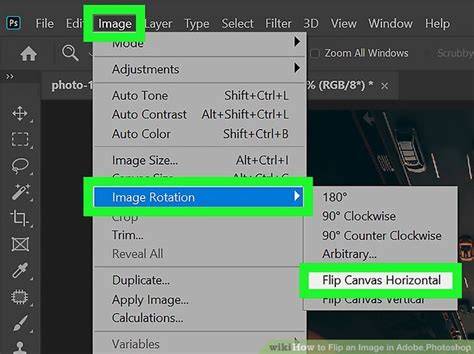
- Navigate to the Image menu at the top of the screen.
- Select Image Rotation.
- From the dropdown menu, choose either Flip Canvas Horizontal or Flip Canvas Vertical.
This action will immediately mirror your entire document. It’s a quick, one-click solution for a global image reversal.
Option 2: Flip a Specific Layer
When you need to flip only a particular element within your image, this method is essential.
Method A: Using the Edit Menu
- Select the layer you wish to flip from the Layers panel. If the Layers panel is not visible, you can open it by going to Window > Layers.
- Go to the Edit menu.
- Choose Transform.
- Select either Flip Horizontal or Flip Vertical from the submenu.
Method B: Using Free Transform
The Free Transform tool offers a highly interactive way to flip layers.
- Select the layer you want to flip.
- Activate the Free Transform mode by going to Edit > Free Transform or by using the keyboard shortcut: Ctrl + T (on Windows) or Command + T (on Mac). A bounding box with transformation controls will appear around the selected layer.
- Right-click anywhere inside the bounding box.
- A contextual menu will appear. Select Flip Horizontal or Flip Vertical.
- Press Enter (Windows) or Return (Mac) to confirm the transformation, or click the checkmark icon in the Options bar.
Method C: Direct Keyboard Shortcut (with Free Transform)
This method is essentially a shortcut to Method B.
- Select the layer you wish to flip.
- Press Ctrl + T (Windows) or Command + T (Mac) to enter Free Transform mode.
- Right-click within the transform box.
- Choose Flip Horizontal or Flip Vertical.
For those who frequently flip text or specific elements, customizing keyboard shortcuts can further streamline the workflow. While Photoshop doesn't have default shortcuts for direct flipping, you can assign them via Edit > Keyboard Shortcuts. This is particularly useful for beginners looking to optimize their process.
Flipping Text in Photoshop
Flipping text requires a similar approach to flipping other layers.
- Select the text layer you want to flip.
- Use the Ctrl + T (Windows) or Command + T (Mac) shortcut to enter Free Transform mode.
- Right-click inside the bounding box and choose Flip Horizontal or Flip Vertical.
- Confirm the transformation.
It's important to note that flipping text horizontally or vertically might make it unreadable, depending on the font and the context. Always check the result to ensure legibility.
Practical Applications of Flipping Images
Flipping is more than just a technical function; it's a creative tool with numerous applications.
Creating Symmetrical Designs and Mirror Effects
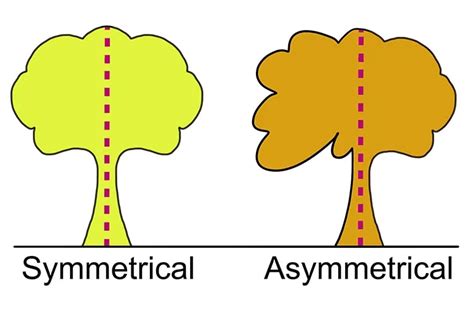
One of the most common creative uses of flipping is to generate symmetrical designs.
- Duplicate your layer: Select the layer you want to mirror and duplicate it (Ctrl+J or Command+J).
- Flip the duplicate: Use one of the layer-flipping methods described above to flip the duplicated layer horizontally or vertically.
- Position the flipped layer: Use the Move tool to position the flipped layer adjacent to the original. This creates a perfect mirror effect, useful for logos, patterns, or abstract art.
For instance, flipping an image of a building horizontally can create an illusion of it extending into both the sky and the ground, resulting in an abstract and intriguing visual. Similarly, flipping an animal image vertically can amusingly create a "two-headed" creature.
Correcting Image Orientation
Sometimes, an image is accidentally captured or imported in the wrong orientation. Flipping provides a quick fix. For example, if a portrait was shot upside down, a 180-degree flip (achieved by flipping horizontally, then vertically, or through Image Rotation > 180 degrees) can correct it.
Enhancing Composition
Flipping can subtly shift the focus or perceived direction of movement within an image. If a subject is looking off to one side, flipping the image can make them appear to look into the frame, which can sometimes improve the composition or create a different emotional impact.
Rotating Images and Canvas in Photoshop
While flipping creates a mirror image, rotating changes the orientation of the image or canvas by tilting it.
Rotating an Image (Layer Rotation)
This method rotates the pixels of a specific layer.
- Open your image in Photoshop.
- Select the layer you want to rotate.
- Go to Image > Image Rotation.
- Choose from options like 90 Degrees Clockwise, 90 Degrees Counterclockwise, or 180 Degrees. For custom angles, select Arbitrary… and enter your desired degree.
Be aware that rotating a layer this way only affects that specific layer.
Rotating the Canvas
Rotating the canvas affects the entire document, including all layers. This is often preferred for temporary adjustments during the creative process.
Using the Rotate View Tool
This is the quickest way to rotate the canvas for a temporary view without altering the image data.
- Select the Rotate View Tool from the toolbar (it looks like a hand with curved arrows). If you don't see it, it might be nested under the Hand Tool.
- Click and drag across your canvas. The canvas will rotate as you drag.
- You can also use the "Rotate Angle" option in the top control panel for precise, numerical rotations.
- To reset the view, click the Reset View button in the Options bar or go to Edit > Reset View. Note that using Undo (Ctrl+Z/Cmd+Z) or the History panel will revert image data changes, not just the view rotation.
Using Image Rotation (Arbitrary)
This method permanently rotates the canvas and its contents.
- Go to Image > Image Rotation.
- Select Arbitrary… to input a specific angle.
- Enter your desired angle in degrees.
- Click OK.
The Scrubby Slider in the Arbitrary rotation dialog also provides an efficient, interactive way to rotate the canvas with real-time visual feedback.
Rotating with Free Transform
You can also rotate a layer using the Free Transform tool:
- Select the layer and press Ctrl+T (Windows) or Command+T (Mac).
- Move your cursor just outside the bounding box until it turns into a curved double-ended arrow.
- Click and drag to rotate freely. Holding Shift while dragging will snap the rotation to 15-degree increments.
How to Rotate Canvas in Photoshop
Troubleshooting Common Flipping Issues
While flipping is generally straightforward, occasional challenges can arise.
Can't Locate the Flip Option
If you're using a different version of Photoshop and can't find the flip options as described, use the Help menu. Click Help in the top menu bar and search for "flip." Photoshop will guide you to the feature.
Logo or Text Flipped Unreadably
If your logo, watermark, or text becomes unreadable after flipping, it means you likely flipped the entire canvas or a layer containing multiple elements. To fix this, ensure you select only the specific layer containing the text or logo and use the layer-flipping methods (Edit > Transform or Free Transform).
Image Flipped the Wrong Way
It's easy to confuse horizontal and vertical flips. Always double-check whether you need to reverse the image from left-to-right (horizontal) or top-to-bottom (vertical). The outcome is distinctly different.
Rotating Instead of Flipping
These are distinct operations. Rotating is like tilting your head, while flipping is like looking in a mirror. If you intended to flip but rotated, ensure you are using the correct "Flip" commands rather than "Rotate."
People Look Unnatural
Flipping a photograph of a person can sometimes make them look unnatural because we are accustomed to seeing them in a specific orientation. This is less about the technical flipping process and more about the psychological perception of familiar faces. Achieving natural-looking results often depends more on the initial photograph and understanding portraiture principles rather than solely on mirroring techniques.
Online Flipping Tools
For quick adjustments without needing desktop software, numerous free online image flipping tools are available. These platforms allow you to upload an image, flip it horizontally or vertically, and download the result instantly. They are ideal for social media posts, quick design tweaks, or on-the-go edits.
Beyond Flipping and Rotating: Creative Possibilities
The ability to flip and rotate images opens up a world of creative potential.
Creating Kaleidoscopic Patterns
By combining flipping and rotating techniques, you can generate intricate, repeating patterns.
- Duplicate your background layer.
- Double the width of your canvas and position the duplicated layer to the right. Flip it horizontally. Merge.
- Duplicate the merged layer. Double the height of the canvas and position the new layer below the original. Flip it vertically. Merge.
- Rotate the resulting layer 90 degrees clockwise. Crop the canvas and merge again.
This process can create mesmerizing kaleidoscopic effects with recurring motifs.
Streamlining Your Workflow
For users who regularly process multiple images, batch processing tools can be a significant time-saver. Software like UniConverter offers batch editing features, including rotation, that work similarly to Photoshop but can process numerous files simultaneously.
Conclusion
Mastering the techniques of flipping and rotating images in Photoshop is an essential skill for any digital artist, photographer, or designer. Whether you're correcting orientation, creating symmetrical designs, or exploring abstract effects, Photoshop provides accessible and powerful tools. From the simple canvas flip to intricate layer manipulation and creative pattern generation, these techniques enhance your ability to control and transform your visual content. For those seeking alternatives or complementary tools, user-friendly software like Luminar Neo also offers robust editing capabilities. Experiment with these methods, and you'll find new ways to bring your creative visions to life.