Changing backgrounds in Photoshop is a fundamental skill that every digital artist and photographer should master. Adobe Photoshop offers several powerful tools and techniques to select backgrounds with precision. This guide will walk you through step-by-step instructions on how to use these tools effectively, transforming your images by cutting out subjects and placing them onto entirely new backgrounds. Whether you're aiming for a quick, professional composite or a complex, nuanced scene, understanding these techniques will elevate your editing capabilities.
Preparing Your Image for Background Replacement
When you know you are going to cut out a photo and place it on a different background, it's recommended to use a simple background for your initial shot. In this tutorial, we used a model, Callan, shot against a seamless background made of gray Savage paper. This simplicity aids in the initial selection process, making subsequent steps smoother. The goal is to learn the quickest and best way to achieve this effect.
Efficiently Isolating Your Subject: Selections and Masking
Selections are fundamental to editing images in Photoshop. Photoshop offers a variety of selection tools to suit different needs. The Object Selection Tool is particularly useful for isolating distinct objects. To begin using the Object Selection Tool, we select it from the toolbar. It's typically represented by a cursor icon with a dotted square. When selecting an object, we hover over it and click. Photoshop's AI will attempt to identify and select the entire object. We can add to or subtract from our selection using the options in the top bar. For complex selections, we might combine the Object Selection Tool with the Polygonal Lasso Tool.
Leveraging the Quick Selection Tool
The Quick Selection Tool offers an efficient way to select complex backgrounds. To begin, we select the Quick Selection Tool from the toolbar. We click and drag over the background area we want to select. The tool automatically detects edges and expands the selection. If we select too much, we hold Alt (Windows) or Option (Mac) to switch to subtract mode. For complex images, we may need multiple passes. You can use the quick select brush to add to the selection by using a small brush and clicking on areas to add to the selection.
Utilizing Select Subject for Speed
Select Subject is an AI-powered tool that automatically detects and selects the main subject in an image. This tool works exceptionally well for portraits and objects with clear edges. Select Subject can save significant time compared to manual selection methods. We can adjust the selection's radius to capture more or less detail around edges. For precise control, we use the Shift Edge slider to expand or contract the selection. The Photoshop's Select Subject button allows for quick background removal. Click this option in the Options bar at the top of the workspace. We can use the Select Subject feature to automatically identify and select the main subject.
Refining Selections with Select and Mask
For precise control and to refine complex selections, we use the Select and Mask workspace. In the Select and Mask workspace, we use the Refine Edge Brush Tool. We adjust the Radius slider to control how far Photoshop looks for edges. The Smooth, Feather, and Contrast sliders help us fine-tune the selection edge. Once satisfied, we choose an output option. The Select and Mask workspace in Photoshop offers powerful tools for refining complex selections. For highly detailed edges, try the Decontaminate Colors option.
Mastering Layer Masks for Non-Destructive Editing
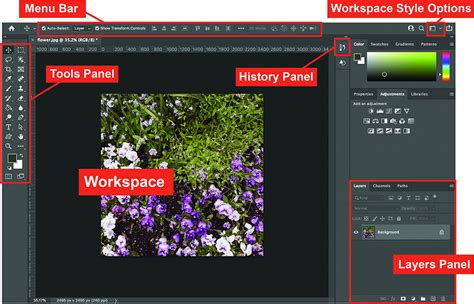
After making our selection, we can refine it using Select and Mask. We can save selections as layer masks, which hide or reveal parts of a layer without permanently altering the image. Layer masks are powerful tools for non-destructive editing. We can refine the mask using the Properties panel. For precise edits, we paint on the mask with black to hide areas or white to reveal them. Black will hide pixels, and white will reveal hidden pixels. Output your refined selection to a new layer with a layer mask.
Integrating Your Subject with a New Background
Once your subject is cleanly isolated, you're ready to introduce a new backdrop. This process involves careful placement and blending to create a believable composite.
Placing and Layering Your New Background
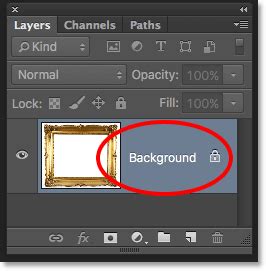
To start, we need to select the background in our image. After you open your photo, bring in the new background image by going into File > Place Embedded. Resize the image to fill the background. Layer stacking order matters. From the Layers Panel, drag the new background image layer below the original photo. This ensures your subject appears in front of the new background.
Automatic Background Removal
In most cases, the Layer Mask that hides the background will need some work. Select the original image from the Layers Panel, then from the Properties Panel click on “Remove Background.” This command will use machine learning technology to find the main subject of the image and apply a layer mask to remove the background. After removing the background from your original image, you should have a pretty good background replacement. Keep in mind no two background replacements are the same.
Fine-Tuning the Composite for Realism
A successful composite goes beyond simply placing one image over another. It requires meticulous attention to detail to ensure the foreground and background elements appear as if they belong together.
Matching Lighting and Color
Your background and foreground images were most likely shot at different times of day with varying lighting conditions. To match these conditions, we can use adjustment layers. From the new Adjustment Layer icon and select Levels. With this adjustment layer, you can adjust the brightness of the image and add/subtract color. Be sure to only affect your foreground image and not the entire composition. Press Ctrl G (Windows) or Command G (macOS) to create a Clipping Mask. You can then make adjustments to brighten or darken your foreground so that it matches your background.
Another thing that I would recommend that you do is to apply a color using the channels option. With the Red Channel, you can add red or subtract red to get cyan. In the Green Channel, you can add green or subtract green to get magenta. In the Blue Channel, you can add blue or subtract blue to get yellow.
Addressing Perspective Mismatches
When you’re learning how to change a background in Photoshop, oftentimes perspective is overlooked. You can get pretty much everything right in a composite, but if the perspective is off, it will look unnatural. To match the perspective in Photoshop, you first need to determine where the horizon line of your foreground image is. The horizon line is the “eye-level” of the photo. You can easily find the Horizon line in one of two ways. First, you can try imagining your image without any buildings, streets, or any other obstructions. Just the ground and the sky. Where in the photo do you think the ground will end and the sky will begin? That meeting point is the Horizon Line. You probably have seen it when you look at a photo of the ocean and the sky. If you can’t visualize it in your mind, you could instead enable the Line Tool, and in a blank layer, you could trace over the parallel converging lines to see where they meet.
Once you know where the Horizon Line of your original image is, you will need to find the horizon line of your new background. You can disable the Layer Mask to see your original background by holding Shift and clicking on the Layer Mask Thumbnail. You can press Ctrl R (Windows) / Command R (macOS) to enable the rulers, and drag down a guide to place it over the horizon line.
How To Use PERSPECTIVE and VANISHING POINTS To Create AMAZING Composites In Photoshop
Handling Imperfect Background Edges
After you reposition the background, you might see transparent pixels either above or below the image. To fill with similar content, you can use the Rectangular Marquee Tool to select the transparent pixels. Then go into Edit > Content-Aware Fill. If your Content-Aware Fill is grayed out, it is probably because you have a Smart Object as your background image.
Simulating Depth of Field
Another important thing you need to think about when you change a background in Photoshop is the Depth of Field. If your original image has a shallow depth of field, then you will need to blur the background image to match. One easy way to get a realistic background blur is to apply a Tilt-Shift Blur. In this filter, everything in between the two solid lines will remain in focus. If you were to imagine how a lens will blur the background, then you can probably figure out where to place this blur over your image. Place the center blur dot where your subject’s feet would be, even if they are out of the canvas.
Enhancing Cohesion with Final Touches
To make the composite even more convincing, you can add subtle effects. You can think of an Adjustment Layer as a filter that colors your image much like an Instagram filter. You can add noise, a vignette, or apply a color grade. Tap on the down arrow key to toggle between the LUTs (Look-Up Tables) for quick color grading options.
Advanced Techniques and Further Learning
For those looking to delve deeper into image manipulation, Photoshop offers a wealth of advanced options.
Working with Complex Backgrounds
Separating subjects from complex backgrounds requires patience and precision. Complex selections in Photoshop often require specialized techniques. Transparent or semi-transparent objects pose unique challenges in Photoshop. Next, open Select and Mask and set the View Mode to Overlay. This helps visualize transparent areas more clearly. Increase the Smooth slider slightly to reduce jagged edges. Once satisfied, output the selection to a Layer Mask.
Flipping Images for Lighting Consistency
If your light sources are not matching, you can simply flip the background image horizontally. You can do so by pressing Ctrl T (Windows) or Command T (macOS) to transform the layer. Then you can right-click and select Flip Horizontal from the dropdown menu.
Exploring Additional Resources
To further hone your skills, consider exploring specialized courses. The Selections and Masking Mastery Course is a complete course that includes 2.5 hours of step-by-step lessons, 6 structured modules, downloadable practice files, and custom Photoshop brushes. Jesús Ramirez, a digital graphics expert, speaker, and educator specializing in Adobe Photoshop, is best known as the founder of the Photoshop Training Channel, one of the most popular Photoshop YouTube channels in the world.

Troubleshooting Common Issues
Sometimes, you may encounter issues that require starting over or undoing multiple steps. If you make a significant error, you might need to undo all changes made since the last save, giving you a clean slate. We should remember to save our work frequently to create restore points.
Photoshop offers various techniques for selecting, removing, and modifying backgrounds. For images with solid black backgrounds, use the Magic Wand tool with a low tolerance setting to select the background. If the background isn't uniform, use the Quick Selection Tool for more precise selection. Then, press Delete to remove the background.
This tutorial provides a comprehensive overview of how to change a background in Photoshop, covering essential tools and techniques for creating compelling composites. By mastering these methods, you can unlock new creative possibilities for your images.
tags: #photoshop #for #background