For students navigating the demanding world of design, art, and media assignments, the prospect of mastering powerful software like Adobe Photoshop can often feel like an insurmountable financial hurdle. The full price of Photoshop, a tool synonymous with professional image editing, can indeed be a significant barrier for those on a tight budget. However, for students, a pathway to unlocking this essential creative suite exists, offering a substantial discount that makes professional-grade tools accessible. This guide aims to demystify how students can leverage Photoshop for their academic and personal creative pursuits, from understanding the available plans to making the most of its powerful features.
The Student Advantage: Accessing Photoshop at a Discount
The primary concern for many students aspiring to use Photoshop is its cost. Fortunately, Adobe recognizes the importance of providing its tools to the next generation of creators. Students are eligible for a special 66% discount on the Creative Cloud All Apps plan. This plan is particularly attractive as it not only includes Photoshop but also a comprehensive collection of other Adobe applications, such as Illustrator, InDesign, Premiere Pro, and After Effects, which are invaluable for a wide range of academic disciplines.
To take advantage of this student pricing, the process is straightforward. Prospective users will need to pick one of the available plans. Adobe typically offers options like an "Annual plan, billed monthly" or an "Annual plan, prepaid," each with different payment structures. Once a plan is selected, the next step involves entering your payment details and confirming your subscription.
A crucial aspect of the Creative Cloud offering is the inclusion of free trials. All Creative Cloud plans come with a complimentary trial period. For students and individuals, this trial typically lasts 7 days, while for teams, it extends to 14 days. This period includes a Photoshop free trial, allowing students to explore the software's capabilities before committing to a purchase.
The final step in securing the discounted subscription involves confirming your eligibility. Adobe has a process to verify student status, which usually requires providing details related to your educational institution. Once your eligibility is confirmed, you can complete your purchase by providing payment details. This ensures that the student discount is applied correctly, making the powerful Adobe Creative Cloud suite an achievable investment for academic success and creative exploration.

Navigating the Interface and Core Features
Once you have access to Photoshop, the next step is to become familiar with its vast array of tools and features. While the software can seem intimidating at first glance, understanding its core components will pave the way for efficient and effective image manipulation.
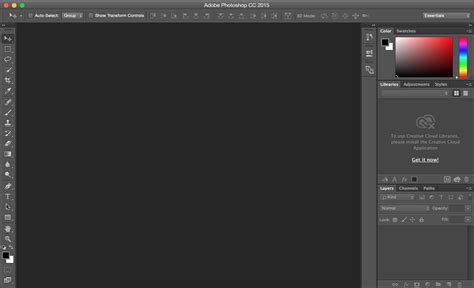
The Photoshop workspace is divided into several key areas:
- Menu Bar: Located at the top, this contains commands for opening, saving, editing, and manipulating images, as well as access to preferences and help resources.
- Options Bar: Situated below the menu bar, this bar dynamically displays options for the currently selected tool. For example, if you have the Brush tool selected, the Options bar will show settings for brush size, hardness, and opacity.
- Tools Panel: Typically found on the left side of the screen, this houses all the essential tools for editing, selecting, painting, drawing, and retouching. Tools can be grouped, and you can expand these groups to reveal more specialized options.
- Document Window: This is the central area where your image is displayed and edited. You can have multiple documents open simultaneously, each in its own tab.
- Panels: Located on the right side of the screen, these provide access to essential functions like Layers, Adjustments, Properties, History, and more. The Layers panel is arguably the most critical, allowing you to work with different elements of your image independently.
Understanding the Layers panel is fundamental to using Photoshop effectively. Layers act like transparent sheets stacked on top of each other. You can place text, images, shapes, or adjustments on separate layers, allowing you to edit each element without affecting others. This non-destructive editing approach is crucial for maintaining flexibility and making changes later in your workflow.
Essential Tools for Student Projects
For students working on various projects, certain Photoshop tools will prove particularly indispensable.
- Selection Tools: Tools like the Marquee Tools, Lasso Tools, Magic Wand Tool, and Quick Selection Tool are used to isolate specific parts of an image. This is essential for tasks such as cutting out objects, applying adjustments to only a portion of an image, or compositing different elements together. The Pen Tool offers the most precise way to create complex selections, forming paths that can be converted into selections.
- Retouching Tools: For photography and art students, tools like the Spot Healing Brush Tool, Clone Stamp Tool, and Patch Tool are vital for removing blemishes, unwanted objects, or repairing damaged areas of an image. The Content-Aware Fill feature, which intelligently fills selected areas based on surrounding content, is a powerful time-saver.
- Painting and Drawing Tools: The Brush Tool is a versatile instrument that can be used for painting, drawing, and masking. You can customize brush tips, sizes, and opacities to achieve a wide range of artistic effects. The Pencil Tool creates hard-edged lines, while the Eraser Tool removes pixels.
- Type Tool: Essential for graphic design and layout projects, the Type Tool allows you to add and format text. You can control font, size, color, leading (line spacing), and kerning (spacing between specific letter pairs).
- Adjustment Layers: Instead of directly altering pixel data, Adjustment Layers (e.g., Brightness/Contrast, Hue/Saturation, Levels, Curves) allow for non-destructive editing. This means you can always go back and tweak the adjustments without degrading the original image quality.
Common Student Applications of Photoshop
Photoshop's versatility makes it applicable across a broad spectrum of student disciplines and personal interests.
- Graphic Design for Projects: Students in marketing, business, or communications often need to create flyers, posters, social media graphics, or presentations. Photoshop allows them to combine images, text, and shapes to produce professional-looking visuals that enhance their project's impact.
- Photo Editing and Manipulation: For photography students, art students, or even those documenting events, Photoshop is the go-to tool for enhancing images. This includes correcting exposure, adjusting colors, sharpening details, removing distractions, and creating artistic effects.
- Digital Painting and Illustration: Artists can use Photoshop as a digital canvas. With a graphics tablet, students can create intricate digital paintings, concept art, character designs, and illustrations, mimicking traditional art mediums or exploring entirely new digital aesthetics.
- Web Design and UI/UX Mockups: Students aspiring to careers in web development or user experience design can use Photoshop to create mockups of websites and applications. This involves designing layouts, choosing color schemes, and preparing assets for web use.
- Video and Animation Assets: While Premiere Pro and After Effects are dedicated video tools, Photoshop can be used to create static assets like titles, lower thirds, or even simple animated GIFs that can be imported into video projects.
Tips for Efficient Workflow and Learning
Mastering Photoshop is an ongoing process, but adopting efficient workflows and utilizing learning resources can significantly expedite your progress.
- Keyboard Shortcuts: Learning essential keyboard shortcuts can drastically speed up your editing process. For instance,
Ctrl+Z(orCmd+Zon Mac) for undo,Ctrl+T(orCmd+T) for Free Transform, andCtrl+J(orCmd+J) for duplicating a layer are fundamental. - Utilize Smart Objects: Converting layers into Smart Objects allows for non-destructive transformations. You can resize, rotate, or apply filters to a Smart Object multiple times without losing image quality.
- Explore Adobe Stock: As mentioned earlier, the Creative Cloud All Apps plan often integrates with Adobe Stock, providing access to a vast library of high-quality images, illustrations, and templates that can be used in student projects, ensuring proper and responsible licensing.
- Online Tutorials and Resources: Adobe itself offers extensive tutorials, and platforms like YouTube are teeming with free educational content for every skill level. Websites like Photorutorial, founded by stock media creator Matic Broz, offer in-depth guides focusing on responsible licensing and practical application of image editing techniques.
- Practice Regularly: The best way to learn Photoshop is by using it. Set yourself small challenges, experiment with features, and try to replicate effects you admire. The more you practice, the more intuitive the software will become.
Photoshop Layer Masks Explained in 2 Minutes
By understanding the student discount, familiarizing yourself with the interface, and practicing with key tools, students can transform Photoshop from an intimidating expense into an invaluable asset for their academic and creative journeys. The journey of mastering this powerful software is one of continuous learning and exploration, offering endless possibilities for bringing ideas to visual life.