The "Generative Fill Not Showing" issue in Photoshop is a common frustration for users aiming to leverage AI-powered edits. This problem occurs when the Generative Fill option, a powerful tool for adding, removing, or replacing content using text prompts, does not appear or remains greyed out in the Contextual Task Bar after making a selection. This effectively prevents users from engaging with the AI-driven capabilities of the software. The issue can arise even on recent versions of Adobe Photoshop, indicating that it's not solely tied to outdated software.
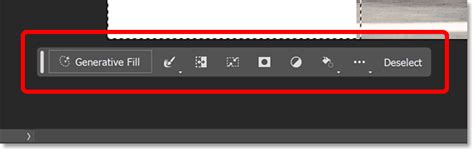
Several factors can contribute to this problem. The Contextual Task Bar itself might be disabled, rendering the Generative Fill option invisible. Outdated Photoshop builds are a frequent culprit, as newer features often require the latest software versions. Conflicts arising from multiple installed versions of Photoshop, including beta and stable releases, can also interfere with proper functionality. Furthermore, issues with Adobe account or service connectivity, including expired sign-in sessions, can prevent online features from loading. In enterprise environments, policy restrictions might limit access to certain AI features. Finally, the type of layer or selection made within Photoshop can also be a determining factor, as Generative Fill is designed to work within specific supported workflows.
It is important to note that Generative Fill is available in newer Photoshop builds (Photoshop 2023 and later). However, it may still be missing if you are on an older build within the same major version or if online services fail to load correctly. Ensuring you are running the latest stable release via Creative Cloud is crucial. In most scenarios, Photoshop (Beta) is not a prerequisite, as Generative Fill is integrated into the standard Photoshop application when supported and properly enabled.
Understanding the Prerequisites for Generative Fill
Before diving into troubleshooting, it's essential to understand the fundamental requirements for Generative Fill to function correctly. This AI-powered feature, born from Adobe's Firefly and Sensei artificial intelligence (AI) efforts, is a significant addition to the creative suite. It's available to anyone with a Creative Cloud subscription and leverages Adobe Firefly, a generative AI model trained on licensed and public domain content. The feature necessitates real-time cloud processing, meaning a stable internet connection is paramount.

The integration of Generative Fill directly within Photoshop's familiar interface sets it apart from standalone AI tools. This allows for immediate visual feedback and non-destructive workflows, making it accessible even to those without extensive prompt engineering expertise. This rise reflects broader industry trends, including the increasing reliance on cloud-based processing, advancements in AI safety filtering, and a growing enterprise demand for scalable content creation solutions. Adobe's commitment to using commercially safe training data aims to mitigate legal risks often associated with some open-source AI models.
For creative professionals, Generative Fill offers significant advantages. It can be used for e-commerce product editing, such as removing backgrounds or adding lifestyle context without costly reshoots. In creative design, it aids in expanding canvas areas, generating textures, or inserting conceptual elements. Photographers can utilize it for retouching, eliminating unwanted objects or filling gaps after cropping. The tool's rapid adoption stems from its seamless integration into a trusted creative workflow.
Step-by-Step Troubleshooting for "Generative Fill Not Showing"
When the Generative Fill option is unavailable, following a systematic troubleshooting approach is key. The solutions below are presented in order of their likelihood to resolve the issue, progressing from simpler checks to more involved ones.
1. Verify Network Connection and Adobe Service Access
A stable internet connection is non-negotiable for Generative Fill. Since it relies on Adobe Firefly's cloud-based processing, any interruption or restriction in your network can prevent the feature from working.
- Check Internet Stability: Ensure you have a robust and consistent internet connection.
- VPN and Proxy Restrictions: If you are using a Virtual Private Network (VPN) or a proxy server, these can sometimes block Adobe's online services. Try temporarily disabling them to see if Generative Fill becomes available.
- Firewall Interference: Firewalls, either on your computer or your network, can be configured to block specific applications or services. If you are in a corporate environment, your IT administrator might need to whitelist Adobe services.
- Creative Cloud Sign-In: Crucially, make sure you are signed into your Adobe Creative Cloud account within Photoshop. An expired sign-in session can prevent online features from loading, even if your internet connection is otherwise working. Navigate to "Help" > "System Info" to confirm the installation is complete and check your sign-in status.

If you suspect an issue with Adobe's services, test your connection by visiting firefly.adobe.com in your web browser. This will help confirm whether the Firefly service itself is accessible from your location and network.
2. Ensure Supported Layer and Selection Types
Generative Fill is context-aware and only appears when Photoshop detects a workflow that supports its operation. Incorrect layer types or selection methods can lead to the option being unavailable.
- Working on a Pixel Layer: Generative Fill is designed to work on pixel-based (raster) layers. If you are trying to use it on a text layer, shape layer, adjustment layer, or a Smart Object without rasterizing it first, the option will likely not appear.
- Unlock Layers: Ensure that the layer you are working on is not locked. Locked layers, including background layers in some contexts, can prevent Generative Fill from being applied. Double-clicking a locked layer or converting it to a regular layer (often by clicking a lock icon) can resolve this.
- Smart Objects: If your image is a Smart Object, you may need to rasterize the layer (Layer > Rasterize > Layer) or edit its contents before Generative Fill can be used on the resulting pixel data.
- Correct Layer Selection: In the Layers panel, confirm that the correct image layer is selected. If multiple layers are present, Photoshop might not know which one to apply the generative changes to.
- New Blank Layer: As a test, try creating a new blank layer above your image layer and then making a selection on that blank layer. This can sometimes help trigger the Generative Fill option.
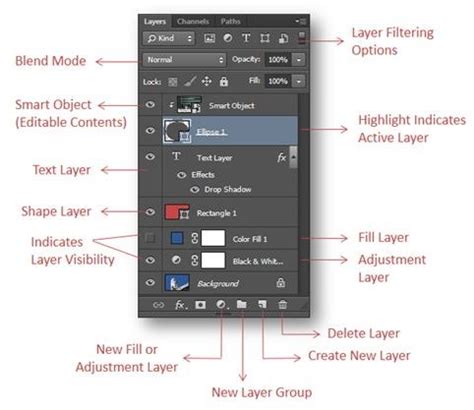
A common pitfall is attempting to use Generative Fill on areas that are already transparent or on layers that are not directly part of the image content, such as guides or guides. The tool expects a selection of pixels to modify or expand upon.
3. Enable the Contextual Task Bar
The Contextual Task Bar is the primary interface through which Generative Fill is accessed when a valid selection is made. If this bar is disabled, the Generative Fill option will not be visible.
- Accessing the Task Bar: To ensure it's enabled, go to the "Window" menu in Photoshop and select "Contextual Task Bar." If it's unchecked, clicking it will enable the bar. Once enabled, as soon as you make a valid selection on a supported layer, the Generative Fill button should appear within this bar.
Photoshop Contextual Task Bar Not Showing Up
The Contextual Task Bar dynamically displays relevant options based on your current selection and active tools, making it a crucial element for accessing AI features like Generative Fill.
4. Update Your Photoshop Version
Generative Fill is a relatively new feature, and its availability and stability are often tied to the latest software updates. Older versions of Photoshop may not have the necessary code or integration for Generative Fill to function.
- Close Photoshop: Ensure Photoshop is completely closed.
- Open Creative Cloud App: Launch the Adobe Creative Cloud desktop application.
- Sign In: Make sure you are signed into your Adobe account.
- Check for Updates: Navigate to the "Apps" tab, locate Photoshop, and click the "Update" button if an update is available. Adobe frequently releases patches to fix bugs and improve existing features.
- Restart: After the update, restart Photoshop. It's also advisable to restart your computer to ensure all system processes are refreshed.
- Test Generative Fill: Open a project, make a selection on a supported layer, and check if the Generative Fill option is now visible and active.
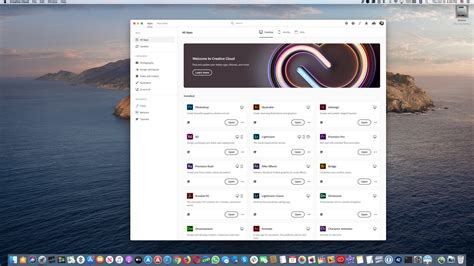
It's important to run the latest stable release. While Photoshop Beta might offer early access to features, the official release channel is generally recommended for consistent functionality.
5. Resolve Conflicts from Multiple Photoshop Installations
Having multiple versions of Photoshop installed on your system, such as both the stable release and a beta version, can sometimes lead to conflicts. These conflicts can arise from shared files, plugins, or background services that may not be correctly managed across different installations.
- Identify Installed Versions: Open the Creative Cloud app and go to the "Apps" tab. Check if multiple versions of Photoshop are listed.
- Uninstall Older Versions: To prevent conflicts, it's generally recommended to uninstall older versions and keep only the latest stable release. This ensures that Photoshop loads the correct files and services required for features like Generative Fill.
- Third-Party Plugins: Temporarily disable any third-party plugins you have installed in Photoshop. Some plugins might not be compatible with newer AI features or could interfere with their operation. Restart Photoshop after disabling plugins to test.
Removing redundant installations simplifies the software environment and reduces the likelihood of unexpected issues.
6. Perform a Clean Reinstall of Creative Cloud and Photoshop
If the problem persists after trying the above steps, a more thorough solution involves a clean reinstallation of both Adobe Creative Cloud and Photoshop. This process can resolve deeper issues caused by corrupted cache files, failed updates, or broken program components.
- Uninstall:
- On Windows: Press
Windows + R, typeappwiz.cpl, and press Enter. Find and uninstall "Adobe Creative Cloud" and "Adobe Photoshop." - On macOS: Drag Photoshop and the Creative Cloud application from the Applications folder to the Trash, or use Adobe's official uninstallers if available.
- On Windows: Press
- Restart Your Computer: After uninstalling, restart your PC or Mac.
- Reinstall Creative Cloud: Download and install the latest version of the Adobe Creative Cloud desktop application from the Adobe website.
- Sign In and Install Photoshop: Sign in to your Adobe account within the Creative Cloud app and then install the latest version of Photoshop.
- Test Generative Fill: Open a test project, create a selection on a supported layer, and verify if Generative Fill is now working.
A clean reinstall ensures that all components are installed fresh, free from any residual data that might be causing conflicts.
7. Investigate Account or Policy Restrictions
In some cases, the issue might not be technical but rather related to your Adobe account or organizational policies.
- Sign Out and Back In: As a quick check, sign out of your Adobe account within the Creative Cloud app and Photoshop, then sign back in. This can refresh your account credentials and service access.
- Test with Another Account: If possible, try logging into Photoshop with a different Adobe account. If Generative Fill works with another account, it suggests the issue is specific to your primary account's subscription or settings.
- Enterprise/Managed Accounts: If you are using Photoshop through a work or school account, your organization's IT policies might restrict access to certain AI features. In such cases, you should contact your administrator or Adobe Support to confirm feature availability and get clarification on any policy limitations.
- Regional Limitations: While less common, there might be regional restrictions on the availability of certain Adobe AI features.

The Behance Connection: A Curious Requirement
An unusual requirement that has surfaced for some users is the need to connect their Adobe account to the Behance platform. Apparently, for Generative Fill to become available, some users have found it necessary to share their birth month and year with Behance, Adobe's social media platform for showcasing creative work.
- Access Behance: From within the Creative Cloud Apps tab, navigate to Behance.
- Provide Information: If prompted, enter your month and year of birth. This action is reportedly necessary to unlock the Generative Fill feature for some users.
- Restart Photoshop: After completing this step, quit and relaunch Photoshop.
This requirement, while seemingly unrelated, has been reported as a solution for enabling Generative Fill. It highlights how interconnected Adobe's services can be, and how actions on one platform can influence features in another. However, users should be aware of the privacy implications of sharing personal information, especially given Adobe's history of data breaches.
Understanding Generative Fill Capabilities and Limitations
Generative Fill is a powerful tool, but it's essential to understand its capabilities and limitations to use it effectively and troubleshoot issues.
What Generative Fill Can Do
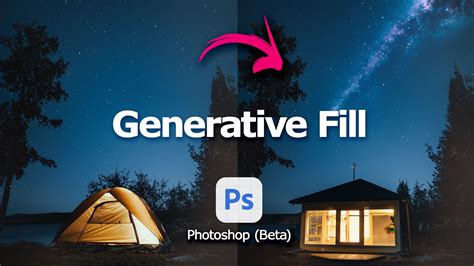
- Add Content: Generate new elements within a selected area based on a text prompt. For example, adding a driver inside a truck.
- Remove Content: Seamlessly remove unwanted objects or distractions from an image.
- Replace Content: Substitute existing elements with new ones generated by AI.
- Expand Canvas: Extend the boundaries of an image by generating matching content.
- Generate Textures: Create new textures or patterns.
Key Limitations and Considerations
- Internet Dependency: Generative Fill requires a continuous internet connection as it relies on cloud processing. It cannot be used offline.
- Color Modes: The tool primarily functions in RGB 8-bit or 16-bit modes. It does not work in CMYK or Grayscale modes. Users will need to convert their documents to RGB before using Generative Fill for print workflows.
- Subscription Eligibility: While there are no direct costs per generation within Photoshop for eligible subscribers, access to Generative Fill is tied to specific Adobe Creative Cloud plans. Some educational or legacy plans might not include this feature.
- No Usage Cap (Currently): As of recent updates, there is no explicit usage cap for Generative Fill within Photoshop. Unlike other Firefly services that might consume credits, Generative Fill operations are generally considered unlimited for eligible subscribers.
- AI Output Review: While powerful, AI-generated content requires human review. Outputs may occasionally contain artifacts, misinterpret prompts, or lack perfect brand consistency. Outputs should always be checked for quality and accuracy.
- Commercial Use: Adobe states that generated content is safe for commercial use under current plans, but this is subject to change and regional variations. Users in regulated industries should verify internal guidelines.
- No Offline Functionality: The reliance on cloud processing means that Generative Fill is strictly an online-only feature.
Best Practices and Advanced Tips
To maximize the utility of Generative Fill and avoid common pitfalls:
- Work with High-Quality Images: The quality of the generated output often depends on the quality of the input image.
- Be Specific with Prompts: Clear and descriptive prompts yield better results. Consider the context, style, and desired outcome.
- Use Generative Fill Iteratively: For complex edits, apply Generative Fill in stages rather than attempting a massive change all at once.
- Leverage Non-Destructive Workflows: Generative Fill creates new layers, allowing for non-destructive editing. This means you can easily adjust, mask, or delete the generated content without affecting the original image.
- Clear Cache: Regularly clearing Photoshop's cache (Edit > Purge > All) can help prevent performance issues, especially after extensive use of AI features.
- Stay Updated: Keep both Photoshop and the Creative Cloud app updated to benefit from the latest improvements and bug fixes.
- Understand Workspace Settings: Ensure you are using an appropriate workspace, such as "Essentials" or "Design," as some custom workspaces might not display the Contextual Task Bar correctly.
- Monitor Bandwidth: Be mindful of your internet bandwidth, as Generative Fill sends image data to Adobe's servers for processing.
By understanding these troubleshooting steps and best practices, users can effectively resolve "Generative Fill Not Showing" issues and harness the full potential of this innovative AI tool within Adobe Photoshop.
tags: #photoshop #generative #fill #not #available