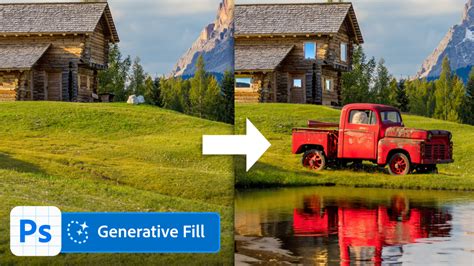
It can be incredibly frustrating to return from a period of time away, only to discover that a feature you relied upon, like Photoshop's Generative Fill, is no longer functioning as expected. This is precisely the situation Heather found herself in after a three-week overseas trip. Having made no alterations or updates to her system before departing, and with her computer having been shut down, the sudden inoperability of Generative Fill presented a perplexing problem. This article aims to explore potential causes and provide a comprehensive troubleshooting guide for this specific issue, drawing upon Heather's experience and offering a structured approach to resolving such technical glitches.
The Initial Conundrum: A Sudden Halt to Generative Capabilities
Heather's experience highlights a common, albeit annoying, aspect of digital tools: their sudden and often inexplicable malfunctions. The fact that Generative Fill was working perfectly before her trip, and that no user-initiated changes were made to her system, points towards external factors or subtle background processes that might have occurred during her absence. The specific setup involved an iMac running OS Ventura 13.3.1, with Photoshop version 2024 (25.6.0 release). This information is crucial for pinpointing potential compatibility issues or version-specific bugs. The core of the problem lies in the Generative Fill feature, a powerful tool that leverages Adobe's AI to create and modify image content based on text prompts. When this functionality ceases to work, it significantly impacts the creative workflow of many users.
Step-by-Step Troubleshooting: A Systematic Approach
When faced with a non-responsive feature, a systematic approach is key. The advice provided to Heather offers a solid foundation for troubleshooting, and we can expand upon each point to provide a more in-depth understanding.
1. Verifying the Digital Lifeline: Internet Connection
Generative Fill, being an AI-driven feature, relies heavily on cloud processing. Therefore, the very first step in any troubleshooting process for this tool must be to confirm a stable and active internet connection. Without it, the requests to Adobe's servers for generative tasks simply cannot be processed.
- How to Check: On an iMac, this typically involves looking at the Wi-Fi or Ethernet icon in the menu bar. Clicking on it will reveal the connection status. Beyond a visual check, it's advisable to open a web browser and visit a few different websites to ensure general internet functionality. Speed test websites can also be used to gauge the quality of the connection, as a very slow or intermittent connection might also cause issues.
- Why it Matters: Generative Fill sends image data and text prompts to Adobe's servers for analysis and content generation. If this data cannot be transmitted or the results cannot be received, the feature will appear to be broken. Even if other internet-dependent features in Photoshop seem to be working, Generative Fill's specific server communication might be encountering a bottleneck.
2. Refreshing the Digital Passport: Logging Out and Back In
Digital services often use authentication tokens or session data to maintain a connection and user status. Sometimes, these tokens can become corrupted or outdated, leading to unexpected behavior in features that require them. Logging out of your Adobe account within Photoshop and then logging back in serves to refresh these credentials.
- How to Perform: In Photoshop, navigate to
Help > Sign Out. Once signed out, close and reopen Photoshop. Then, go toHelp > Sign Inand re-enter your Adobe ID and password. - The Underlying Principle: This action forces Photoshop to re-establish a fresh connection with Adobe's authentication servers. It's akin to restarting a conversation with the service, ensuring that both ends are on the same page regarding your account's validity and permissions. This simple step can resolve many login-related glitches that might indirectly affect feature functionality.
3. Ensuring Feature Availability: Checking Photoshop Installation and Preferences
Sometimes, features can become disabled due to accidental setting changes or issues during software updates, even if the user doesn't recall making them. For Generative Fill, it's essential to ensure that the feature itself is still enabled within Photoshop's settings and that the installation is fundamentally sound.
- Confirming Installation Integrity: The
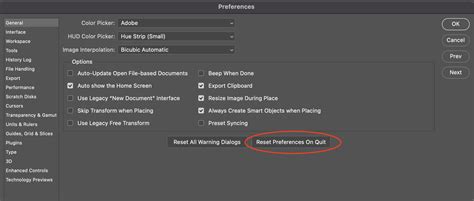
Help > System Infomenu in Photoshop provides a wealth of information about your installation. While it might not explicitly state "Generative Fill enabled/disabled," it can indicate if there are underlying issues with the Photoshop installation itself that might be preventing certain modules from loading correctly. Look for any error messages or unusual entries in the system information. - Resetting Preferences: Preferences files can become corrupted over time, leading to a wide range of unexpected behaviors. Resetting Photoshop's preferences is a common and often effective troubleshooting step.
- The Process: To reset preferences on a Mac, quit Photoshop. Then, hold down the
Option + Command + Shiftkeys simultaneously while launching Photoshop. You will be prompted to confirm that you want to delete the settings file. Click "Yes." - Why it Works: This action reverts Photoshop's settings to their default state, effectively clearing out any potentially corrupted preference files that could be interfering with Generative Fill. It’s important to note that this will reset all your custom settings, so it’s a step to be taken when other, less intrusive methods have failed.
- The Process: To reset preferences on a Mac, quit Photoshop. Then, hold down the
4. The Patchwork Solution: Updating Photoshop
While Heather stated she hadn't updated anything, the nature of software development means that even if the user doesn't initiate an update, minor patches or background updates might occur. Furthermore, it's always worth double-checking for available updates, as these often contain crucial bug fixes for recently discovered issues.
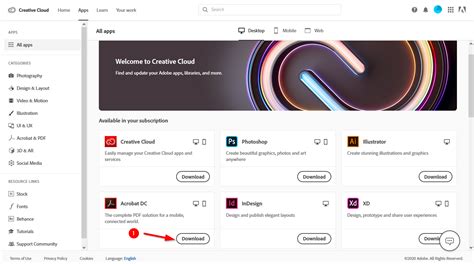
- Checking for Updates: In Photoshop, go to
Help > Updates. This will launch the Adobe Creative Cloud desktop application, which will then check for any available updates for Photoshop and other Adobe applications. - The Rationale: Software developers are constantly monitoring for bugs and performance issues. When a problem like Generative Fill not working is reported by a significant number of users, a patch is often developed and released relatively quickly. Installing the latest version ensures you have all the most recent fixes. It’s possible that a small, background update occurred that introduced a bug, and a subsequent patch has been released to fix that very bug.
5. Exploring Deeper System Interactions: macOS Ventura and Photoshop Compatibility
The specific operating system version, macOS Ventura 13.3.1, and Photoshop 2024 (25.6.0 release) are important data points. Compatibility issues between operating system updates and application versions can arise. While Heather didn't update anything herself, it's possible that the OS itself had a background update, or that the Photoshop version she was using had a known incompatibility with a specific OS build.
- Checking for OS Updates: It’s good practice to ensure your operating system is also up-to-date. Navigate to
System Settings > General > Software Updateon your iMac. While you might be hesitant to update due to past experiences, sometimes a newer OS version can resolve underlying system issues that affect application performance. - Adobe's System Requirements: It's always prudent to check Adobe's official system requirements for Photoshop to ensure your iMac's specifications and OS version are fully supported and optimized for the latest Photoshop features. Sometimes, newer features require more recent OS builds.
6. The "Have You Tried Turning It Off and On Again?" Principle: Restarting the Computer
This classic IT troubleshooting step is often overlooked but can be surprisingly effective. A simple restart can clear temporary glitches in the operating system and running applications, freeing up system resources and resolving minor conflicts.
- How to Perform: Go to the Apple menu and select
Restart. - Why it Helps: During extended periods of use, temporary files can accumulate, processes can get stuck, and memory can become fragmented. A restart essentially gives the entire system a clean slate, closing all applications and processes and reloading them from scratch. This can often resolve transient issues that might be affecting Generative Fill.
When the Standard Fixes Don't Suffice: Advanced Troubleshooting and Support
If the above steps do not resolve the issue, it's time to consider more advanced troubleshooting or seek external assistance.
1. Investigating Photoshop's Plugins and Extensions
Third-party plugins or extensions installed in Photoshop can sometimes conflict with core functionalities, including AI-powered features.
- How to Check: Navigate to
Photoshop > Settings > Plugins(orPreferences > Pluginson older versions). Review the list of installed plugins. You can try temporarily disabling them one by one to see if Generative Fill starts working after disabling a specific plugin. If it does, you've found a likely culprit. - Potential Conflicts: Plugins that modify image processing pipelines or interact with external services could potentially interfere with Generative Fill's communication or processing.
2. Examining Photoshop's Scratch Disks
Photoshop uses scratch disks (temporary storage locations on your hard drive) for processing large files and complex operations. If your scratch disk is full or encountering errors, it can lead to performance issues and feature failures.
- How to Check: Go to
Photoshop > Settings > Scratch Disks. Ensure that the selected scratch disk has ample free space. Ideally, it should be a fast drive (like an SSD) with at least 50GB of free space, if not more, depending on the complexity of your work. - Troubleshooting: If the primary scratch disk is full, try selecting another drive with more free space as the primary scratch disk. You can also try clearing out unnecessary files from your scratch disk drives.
3. The Role of Adobe Creative Cloud Desktop Application
The Creative Cloud desktop application is the central hub for managing your Adobe subscriptions and applications. Issues with this application can cascade and affect the functionality of individual programs.
- Reinstalling Creative Cloud: In some rare cases, reinstalling the Creative Cloud desktop application itself can resolve underlying issues. This is a more drastic step and should be considered if other options fail. You can uninstall it via the Creative Cloud app itself or through your operating system's application management tools.
- Checking Creative Cloud Status: Occasionally, Adobe services might experience outages or maintenance. Checking the Adobe Status page online can provide information on any ongoing issues that might be affecting Generative Fill.
4. Seeking Expert Assistance: Adobe Support
If all self-help troubleshooting steps have been exhausted, the next logical step is to contact Adobe Support. They have access to more in-depth diagnostic tools and knowledge bases, and can provide specific advice tailored to your system configuration and the exact error messages you might be encountering.
- Gathering Information: Before contacting support, it’s beneficial to have the following information ready:
- Your exact Photoshop version and OS version (which you already have).
- A detailed description of the problem, including when it started and what steps you've already taken.
- Any error messages that appear.
- Screenshots or screen recordings of the issue.
- Support Channels: Adobe offers various support channels, including online chat, forums, and phone support. The Adobe Community forums are also an excellent place to search for similar issues reported by other users, as well as to post your own problem for community advice.
Understanding the Underlying Technology: Why Generative Fill Might Fail
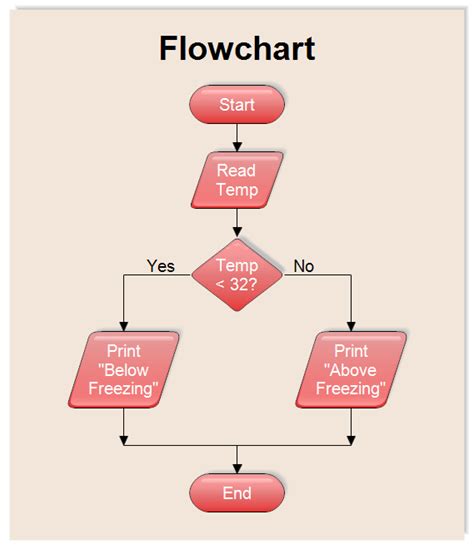
To truly understand why Generative Fill might fail, it's helpful to consider its technical underpinnings. Generative Fill relies on a sophisticated neural network model, known as Adobe Firefly, which is trained on a massive dataset of images and text. When you use Generative Fill:
- Image Selection: Photoshop identifies the selected area of your image.
- Prompt Interpretation: The text prompt you provide is analyzed by the AI.
- Cloud Processing: The image data and the interpreted prompt are sent to Adobe's cloud servers.
- AI Generation: Adobe's Firefly model generates new image content based on the input.
- Result Return: The generated content is sent back to Photoshop and applied to the selected area.
Any breakdown in this chain can lead to failure:
- Network Issues: As discussed, a poor internet connection can interrupt the data transfer at any stage.
- Server Load or Outages: If Adobe's servers are experiencing high traffic or are temporarily down for maintenance, the requests will not be processed.
- Authentication Problems: If your Adobe account credentials are not correctly authenticated, access to the generative features will be denied.
- Software Glitches: Bugs within Photoshop itself or in the communication protocols between Photoshop and the cloud services can occur.
- Resource Limitations: Although less common for cloud-based features, insufficient local system resources (like RAM or processing power) could theoretically impact how Photoshop handles the data before sending it to the cloud, or how it receives and integrates the results.
Anticipating Future Issues: Proactive Measures
While troubleshooting is essential, adopting a proactive approach can minimize the chances of encountering such issues in the future.
- Regular Updates: Make it a habit to check for and install Photoshop and macOS updates regularly. This ensures you're always running versions with the latest bug fixes and security patches.
- System Maintenance: Periodically clear your computer's cache, run disk utility checks, and ensure you have sufficient free space on your hard drives, especially on your primary scratch disk.
- Backup Strategy: Maintain a robust backup strategy for your work and your system. This provides a safety net in case of severe software or hardware issues.
- Stay Informed: Keep an eye on Adobe's official announcements and community forums for any known issues or planned maintenance that might affect their services.
By understanding the potential causes and following a structured troubleshooting process, users like Heather can effectively diagnose and resolve issues with Photoshop's Generative Fill, restoring its powerful creative capabilities to their workflow.
Photoshop Tutorial Apply design on subject Can Mockup Tutorial
tags: #photoshop #generative #fill #we #ve #encountered