HEIC files have rapidly become the standard for image storage on Apple devices, offering a compelling blend of high quality and efficient compression. Since their introduction with iOS 11 and macOS High Sierra, users have increasingly encountered these files. For those operating within the Windows ecosystem or seeking to leverage the powerful editing capabilities of Adobe Photoshop, opening and manipulating HEIC files can present a challenge. This guide aims to demystify the process, providing a clear path to integrating HEIC images into your Photoshop workflow.
Understanding the HEIC Format: Efficiency and Quality
HEIC, an acronym for High Efficiency Image Container, is a format that encapsulates images encoded using High Efficiency Video Coding (HEVC), also known as H.265. This advanced compression technology allows HEIC files to achieve superior quality compared to the long-standing JPEG format, all while occupying significantly less storage space. Apple's adoption of HEIC in the mid-2010s, following their earlier embrace of HEVC for video on newer iPhones, was a strategic move to keep pace with the ever-increasing resolution and capabilities of their device cameras.
The core advantage of HEIC lies in its size efficiency. HEIC files are typically half the size of equivalent JPEG files, a substantial benefit for users managing large photo libraries. Beyond mere size reduction, HEIC supports a 16-bit color depth, a significant upgrade from JPEG's 8-bit. This translates to a broader spectrum of colors and enhanced color accuracy, leading to more vibrant and nuanced images. Furthermore, HEIC’s versatility extends to its ability to store multiple images within a single file. This capability is leveraged by features like Live Photos and burst mode on iPhones, allowing users to capture dynamic moments or a series of shots in one compact package. Each HEIC file can utilize either the .heic or .heics file extension, with the latter indicating the presence of multiple images.
The HEIC format also excels at retaining metadata. Information such as time, location, and precise pixel dimensions are preserved, offering a richer context for your images. This comprehensive data preservation, combined with its space-saving attributes and advanced color capabilities, positions HEIC as a forward-thinking image standard.
The Compatibility Conundrum: HEIC Beyond the Apple Ecosystem
While HEIC offers numerous advantages, its widespread adoption has been somewhat hampered by compatibility issues outside of the Apple ecosystem. Many platforms and software applications have not yet implemented native support for the HEIC format. This lack of universal compatibility is arguably HEIC's most significant drawback. For Windows users, this means that simply double-clicking a .heic file may not open it in standard image viewers, and attempting to open it directly in older versions of software like Photoshop will likely result in an error or the file appearing greyed out, indicating it cannot be opened.
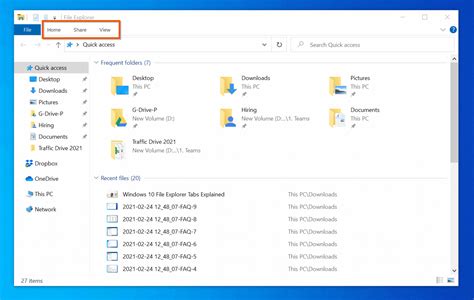
To address this, Windows users generally need to install specific extensions or codecs to enable their operating system and applications to recognize and process HEIC files. This often involves obtaining "HEIF Image Extensions" and, for full functionality including video components, "HEVC Video Extensions" from the Microsoft Store. For Photoshop, ensuring the software itself is up-to-date is also crucial, as newer versions may incorporate improved or native support for such formats.
Opening HEIC Files in Adobe Photoshop: A Step-by-Step Approach
For users who find themselves needing to edit HEIC files within Adobe Photoshop, a straightforward process can be followed, although it often requires a preparatory step.
Step 1: Install Necessary Codecs and Extensions
The foundational step for opening HEIC files on a Windows computer involves installing the appropriate support from the Microsoft Store.
- HEIF Image Extensions: This essential component allows your Windows system to recognize and interpret HEIC image files.
- HEVC Video Extensions: While HEIC is primarily an image format, it can contain video elements (as seen in Live Photos). Installing the HEVC Video Extensions ensures that these video functionalities are also supported. These extensions may require a small purchase from the Microsoft Store.
For users on macOS, the process is generally more streamlined. If your device runs macOS High Sierra (10.13) or a later version, HEIC support is often built-in. You can typically open HEIC files using the Preview application or directly within Photoshop if it's sufficiently updated.
Step 2: Ensure Photoshop is Up-to-Date
Adobe regularly releases updates for its Creative Cloud applications, which often include enhanced format support. It is vital to ensure your Photoshop installation is current.
- Launch Adobe Photoshop.
- Navigate to the "Help" menu.
- Select "Updates."
- The Adobe Creative Cloud application will then launch, displaying any available updates. Install all recommended updates for Photoshop.
Step 3: Opening HEIC Files Directly (if supported)
With the necessary codecs installed on Windows and an up-to-date version of Photoshop, you can now attempt to open your HEIC files directly.
- Launch Adobe Photoshop.
- Go to "File" > "Open."
- Navigate to the location of your HEIC file and select it.
If your system and Photoshop are correctly configured, the file should now open, allowing you to proceed with editing.
Step 4: Alternative Method - Conversion to JPEG or PNG
In cases where direct opening is still problematic, or for broader compatibility, converting your HEIC files to a more universally supported format like JPEG or PNG is an effective workaround.
Online Converters: Numerous free online tools are available for this purpose. Websites like heictojpg.com allow you to upload your HEIC file, select your desired output format (JPEG or PNG), and download the converted file. This method is quick and convenient for one-off conversions.
How to Convert HEIC to JPG in Windows
Dedicated Software Converters: For batch conversions or more control over the process, dedicated software such as iMobie HEIC Converter can be utilized. These applications often offer features like preserving EXIF data, adjusting image quality, and converting multiple files simultaneously.
- Download and install a reputable HEIC converter.
- Launch the converter and import your HEIC files.
- Select your desired output format (e.g., JPEG, TIFF, PSD).
- Choose any additional options, such as keeping or deleting EXIF data, or setting JPEG quality.
- Initiate the conversion process.
- Once converted, you can open these new files in Photoshop via "File" > "Open."
Step 5: Editing in Photoshop
Once your HEIC file is successfully opened in Photoshop, you can utilize the software's extensive array of tools for retouching and creative manipulation.
- Color Profile Management: For accurate color representation, ensure that embedded color profiles are enabled in Photoshop's settings. This helps maintain the integrity of the colors captured in your HEIC image.
- Image Adjustments: Before diving into complex edits, you may wish to adjust basic image settings like brightness, contrast, saturation, and white balance. Photoshop offers numerous adjustment layers and tools for this purpose.
- Retouching and Manipulation: With the file open and settings optimized, you are free to use Photoshop's powerful tools - from the Clone Stamp and Healing Brush to layers, masks, and filters - to enhance your images as desired.
HEIC vs. JPEG: A Comparative Overview
The transition from JPEG to HEIC by Apple wasn't arbitrary; it was driven by a desire for improved image technology. Understanding the differences between these two formats can help users make informed decisions.
| Feature | HEIC | JPEG |
|---|---|---|
| Compression | Advanced HEVC compression; significantly smaller file sizes. | Older, less efficient compression; larger file sizes. |
| Quality | Higher quality, especially with 16-bit color depth; better detail. | Good quality, but limited to 8-bit color depth; can show artifacts. |
| Color Depth | Supports 16-bit color depth (billions of colors). | Supports 8-bit color depth (millions of colors). |
| Features | Supports transparency, image sequences, multiple images per file. | Primarily supports single static images. |
| Metadata | Retains extensive metadata (location, time, dimensions, etc.). | Retains basic EXIF metadata. |
| Compatibility | Limited native support outside Apple ecosystem; requires extensions. | Universally supported across most devices and software. |
| Processing | Requires more processing power for encoding/decoding. | Less computationally intensive. |
The choice between HEIC and JPEG often boils down to a trade-off between file size and compatibility. For users deeply embedded in the Apple ecosystem who prioritize storage efficiency and image quality, HEIC is an excellent choice. However, for broader sharing and compatibility with older systems or software, JPEG remains the more practical option.
Importing HEIC into Photoshop PSD Format
For professional graphic design workflows, the Photoshop Document (PSD) format is highly preferred due to its support for layers, masks, and advanced editing features. While Photoshop CC (version 19.1 and later) offers built-in support for HEIC, importing HEIC files directly into a PSD format can be achieved through various methods.
As mentioned, direct opening in Photoshop and then saving as PSD is a primary method. However, for users who require more advanced conversion capabilities or need to process unlimited files without limitations, specialized software like "4n6 Image Converter" is available. Such tools allow for the import of HEIC files directly into PSD format, often with previews and batch processing options, ensuring that the rich data and layers are preserved for complex professional editing.
Ultimately, whether you are a casual user looking to edit a few photos or a professional designer working with complex projects, understanding how to handle HEIC files in Adobe Photoshop opens up a world of possibilities, ensuring that your creative vision is not limited by file format.