For anyone working extensively with digital imagery, especially within the powerful environment of Adobe Photoshop, understanding file formats is not just a matter of convenience; it's crucial for maintaining workflow efficiency, preserving image quality, and ensuring successful project delivery. While familiar formats like JPEG and PNG serve many purposes, the demands of large-scale, complex projects necessitate specialized solutions. This is where formats like the Photoshop Large Document Format (PSB) come into play, offering a way to handle immense amounts of data that would overwhelm standard file types.
The Foundation: Understanding Standard Photoshop Files
Before delving into the intricacies of large document formats, it's essential to grasp the basics of Photoshop's native file structure. The most common format encountered is the PSD (Photoshop Document). PSD files are the industry standard for digital image manipulation and editing, emerging alongside Adobe Photoshop itself. They are designed to store a wealth of information, including multiple layers of different images or graphical elements, adjustments, masks, and other editing data. This layered structure is precisely what makes PSD files so valuable for ongoing work. When you create a new layer to remove blemishes, add adjustments to exposure and color, or apply effects like noise and blur, each of these actions is recorded within a separate layer. Saving your work as a PSD ensures that all these layers and edits are preserved, allowing you to return to the project at any time to make further modifications.
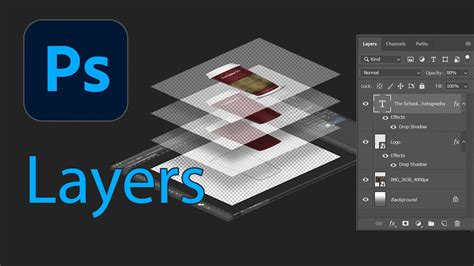
The primary limitation of the PSD format is its file size and dimension cap. A standard PSD file is restricted to a maximum file size of 2 GB and image dimensions of 30,000 by 30,000 pixels. For many projects, this is more than sufficient. However, as projects grow in complexity, resolution, or the sheer number of layers, these limits can be quickly reached, leading to the need for a more robust solution.
The Need for Larger Formats: Introducing PSB
When projects exceed the capabilities of the standard PSD format, the PSB (Photoshop Big) file format emerges as the go-to solution. Essentially, a PSB file is an extended version of PSD, specifically engineered to overcome the size limitations of its predecessor. The "Photoshop Large Document Format" is designed for images that are too large to be saved as regular Photoshop document (.PSD) files. If you're working with big images or large-scale projects, PSB will likely be your go-to.
The key advantage of the PSB format lies in its vastly increased capacity. While PSD files are capped at 30,000 x 30,000 pixels, PSB files can manage dimensions up to an astonishing 300,000 x 300,000 pixels. In terms of file size, PSD is limited to 2 GB, whereas PSB can handle theoretical maximums of up to 4 exabytes, though practical limitations will be imposed by your system's storage. This extended support for file size and dimensions is what makes PSB indispensable for oversized projects.
When to Choose PSB Over PSD
The decision to use PSB instead of PSD is typically driven by project requirements that push the boundaries of the standard format. Several scenarios highlight the necessity of PSB:
- High-Resolution Images: For projects intended for large-format printing, such as billboards, large-scale banners, or prints requiring exceptional clarity at significant sizes, the high resolution necessitates a format that can accommodate the extensive pixel data.
- Detailed and Complex Projects: If your design involves hundreds or even thousands of layers, intricate masks, or numerous adjustment layers, the cumulative data can quickly exceed PSD's capacity. PSB ensures that all these elements are preserved without compromise.
- Large File Sizes: Any project that naturally exceeds the 2 GB limit of PSD files will automatically require saving as a PSB. This is often the first indicator that you've entered the realm of large document formats.
- HDR Imaging and Advanced Workflows: High Dynamic Range (HDR) photography and complex compositing tasks often generate exceptionally large files with a wide range of tonal information. PSB is well-suited to handle the demands of these advanced editing capabilities.
Essentially, if your graphic design projects emphasize sheer size and complexity, using PSB files ensures no loss of image quality and maintains the integrity of your work.
Benefits of Embracing the PSB Format
Switching to PSB for larger projects comes with a host of advantages that directly impact workflow and output quality:
- Unprecedented Data Storage: PSB files support significantly larger dimensions and file sizes than the PSD format, allowing for truly massive digital canvases.
- Preservation of Quality: The PSB format is designed to maintain image quality, even for projects requiring extensive edits and manipulations. It doesn't force a compromise on detail or fidelity due to file size constraints.
- Full Photoshop Feature Support: Crucially, PSB files support all of Photoshop's advanced features, including layers, masks, filters, blending modes, channels, and more. It was made to ensure that you can continue using these powerful tools even when working with extremely large files.
- Streamlined Complex Workflows: For professional workflows that frequently involve high-resolution imagery or intricate designs, PSB provides a stable and capable format, preventing the common pitfalls associated with file size limitations.
Saving and Opening PSB Files
Saving a file as a PSB in Adobe Photoshop is a straightforward process. If your project exceeds the maximum size limits of the traditional PSD format, Photoshop will often prompt you to save as PSB. If not, you can manually select it:
- Open your project in Photoshop.
- Navigate to
File > Save As. - In the "Format" dropdown menu, select "Large Document Format (.PSB)".
- Specify a location and save the file.
It's worth noting that if you don't see the PSB option listed, you might need to ensure the "Enable Large Document Format (.PSB)" option is checked within the Photoshop preferences menu.
Opening a PSB file is just as simple:
- Drag and drop the PSB file directly into Adobe Photoshop.
- Alternatively, go to
File > Openwithin Photoshop and locate your PSB file.
How to save a photoshop psd file larger than 2GB?
PSB files are natively supported by Adobe Photoshop, ensuring full compatibility and access to all editing features.
Beyond PSB: Other Important File Formats
While PSB is the primary format for handling Photoshop's largest documents, other file formats play significant roles in the digital design ecosystem, particularly for outputting and sharing work. Understanding these is crucial for a complete workflow.
PSD vs. PSB: A Concise Comparison
| Feature | PSD (Photoshop Document) | PSB (Photoshop Big) |
|---|---|---|
| Max File Size | 2 GB | 4 EB (theoretical, practically limited by storage) |
| Max Dimensions | 30,000 x 30,000 pixels | 300,000 x 300,000 pixels |
| Primary Use | Standard layered Photoshop projects | Very large, complex Photoshop projects |
| Feature Support | Full Photoshop features | Full Photoshop features |
| Compatibility | Widely supported by Adobe products | Primarily Adobe Photoshop; limited elsewhere |
JPEG (JPG)
JPEG, often seen as JPG, is one of the most ubiquitous image file formats. It's known as an all-around workhorse because the file types are relatively small and the quality can be quite high. JPEGs are compressed images, meaning that there is some information loss during the compression process. This makes them ideal for sharing and displaying on the internet, as smaller file sizes lead to faster loading times.
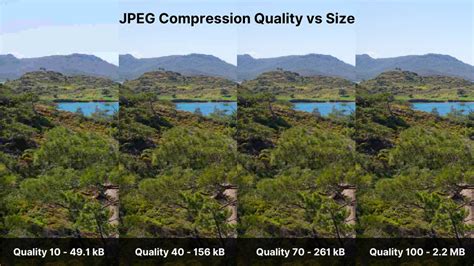
Key characteristics of JPEGs include:
- Compression: JPEGs use lossy compression, allowing for significant file size reduction. The level of compression can be adjusted, offering a trade-off between file size and image quality.
- Flattened Images: JPEG files are flattened, meaning they do not contain any layer information. Once saved as a JPEG, you lose the ability to edit individual layers.
- No Transparency: A key difference between PNG and JPEG is the inability of a JPEG to offer a transparent background. In the absence of color in the background of an image, JPEG will default to appear white.
- Color Space: For web use, it's crucial to save JPEGs in the sRGB color space, which is the standard used by web browsers. Photoshop's "Save for Web (Legacy)" dialog provides options for this.
JPEGs are the most flexible way to export images out of Photoshop for general use, especially for web-based applications.
PNG (Portable Network Graphics)
PNG is another widely used format, particularly valued for its ability to support transparency. The big value that PNG brings to the virtual table is the ability to display graphics on a transparent background. This is especially important if you're creating a logo, icons, or artwork with multiple layers of graphics that need to be placed over other elements without a solid background.

Key characteristics of PNGs:
- Transparency: PNG supports alpha channel transparency, allowing for smooth, artifact-free transparency.
- Lossless Compression: Unlike JPEGs, PNGs use lossless compression, meaning no image quality is lost during compression. This results in higher quality but generally larger file sizes compared to JPEGs.
- Larger File Sizes: While ideal for transparency, the lossless nature and support for alpha channels mean PNG files tend to be larger than JPEGs, which can cause performance issues if used extensively on a single page.
- Ideal for Graphics: PNG is excellent for text, graphics, or icons where sharp edges and transparency are essential.
RAW Format
Technically, RAW isn't a file format in the same sense as JPEG or PNG, but rather a description of files without additional processing applied. These files, often originating from camera manufacturers like Nikon or Canon, are essentially unprocessed sensor data. The key identifier for RAW files is their sheer size. It is not unusual for a RAW file to be ten times the file size of a JPEG or PNG format.
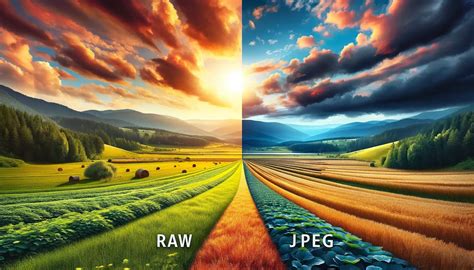
RAW files are meant to capture the depth and dimension of photography in their full glory. They contain the maximum amount of image data, offering unparalleled flexibility in post-processing for adjustments like white balance, exposure, and color grading without degrading the image quality. However, they are not directly viewable or editable in most standard image viewers and require specialized software, such as Adobe Camera Raw (which is integrated into Photoshop) or dedicated RAW converters, to process them.
Compatibility and Conversion Challenges
While Photoshop is the undisputed king for creating and editing these files, compatibility with other software can be a significant consideration.
PSB Compatibility
PSB file compatibility is somewhat limited compared to other image file types. While PSB files can be opened with Adobe Photoshop seamlessly, they are not widely supported by other software, such as Adobe InDesign or many third-party graphic design tools. If you need to open or convert a PSB file in another application, third-party tools and file converters may help, but some advanced layers or features may not carry over.
For broader compatibility, it is often necessary to convert a PSB file into a more common format like JPEG, PNG, or TIFF. This conversion process can be done within Photoshop by using the "Save As" function and selecting the desired output format. However, it's important to remember that converting to a different format, especially a lossy one like JPEG, might result in the loss of layers or other features unique to the PSB format.
Converting Large Files for Print Shops
A common challenge arises when preparing large files for professional print shops. Many print services prefer more universally accepted file types like PDF, PNG, or JPEG. If you've been working with a large document in PSB format and need to send it to a print shop, you'll need to convert it.
The process involves opening the PSB file in Photoshop and then using File > Save As to choose a suitable format. If you encounter issues with Photoshop crashing when trying to save a large file as a PNG, it might be due to system memory limitations or the sheer size of the file overwhelming the conversion process. In such cases, ensuring your system has ample RAM and processing power is essential. Alternatively, you might explore online converters, but caution is advised, as quality and feature preservation can vary significantly, and you should always ensure the service is reputable before uploading sensitive project files. For print, a high-quality PDF is often the preferred output, as it can maintain vector data and high-resolution raster images without the limitations of some other formats.
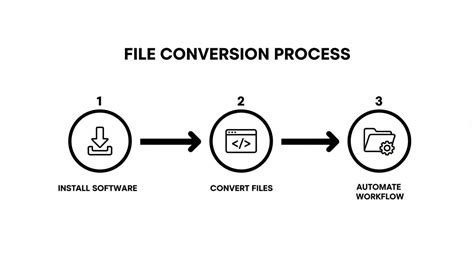
It's also possible to batch convert PSB files to other formats using Photoshop's "Image Processor" or scripting capabilities, which can be a time-saver for projects involving multiple large files.
Performance Considerations
Working with large files, particularly PSB files, can be resource-intensive. A machine that is not particularly powerful could experience slowdowns or even crashes when handling these immense documents. It's imperative to ensure your computer has sufficient Random-Access Memory (RAM) and processing power to handle big files efficiently. Sufficient storage space is also a critical consideration, as PSB files can easily grow into hundreds of gigabytes depending on project complexity.
Conclusion: Choosing the Right Tool for the Job
Photoshop's array of file formats, from the ubiquitous PSD and JPEG to the specialized PSB, offers a comprehensive toolkit for digital creatives. Understanding the unique strengths and limitations of each format is key to maintaining a smooth workflow, preserving image integrity, and delivering professional results. While standard formats suffice for many tasks, the advent of the PSB format has removed significant barriers for those working on truly grand-scale projects, ensuring that creativity is not stifled by file size limitations. By mastering these formats, designers and photographers can unlock the full potential of Photoshop and elevate their creative endeavors.