In today's fast-paced digital world, the ability to capture, edit, and share high-quality images quickly and efficiently is paramount. Whether you're a seasoned professional or an enthusiastic amateur, the tools you use significantly impact your workflow and the final output of your photographic endeavors. Adobe Lightroom, a name synonymous with professional photo editing, offers a versatile suite of applications designed to meet these demands. This article delves into the multifaceted features of Lightroom, with a particular focus on its portable capabilities, exploring how it empowers photographers to create and manage their work across various devices.
The Evolution of Lightroom: From Desktop Dominance to Mobile Freedom
Historically, professional photo editing was largely confined to desktop environments. Software like Apple Aperture, released in 2005, set a precedent for powerful, non-destructive editing and robust cataloging. However, the rise of mobile photography presented a new challenge: how to bring these advanced capabilities to the palm of your hand. Adobe responded to this shift by developing Lightroom for mobile and tablets.
Initially, mobile photo editing apps offered limited functionality, often struggling with RAW file processing, advanced cataloging, and noise removal. Camera manufacturers' proprietary apps also fell short, frequently downsampling images or offering restricted cloud storage. It was within this landscape that Adobe introduced Lightroom Mobile, aiming to bridge the gap between desktop power and mobile convenience.
The introduction of RAW format support on iOS devices, starting with iOS 10, was a significant catalyst. This allowed applications like Lightroom Mobile to process professional-grade images directly from smartphones. As of 2025, users are leveraging the latest iterations of Lightroom Mobile on devices like the iPhone 16 Pro Max and the iPad Air 6th generation, highlighting its continued relevance and advancement.
Core Functionality: Capturing, Organizing, and Editing on the Go
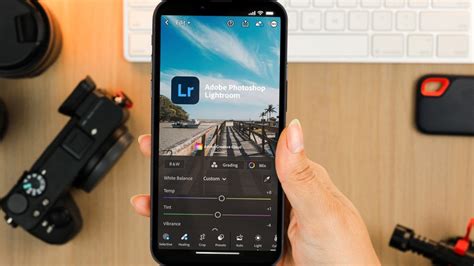
Lightroom for mobile and tablets is presented as a free app that provides a powerful yet simple solution for capturing, editing, and sharing photos. It allows users to craft and share pro-quality images from their smartphone or tablet using tools built with Adobe Photoshop technology.
Capture and Organization
A key aspect of Lightroom's mobile offering is its integrated camera. This built-in Lightroom Camera allows users to capture photos directly within the app. Once captured, or when importing from a device's camera roll, photos are added to an "All Photos" album. This forms the foundation of the library view, where all imported photos are stored, alongside user-created folders and albums. Lightroom pre-populates the list with four albums by default, providing a starting point for organization.
The app supports non-destructive editing, meaning that any adjustments made can be undone at any time, even after closing and reopening the application. This is a fundamental principle of Lightroom's workflow, ensuring that the original image data remains intact.
Editing Tools and Presets
Lightroom for mobile offers a comprehensive suite of editing tools. Users can perfect their shots with more than 30 presets, providing quick, one-tap enhancements. For more granular control, the app features an intuitive user interface with adjustment groups, each containing various sliders for fine-tuning. When in editing mode, a toolbar at the bottom of the screen provides access to these groups.
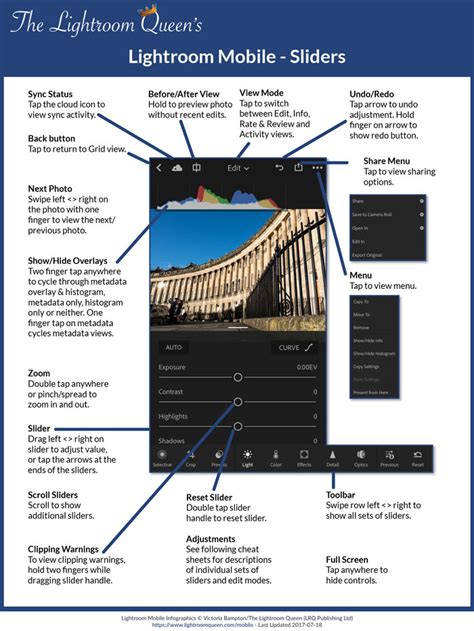
A standout feature is selective adjustment, which allows users to apply edits to specific parts of a photo. This is particularly useful for targeted enhancements and can be conveniently operated with an Apple Pencil on an iPad. The ability to create masks, automatically detect subjects or skies, and even mask areas by color or luminance range, significantly elevates the precision of mobile editing.
Advanced Features and Device Compatibility
While many core features are available for free, some advanced functionalities have specific hardware requirements. For instance, Lens Blur and Quick Actions are compatible with iOS devices boasting a minimum of 4 GB of RAM. The Lightroom for mobile (iPad) app also boasts compatibility with Apple Vision Pro, offering an immersive editing experience.
For Android users, a newer device is generally required for advanced editing features. Adobe Lightroom for mobile intelligently detects and provides access to these advanced capabilities based on the device's support. Notably, beginning with version 2.0, Adobe Lightroom for mobile supports DNG raw image capture on devices running Android 5.0 (Lollipop) and later, provided the device itself supports DNG raw image capture. Users can check for "DNG Capture Supported" status within the app.
File Format Support
Lightroom for mobile supports JPEG, PNG, and Adobe DNG image formats. This broad compatibility ensures that users can work with a wide range of image files from various sources.
The Power of the Cloud and Synchronization
A significant aspect of the Lightroom ecosystem is its cloud infrastructure, which is essential for syncing image data and edits between desktop and mobile devices.
Lightroom Desktop vs. Lightroom Classic
It's crucial to distinguish between "Lightroom" (the cloud-centric version) and "Lightroom Classic" (the desktop-focused application).
- Lightroom Desktop App: This version uploads all original photos to the cloud. When you sync raw files from Lightroom Classic on your desktop to Lightroom for mobile, Lightroom Classic automatically renders a smart preview of your raw photos and syncs that smart preview to your mobile device. The original files remain on your desktop and are not stored, synced, or used by Adobe Lightroom for mobile.
- Lightroom Classic Desktop App: This application manages photos stored on your local hard drive. You can continue to import, organize, and output edited photos through various methods like Export, Publish, Print, Web, or Slideshow. With Lightroom Classic on macOS or Windows desktop, you will no longer be able to sync new files to the cloud. However, you'll still have access to all your photos on your local hard drive.
Smart Previews and Cloud Storage
When raw files are synced from Lightroom Classic to Lightroom for mobile, Lightroom Classic generates a "smart preview." This is a smaller, highly optimized DNG file that retains editing capabilities. These smart previews are then synced to the mobile device. This approach allows for efficient editing on mobile devices without needing to transfer massive raw files.
The original files uploaded from Lightroom Classic remain on the user's desktop. When you disable the "Use Cellular Data" option and lack a network connection, Lightroom for mobile displays a "Syncing Interrupted" icon. In such cases, users can tap the "!" icon and choose to "Download Smart Preview" for editing using cellular data.
Adobe offers cloud storage as part of its subscription plans. The Lightroom mobile-only plan for desktop & mobile includes 1 TB of cloud storage for $11.99 per month. A more comprehensive plan, bundling Lightroom CC for desktop and mobile with Photoshop CC for desktop and iPad, costs $19.99 per month and also includes 1 TB of storage. Beyond the included storage, upgrade options are available in increments up to 1 TB for approximately $10.00 per month.
Don't Miss Out! Use BOTH Lightroom CC AND Lightroom Classic Together!
Subscription Benefits and Premium Features
While Lightroom for mobile offers a robust free tier, unlocking its full potential often involves a subscription. This unlocks premium features that significantly enhance the editing and organizational capabilities.
Premium Presets and AI Tools
Subscription plans often include hundreds of premium presets, such as cinematic or portrait presets, offering curated looks to elevate images quickly. Furthermore, premium subscriptions incorporate advanced AI-powered tools. The Healing Brush and Clone Stamp tool are available for retouching imperfections. More recently, a generative removal brush has been introduced, capable of removing small to medium-sized objects with impressive results. It's important to note that the generative removal tool consumes credits, which are provided with subscription plans.
Selective Adjustments and Masks
As mentioned earlier, selective adjustments are a powerful feature, and the premium subscription enhances this with advanced masking capabilities. Introduced in 2021, these updates allow Lightroom Mobile to automatically detect the sky and the main subject, creating masks for you. Additionally, users can create masks based on areas of the same color or luminance range, offering unparalleled control over localized edits.
Other Premium Advantages
- Perspective Correction: Apply geometric and perspective corrections to straighten skewed lines and adjust the angle of photos.
- Web Albums: Create and share web albums directly from Lightroom Mobile, facilitating easy sharing with clients or collaborators.
- Lightroom Web Edition: A web version of Lightroom CC is available, allowing access and editing of photos from any computer with an internet connection. This version can be used for free.
- Free Use of Adobe Photoshop Express: A subscription may include free access to Adobe Photoshop Express, a separate app for quick photo edits.
- Generative AI Options: Newer plans include generative AI features, enhancing creative possibilities.
Adobe also offers a 7-day trial for premium features, allowing users to explore the expanded capabilities before committing to a subscription.
The Portable Lightroom Workflow: Optimizing for Continuity and Efficiency
For professional photographers, especially those working with large volumes of RAW files in demanding genres like wildlife or event photography, workflow continuity is paramount. This has led to the development of portable Lightroom setups that prioritize efficiency and data integrity.
The External SSD Workflow
A structured approach involves using a single Lightroom catalog on an external SSD across two computers. This method allows for seamless editing, robust backup safety, and workflow continuity without relying on cloud synchronization for primary file management. The goal is to eliminate catalog duplication, prevent missing file errors, and preserve metadata, previews, and edits.
Hardware Requirements
- External Drive: An SSD (Solid State Drive) is highly recommended over an HDD (Hard Disk Drive) due to its superior performance. Specifications such as USB-C, Thunderbolt, or USB 3.2 Gen 2 are desirable, with capacities ranging from 1TB to 4TB depending on the archive size. Consistent formatting (exFAT for Mac/Windows compatibility) is crucial.
- Drive Formatting: For cross-platform compatibility (Mac and Windows), exFAT is recommended as it avoids permission conflicts and supports large RAW files without the 4GB limit of FAT32. If both computers use the same operating system, APFS (macOS) or NTFS (Windows) can be used.
Structuring the Portable Ecosystem
To maintain continuity, the following must reside on the external drive:
- The Lightroom catalog (.lrcat file)
- The Lightroom catalog preview folder
- All image folders (RAW, JPEG, CRAW, etc.)
- Optionally, Smart Previews
A typical folder structure would be: ExternalDrive/Lightroom Catalog/MainCatalog.lrcat, MainCatalog Previews.lrdata, and Photos/Year/Month/Event/. Keeping the catalog and images on the same drive ensures Lightroom never loses file paths.
Daily Operational Workflow
- On Computer A: Connect the external drive, open the catalog from the external drive, perform imports, edits, and metadata adjustments. Close Lightroom before disconnecting the drive.
- On Computer B: Connect the same external drive, open the same catalog file, and continue editing seamlessly. Lightroom locks catalogs while open, preventing simultaneous access and potential corruption.
Import Strategy
Always import photos directly to the external drive. During import, specify the destination folder on the external SSD and build Standard or 1:1 previews, optionally building Smart Previews. Avoid importing to internal drives and moving later, as this breaks path integrity.
Performance Optimization
For consistent performance across different machines:
- Match Lightroom Preferences: Ensure the Camera Raw cache size (20â50GB recommended), GPU acceleration (if supported), and preview size settings are identical on both systems.
- Keep Lightroom Versions Identical: Both computers must run the same version of Lightroom Classic to avoid catalog upgrade prompts and compatibility issues.
Backup Strategy
A robust backup strategy is non-negotiable for a portable setup. This typically includes:
- Primary External SSD: The working drive.
- Secondary External Backup Drive: Cloned weekly.
- Cloud or Offsite Backup: Optional but ideal.
Lightroom's built-in catalog backup function on exit should be utilized, storing backups on a different physical drive.

Addressing Confusion and Subscription Models
The landscape of Adobe's offerings can sometimes be confusing, with product names and capabilities evolving over time.
- "Lightroom" generally refers to the cloud-centric version available on mobile, web, and desktop.
- "Lightroom Classic" is the desktop-focused application with images stored locally.
The confusion often arises from differing feature sets across platforms and bundled subscription packages. For instance, the iPad version of Lightroom might lack certain features present in the Android version, such as updating metadata for multiple images simultaneously.
Subscription Plans and Cost Considerations
Adobe offers several plans for photographers:
- Lightroom mobile-only plan: Includes desktop & mobile with 1 TB of cloud storage for $11.99 per month.
- Photography Plan: Bundles Lightroom CC (desktop & mobile) and Photoshop CC (desktop & iPad) with 1 TB of storage for $19.99 per month.
Historically, purchasing software licenses with updates could be significantly more expensive than current subscription models. For example, a previous model might have cost $967 over three years, whereas the current subscription model for the photography plan would be approximately $300 ($11.99 x 36 months), representing substantial savings.
It's worth noting that Adobe has announced changes to its offerings, potentially discontinuing certain local storage options for new users. This underscores the increasing emphasis on cloud-based workflows.
Tips and Tricks for Enhanced Lightroom Mobile Usage
Beyond the core features, several tips can enhance the user experience with Lightroom Mobile:
- Slider Adjustment: Tapping the left side (label) of a slider decreases its value by -5, offering finer control.
- Clipping Indicators: In the "Lights" editing group, tap and hold the exposure, shadows, highlights, blacks, or whites slider with one finger, and use a second finger to tap the image. Lightroom will display white clipping in red and black clipping in blue, helping to avoid blown-out highlights or crushed blacks.
- Sharpening Mask: To avoid over-sharpening, tap and hold the sharpening, radius, detail, or masking slider in the "Detail" editing group with one finger, and use a second finger to tap the image. This displays a sharpening mask, showing where the sharpening is being applied.
- Exporting Images: Images can be exported from Lightroom in various formats. "Share" functions as a connector to other iPad applications.
- HEIC Format: Lightroom Mobile supports HEIC (High Efficiency Image File Format), a format that offers smaller file sizes than JPEGs while supporting up to 16-bit color depth.
The Future of Portable Photography Workflows
The evolution of Lightroom, from its desktop origins to its robust mobile and cloud-integrated applications, reflects the changing needs of photographers. The ability to capture, edit, and share from virtually anywhere, without the necessity of a laptop, is a significant advantage for many. The portable Lightroom workflow, particularly the external SSD approach for Lightroom Classic users, offers a compelling solution for those who prioritize local control and ultimate workflow continuity.
While cloud-based services offer unparalleled convenience and accessibility, understanding the distinctions between Lightroom and Lightroom Classic, along with their respective subscription models and hardware requirements, is crucial for making informed decisions. As technology continues to advance, Adobe's commitment to refining these tools ensures that photographers of all levels can achieve their creative vision, wherever their work may take them.
The integration of AI-powered features, coupled with advanced selective editing tools, positions Lightroom as a powerful and indispensable asset in the modern photographer's toolkit. Whether you're editing on a high-end desktop, a portable tablet, or your smartphone, Lightroom provides the means to bring your photographic stories to life with precision and flair.