The world of photography often presents a fascinating paradox: to capture the essence of movement and the passage of time, one must sometimes freeze it, and conversely, to convey fluidity and dynamism, stillness must be deliberately broken. This is where Neutral Density (ND) filters, and their digital counterparts in software like Adobe Photoshop, become indispensable tools for photographers, particularly in the realm of landscape and seascape photography. While physical ND filters have long been the go-to for achieving effects like silky smooth water or streaking clouds, Photoshop's capabilities offer a powerful and accessible alternative for those looking to simulate these dramatic visual outcomes without the investment in specialized equipment. This tutorial delves into how to harness Photoshop's tools to replicate the effects of ND filters, transforming ordinary photographs into evocative masterpieces that convey motion and atmosphere.
Understanding the Purpose of ND Filters
At its core, a Neutral Density (ND) filter functions much like sunglasses for your camera lens. Its primary purpose is to reduce the amount of light entering the camera without altering the color balance of the scene. This reduction in light has a crucial consequence: it necessitates a longer exposure time to achieve a correctly exposed image. Why would a photographer intentionally want to block light and extend exposure? The answer lies in the creative possibilities that arise from this longer exposure.
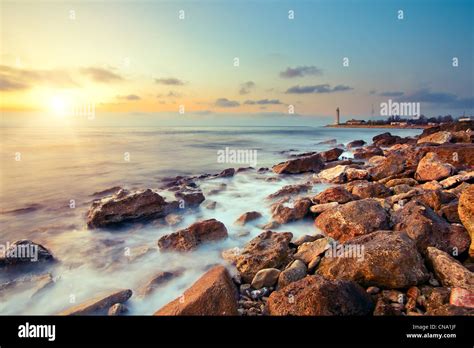
When a camera's shutter is held open for an extended period, static elements within a scene, such as trees, mountains, or buildings, remain sharp. However, anything that moves - water, clouds, or even people - will appear blurred or streaked, creating a sense of motion, dynamism, and ethereal beauty. A normal photograph taken at a fast shutter speed, say 1/30th of a second, will capture water with visible ripples and clouds with distinct forms. In contrast, a photograph taken with an ND filter, allowing for an exposure of 30 seconds, will render the water as a smooth, milky surface and the clouds as soft, sweeping trails of light. This dramatic transformation is a hallmark of long-exposure photography, and it's this effect that we aim to emulate using Photoshop.
The Digital Alternative: Photoshop's Graduated Filter
While physical ND filters come in various strengths, measured in "stops" (each stop halving the amount of light), and can be screw-on or part of a holder system, Photoshop offers a more flexible approach. The Graduated Filter tool within Photoshop's Camera Raw plugin is particularly adept at simulating the effect of a graduated ND filter, which is designed to darken a specific portion of an image, typically the sky, to balance exposure with a darker foreground.
Richard, an experienced photographer with over 20 years in the field, notes that the Graduated Filter is "one of the most useful" tools in Photoshop CC's Camera Raw plugin, especially for landscape photographs. He explains that it "allows you to make a linear adjustment over part of your photo, creating a transitional blend of tones." This means you can selectively darken or lighten areas, adjust contrast, and enhance details, all with a gradual fall-off. This capability is incredibly useful for balancing scenes where, for instance, the sky is significantly brighter than the land. While a physical graduated ND filter could achieve this balance by blocking light from the sky, the Photoshop Graduated Filter offers "more controls."
The power of the Graduated Filter lies not just in its ability to hold back exposure but also in its capacity to "boost contrast and detail," which is ideal for "boosting flat, featureless skies." Furthermore, Photoshop provides a "fine degree of control over what is affected by the grad," allowing for refinements through freehand brushing or intelligent tools like Range Masking.
Step-by-Step: Simulating an ND Filter Effect in Photoshop
To begin simulating the effect of an ND filter using Photoshop's Graduated Filter, follow these steps:
Open and Initial Adjustments: Launch your landscape photograph in Camera Raw. Make any necessary initial adjustments to the overall tones in the Basic panel. Once satisfied, select the Graduated Filter tool from the toolbar. To load the tool with an adjustment that will darken the scene, click the minus icon next to the Exposure slider on the right and reduce it a few times.
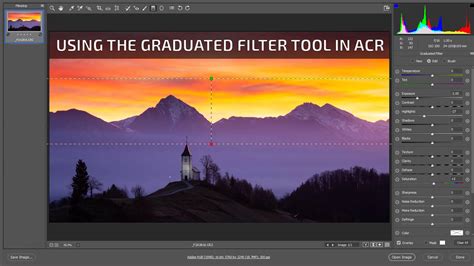
Applying the Graduated Filter: Click on the middle of the sky in your image and drag downwards towards the horizon. Holding the Shift key while dragging will ensure the line is perfectly horizontal, which is often desirable for landscapes. You can then adjust the length and angle of the transition line. To visualize the area affected by the adjustment, press the 'Y' key at any time to toggle a mask overlay on and off.
Fine-Tuning Exposure and Details: With the Graduated Filter still active, use the sliders on the right-hand panel to refine the adjustment. Altering the Exposure slider will lighten or darken the selected area. For dull or cloudy skies, increasing Clarity and Dehaze can significantly boost detail and texture. For example, you might set Exposure to -0.50, Contrast to +7, Clarity to +29, and Dehaze to +30.
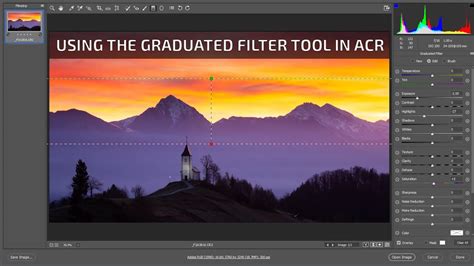
Utilizing Range Masking: It's common for the initial adjustment to darken areas of the land that you wish to keep unaffected. To address this, employ the Range Mask: Luminance option in the settings. By holding down the Alt key and dragging the black point slider, you can define the areas that will be protected from the adjustment - these will appear in black on the mask overlay. The Smoothness slider can then be used to fine-tune the transition.
Manual Refinements with Brushing: If further refinement is needed to precisely control which areas are affected by the adjustment, you can use the Brush tool. Click on the Brush option at the top right of the panel, then select the minus brush icon below. With the mask overlay toggled on (by pressing 'Y'), you can paint to subtract the adjustment from any unintended areas, such as parts of the land that were inadvertently darkened.
Adding Multiple Grads: Photoshop allows for the addition of multiple Graduated Filters to a single image. For skies, it's often beneficial to add a second grad near the top of the frame to enhance the effect. To do this, click the minus icon next to the Exposure slider again. This resets the settings, allowing you to drag another grad as needed, creating a more nuanced and balanced sky.
Beyond the Graduated Filter: Simulating Extreme Long Exposures
While the Graduated Filter is excellent for balancing exposures and enhancing skies, simulating the extreme blurring effects of a 6-stop or 10-stop ND filter, often used for water and cloud motion, requires a different approach, typically involving multiple exposures or more advanced compositing techniques. However, for a basic simulation of motion blur in water or clouds, one can leverage Photoshop's motion blur filters, although this is a post-processing effect that doesn't replicate the in-camera capture of light.
For true long-exposure effects that mimic the use of physical ND filters, the ideal scenario involves capturing multiple images of the same scene. One method is to take a series of shots with varying exposures, from a standard exposure to much longer ones, and then blend them in Photoshop. Alternatively, if you have a tripod and a camera capable of manual mode, you can take a single shot at a very long exposure time, provided your camera's sensor and processing can handle it without excessive noise.
A more direct simulation of the effect of an ND filter, especially for creating motion blur, can be achieved by combining Photoshop's editing capabilities with a single well-exposed image.
Simulating Motion Blur in Water:
- Isolate the Water: Using selection tools like the Quick Selection Tool or the Pen Tool, carefully select the areas of water you want to appear blurred.
- Apply Motion Blur: Navigate to Filter > Blur > Motion Blur. Experiment with the Angle to match the direction of the water's movement and adjust the Distance to control the amount of blur. A larger distance will create a smoother, more ethereal effect.
- Refine with Layer Masks: Apply the blur to a duplicated layer of your image and use a layer mask to blend the blurred water with the sharper foreground and background elements. This ensures a natural-looking transition.
Simulating Motion Blur in Clouds:
The process for clouds is similar. Select the clouds, duplicate the layer, and apply a Motion Blur filter. The angle and distance will depend on the direction and speed of the clouds as they appeared in the original scene. Again, layer masks are crucial for blending the blurred clouds with the rest of the image seamlessly.
Long Exposure Photography Essentials | Top Techniques, Expert Tips, and Gear Guide
The Role of Tripods and Manual Mode
When discussing the creation of long exposures, whether with physical ND filters or through digital simulation, the importance of a stable setup cannot be overstated. Richard's experience, and that of many photographers, highlights that a "good sturdy tripod is a must." This is because for exposures that can last anywhere from several seconds to several minutes, any camera movement will result in a blurred, unusable image. The tripod needs to be heavy enough to hold the camera "firmly and still for long periods of time."
Furthermore, the use of a cable release or remote trigger is highly recommended. This allows you to trigger the camera's shutter without physically touching it, thus preventing even the slightest vibration. It also enables the use of the camera's "bulb" mode, which keeps the shutter open for as long as the button is pressed or the remote trigger is held down, providing maximum control over exposure duration. Shooting in fully manual mode is essential to maintain consistent aperture and ISO settings while adjusting only the shutter speed to achieve the desired exposure and motion blur.
Considerations for Using Physical ND Filters
While Photoshop provides a powerful digital alternative, understanding the principles and application of physical ND filters remains valuable. The core function of an ND filter is to reduce light, forcing a longer shutter speed. A 1-stop ND filter reduces light by 50%, a 2-stop by 75%, and so on. A 10-stop filter reduces light by a factor of 1024, meaning an exposure that would normally be 1 second would require 1024 seconds (over 17 minutes) without compensation. However, the practical application is to start with a base exposure and then calculate the new shutter speed based on the filter's strength. For example, if a scene requires a 1/30th second exposure without a filter, adding a 6-stop ND filter means you need to increase the exposure time by 6 stops. This would translate to an exposure of approximately 30 seconds (1/30s -> 1/15s -> 1/8s -> 1/4s -> 1/2s -> 1s -> 2s -> 4s -> 8s -> 16s -> 30s).
When choosing ND filters, photographers often consider screw-on types for their affordability and ease of use, or filter holder systems for more advanced setups and flexibility, especially with graduated ND filters. Brands like HiTech, Lee, Nisi, and Cokin are recognized in the market.
The decision on which strength of ND filter to use depends on the desired effect and the shooting conditions. For achieving a "glass-looking effect in the water" and blurred clouds, a 6-stop or 10-stop ND filter is typically recommended, allowing for exposure times of at least 30 seconds and potentially much longer. For midday shots where light is abundant and a less dramatic effect is desired, a 2-stop filter might suffice, allowing for shutter speeds like 1/15th of a second.
It is also worth noting a caution against variable ND filters. While they offer adjustability, they can sometimes introduce color casts or undesirable artifacts like banding, especially at their strongest settings.
Conclusion: Bridging the Physical and Digital Divide
The pursuit of creative photographic effects, such as the smooth rendering of water and the streaking of clouds, is a journey that can be undertaken through both physical equipment and digital manipulation. Photoshop's Graduated Filter tool offers a remarkably effective way to balance exposures and enhance skies, providing a digital approximation of a graduated ND filter. For simulating the more extreme long-exposure effects, while direct in-camera capture with physical ND filters remains the gold standard for authenticity, Photoshop's blur filters and layer masking techniques can be employed to achieve compelling results in post-processing. Understanding the principles behind ND filters - how they reduce light to enable longer exposures and the creative possibilities that arise - empowers photographers to make informed decisions, whether they are in the field with a tripod or at their editing desk. The synergy between understanding the physical tools and mastering the digital ones allows for a broader and more versatile creative toolkit, enabling photographers to capture the world not just as it is, but as they envision it.