Achieving accurate color reproduction when printing from Photoshop is a common challenge, particularly for those using inkjet photo printers. The intricate dance between digital images and physical prints hinges on a crucial concept: color management, and within that, the role of printer profiles. This article delves into the nuances of Photoshop printer profiles, explaining how they function and providing practical guidance to help you attain superior print quality, addressing common issues that arise during the printing process.
Understanding Color Management in Photoshop
Color management is the process of ensuring that the colors you see on your screen are as close as possible to the colors that are reproduced in your print. This is a complex endeavor because different devices have different capabilities for displaying and reproducing color. Your computer monitor, for example, can display a wider range of colors and saturation than most photo papers. When a digital image contains colors that your printer cannot reproduce, these are known as out-of-gamut colors. The range of colors a device can reproduce is called its gamut.
Photoshop offers robust color management tools that allow users to exert fine-grained control over this process. The goal is to create a workflow where the numeric color values in your digital document are accurately translated into the colors that your specific printer, on your specific paper, can produce. The more accurately a color profile describes the behavior of your output device and the printing conditions, the more effectively the color management system can perform this translation.
The Role of Printer Profiles
A printer profile is essentially a data file that describes the color characteristics of a particular printer and paper combination. It acts as a translator, telling Photoshop how to convert the colors in your image so that they will print as accurately as possible on that specific setup. Each unique combination of paper type, printing resolution, and additional printing parameters (such as high-speed printing) often requires a different profile to achieve optimal results.
Most new inkjet photo printers come with a set of fairly accurate profiles built into their driver software. These "canned" profiles are designed to work reasonably well with the manufacturer's recommended papers. For many users, especially those new to printing, allowing the printer to select the appropriate profile can save time and help alleviate common printing mistakes.
Navigating Photoshop's Print Dialog and Printer Preferences
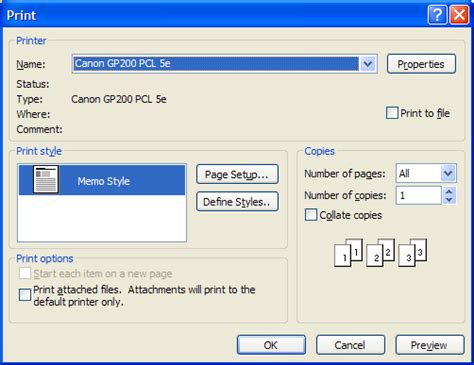
To access the printing controls in Photoshop, you typically go to File > Print or use the keyboard shortcut Cmd + P. This action opens the main Print dialog box, which can vary slightly depending on your operating system and Photoshop version.
On Windows, within the Print dialog, you'll often find a "More Options" button. Clicking this reveals further settings. Within "More Options," you can click "Printer Preferences" to open the printer's specific dialog box, where you can adjust various printer settings.
A critical aspect of color management lies within the "Color Matching" section of the Print dialog. Here, you will need to select the profile that best matches your printer and the paper you are using. It's crucial to choose the profile that your printer manufacturer provides for the specific paper type you have loaded.
Photoshop's Color Management vs. Printer Driver Color Management
Photoshop offers two primary approaches to color management during printing: letting Photoshop handle the color conversion or letting the printer driver handle it.
1. Letting Photoshop Handle Color Management:When you choose to let Photoshop manage colors, the application performs all the color conversion. This means Photoshop analyzes your image and generates color data that is specific to your chosen output device (printer and paper profile). This is generally considered the workflow for advanced users because it offers the most control. By enabling Photoshop to handle color management, you can make the best use of custom color profiles by allowing Photoshop to manage the translation of colors to the destination color space. This setting is enabled when "Match Print Colors" is selected.
2. Letting the Printer Driver Handle Color Management:In this scenario, Photoshop sends the image data to the printer driver, and the driver itself is responsible for all color conversions. Many new inkjet photo printers come with accurate profiles built into their drivers. In this case, letting the printer driver select the right profile can be a convenient and effective method, especially for standard printing tasks. This approach often involves selecting a setting within the printer driver that indicates "Application Controls Colors" or a similar option, effectively telling Photoshop not to manage colors.
Understanding Rendering Intents
When Photoshop handles color management, you have the option to specify how colors are converted to the destination color space. This is known as the "Rendering Intent." There are typically four rendering intents:
- Perceptual: This intent compresses the entire gamut of the source space into the destination space. It's often used for photographic images with many out-of-gamut colors, as it preserves the visual relationship between colors, even if some are shifted. Many non-PostScript printer drivers tend to default to Perceptual.
- Relative Colorimetric: This intent maps colors from the source to the destination space, preserving the white point. Colors that are out-of-gamut are clipped to the nearest reproducible color. This is often a good choice for graphics and logos where exact color matching is important.
- Absolute Colorimetric: Similar to Relative Colorimetric, but it also maps the white point of the source to the white point of the destination. This is useful for proofing, as it simulates how colors will appear on a different output device, even if the white points differ.
- Saturation: This intent prioritizes color saturation over accuracy. It's rarely used for photo printing but can be useful for business graphics where vibrant colors are more important than precise hue.
The choice of rendering intent can significantly impact the final print. For photographic work, Perceptual or Relative Colorimetric are often preferred. However, it's important to experiment to see which yields the best results for your specific image and printer.
DP2 Color Management Control Set Render Intent
The Importance of Paper Choice and Custom Profiles
The type of paper you use for printing has a profound impact on the final color output. Different papers have different surfaces, brightness, and absorbency, all of which affect how ink is laid down and how colors appear. Some papers are bright white, while others, such as certain art papers, have a warmer, more beige tone. Using a printer profile that is specifically designed for the paper you are using is paramount for accurate color.
While built-in profiles are useful, they may not always provide the absolute best results, especially if you are using third-party papers or seeking to match a specific color. This is where custom printer profiles come into play. A custom profile is created using a colorimeter or spectrophotometer, a device that measures the actual color output of your printer on a specific paper. This measurement data is then used to generate a highly accurate profile tailored precisely to your printing setup. Using custom profiles allows the color management system to translate colors with the highest possible fidelity, ensuring that the numeric values of the colors in your document are converted as accurately as possible.
Advanced Printing Techniques: Proofing and Matching Existing Prints
For critical print jobs, especially those intended for commercial reproduction, a technique called "proofing" is essential. A hard proof, also known as a proof print or match print, is a physical print that simulates the appearance of your final output. Traditionally, hard proofs were produced on expensive printing presses. However, in digital workflows, a hard proof is produced on an output device that is less expensive than a professional printing press, such as your inkjet printer.
In Photoshop, you can simulate proof conditions by going to View > Proof Setup. Here, you can select the output conditions you want to simulate, either by choosing a preset or by creating a custom proof setup. When you select a proof setup, the view on your monitor changes to reflect how the image is intended to appear on the chosen output device. This allows you to make adjustments to your image before committing to a final print.
A common user query involves trying to match a graphic design to an existing print, often with specific LAB values. When colors appear "way off," it indicates a fundamental misunderstanding or misapplication of the color management workflow. Several factors could be at play:
- Different Printers: The original print was likely made on a different printer, with its own unique color characteristics and profiles.
- Printer Capabilities: The printer used for the original print might not have been capable of reproducing the chosen LAB values accurately.
- Paper Differences: A significant difference in the paper used for the original print versus the current print can drastically alter color reproduction. The paper's base color, brightness, and ink absorption all play a role.
- Profile Mismatch: The most common culprit is an incorrect or missing printer profile. If you're trying to match an existing print, you need to understand the exact conditions under which that print was made and replicate them as closely as possible, including the printer, ink, paper, and any specific driver settings.
To successfully match an existing print, you need to gather as much information as possible about its creation. If you have LAB values, this is a good starting point, but it's only one piece of the puzzle. You must also account for the entire printing chain, from the digital file's color space to the final output device's profile.
Conclusion: A Continuous Learning Process
Mastering Photoshop printer profiles is an ongoing journey. It requires understanding the interplay between your software, your printer, your ink, and your paper. By diligently applying the principles of color management, selecting the correct profiles, and understanding the impact of different settings, you can significantly improve the accuracy and quality of your prints, bringing your digital creations to life with vibrant and true-to-life colors. Experimentation and a willingness to delve into the details of your printer's documentation are key to achieving consistently excellent results.