Photoshop, a name synonymous with digital image editing, has revolutionized creative workflows for over three decades. Developed by Adobe, this powerhouse application remains the pinnacle of photo editing software, offering an unparalleled suite of tools for designers and photographers alike. Whether your needs extend to intricate drawing, complex layered image editing, a vast array of effects, or sophisticated typography, Photoshop provides the most advanced and comprehensive toolkit available. Adobe consistently enhances Photoshop with cutting-edge generative AI features, innovative functionalities designed to simplify intricate tasks, and robust support for emerging file formats, solidifying its position as an industry leader. Its class-leading functionality, polished interface, and inherent usability have earned Photoshop a rare five-star rating and widespread acclaim.
Understanding Photoshop's Pricing and Subscription Model
To access the full capabilities of Photoshop, a Creative Cloud subscription is necessary. Adobe has transitioned away from perpetual licenses, opting for a software-as-a-service model. A single-app plan dedicated to Photoshop costs $22.99 per month when committed to an annual plan, which also includes 100GB of online storage. Opting for a flexible month-to-month plan without an annual commitment increases the price to $34.49 per month. For those who prefer to pay upfront for a full year, the cost is $263.88, equating to $21.99 per month.
A more cost-effective option for photographers is the Photography plan, priced at $239.88 annually, or $19.99 per month. This comprehensive plan includes 1TB of cloud storage and access to both Lightroom Classic and Lightroom, in addition to Photoshop. For professionals requiring the entire Adobe design ecosystem, a full Creative Cloud subscription is available for $69.99 per month with an annual commitment. This plan encompasses all design, photography, and video applications within the suite. An alternative for those who do not require the extensive AI credits offered in the full package is the Adobe Creative Cloud Standard plan, costing $54.99 per month with an annual commitment.
For users who prefer not to engage with the subscription model, several capable alternatives exist. Corel's PaintShop Pro is a surprisingly robust option at $99.99. CyberLink PhotoDirector offers a similar feature set for $99.99, or $64.99 per year. Adobe also offers a more accessible version, Photoshop Elements, available for a one-time purchase of $99.99 for a three-year license. Other professional-grade alternatives include Capture One ($329, or $17 per month billed annually), DxO PhotoLab ($239.99), and Skylum Luminar ($417). For those seeking a completely free solution, the open-source GIMP provides extensive functionality, though its user experience can be counterintuitive for those accustomed to Photoshop's polished interface.
What's New in the Latest Photoshop Releases?
Adobe consistently updates Photoshop every few months, with recent developments heavily emphasizing Artificial Intelligence. The latest release, version 26.9, introduced in July 2025, enhances the Remove Tool by integrating it with the Contextual Task Bar and updating its AI model. The Generate Image AI tool now features a Composition Reference setting, allowing users to utilize a reference image for structural guidance.
June's version 26.8 introduced "Dynamic Text," a feature for designers that intelligently resizes text to maintain aesthetic appeal as design elements are added or rearranged. This update also brought cloud processing for more accurate subject selection and support for new HDR-compliant file types like AVIF and JPEG XL.
Version 26.6, released in April 2025, expanded the Object Selection tool's capabilities, enabling the selection of specific parts of people, such as clothing. The Adjust Colors tool was also enhanced, gaining the ability to detect prominent colors in an image and modify them simultaneously. The most transformative recent features leverage Adobe's Firefly generative AI, enabling the creation of images from text prompts or based on uploaded reference images. Firefly powers functionalities like Distraction Removal (integrated into the Remove tool), Generative Expand, Generative Fill, and Generate Image. Beyond Firefly, Adobe's Sensei AI image-analyzing technology underpins Neural Filters such as Color Transfer, Landscape Mixer, and Sky Replacement.
The web-based version of Photoshop is also continuously evolving, approaching feature parity with its desktop counterpart. It now offers generative AI capabilities, supports raw camera files, and performs well on Chromebook Plus devices. However, it still lacks certain advanced features like automatic noise reduction, a wide range of filters, and the Pen tool for precise vector path creation.
Getting Started with Photoshop: Installation and System Requirements
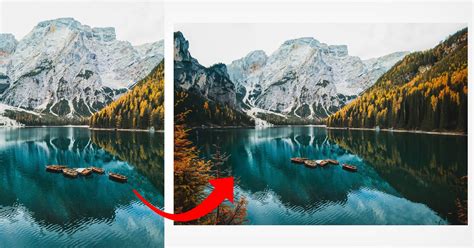
To begin using Photoshop, the Creative Cloud desktop application must first be installed. This central hub manages installations, updates, and file synchronization to the cloud. It also provides access to Adobe news, the Behance creative community, and stock image resources. The Creative Cloud utility also simplifies the browsing and installation of Photoshop plug-ins. It's important to note that the Creative Cloud suite installs numerous background processes, many of which remain active even when no Adobe applications are explicitly running. In Windows Task Manager, one might observe over a dozen processes associated with Adobe software, even after closing the Creative Cloud Manager application. Frequent updates to the Creative Cloud app itself can also be a minor inconvenience.
Photoshop demands a reasonably powerful computer for optimal performance. For Windows 11, the minimum requirements include a 64-bit operating system version 21H2 or later, 8GB of RAM, and 4GB of available disk space. The application also runs on Windows on Arm with the same specifications. Mac users require macOS 11 (Big Sur) or later, with 8GB of RAM and a GPU supporting Metal. Apple Silicon Macs can run Photoshop natively provided they are on macOS 11.2.2 or later. For an optimal experience, a system with a robust processor (such as an Intel Core i7 or equivalent), 16GB of RAM or more, a dedicated graphics card (like an Nvidia GeForce RTX series), and a fast NVMe SSD is recommended.
Photoshop offers excellent touch input support for devices like the Microsoft Surface Pro. Adobe also provides a nearly fully functional iPad version. The software allows for touch-based panning and zooming of images and recognizes gestures for actions like undoing (two-finger swipe) and scrolling through images (three-finger swipe). For finger painting, Adobe's free Fresco app is a dedicated alternative.
Interface and Ease of Use: A Surprisingly Intuitive Experience
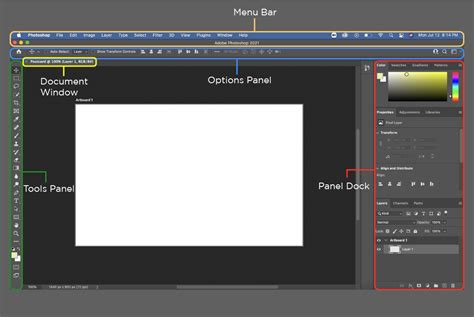
Despite its immense depth of features, Photoshop's interface is remarkably user-friendly and highly customizable. Users can select from various workspace layouts tailored to specific tasks, such as Graphic and Web, Motion, Painting, and Photography. Custom layouts can also be created by arranging panels and windows to suit individual preferences. The program's toolbar button rail is fully rearrangeable, and a Neutral Color Mode option thankfully changes the often-distracting bright blue Share button to a more subdued gray.
The Contextual Task Bar is a dynamic, floating toolbar that appears at the bottom of the image currently being worked on, offering relevant actions. Initially appearing as a plug-in, this feature proves highly beneficial for quick access to related side panel entries. For those who find it intrusive, it can be easily hidden via the three-dot overflow menu. Recent updates have seen an increase in AI-powered operations, including the Remove tool, being integrated into this toolbar.
The start screen provides immediate access to options like New File, Open, Home, and Learn, alongside shortcuts to files uploaded via Lightroom and shared Cloud Documents. The Home icon leads to suggested tutorials and thumbnails of recent projects. When creating a new file, a tabbed dialog presents numerous templates categorized by Art & Illustration, Film & Video, Mobile, Photo, Print, and Web. If an image is copied to the clipboard, Photoshop offers to create a new document with its exact dimensions. Presets and libraries are also accessible from this start page, which also displays personalized tutorial content. Users can revert to a legacy starting experience if preferred, but the current start page generally facilitates easier access to recent projects and desired functionalities.
An ever-present and highly useful Search icon is located at the top right of the interface. This allows users to find Adobe Stock images, program functions, tutorials, or their own files. When a file is already open, clicking the Search button transforms the dialog into a detached Discover window, offering command shortcuts and help resources. The panel's Home icon provides access to tutorial suggestions, "What's New" items, the user guide, and other resources, making an always-available search function invaluable in such a complex application.
The interface intelligently adapts to the task at hand. For instance, the Select and Mask workspace appears automatically when a selection tool is active, displaying only the tools relevant to selection tasks, such as Brush, Hand, Lasso, Refine Edge, and Zoom, alongside the pertinent Properties panel. The interface's color themes maintain a pleasing, context-sensitive consistency, with dialogs reflecting the chosen window border color.
Selections - Photoshop for Beginners | Lesson 6
Mastering Selections: Versatile Tools for Precision
A core function of Photoshop involves selecting objects and individuals within images, an area that has historically presented challenges. While Photoshop retains classic tools like the Lasso, Magic Wand, and Marquee, it also offers advanced options such as the Object and Quick Selection tools (featuring a convenient Subject Select checkbox). Particularly noteworthy are the Selection Brush, the Select on Hover option, and the comprehensive Select and Mask workspace, which includes the powerful Refine Edge option.
The Selection Brush operates much like a standard brush, allowing for painting selections with adjustable opacity and hardness. Once an object is selected, the Contextual Task Bar provides further refinement options, including Feather Selection, Select Border, Smooth Selection, and Transform Selection. The Select and Mask interface offers even more granular control. A practical application of these selection tools is in conjunction with Generative Fill, enabling the removal or modification of selected areas.
Select on Hover utilizes Adobe's Sensei AI technology to identify objects within an image. As the cursor hovers over various elements, Photoshop highlights them for potential selection. This feature works in tandem with the Object Selection tool, which is grouped with the Magic Wand and Quick Selection tools. By enabling the Object Finder checkbox in the options bar and configuring Auto Show Overlay in the settings, users can see various objects automatically highlighted as they move their cursor. The "Show All Objects" button displays all detected objects, and the Layer > Mask All Objects menu option can create individual masks for each.
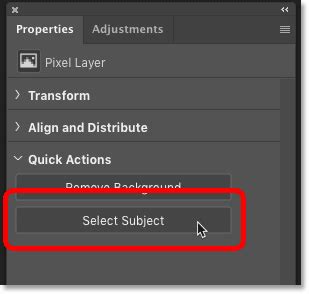
Select Subject employs AI to automatically identify and select the primary subject in an image. A "Select Subject" button appears in the options bar when a selection tool is active. In testing, this tool performs remarkably well on images with relatively uniform backgrounds, though more complex backgrounds can sometimes pose challenges. Users can choose between cloud and local processing for Subject Select, with the cloud option generally yielding finer results, particularly evident in intricate areas like hair selection. The Select and Mask workspace's Refine Hair button has been significantly improved, delivering excellent results in isolating hair detail.
The Remove Tool and Distraction Removal
While not solely a selection tool, the Remove Tool leverages selection capabilities for its functionality. It allows for the one-step removal of objects from photos. Unlike older methods that required precise selection within the object's boundaries, the Remove Tool works by painting over the entire object, with overshooting the edges being acceptable. The tool then impressively fills in the background, seamlessly integrating the surrounding environment.
For background removal, Photoshop offers a "Remove Background" quick action accessible via the Contextual Task Bar or the persistent search box. While automatic selection is convenient, the Select and Mask tool can be used for further refinement to ensure perfect results.
The Distraction Removal feature, an enhancement of the Remove tool, can now automatically identify and remove elements that detract from the main subject. While Skylum Luminar introduced a similar AI feature for powerline removal previously, Photoshop's implementation is highly effective. Initial attempts might encounter messages regarding unsupported target layers or transparent images, often resolved by creating a new layer or selecting the background layer. Notably, this feature performs destructive editing by not creating a new layer for masking. In testing, it has demonstrated superiority over comparable tools, even handling wires against complex backgrounds effectively.
When removing extraneous people from a photo, Photoshop highlights detected individuals in pink, allowing the user to deselect those they wish to keep using a minus brush. While the results can be impressive, careful inspection is sometimes needed to ensure natural-looking background reconstruction, especially in complex scenes.
Generative AI Features: The Growing Influence of Firefly
Photoshop now integrates four Firefly generative AI tools: Generate Background, Generate Image, Generative Expand, and Generative Fill. Adobe provides helpful built-in tutorials for each. Users must agree to Adobe's user guidelines before utilizing these powerful AI features.
Among image editors, Adobe Photoshop continues its reign. Despite numerous competitors, it maintains popularity among professionals and remains a cultural touchstone, with "photoshopping" becoming a verb. However, this dominance comes with a considerable price tag, with subscriptions starting at $21 USD per month (or just over $250 per year) for access to the desktop and iPad applications, along with Lightroom and 1TB of cloud storage. The cumulative cost over time can be substantial.
Few rivals can match Photoshop's breadth and depth of features, prompting users to evaluate whether its extensive capabilities are truly necessary for their needs or if a more affordable solution would suffice.
Pros of Using Adobe Photoshop
- Vast Editing Tools: Photoshop's primary strength lies in its unparalleled collection of editing tools, making it difficult to find a single application that matches its feature set.
- Extensive File Support: Beyond common formats like JPEG, PNG, and GIF, Photoshop supports a wide range of audio, video, and graphic files, including MP3, MPEG-4, HEIF/HEIC, TIFF, and PDF. Some formats are import-only, while others are export-only.
- Abundant Educational Resources: Adobe offers its own comprehensive tutorials, complemented by a vast online ecosystem of courses, articles, and YouTube videos catering to all skill levels.
- Basic Video Editing Capabilities: As part of the Adobe Creative Suite, Photoshop integrates seamlessly with other Adobe applications like Lightroom, InDesign, and Premiere Pro. This allows for efficient workflows, with Photoshop handling still image manipulation while Premiere Pro manages more complex video editing tasks.
Cons of Using Adobe Photoshop
- Complexity and Learning Curve: The sheer volume of tools and features, while a strength, also contributes to a steep learning curve. Simple edits that might take a single click in other programs can require multiple layers, masks, and opacity adjustments in Photoshop.
- Demanding System Requirements: Photoshop's hardware requirements are more substantial than many competitors, necessitating a faster, more powerful PC with ample storage, especially for users with older or less powerful hardware.
- Subscription Cost and Model: The recurring subscription cost can be significant, particularly for individuals who only require Photoshop for photography. The Photography plan, which includes Lightroom, is often a more economical choice. For those needing multiple Adobe applications, the all-inclusive Creative Cloud subscription becomes the most cost-effective, though still a considerable investment.
- Installation Limitations: Adobe's license agreements typically restrict installation to a maximum of two machines, with only one active at a time. This can be inconvenient for users who frequently switch between multiple computers.
- Potential for Software Bugs: Frequent updates, while bringing new features, can sometimes introduce new bugs or performance issues, leading to a less stable user experience.
Photoshop Elements: A Streamlined Alternative
Photoshop Elements is a distinct product from the full Photoshop application. Sold as a one-time purchase, it offers a more pared-down image editor with enhanced guidance for basic edits, such as removing background elements, portrait retouching, and one-click selections. Elements is often available at a significantly lower price point than a one-year Photoshop subscription, making it an attractive option for users with less demanding editing needs.
Web-Based and Free Alternatives to Photoshop
For users seeking alternatives to the subscription model, several options are available. Photopea is a robust, web-based image editor that is free, requires no login, and supports Photoshop's keyboard shortcuts. While a paid option exists to remove ads and extend edit history, it's not essential for core functionality.
GIMP is a free, open-source software available for Linux, Windows, and Mac users. It offers features comparable to Photoshop, including painting, color correction, selection tools, and support for various file formats. While GIMP is continuously improved by its open-source community, users may encounter software lags and a steeper learning curve.
Paint.net provides a middle ground between basic applications like Windows Paint and more advanced software like Photoshop and GIMP. It's a good option for users looking to familiarize themselves with layers and more powerful tools without being overwhelmed. Its layout is more user-friendly than GIMP, and it is also free.
Affinity Photo is a professional-grade image editor that offers many of the same tools as Photoshop but with a lower, one-time purchase cost. It is available for Mac and Windows, with a separate iPad version.
Key Photoshop Features and Business Applications
Photoshop's reputation as a professional design tool stems from its extensive feature set, highly valuable for photo editing, creating marketing visuals, and developing brand assets. Features like Generative Fill allow for the removal, replacement, or expansion of objects using text prompts, while Generative Expand seamlessly fills cropped areas with realistic background details. The software provides tools to correct, enhance, or completely transform images, including cropping, resizing, and scaling visuals without quality loss for consistent social media or print dimensions. Users can refine edges for better blending, erase backgrounds, and fine-tune colors and hues.
Photoshop boasts a vast library of effects, allowing experimentation with artistic filters, creative blurs, and texture overlays to achieve unique visual styles. Custom brushes, simulating natural elements like watercolor, floral patterns, smoke, and sparkles, add realism or whimsy. Tools such as the Spot Healing Brush, Clone Stamp, and Patch Tool enable quick removal of imperfections. The Dodge and Burn tools are used to enhance lighting and shadows for added depth, while glare and shadow removal tools contribute to polished, commercial-ready photographs.
Beyond image manipulation, Photoshop is a capable design tool for text-based graphics. Users can easily add text, adjust alignment, and import custom fonts from Adobe Fonts to match brand identity. Warp, Curve, and Distort options allow for text reshaping to create dynamic layouts for posters or social media headers. 3D text effects can also be applied to make typography stand out.
Since its public launch in 1990, Photoshop has evolved from a Macintosh-only application to the industry standard for graphics editors. Its ubiquitous use by both novice and professional artists for creating images, graphics, and 3D artwork has led to its name becoming a common term for image manipulation.
The enduring dominance of Adobe's graphic design software can be attributed to several factors. The first version of Photoshop was created in 1988 by brothers Thomas and John Knoll.
What is Photoshop?
Photoshop is an all-in-one graphic design tool equipped with a variety of drawing, editing, and production features, including:
- Content-aware fills for altering the color of drawn lines.
- Retouching and remixing tools for advanced photography enhancement.
- Hundreds of brushes for unique digital calligraphy.
- Quick-click selection and shape tools.
- Collaborative functions for team-based design sharing.
As Clinton Gorham, founder of The Gorham Agency, notes, Photoshop was and remains a pioneer in the graphic design industry. "For a lot of us, [Photoshop] was the design world," Gorham explains. "When I started school back in 2007, it was the only software the instructors even mentioned." This historical significance has cultivated a generation of creatives with deep expertise in the platform, ensuring compatibility and a shared creative language across freelance, team, and contract roles.
More than 37 million people worldwide are paid subscribers to Adobe Creative Cloud, with individual plans starting at $19.99 per month, granting access to Photoshop for desktop, iPad, and web, along with Lightroom and 1TB of cloud storage. Brittany Chase, senior project manager at HFA Architecture + Engineering, highlights that "Adobeâs subscription model ensures users always have access to the latest features, updates and even beta tools, making it easier to stay at the forefront of innovation."
What is Photoshop Used for in Business?
Businesses can leverage Photoshop in numerous ways, even without a dedicated professional designer. The program's versatility is limited only by imagination. Jeroen Bours, founder and CEO of darling advertising and design, states, "[Photoshop's] roots lie in retouching, editing and comprehensive image management, but the program has grown to enable creating art from scratch as well."
Common business use cases include:
- Social Media Graphics: Businesses frequently use Photoshop to create engaging graphics and GIFs for social media campaigns. Customizable canvas sizes and easy export options facilitate sharing on various platforms. Users can create social graphics from existing photos or design from scratch using shapes, brushes, and pens.
- Video Editing: Video marketing is crucial for web content strategy, and Photoshop simplifies entry into this area. While not a full-featured editor like Adobe Premiere Pro, it excels at basic video tasks, including editing video and animation layers, creating frame animations, generating images for videos, adjusting audio tracks, applying video transitions, and applying filters to video layers. Edited videos can be exported in DPX, H.264 (MPEG-4), and QuickTime (MOV) formats.
- Marketing Materials and Branding: With a consistent color palette and font library, designers can seamlessly apply a unified brand style across various projects. Newer users can employ basic Photoshop skills or utilize templates and presets to create flyers, postcards, brochures, web pages, signage, and business cards. Companies can design web graphics, retouch photography, customize videos, and produce marketing materials that align with their brand identity.
Benefits of Using Photoshop
Regardless of industry, businesses can reap significant advantages from using Photoshop:
- Complete Creative Control: Photoshop empowers users to create photos, graphics, and other visual assets tailored to their specific brand needs. Style presets facilitate consistent brand asset creation, and the software's collaborative features ensure accessibility for all team members.
- Versatility of File Types: While PSD is the native file type, Photoshop supports and exports numerous formats across photos (JPEG, TIFF, WebP, PNG), videos (GIF, MOV, DPX, MPEG-4), and documents (PDF).
- Fast Editing Process: Photoshop provides an efficient editing environment, enhanced by preset filters, brushes, and layers that expedite retouching. These beginner-friendly tools streamline the editing process as users' skill levels grow.
- Wealth of Available Tutorials and Resources: Learning Photoshop can be achieved through formal education or informal self-study, with a vast array of tools and resources available.
"Adobe has consistently embraced new technology â not as a replacement for creatives, but as a way to empower them," Chase explains. "Rather than handing over control to AI, Photoshop keeps the artist at the center, offering tools that refine and enhance the creative process."
Key features include:
- Refine Hair: Minimizes manual effort required for editing hair in photographs.
- Generative Expand: Allows for extending image dimensions beyond their original boundaries.
- Generative Fill: Enables the addition of new content to an image by selecting an area and describing the desired element for the program to generate.
- Match Font: Detects fonts within an image and suggests similar options.
- Preserve Details 2.0: Maintains image quality when resizing.
- Curvature Pen: Facilitates the creation of smooth, editable curves.
Adobe continually enhances Photoshop's capabilities with new features and improvements to existing ones. For example, the updated Actions panel, in beta as of May 2025, can interpret natural language for edits and offer tailored suggestions for existing images. Reilly Newman, brand strategist and founder of Motif Brands, advises users to invest time in learning Photoshop's intricacies and staying updated with new releases, comparing it to mastering a musical instrument: "Itâs like playing guitar: You never âfinishâ learning; you just continue to refine how you use it and learn new ways to play it. Especially as technology continues to advance rapidly, youâll be able to integrate many benefits into your workflow and creativity, thanks to a powerhouse like Photoshop."
As an integral part of Adobe Creative Cloud, Photoshop simplifies the creation and sharing of files and elements with other Creative Cloud applications such as InDesign and Lightroom.
Alternatives to Photoshop
Despite Photoshop's market dominance, various other photo editing options are available:
- Affinity Photo: Considered the closest professional alternative to Photoshop, Affinity Photo offers many of the same tools at a lower, one-time cost. It is available for Mac and Windows, with a separate iPad version.
- Canva: With its drag-and-drop interface, predesigned templates, and AI-powered tools, Canva is an accessible and robust online design platform suitable for non-design professionals. Katria Farmer, co-founder and creative director at Little Dipper Interactive, notes that Photoshop's steep learning curve can be a barrier, making Canva a recommended, cheaper, and easier-to-use alternative for those less tech-savvy.
- ChatGPT: As of March 2025, ChatGPT's 4o model allows for direct image creation using integrated AI, moving beyond its previous reliance on DALL-E. While it simplifies image generation and modification via prompts, it offers limited user control for detailed adjustments, with the final image dependent on the model's interpretation.
- GIMP: A free, open-source competitor, GIMP provides features similar to Photoshop for Linux, Windows, and Mac users. While it receives continuous improvements, users may experience software lags and a steeper learning curve.
- Midjourney: A subscription-based generative AI tool utilizing diffusion technology, Midjourney transforms text descriptions into images rapidly. Accessible via browser on phones or computers, it generates up to 15 images per day with free licensing for personal and commercial use.
- Procreate: Often cited as the best Photoshop alternative for iPads, Procreate is low-cost and features an intuitive interface ideal for digital painting on the go. However, it is iOS-only and lacks the full suite of Photoshop's functions.
- Sketch: A vector graphics application designed for UI/UX design, Sketch offers features like infinite zoom, layers, gradients, and style presets through community-created plugins.