In the realm of digital imagery, photo retouching has become an indispensable skill, allowing individuals to refine their portraits and selfies to achieve a polished and appealing aesthetic. Contrary to some misconceptions, retouching is not solely about altering reality but rather about enhancing natural features and correcting minor imperfections to present the best version of oneself. Picsart, a globally recognized creative platform with over a billion downloads and more than 150 million monthly active creators, offers a robust suite of user-friendly tools that empower users of all skill levels to perform high-end portrait retouching directly from their mobile devices. This tutorial delves into the intricacies of face and skin retouching using the Picsart mobile app, drawing from the wealth of features and functionalities available.
Understanding the Fundamentals of Photo Retouching
Before diving into specific tools, it's crucial to grasp the core principles of effective photo retouching. Photo retouching, in essence, is the process of making enhancements to an image using editing tools. When applied to faces, it involves using these tools to subtly adjust a subject's appearance. The overarching goal is to achieve a natural and authentic look, highlighting inherent beauty rather than creating an artificial persona. This means understanding that retouching is not about masking imperfections entirely but about strategically addressing them. For instance, instead of indiscriminately blurring all pores and blemishes, a more refined approach involves using a spot-healing tool to remove specific imperfections, thereby preserving the skin's natural texture. Similarly, enhancements to features like eyes or lips should aim to accentuate their existing beauty, such as using a brightening brush to make eyes appear more vibrant or a lip plumper to add subtle fullness.
Navigating the Picsart Interface for Retouching
Getting started with Picsart is straightforward. Upon opening the app, users can tap the purple '+' button to access the Create menu. From there, a photo can be selected to begin the editing process. For those new to the platform, the sheer volume of options might seem daunting. However, Picsart provides both automated and manual tools to cater to diverse editing needs. The Auto tool, for instance, offers an AI-powered one-click solution for overall photo enhancement, adjusting elements like lighting and saturation. For more granular control, users can explore the extensive array of individual editing tools. Once the desired edits are complete, the Apply/Checkmark button in the top right corner finalizes the changes.
Essential Face and Skin Retouching Tools in Picsart
Picsart's Retouch toolset is designed to provide comprehensive control over facial features and skin texture. To access these tools, users typically scroll across the Editor toolbar at the bottom of the screen and tap on "Retouch." Within this section, a variety of specialized tools await, each designed for a specific purpose.
Blemish Removal: Addressing Imperfections
One of the most common goals in skin retouching is the removal of minor blemishes such as pimples, dark spots, or scars. Picsart's Blemish tool is specifically designed for this purpose. The process is intuitive: zoom in on the area with the blemish for precision, then simply highlight the imperfection. The tool will then work to subtly fade it away, leaving the skin looking clearer without appearing overly smoothed or artificial. This manual removal is often performed after initial color correction and serves as a foundational step in achieving a flawless complexion.
Skin Smoothing: The Golden Rule of Texture
Achieving smooth skin is a primary objective for many, but it's crucial to do so without sacrificing the natural texture of the skin. The "golden rule" in skin smoothing, as emphasized in advanced tutorials, is to prioritize texture over an overly blurred appearance. While a "smoothing" tool can soften the skin and impart a dreamy look, overusing it can lead to an unnatural, plastic-like finish. The key is to apply it judiciously, often in conjunction with tools that preserve or even enhance subtle skin details. This balance ensures that the skin looks refined yet retains its authentic character.
Eye Enhancement: Bringing Sparkle to the Gaze
The eyes are often referred to as the "windows to the soul," and enhancing them can significantly elevate a portrait. Picsart offers several tools within the Face editor to refine the eyes. The "Eye Color" tool, for instance, allows for subtle brightening of the natural eye color, making them appear more vibrant and captivating. Beyond color, the Eyes tool itself provides options to adjust the overall size of the eyes, their vertical size (which can influence how "wide open" they appear), and their position on the face. When refining eye size, it's important to maintain proportionality with the rest of the facial features to avoid an unnatural look. The goal is to make the eyes more expressive and engaging, not to drastically alter their natural shape.
Virtual Makeup: Experimentation and Enhancement
For those who wish to explore different makeup looks or enhance their natural features, Picsart's Makeup tool, found under Retouch, is an invaluable asset. This feature allows users to virtually try on a variety of lipstick shades, apply blush, contour, highlights, eyeliner, and eyeshadow. This is particularly useful for experimenting with bold or subtle makeup styles without the commitment of real-life application. The key here, as with all retouching, is to use these tools to complement and highlight natural features rather than overpower them.
MAKEUP WITH PICSART | Eyeliner, Eyeshadow, Lip colour, Lip liner tutorial!
Refining Facial Structure and Features
Beyond skin and eyes, Picsart provides a suite of tools to subtly adjust various facial structures, allowing for meticulous refinement. These tools are accessible within the Face editor and require a delicate touch to maintain a natural appearance.
Head and Jawline Adjustments
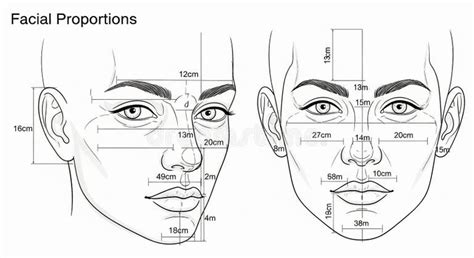
The "Head" tool offers the ability to adjust the overall size of the face, a subtle modification that can impact the perceived proportions of an image. Similarly, the "Jaw" tool allows for adjustments to the jaw size and jawline. This can be used to subtly sculpt the lower face, creating a more defined or softer appearance depending on the desired outcome. The "Chin" tool offers similar control over the chin's size, providing another avenue for facial contouring. Finally, the "Forehead" tool can either enlarge or shrink the forehead, offering further options for balancing facial features. When using these tools, it's always advisable to make incremental adjustments and frequently compare the edited image to the original to ensure the changes remain natural.
Nose and Mouth Sculpting
The "Nose" tool in Picsart provides a surprising level of versatility. Users can enlarge or shrink the bottom half of the nose, lift or elongate the entire nose, and even adjust its width to make it appear wider or narrower. Additional options allow for fine-tuning the tip of the nose. Similarly, the "Mouth" and "Lips" tools offer four distinct options for adjustment. The first allows for even shrinking or enlargement of the entire mouth/lip area. The second is the "lip plumper," which can add subtle fullness to the lips, aiming for a natural, juicy look. The third option enables horizontal shrinking or enlargement of the mouth, while the fourth allows for vertical repositioning of the entire mouth on the face. These tools can be used to subtly enhance the natural shape and size of the mouth and lips.
Eyebrow Shaping and Symmetry
Eyebrows play a significant role in framing the face and conveying expression. Picsart's "Eyebrows" tool addresses this by offering several adjustment options. The "Vertical position" tool allows for moving eyebrows up or down, which can subtly alter the appearance of the forehead. The "Thickness" tool lets users make eyebrows appear naturally thicker or thinner, catering to current trends or personal preferences. Achieving perfect symmetry in eyebrows is often challenging, making the "Symmetry" tool particularly valuable for creating a balanced and harmonious look. The "Horizontal position" tool can adjust the spacing between the eyebrows, and the "Shape and expression" tool can even alter the perceived emotion or expression of the face by reorienting the eyebrow shape.
Advanced Editing Techniques and Creative Applications
Beyond basic retouching, Picsart offers a vast array of tools for more creative editing and image enhancement. These tools allow users to transform their photos into unique works of art, suitable for social media or personal projects.
Color Correction and Enhancement
Light and color are fundamental to photography. Picsart provides tools to manipulate these elements effectively. The "Contrast" tool allows for heightening shadows and highlights, creating a bolder aesthetic, or reducing contrast for a more muted look. The "Saturation" tool directly impacts color intensity, making colors brighter and more vibrant. Used in tandem, these tools can dramatically alter the mood and impact of an image. The "Clarity" tool enhances image sharpness, particularly useful when working with phone cameras that may have less sophisticated lenses. Furthermore, the "Highlights" and "Shadows" tools offer precise control over the lighter and darker tones, respectively, helping to recover details in overexposed or underexposed areas. The "Temperature" tool allows for adjusting white balance, making images warmer (evoking natural light) or colder (often associated with editorial styles), significantly influencing the overall mood.
Utilizing Effects and Filters
Picsart hosts an extensive "Effects" gallery, offering a diverse range of filters and overlays to further enhance images. Collections like "Artistic," "Distort," "Paper," "Pop Art," and "Canvas" provide unique stylistic options. "Distort" offers truly unique visual rearrangements, while "Paper" effects are more nuanced and gentle. "Pop Art" and "Colors" effects can make photos stand out with character, and "Canvas" and "Sketch" effects blend photos with painterly or drawn aesthetics. Applying a filter after retouching can help unify the edited image and give it a cohesive look.
Background Manipulation and Color Replacement
For those looking to alter the background of an image or change specific colors, Picsart offers powerful tools. The "Background Remove" tool is invaluable for isolating subjects and placing them on new backgrounds, a common need in product photography or for creating composite images. The "Color Replace" tool is exceptionally useful for batch editing, allowing users to quickly change colors in multiple photos. This is perfect for ensuring product images match brand colors or for coordinating outfit colors with backgrounds.
Conclusion: Empowering Creativity with Picsart
Picsart's comprehensive suite of editing tools empowers creators to achieve professional-level results with ease. From subtle skin smoothing and eye enhancement to more dramatic facial feature adjustments and artistic effects, the platform provides a user-friendly interface for both beginners and experienced editors. By understanding the core principles of retouching and leveraging the specific functionalities of tools like Blemish Removal, Skin Smoothing, and the various Face editor options, users can breathe new life into their photos, highlight their natural features, and express their creativity in countless ways. The continuous development and vast content library, coupled with collaborations with major artists and brands, solidify Picsart's position as a leading creative platform for photo and video editing.