Photoshop effects are beloved by artists and hobbyists alike, not just for the imaginative results they yield, but also as a powerful learning tool. These tutorials often introduce users to tools, commands, and features that might otherwise remain undiscovered. Designed with beginners in mind, our Photoshop effects tutorials provide easy-to-follow, step-by-step instructions to unlock your creative potential. Photoshop is generally considered the final step in a photo's journey. After capturing your shots, the next crucial stage is to bring them to their full potential in Adobe Photoshop. The post-processing stage is an integral part of digital photography. Even when a picture appears perfect, there's always room for a little photo editing magic to elevate it to the next level. While numerous photo editing tools exist, most photographers begin with Adobe Photoshop for fundamental adjustments. It's a powerful yet intuitive tool that helps bring out the best in your images, making it essential for any serious photographer to learn how to edit pictures with Photoshop.
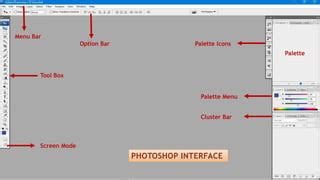
The Foundational Steps of Photo Editing in Photoshop
Before diving into complex effects, understanding the core editing processes is paramount. The first step to editing a photo is importing it into Photoshop. Once your image is open, several foundational adjustments can dramatically improve its quality and composition.
Cropping and Straightening for Perfect Composition
Sometimes, a simple crop can make all the difference. Looking at a picture, one might think it's already great with no further adjustments needed. Cropping is a very simple and seemingly inconsequential step in the photo editing process, yet it makes a world of difference in improving a picture’s composition. Before you do anything else, make sure your photo isn’t crooked. If your image is slightly off kilter or has a crooked horizon, use the Straightening tool to level things out. If there are any distracting elements on the side of your image, or your composition is just slightly off, crop it with the Crop tool. Ensure that “Delete Cropped Pixels” in the Crop menu is turned off.
Mastering Exposure and Tonal Adjustments
Despite your best efforts, there will be times when you still won’t be able to achieve the correct exposure for your image. The photo above might be slightly overexposed, which washes out the model’s skin color and features. If you’ve never used these tools before, Brightness/Contrast, Exposure, and Shadows/Highlights are all pretty straightforward-all you have to do is move the sliders to the left or right to make adjustments. Knowing how to read a histogram will help you make more accurate adjustments, particularly with HDR Toning, as well as Curves and Levels, which are the preferred exposure adjustment tools for more experienced photographers.
Color Correction and Enhancement
If you’ve properly adjusted the white balance on your camera, you shouldn’t have to do any color corrections on the resulting photos. Let’s say your photo has a bit of a blue tinge to it. You can leave it like that if you like it, but if you want your photo to have more accurate colors, Photoshop tools can help you fix that. Always remember to create an adjustment layer to modify the color of your image while preserving the original one. First, open your chosen image in Photoshop. Click the Adjustment Layer icon in the Layers panel and select your adjustment type. Alternatively, click Layer>New Adjustment Layer> Your Choice in the menu. You can also use Vibrance, Hue/Saturation, or Channel Mixer (under Adjustments) for color correction. If that wasn’t enough, you can also visualize how you want the colors in your image to look like using the Color Wheel Color Picker. This update on Photoshop CC 2019 allows you to see and choose particular colors, from harmonious groups to complementary and analogous colors.
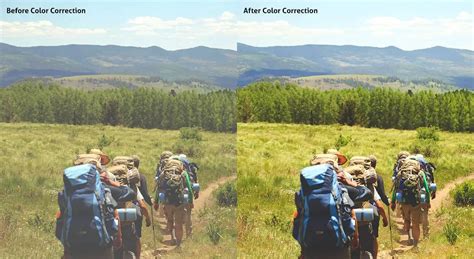
Dealing with Imperfections: Dust and Blemishes
Now that you’ve corrected the color of your image, it’s time for some selective corrections. If your sensor is dirty, dust particles will show up in your photos, resulting in small spots that will consistently appear in the same area on every single picture you take. The latest versions of Photoshop now feature the Content-Aware Fill option. Tools like the Spot Healing Brush let you cover up blemishes or irregularities. You can paint on an image with the Brush tools as if they were physical paint brushes. Stamp out imperfections with the Clone Stamp. The Clone Stamp also works well to cover up unnecessary background bits.
Sharpening for Definition
Most images benefit from sharpening, as it adds more definition to the edges of your subject. The need for sharpening an image will depend on where you will be viewing the photo, whether on a computer screen or print. Either way, the rule of thumb in photo editing is to always apply minimal changes in increments.
The Power of Layers and Non-Destructive Editing
A fundamental concept in Photoshop is the use of layers. After you import an image, it can be helpful to duplicate it. Go to Image › Duplicate in the menu to make multiple copies of it. Each duplicate can serve as the basis for an individual layer. Layers and layer masks are like translucent sheets that you lay over one another to create your image. Put each edit you make on its own layer, and you’ll have greater control over each adjustment you make, as well as the ability to undo your changes at any time. Easily undo changes. Layers also allow for non-destructive edits, which can be a major benefit to your workflow. Non-destructive edits are any edits that you can go back and undo or change after you make them. By separating elements of an image into different layers, you can focus on that component on its own. Use fast selection tools to quickly grab one area of an image and then create a layer mask with it. If you have one layer for your sky, you can make adjustments that apply just to the sky, like extra brightness or a blur effect.
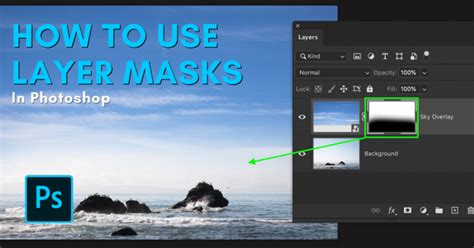
Exploring Advanced Photoshop Techniques and Effects
Photoshop includes countless ways to transform an image. Tools in Photoshop apply permanent effects to the pixels of your image. However, if you use tools on a duplicate layer, you can always undo your change. Control the color and tone of an image with Photoshop Adjustment Layers. Adjustments are not filters-but if you’re a beginner, it can be useful to think of them like that. Tonal adjustments modify things like hue, contrast, vibrance, and saturation. Color adjustments help you control the colors in an image.
Creating Atmospheric and Surreal Effects
- Starry Night Sky: Add a field of stars to your night skies with Photoshop!
- Blending Text into Clouds: Learn how to easily blend text into clouds with Photoshop, as if your text is floating in the sky!
- Day to Night Conversion: Learn how to turn Day into Night in 3 steps. Step-by-step instructions and accompanying video in this free Photoshop Master class by Colin Smith will teach you day for night in Photoshop.
- Particle Dispersion Effect: This Photoshop tutorial will show you how to create the ever-popular particle dispersion effect. You can put your own twist on it with the person turning into waves of particles as if they are being teleported.
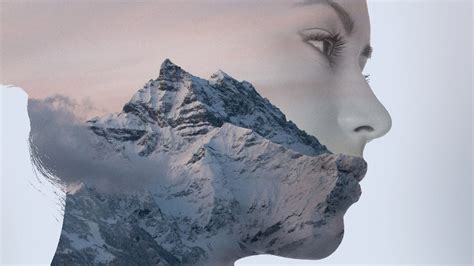
- Double Exposure Pictures: Double exposure pictures are cool things to Photoshop. Use this Photoshop action to create a double exposure effect in a few clicks.
- Orton Effect: The Orton effect is a dreamy glow often added to landscape images to make them look magical.
How to Create A Starry Night Sky In Photoshop 2022
Artistic Transformations and Style Emulation
- Vintage Photo Effect: Learn how to turn a new photo into an old-fashioned, vintage photo with Adobe Lightroom.
- Rainbow Eye Color Effect: Why choose a single eye color when you can choose every color at once! Learn step-by-step how to easily give someone rainbow-colored eyes with Photoshop!
- Frequency Separation for Smooth Skin: Learn how to do Frequency Separation (modern method) for silky smooth skin in Photoshop. An easy way to do high-end retouching for smooth, flawless skin in a Photoshop tutorial.
- Comic Book Style: Alvaro Guzman will show you how to make a stylish comic-look image from a regular photo portrait.
- Grunge Glitch Effect: Do you like that grunge, glitched look on old VHS tapes? There are different ways to add such effects to your images and even create an animation from a static photo.
- Paint Drip Effect: In this tutorial, you will learn how to create an amazing, artistic paint-drip effect Photoshop action.
- Futuristic Collage: In this tutorial, you will learn how to use Adobe Photoshop to create a colorful, futuristic collage featuring a beautiful woman.
- Isometric Icon Design: Wondering how to create an isometric icon? Mohammad Jeprie will teach you how to create an isometric perspective grid in Adobe Photoshop.
- Dramatic Angel Photo Effects: Abbey Esparza will show you how to make dramatic and cinematic angel photo effects using only a handful of images.
- Surreal Giraffe: Do you like Alice in Wonderland? Create a surreal giraffe using a variety of photo manipulation techniques.
- Afrofuturistic and Japanese Art Fusion: Kaylan Michael has always been a fan of Japanese art, so she decided to merge two styles together: Afrofuturistic and Japanese.
- Vaudeville Poster: In this tutorial, you'll learn how to create a turn-of-the-century Vaudeville poster. This uniquely appealing style of advertisement was popular in the late 1800s and early 1900s.
- Movie Poster Creation: Abbey Esparza shows you how to create a stylish movie poster with stock pictures, the same technique you can apply to your own photos. Become a hero of your own saga!
- Typographic Poster with Grids: With Laura Keung, you will create a powerful typographic poster by using grids. Also, you'll learn how to use layer masks and adjustment layers to edit images.
- Contemporary Poster with Filters: In this tutorial, Laura Keung will explain how to combine three different Photoshop filters to create a contemporary poster.
- Bitmap Mode Effects: There are a lot of interesting effects you can achieve with Bitmap mode in Photoshop, and Laura Keung will show you how to use it.
- Pop Art Style: The pop art style of Roy Lichtenstein still looks modern and fresh.
- Digital Drawing and Icon Design: Try digital drawing. Create your own universe by following these awesome tutorials. Constantin Potorac carefully examined the work of a great artist named Guilherme Marconi. Ever wondered what it takes to create your very own glossy icon? Character design might be one of the most fun things that you can do in Photoshop. Drawing a side view of something seems to be the most intuitive-without "perspective" it's simple and fun. However, because of this simplicity, side-view drawings are also boring, and they make it very hard to present all the features of a character. Lips in humans are instruments of emotion. Not because we speak with them, but also because of the infinite amount of feelings they can convey. Digital artists have the unique ability to travel back in time by tapping into the styles and techniques of other periods. Love is… universal. Learn how to create a digital painting inspired by the American Sign Language (ASL) alphabet in this Photoshop tutorial. In this tutorial, Yulia Sokolova explains the inspiring process of creating a set of funny cartoon zodiac icons. Draw a cute purple mascot for Spirit Day with Monika Zagrobelna!
- Rubber Stamp Effect: Turn any photo into a rubber stamp in just a few quick steps.
- 3D Anaglyph Image: A 3D anaglyph image is one that contains two different colored images, one for each eye, using filters of typically red and cyan.
- Tattoo Font: A tattoo font is the easiest way to create a stylish tattoo in no time.
- Gradient Backgrounds: Join Vaclav Krejci as he shares his process of creating a gradient background in Adobe Photoshop.
- Abstract Backgrounds: Fabio Sasso will show you how to create an abstract background image using Photoshop only. The design has a cool wavy pattern with interesting lighting effects, like the Blackberry 9000 wallpaper.
Mastering Text Effects in Photoshop
Text effects and Photoshop text styles can be a lot of fun-they can be expressive, dynamic, and communicative!
- Fire Text Effect: Flames are particularly hard to render in Photoshop, but in this tutorial, Collis Ta'eed will show you how to use a photograph of fire to set text to the match.
- 3D Text: One of the Photoshop basics you should learn first is how to create 3D text.
- Frozen Disney Movie Text: Create a text effect inspired by the Frozen Disney movies with Enrique Eliçabe.
- Cloud Text and Brushes: Water can make for such beautiful, inspiring visuals! Want to know how to make cloud shapes, cloud text, and cloud brushes, really quickly and easily?
- Embroidery Text Effect: In this tutorial, John Negoita will show you how to create a realistic embroidery text effect in Photoshop using stitch brushes and layer styles.
- Custom Font Effect: Create a completely custom font effect from scratch easily and quickly.
- Graffiti Text Effect: In this tutorial, Jan Stverak will show you how to create a graffiti text effect in Photoshop.
- Layering Glow and Gloss: Layering glow and gloss effects can help create nice, shiny objects. Using multiple layer styles can help achieve a more detailed and 3D-looking effect.
- Glass Text Effect: Rose will show you how to use a couple of layer styles to create a glass text effect.
- Medieval Lettering: Wondering how to make stylish medieval lettering? In this tutorial, you will learn with Jan Stverak how to make a 3D text effect in Adobe Photoshop easily and quickly.
- Natural Text Effect with Patterns: Create your very own natural-looking text effect using layer styles with the power of patterns.
- Fake 3D Photoshop Actions: Anderson Luiz will show you how to create fake 3D Photoshop actions.
- Cartoon Text Effect: Create an easy cartoon text effect using a pattern and a layer style with Jan Stverak.
- Stitched Felt Text Effect: Learn how to create a stitched felt Photoshop text effect in just a few easy steps.
- Floral Typography: Floral typography is a design trend that combines nice floral elements with bold typography to create some elegant designs. Learn how to create flower text art in Photoshop with Rose.
- Tasty Text Design: Want to know how to create a sweet and tasty text design?
How to Create A Starry Night Sky In Photoshop 2022
Creative Photo Manipulation and Artistic Projects
Want to improve your Photoshop techniques? These Photoshop tutorials will help you to achieve your goals.
- Mirror Image: Flip the script on your images by learning how to mirror an image in Photoshop.
- Double Exposure Effects: Inspired by James White's designs, Fabio Sasso decided to figure out his own way of creating that type of effect in Photoshop.
- Falling Snowflakes: Falling snowflakes are a great way to make your winter photography much more interesting. Sometimes the weather doesn't cooperate, however, and you have to turn to Photoshop to get the job done.
- Winter Magic: Add some winter magic to your portraits!
- Punk Rock Portrait: Make a cool punk-rock portrait with Abbey Esparza.
- Cyberpunk Portrait: Let's add some cyberpunk to your portrait! Design an impressive modern portrait with Abbey Esparza.
- Superheroes and Fantasy: Do you like superheroes? Are you looking for new ideas for Photoshop projects? These step-by-step tutorials will help you to make top-quality designs.
- Winter Forest Warm Lights: Warm lights in a winter forest. Make your night photos look cozy and intimate.
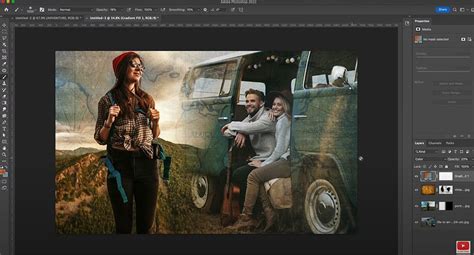
- Overlapping Photos: You’ve probably seen this interesting effect of two or more overlapping photos on the covers of music albums, in modern magazines, and in advertisements.
- Galaxies and Space: Looking for awesome Photoshop projects? What about creating a live galaxy? That's a cool Photoshop idea.
- Instagram Filters: If you'd like to start Instagram filters Photoshop projects, then this free Photoshop tutorial is for you.
- Removing Unwanted Objects: Who hasn't taken a cool picture, only to realize a person is ruining the view? Well, cropping out objects and removing unwanted tourists from pics are some really cool things to do in Photoshop.
- Tribal Makeup Styles: Tribal makeup styles are nice Photoshop ideas to recreate, don't you think?
- Trippy Diamond Lens Effect: There are plenty of cool things to do in Photoshop. What about creating a trippy diamond lens effect?
- Haunted Images: Have you ever wished to create a haunted image?
- Tattoos: Tattoos are interesting things to Photoshop.
- Cinematography and Movie Posters: For cinematography lovers, movie posters are awesome things to Photoshop.
- Watercolor and Vintage Looks: Use this Photoshop action to create a professional painting effect of watercolor and vintage looks.
- Dispersion Effect: We've got more Photoshop ideas! What about this cool dispersion effect? Dissolve and disperse parts of your photo!
- Splatter Brushes: This set of 15 splatter stamp brushes will come in very handy when you're looking for cool things to do in Photoshop.
Enhancing Images with Lightroom and ACR
While Photoshop is the powerhouse for intricate manipulations, Adobe Lightroom and Adobe Camera Raw (ACR) offer powerful tools for initial adjustments and stylistic enhancements.
Dehaze, Clarity, and Texture in Lightroom and ACR
Understanding the real difference between Dehaze, Clarity, and Texture in Lightroom and ACR is crucial. Knowing when to use them allows for precise control over image detail and atmospheric conditions.
Organizing Your Lightroom Catalog
Don't panic; clean up and organize your existing Catalog and collections with these tips and instructions on how to organize your photos in Lightroom.
Vintage Photo Effects with Lightroom
Learn how to turn a new photo into an old-fashioned, vintage photo with Adobe Lightroom.
The Photoshop Ecosystem and Subscription Options
The industry’s leading photo editing software syncs seamlessly with other Creative Cloud apps like Lightroom, InDesign, and Premiere. The images you transform in Photoshop can also become graphic design elements, stills in a video project, or even parts of animations.
Creative Cloud Photography Plan
The Creative Cloud Photography plan is a monthly subscription service that includes Lightroom and Photoshop for a computer or iPad. You can also purchase the Photoshop app as a monthly subscription. The great thing about the subscription option is that you’ll always have the most updated version.
Photoshop Express for Free Use
If you’re interested in using Photoshop without signing up for a subscription, you can use the Photoshop Express app for free.
Continuous Learning and Skill Development
To flatten your Photoshop learning curve, check out some of the other great step-by-step tutorials available on our blog. With a little instruction, you’ll be restoring old photos, creating cinemagraphs, adding bokeh, making an animated GIF, and more in no time.
Essential Courses for Skill Advancement
Build real skills with step-by-step lessons taught by a Photoshop expert. Certified Adobe instructor Daniel Scott teaches tips and tricks for Photoshop beginners with tutorials that you'll love. These cool Adobe Photoshop tutorials are free and a great entry point into Layer Styles in Photoshop. Or watch a free course on how to use Photoshop from the ground up.
Beyond the Basics: Exploring Possibilities
Even the most complex digital artworks are built on a foundation of simple actions. Recognizing what you want to use Photoshop to do-whether it's editing colors or tones, cleaning up photos with the clone stamp tool, or a bit of everything-depends on how deep you're willing to dive into the tool or what you will actually need it for. A lot of photographers use Photoshop to edit every photo they take. There are many tools and capabilities for everything from a light photo retouch to full-scale transformations into artistic, surreal photo art.
How to Create A Starry Night Sky In Photoshop 2022
Plenty of competitors have popped up to offer alternative photo editing software, but Adobe remains the most popular choice. If you've got plenty of things to Photoshop, then you need to master the use of masks. Looking for Photoshop ideas for your pictures? We've got this handy tutorial from our selection of cool things to do in Photoshop. I've got some pretty unique Photoshop ideas for you. We haven't run out of Photoshop ideas for you. Still craving more inspiration and Photoshop ideas?
tags: #pictorial #photography #photoshop