The explosion of Roblox's popularity, attracting over 55 million users monthly, has opened up a vast playground for creativity, especially in the realm of avatar customization. For those looking to make their mark on this digital frontier, designing unique clothing for your avatar is a powerful way to express your individual style and creativity. Pixlr emerges as an accessible and potent toolset to transform your design ideas into tangible virtual fashion, bridging the gap between your imagination and the 3D world of Roblox. This guide will walk you through the process of creating professional-looking Roblox apparel using Pixlr's intuitive platform.
Understanding the Foundation: Roblox Templates and Pixlr E
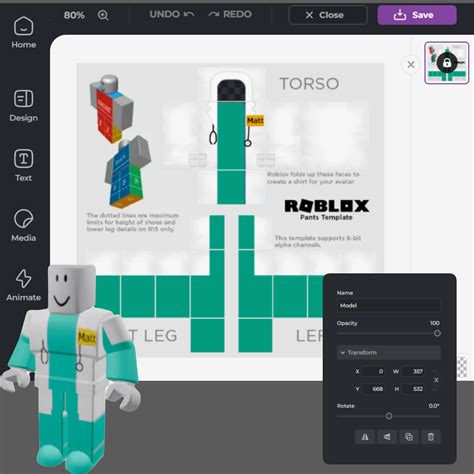
Before embarking on your design journey, it's crucial to obtain the correct Roblox templates. These are the blueprints upon which your creations will be built. It's important to be mindful of the distinction between shirt and pants templates, as they can appear similar at first glance. The correct template is essential for ensuring your design translates accurately onto your avatar.
Once you have downloaded the appropriate template, the next step is to open it in Pixlr E, which offers an advanced mode for users seeking more control over their designs. To begin, click on the "Open Image" button and upload your downloaded Roblox template. This process is identical whether you are designing a shirt or pants.
Sculpting Your Design: Utilizing Pixlr E's Tools
With your template loaded into Pixlr E, you can begin to shape your vision. The "Layers" section, typically located on the right side of the interface, is your primary workspace. Here, you can manage different elements of your design.
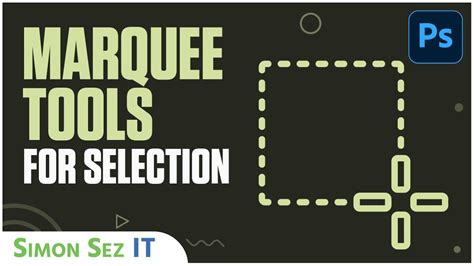
A key technique involves using the Marquee Select tool. This allows you to trace the pattern of the shirt or pants template. As you trace, keep your end design in mind. Consider the details: will the shirt be long-sleeved or short-sleeved? Will it be a crop-top? Carefully drag your cursor along the dotted lines that delineate the torso and sleeves. This meticulous tracing ensures that your design will fit the avatar's form correctly.
Precision in Placement and Filling
After tracing a section, such as the torso, you may notice unintended selections in the spaces between the designated areas (often labeled R, Front, L, and Back). To refine your selection, change the mode of the Marquee tool to "Remove from selection." This allows you to deselect these unwanted areas.
Once your selection is precise, you can choose your desired base color. The "Fill" tool is then used to apply this color to the selected area. This process should be repeated for all sections of the template, including the sleeves, to establish a solid foundation for your artwork.
Seamless Integration and Personalization
For your design to function correctly on Roblox, it's advisable to remove the original template's background layer. This ensures that only your custom design is rendered on the avatar. Now, the true personalization can begin. You are free to add any elements you desire to your shirt.
This can include text. Utilize Pixlr's text features to insert words, phrases, or even your username onto the clothing. You can experiment with different fonts, adjust opacity levels for subtle effects, and ensure the text is perfectly aligned with your design.
Beyond text, you can incorporate logos or other images. Find an image you prefer, download it to your device, and then use Pixlr's "Add Media" feature within the Layers panel. Select the "Image" option and upload your chosen graphic. You can then resize and position this image precisely on your shirt template.
(NEW) How to Make A Roblox SHIRT In 2025
Enhancing Your Design: Advanced Techniques for Professional Results
Pixlr offers a suite of advanced tools to elevate your Roblox clothing designs from good to exceptional. These features are designed to help you navigate Roblox's customization limits with ease and create designs that truly stand out.
Leveraging Shape and Color Tools
Pixlr Designer's shape and color fill options are invaluable for adding unique elements to your designs while ensuring compliance with Roblox's guidelines. The extensive Shape menu allows you to create custom patterns that perfectly fit each section of the template. Whether you're aiming for geometric precision or organic forms, these tools provide the flexibility you need. The Shape outline option is particularly useful for clearly differentiating between template parts, helping to maintain a cohesive and professional look.
Achieving Sharpness and Clarity
To take your Roblox shirt template designs to the next level, Pixlr's advanced image enhancement tools are indispensable. Features like AI Super Sharp in Pixlr Express can significantly enhance high-resolution details, increasing sharpness and clarity for a professional finish. Adjustable vibrancy and contrast settings ensure that every element on the template, from the torso to the arms, is crisp and clear, capturing the intricate details of your artwork.
Precision in Alignment and Layering
Creating perfectly sized and aligned Roblox shirt templates is made effortless with Pixlr's intuitive design tools. The Drag and Drop feature in Pixlr Designer allows for precise positioning of elements. The resize feature lets you adjust assets to fit your design seamlessly. Furthermore, the opacity slider is crucial for ensuring smooth layering without any misalignment, allowing for complex designs with multiple overlapping elements. Pixlr Express's sharpness and clarity sliders then refine every detail, ensuring a polished final product.
Special Effects for Distinction
To further enrich your designs without compromising compliance with Roblox's platform requirements, Pixlr offers shadow and outline effects. These can add depth and dimension to your graphics, making them more eye-catching and professional. Experimenting with these effects can help your creations stand out in the crowded Roblox marketplace.
Exporting and Compatibility: Ensuring Your Design is Ready for Roblox
Once you are satisfied with your design, the final step is to export it in a format that Roblox can recognize. Pixlr Designer's direct PNG export feature is crucial for this. PNG files are ideal for preserving the transparency and quality of your design, ensuring it meets the platform's requirements for optimal compatibility.
The Smart Resize feature in Pixlr further enhances this process. It ensures that your designs adapt effortlessly across different platforms and resolutions, maintaining their visual integrity. This is particularly important as Roblox is accessible on a wide range of devices.
Inspiration for Your Next Creation
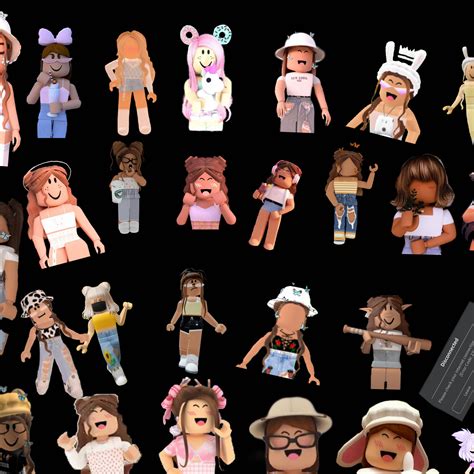
The world of Roblox fashion is as dynamic and diverse as its massive player base, constantly evolving to reflect the latest trends. To fuel your inspiration for your next design project, dive into Pixlr and explore the hottest Roblox clothing trends.
Consider the fusion of styles, such as cyberpunk aesthetics combined with space explorer themes. Streetwear remains a consistently popular choice, blending comfort with undeniable coolness. For those with a more professional inclination, occupation outfits, ranging from sleek business suits to durable fieldwork gear, offer a sophisticated avenue for expression.
Armed with the powerful tools of Pixlr and a keen eye for the latest Roblox fashion trends, you are well-equipped to create clothing that makes a distinct statement. Whether you're channeling the nostalgia of retro vibes, venturing into futuristic frontiers, or exploring any style in between, your journey towards fashion innovation on Roblox begins with Pixlr. So why wait? Dive into the world of custom clothing design with Pixlr today and start crafting the virtual wardrobe of your dreams.