The digital art world is expansive and there is much to learn, but in this tutorial, we will be focusing on ways your little ones can use the Procreate app. As a mother and an art teacher, I have seen many children use it with great success. I will share with you a few of the activities developed with my own four-year-old daughter, as well as some I’ve developed based on my experience teaching various age groups.
What is Procreate?
Procreate is a real-deal creative app created for real artists. Some people might tell you that Procreate is too advanced for kids, especially young kids. They would be right-if you’re expecting your child to master the software and use it to its maximum potential. Consider that most adults only have a partial grasp of the potential of the Procreate app, even those of us who use it nearly every day. So while true, it shouldn’t be the deciding factor. You could opt for something “made for kids,” or you can expose your little one to the real-deal creative software that is made for artists-with the understanding that just like any medium you give them (crayons included), mastery of the medium is not required for it to be worthwhile. With the right supervision and guidance, what they can do on paper, they can do digitally. It is boundless creativity and a great way to practice the motor skills they are developing at each stage. In fact, the extra hand-eye coordination practice is what I love most about using Procreate with the 4+ age group. And, you can let them practice page after page (after page) with a smaller environmental impact (so much less paper waste).
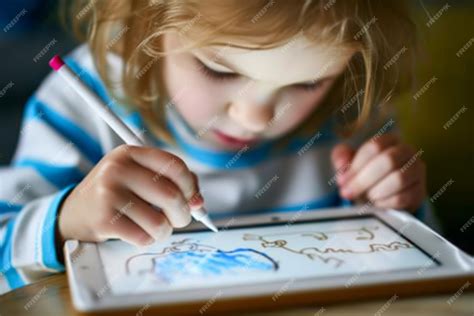
Essential Tools for Digital Art Adventures
To embark on this digital art journey, a few key tools are necessary. These are the digital equivalents of the crayons, paper, and paintbrushes that children have traditionally used.
The Apple Pencil
I use an Apple Pencil for my digital art. When looking for an Apple Pencil, you can find a 1st Generation and a 2nd Generation version, and just like any gear, you could find a refurbished version for less money. You will want to do some research about which pencil is compatible with your iPad. The Apple Pencil offers a level of precision and responsiveness that is crucial for digital drawing, allowing young artists to translate their ideas onto the screen with nuance.
The Procreate App
There are other digital art software options available, but Procreate has taken the digital art world by storm. It is user-friendly, CHEAP, ever-expanding, and unbelievably diverse. Find the Procreate software in the App Store for $9.99. Its intuitive interface and vast array of features make it an accessible yet powerful tool for artists of all ages.
The iPad
Find an iPad that suits your budget. I bet it will shock some to know that I think Procreate is awesome for kids as little as 4 years old. As an artist-mom, my daughter sees me draw on my iPad all the time. I use the drawing app both for my own art and teaching art lessons to kids online. When she begged me to let her take a turn using my digital pencil on Procreate, I decided to give it a try to test my theory that there was value in early exposure to that skill, and that she would pick it up alarmingly quickly. Of course she did, and absolutely adores it. But it’s not just fun. It has also been a very worthwhile learning experience for her.
Don’t be fooled by the advanced technology. Your littlest ones are developing all of the motor skills used for writing and drawing, so just because they won’t be mastering the technology or even the art skills right away, does not mean there isn’t value to introducing them to the digital medium. This creative software is a new art medium, just like any crayon, pencil, or paint they try for the first time (and frankly, it is probably their future). In the same way that no one expects a child to master their painting skills at four just because someone put some tempera paint in their hands, you can set the expectation of output that is in line with their developmental stage.
Engaging Activities for Young Digital Artists
Procreate offers a multitude of features that can be simplified and adapted for children. These tools not only make digital art creation fun but also foster essential developmental skills.
1. "Quick Snap" for Perfect Shapes
Procreate has a function called "Quick Snap" that corrects the wobbles in your drawn shapes, such as circles and straight lines. It’s very simple, and you won’t have to play with it long to get a sense of how it works. You can think of this a little like a digital ruler tool. Basically, when you draw a circle, rather than picking your pencil up when you have reached the beginning, hold it down, and watch as the shape "snaps" to a clean version of the shape you’ve just drawn. The same idea applies to drawing lines. Draw a line and hold your pencil down to see it snap into a straight line. Keep holding and move the pencil (or your finger) around to change the angle and length of the line. If you decide you do not want the perfected version of the shape you’ve drawn, just hit "undo," and it will return to the organic, hand-drawn original.
Let your young child try this out and watch their little face light up when their wobbly little lines snap into smooth shapes. I think the ability to create something that seems elusive to a small child makes them feel very powerful and gives them confidence, which is exactly what art should do at this age. Unless your child never draws on paper again, I wouldn’t worry too much about it hampering their analog drawing skills. To keep things in balance, I will challenge students to try to see how well they can draw a circle or line without using the Quick Snap function and make comparisons to the corrected one. As my daughter plays and proudly shows me things she has created, I will encourage her with something that sounds like, "Who made that amazing line? Whoah. I bet if you keep practicing your drawing skills, you’ll be able to do that WITHOUT any help."
Activity: Scavenger Shapes
This activity is really simple. Use the list below, or make up a list of your own to create a "Scavenger Shapes" game. Basically, it is a scavenger hunt, but rather than finding the objects, they are creating them. Give them the list of shapes created by either a straight line or circle with the Quick Snap tool, and let them recreate each one. I like to use the monoline brush in calligraphy, but you can choose a brush you like.
- Circle
- Square
- Triangle
- Oval
- Rectangle
- Star (with a little more practice!)
QuickShape in Procreate | Create Perfect Shapes And Lines | Procreate Tutorial⭐️
2. The Drawing Assist Tool for Symmetry and Precision
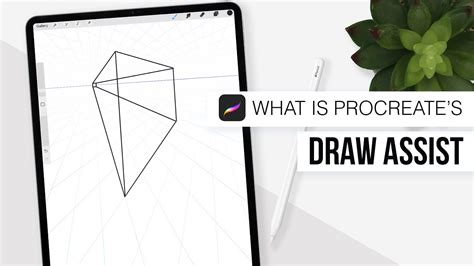
Another awe-inspiring tool for children is Drawing Assist, another sort of invisible ruler. This tool is exactly what it sounds like-it assists your drawing. There are multiple ways this can be used, but today I am going to focus on a few of the "symmetry" guides. The symmetry setting in Drawing Assist duplicates every mark on one side of the canvas exactly the same on the other side of the line, making a perfectly symmetrical drawing.
How to: Starting with the Actions menu (the little wrench), click the Canvas icon. Below, you will see an on/off toggle for "Drawing Guide." Turn the guide on and then click "Edit Drawing Guide." The Drawing Guide will open up to a grid that you can adjust, but to create symmetrical drawings, find "Symmetry" in the lower right corner. Below it, find "Options." Clicking "Options" will prompt you with four options: Vertical, Horizontal, Quadrant, and Radial. These options are somewhat self-explanatory, and you can play around with them to discover what all can be done, but I find that Vertical and Radial are the most fun for kids.
- Vertical: Use the Vertical drawing guide to create drawings that are symmetrical on the left and right sides. This can be exciting for drawing things like butterflies, flowers, hearts, or anything that you want to be mirrored on each side of the page.
- Radial: The Radial drawing guide is where things really get exciting. This drawing guide splits the canvas into 8 even sections, radiating from a center point. Anything you draw in one of the sections will appear in all of the remaining sections. This is perfect for flowers, mandalas, and some generally trippy, cool drawing fun.
Parent-Hack: For your younger children, you will probably have to set up the canvas to use this feature. Rather than going through this process over and over one thousand times (and they will want to do it that many times), do this instead: When setting up the canvas, after creating an assisted drawing layer, duplicate it a few times. Then, each time they are finished and want to do it again, simply uncheck the layer to hide it and tap the clean, blank layer below.
Troubleshooting: If you add a new layer rather than duplicating the original layer, it will appear with the same guide lines but it will not mirror the marks. To set this activity up for your child, create a new canvas and turn on the Radial Drawing Assist. (See the instructions above.) Choose the monoline brush or a brush that does not have a texture. You don’t need to grasp the technical reason for using a brush without texture, but it has to do with the way the brush is created, and some can have even single pixel-sized gaps in what appears to be a solid line. Remember that if they would like to add color using the color fill after they have drawn their mandala, you will want a brush that does not have gaps in its texture. Once the Radial Drawing Assist is turned on, they are basically ready to start creating their mandala masterpiece. You can prompt them with directives like, "Try using only curvy lines," etc., or you can let them do their thing. Read Color Fill below to learn a fun way to add color after they draw their designs.
Parent Hack: Save yourself the interruptions every few minutes (or seconds) when your child is finished with drawing and would like to do another. When you begin your canvas and you have a layer set up with guides, duplicate the blank layer as many times as necessary. Set your child up drawing on the top layer. When they are done with that drawing, simply uncheck the layer to make it no longer visible and then tap the next open layer and let them go for it. Once you have it set up, your child can probably learn the process quickly and will only need you for troubleshooting.
Troubleshooting: If a dialogue box pops up about hidden layers, it probably means you’re still trying to draw on a previous layer that you have hidden. Always make sure that you are drawing on the visible layer, or that the box to the right of the layer is checked for the clean layer where you are drawing.
3. Mastering Color Fill
How to: In the upper right-hand corner, there is a colorful circle. This is where you find all of the many color options for selecting the color of your brush. Tap the circle to open, and you will see two concentric circles with draggable dots inside. The outer circle is the color wheel that allows you to choose which color family you would like. Drag the dot in the inner circle to choose the saturation, brightness, and intensity of your color. Play with this for a few minutes, and you will probably have a good understanding. Choose a color, then tap the colorful circle in the right-hand corner again to collapse the color menu. Now you can see your selected color in the circle. Touch and hold that circle and drag it into the space you would like to color. If you are filling an empty canvas, it will fill the entire space. If you have a shape drawn, you can drag it and release once you see it fill the shape or space you are trying to fill.
Troubleshooting: If you drag your color and it fills the entire canvas instead of the shape you are trying to fill, it is probably because the shape has a gap somewhere where it meets another line. The color fill will "leak" out of any open spaces, even down to the smallest pixel. Try drawing over the point where your lines meet to make sure there are no gaps, or choose a brush that does not have an open texture and try again. At times, you will also accidentally change the color of your outline. If you don’t want this, remember that you can hit the backward arrow to undo, and zoom in to make it easier to hold your finger in the space you are intending to fill.
Activity: Color Fill vs. Color Skill
Set this activity up by creating a layer with the Vertical Drawing Assist guide on. First, ask them to draw a set of shapes on one side (which will be copied onto the other side of the canvas.) Then, turn the Drawing Assist off by tapping the layer and unchecking next to "Drawing Assist." Alternatively, you can ask them to draw two sets of shapes on each side and draw a line down the middle. Then, select a brush that mimics a crayon or paintbrush for the side they will color manually. I recommend "Oil Pastel" in "Sketching" or "Wet Acrylic" in "Painting" because they are interesting and mimic materials they could use, but you can find any one you like.
Next, ask them to "fill" in the shapes on the left side and "color" in the shapes on the right. You can either leave them to discover on their own, or prompt them to think about the differences in what they are doing by asking questions like:
- Which way of coloring is faster?
- Which one looks more like paint (or crayon, etc.)?
As I already mentioned, children can fill the intricate mandala designs they have created. It is a lot of fun to drag and drop color into all of the crazy shapes and designs. Another option to adding color to their own artwork is to add a pre-drawn coloring page to their canvas and let them "color" using their new Color Fill skill.
QuickShape in Procreate | Create Perfect Shapes And Lines | Procreate Tutorial⭐️
The Power of Layers for Young Artists
Since part of the aim at this age is to help them learn their way around the technology and to hone the specific motor skills necessary in the digital world where they will inevitably exist, not every activity has to be geared toward art skills. Yes, it is technology, so we know they will get sucked in, but it is technology with a purpose. There ARE skills being learned from this activity, not the least of which being the time they spend selecting and arranging colors on the color wheel will help develop their understanding of color and help them develop an intuition about using color in art. I find it so interesting to watch the laser-focus of my four-year-old as she thoughtfully (and skillfully) selects her color from the color menu and then drags each one to fill the carefully chosen space. The chances are that by six, kids have had enough exposure and experience with technology that they are becoming adept at finding their way around new tech. Keeping that in mind, the possibilities for this age group are fairly expansive. Today, let’s focus on the synergy between the developmental stage of this age group and the slightly more complex uses of Procreate to find a few fun ideas that are both creative and educational.
Understanding Layers
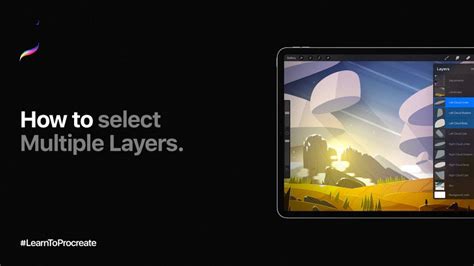
Layers in digital art allow for an easy workflow. Imagine your layers as transparent pieces of paper stacked on top of one another. You add work behind a previous layer, rearrange layers, add layers, and even turn their visibility off. This allows for a lot of creative control.
What are the main uses of layers in Procreate?
- Creative Control: Working in layers gives you a creative control that would be impossible in traditional mediums. As one example, when working on paper, you are not able to decide whether to put the next layer above or below the previous. In digital art, you can.
- Preserve Work as You Go: Digital art allows for a lot of fixable error. Obviously, you can undo almost anything, but one of the ways that we preserve our work is by working in layers. Thanks to the ability to add and duplicate the layers at any stage, you have the ability to save your work as you go. Do this by using new layers as you work, and by duplicating layers of artwork at critical stages in case you need to go back.
Resources for Continued Exploration
For those looking to delve deeper into Procreate for kids, several resources offer structured learning and engaging content.
Free Procreate Brushes for Kids
Attention kids and kids-at-heart! I created this set of 6 high-quality Procreate brushes for little artists learning how to use Procreate or for anyone who wants to relive the magic of a free afternoon, a blank piece of paper, and a box of art supplies. This set of FREE Procreate brushes has all your favorite art supplies - crayons, markers, paint, and colored pencils!
Learn to Make Art with Procreate!
Hey kids! If you want to learn how to use Procreate, my seven-year-old son Bear and I have got you covered! Follow along as the two of us teach you everything you need to know to get started using Procreate: how to create a new canvas, choosing colors, using different brushes, the eraser, and other tools, how to use layers, how to move things around and make them bigger or smaller, making shapes, and more! This video is designed for kids who are just getting started using Procreate. Let’s learn!
This tutorial covers:
- Part 1 - Getting Started: Brushes & Tools: Starting a new canvas, picking a color, using brushes, the eraser tool, changing brush size and opacity, undo and redo.
- Part 2 - Fun with Color: Using Color Drop to fill shapes, choosing a previous color with the Eyedropper, zooming in and rotating your canvas, changing the background color.
- Part 3 - Using Layers: Creating a new layer, moving a layer, adding texture to flat color, drawing within shapes using Alpha Lock.
- Part 4 - Moving Things Around: Using the Selection tool to choose parts of your artwork, using the transform tool to move things around, using Quickshape to make easy shapes.
QuickShape in Procreate | Create Perfect Shapes And Lines | Procreate Tutorial⭐️
How to Draw a Hot Air Balloon
Follow along and draw in this Procreate tutorial for kids, where 7-year-old Bear and I teach you how to draw a hot air balloon with an adorable animal passenger. This beginner’s Procreate lesson will teach you lots of digital art techniques like choosing colors, using layers, Alpha Lock, adding texture to your illustrations, and more! This video is perfect for kids and anyone new to using Procreate.
Kid's Drawing Prompts
Below are four weeks of drawing prompts to inspire you! Clicking the words will take you to image search results for that prompt. Use these photos and images to inspire you when you are drawing your own artwork.
- Week 1: Animals & Creatures: These prompts are of real-world and imaginary critters and creatures. Let your imagination run wild with these prompts - you don’t have to draw them just like they look in real life or how you’ve seen them in pictures before. Instead, imagine the animals with unusual colors, or as hybrids where you combine two animals together, or maybe the animals can be doing unusual actions - like a unicorn riding a bicycle!
- Week 2: Coloring Book: This week is all about coloring pages! Each prompt might inspire you to draw and design your own coloring pages, or download one of my free Procreate coloring pages to color however you’d like!
- Week 3: Adventures & Imagination: This set of prompts is designed to tickle your imagination and get you thinking of far-off adventures! So get outrageous and inventive! For example, you could draw a treehouse, but not just any treehouse…maybe it has a rocket-powered swing or a magical bridge or an ice cream machine! A crazy vehicle could be a toilet car or a banana split boat!
- Week 4: Kid's Choice!: Our community asked kids what they wanted to draw, and from that, we created this group of fun drawing prompts.
Free Procreate Coloring Pages
Week 2 of Kid’s Month is all about coloring pages! You can make your own (see below), or if you rather just color, you can download my FREE coloring pages for Procreate below! These are set up as Procreate files so you can color right on your iPad in Procreate. Try using my free “Kids Make Art!” brushes to color them in! There are also printable PDF versions if you’d like to color on paper instead.
- "Just Fanta-sea"
- "Space Pets"
- "Foodie Land"
- "Dino Trip"
How to use the Coloring Pages in Procreate: Download the .Procreate files to your iPad. They will be saved to your Files app in the Downloads folder. Tap a file to import it into Procreate. Open the file, and you are ready to start coloring! Open the Layers panel (the icon with two squares in the upper right). You’ll see a layer called “Color Here” below the layer with the black line art, which is where you’ll do your coloring! You can use Color Drop to fill in the different spaces with color, or simply color them in by hand. Did you know you can use Procreate like a coloring book? Even better - you can use some really cool digital art tricks to have even more fun than traditional coloring. Follow along with me and color one of my FREE coloring pages in this live Procreate tutorial. I’ll teach you tips and tricks for coloring, including how using Procreate features such as Layers and Alpha Lock can speed up coloring and create cool effects you’d never be able to do on paper!
QuickShape in Procreate | Create Perfect Shapes And Lines | Procreate Tutorial⭐️
How to Make a Coloring Page
Watch my tutorial about designing, drawing, and creating your own coloring pages in Procreate! I’ll walk you through from creating an initial sketch to the final coloring page with tips about getting smooth, clean line art, setting up your Procreate file so it’s ready to color, and more! This tutorial will be more geared toward the grown-ups, but kids are welcome to join too!
How to Make Stickers!
I’ll walk you through making some simple drawings using my Kids Make Art! Learn how to use Procreate! Hey kids! If you want to learn how to use Procreate, my seven-year-old son Bear and I have got you covered! Follow along as the two of us teach you everything you need to know to get started using Procreate: how to create a new canvas, choosing colors, using different brushes, the eraser, and other tools, how to use layers, how to move things around and make them bigger or smaller, making shapes, and more! This video is designed for kids who are just getting started using Procreate. Let’s learn!
Head over to bardotbrush.com/kids for more Procreate tutorials for kids, drawing prompts, coloring page downloads, and other goodies!