Procreate's Symmetry tool offers a powerful and intuitive way to achieve perfect balance and intricate mirrored effects in your digital artwork. Whether you're a calligrapher aiming for flourished designs with a beautiful mirror effect, an illustrator creating characters, or a pattern designer crafting mandalas, understanding and utilizing this feature can significantly enhance your workflow and the final output of your creations. This guide delves into the nuances of Procreate's symmetry options, with a particular focus on radial symmetry, to help you create visually striking and perfectly balanced art.
Unlocking the Power of Drawing Guides
Procreate's Drawing Guides are fundamental to achieving precision in your artwork. They provide visual aids that help you plan and execute your designs with assisted strokes. The Symmetry tool is a prime example of how these guides can transform your creative process. To access these guides, navigate to Actions (wrench icon) > Canvas > Drawing Guide. Once the slider is moved to the right, you can tap Edit Drawing Guide to reveal a new window.
Within the Drawing Guides window, you'll find several options at the bottom: 2D Grid, Isometric, Perspective, and Symmetry. The Symmetry option is where the magic of mirroring truly begins. Below the main options, you can adjust the Opacity and Thickness of the guide lines, ensuring they are visible yet unobtrusive against your artwork.
Navigating the Symmetry Options
The core of Procreate's mirroring capabilities lies within the Options button in the Drawing Guides menu. Here, you can select from various symmetry modes, each offering a distinct way to reflect your strokes.
Vertical Symmetry
This is often the default setting and is incredibly useful for creating designs that are mirrored along a central vertical line. It's ideal for sketching symmetrical objects, logos, or even the basic structure of faces to ensure perfect alignment of features. When Vertical Symmetry is active, any mark you make on one side of the canvas is instantly replicated on the other.
Horizontal Symmetry
Similar to vertical symmetry, this mode mirrors your strokes along a central horizontal axis. This is particularly helpful for creating designs that require balance from top to bottom, such as landscapes, banners, or elements that suggest reflection on water.
Quadrant Symmetry
Quadrant Symmetry divides your canvas into four equal sections, or quadrants, using both a vertical and a horizontal guideline. When you draw in one quadrant, your strokes are mirrored into the other three. This is a fantastic tool for developing intricate patterns or designs where elements need to be repeated in a balanced, four-way arrangement.
Radial Symmetry: The Art of the Mandala
Radial Symmetry is where Procreate truly shines for creating circular and radiating designs. This mode splits your canvas into eight segments, utilizing vertical, horizontal, and diagonal guidelines. When Radial Symmetry is enabled, your stroke is mirrored and rotated across these segments. This means that as you draw in one of the eight sections, your design is replicated and rotated around the center of the canvas, creating a beautiful, cohesive, and often mesmerizing effect.
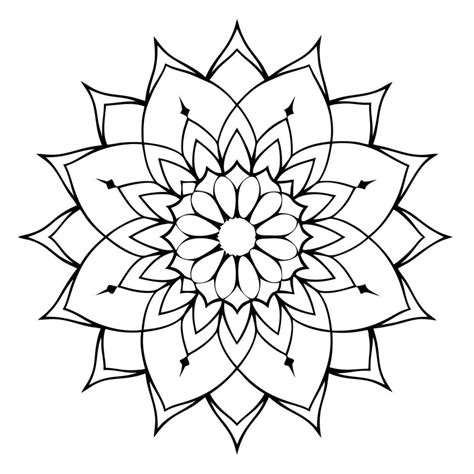
Radial Symmetry is the go-to mode for creating mandalas, floral patterns, starbursts, and any design that emanates from a central point. It allows you to draw just a fraction of the design, and Procreate handles the rest, ensuring perfect repetition and balance. This mode is incredibly efficient for complex, symmetrical artwork, saving a significant amount of time and effort.
Rotational Symmetry: Enhancing the Mirror Effect
Within the symmetry options, you'll also find a crucial setting called Rotational Symmetry. When this is turned on, your strokes not only mirror across the selected axis (vertical, horizontal, quadrant, or radial) but also rotate as they are mirrored to adjacent segments.
- With Rotational Symmetry OFF: Strokes are simply reflected. For example, in Radial Symmetry, a stroke drawn outward from the center would be reflected 45 degrees in each adjacent segment, maintaining its orientation relative to the mirror line.
- With Rotational Symmetry ON: Strokes are reflected and then rotated. In Radial Symmetry mode, this means a stroke drawn outward might appear to "follow" the curve of the radial lines, creating a more dynamic and interconnected pattern.
The effect of Rotational Symmetry can be subtle or pronounced depending on the type of design and the symmetry mode you are using. It's highly recommended to experiment with this setting, toggling it on and off, to understand how it influences your artwork and to discover which effect best suits your artistic vision. For calligraphic designs, turning on Rotational Symmetry can add an extra layer of flow and dynamism to the mirrored flourishes.
Mandala Template for Procreate
Assisted Drawing: The Essential Partner to Symmetry
Crucially, for the symmetry tools to function correctly, Assisted Drawing must be turned on. You'll notice that when a layer has Assisted Drawing active, a small inscription "Assisted" appears beneath the layer's name in the Layers panel. Assisted Drawing ensures that your strokes automatically adjust to match the direction and constraints of the guide lines. Without it, your strokes would simply be drawn as normal, and the mirroring effect would not occur.
To ensure Assisted Drawing is active, after you’ve set up your Symmetry Guide, go back to Actions > Canvas and make sure the Drawing Guide slider is active. Then, when you edit the Drawing Guide and select a symmetry type, Assisted Drawing is usually activated automatically. If you ever doubt, check the layer name for the "Assisted" tag.
Practical Applications and Tips
The Symmetry tool is not just for abstract patterns; it has wide-ranging applications for various artistic endeavors.
Calligraphy and Lettering
For calligraphers, the Symmetry tool, particularly with Radial Symmetry and Rotational Symmetry enabled, can be a dream for creating elaborate flourishes and mirrored lettering. Imagine designing a decorative initial or a symmetrical wordmark; the tool ensures perfect balance and saves immense time that would otherwise be spent meticulously duplicating and mirroring each stroke by hand. You can create beautiful flourished calligraphy designs with a stunning mirror effect that would be incredibly challenging to achieve manually.
Character Design
As mentioned, Vertical Symmetry is invaluable for sketching characters, especially faces. It guarantees that both sides of the face are proportionally aligned, ensuring a balanced and aesthetically pleasing result. While it provides a perfect foundation, artists can then deactivate symmetry or add asymmetrical details to imbue characters with personality and unique quirks.
Pattern and Texture Creation
Quadrant and Radial Symmetry are indispensable for generating seamless patterns, decorative elements, and intricate backgrounds. Whether you're designing a repeating wallpaper pattern, a magical carpet, or the scales of a mythical creature, these modes ensure perfect alignment and repetition, creating visually rich textures and designs.
Embracing Imperfection within Perfection
While Procreate's Symmetry tool offers perfect balance, art doesn't always need to be flawlessly symmetrical to be compelling. A common misconception is that symmetry equates to being "boring." However, artists can use symmetry as a starting point and then introduce deliberate imperfections or asymmetrical details to add character and visual interest. You can start with symmetry active, then turn it off midway through your process to add small, quirky details that break the perfect balance, resulting in illustrations with more charm and personality.
Workflow Enhancements
- Start with Light Sketch Lines: When working with symmetry, especially for detailed designs, begin with a pencil brush at a low opacity. This allows you to lay down the foundational structure without committing to heavy lines, making it easier to refine the design.
- Leverage Layers: Combine the power of symmetry with Procreate's layer system. Draw your symmetrical base on one layer with Assisted Drawing active. Then, create a new layer above it to add unique details, shading, or color variations without affecting the mirrored structure. This allows for greater control and flexibility.
- Zoom and Rotate: The symmetry tools work seamlessly at any zoom level and canvas orientation. Don't hesitate to zoom in for fine details or rotate your canvas to a more comfortable drawing angle. Procreate will maintain the symmetry regardless of your perspective.
Beyond Symmetry: The 2D Grid
While the Symmetry tool is a powerful feature for mirroring, Procreate also offers a 2D Grid that can be accessed from the same Drawing Guide settings. This grid is not just for visual alignment; it can also be used for real-world scenarios and measurements.
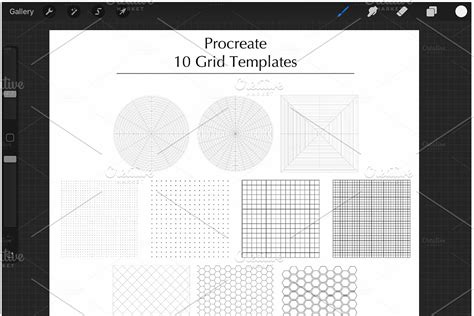
When you enable the 2D Grid, you can set the grid spacing in pixels or physical units (if your canvas has DPI set). For instance, if you have a 4000x4000 pixel canvas and set the grid to 250 pixels per square, you'll have a 16x16 grid across your canvas. This can be incredibly useful for planning layouts, ensuring consistent spacing in patterns, or even approximating physical dimensions if you're working with a specific print size in mind. Procreate, while not having a dedicated ruler tool (yet!), allows for a degree of measurement and spatial planning through its grid system, which complements the precision offered by the symmetry tools.
Conclusion: A Tool for Precision and Creativity
The Procreate Symmetry Tool, with its various modes like Vertical, Horizontal, Quadrant, and especially Radial Symmetry, is a fundamental feature for digital artists. When paired with Assisted Drawing and explored with the Rotational Symmetry option, it unlocks the ability to create complex, balanced, and visually striking artwork with unprecedented ease. Whether you are a seasoned professional or a beginner exploring the capabilities of Procreate, mastering this tool will undoubtedly elevate your design process and the quality of your finished pieces, allowing you to achieve that beautiful mirror effect and perfect balance with confidence.