In the digital age, the ability to seamlessly integrate a handwritten signature into electronic documents is no longer a niche requirement but a common necessity. Whether you're finalizing a contract, submitting a proposal, or applying for a job, a clean, professional-looking signature can significantly impact the overall presentation of your documents. A signature marred by a distracting white or colored background often appears unprofessional and can detract from the credibility of your submission. Fortunately, a variety of tools and methods exist to effectively remove these unwanted backgrounds, transforming a simple photograph of your signature into a versatile digital asset. This article delves into the most effective techniques and recommended tools for achieving a crisp, transparent signature, catering to users from casual document signers to digital design professionals.
The Importance of a Transparent Signature
Many a time we have to upload contracts, forms, or proposals with our real signature. But the most challenging part is to upload the signature without background. Uploading the signature with the background does not look cool and looks unprofessional. A signature with a background can create visual clutter, making it appear as if the signature has been haphazardly placed rather than expertly integrated. This can inadvertently convey a lack of attention to detail, which is particularly detrimental in professional contexts where precision and polish are paramount. A transparent signature, on the other hand, blends seamlessly with any document, appearing as if it were originally part of the digital file. This enhances the document's aesthetic appeal and reinforces the professionalism of the signatory.
Removing Signature Backgrounds with MS Word
While dedicated image editing software and online tools often offer the most robust solutions, it's sometimes necessary to work with the tools readily available. Microsoft Word, a ubiquitous office application, offers a surprisingly capable, albeit basic, method for removing backgrounds from images, including signatures. This approach is particularly useful for users who need a quick fix without venturing into external software.
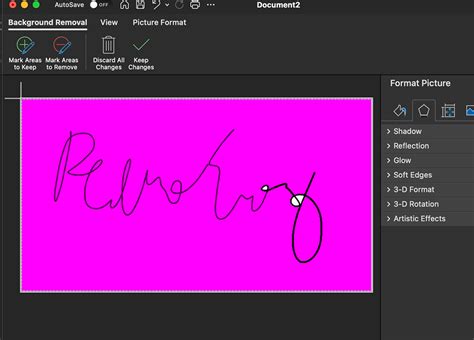
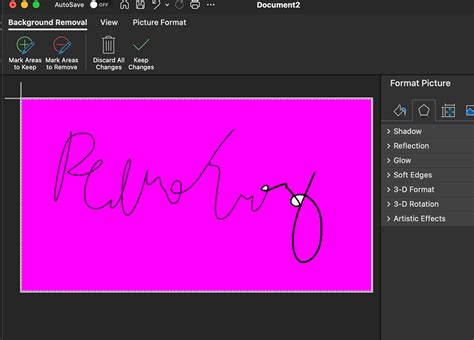
Step 1: Firstly, you need to open MS Word on your computer.Step 2: After that, insert your signature. This can be done by navigating to the "Insert" tab, then "Pictures," and selecting the image file of your signature.Step 3: Once the signature image is placed on the document, select it. This will bring up the "Picture Format" tab in the menu bar.Step 4: In the "Picture Format" tab, locate and click on the "Remove Background" option.Step 5: After that, you will see the square to select the area you want to crop. Word will attempt to automatically detect and mask the background. You can then use the "Mark Areas to Keep" and "Mark Areas to Remove" tools to refine the selection, ensuring that all parts of your signature are preserved while the background is effectively eliminated.Step 6: Select the image, and in the menu bar of MS Word, go to the "Format" menu. (Note: In newer versions of Word, this is often integrated within the "Picture Format" tab).Step 7: Once you are satisfied with the background removal, right-click on the image and select "Save as Picture." Choose PNG as the file format to preserve the transparency.
This method is effective for signatures with clear, contrasting backgrounds. However, for signatures with complex edges or subtle color variations, the results might be less precise compared to specialized tools.
Online Tools for Effortless Background Removal
The digital landscape is replete with online tools designed to simplify image editing tasks. For removing backgrounds from signatures, several platforms stand out due to their speed, accuracy, and ease of use. These tools often leverage artificial intelligence to automate the background removal process, making it accessible even to users with no prior editing experience.
FocoClipping: A Fast and Efficient Solution
Many users find themselves searching for a tool to remove the background of their signature, especially when needing to upload contracts, forms, or proposals with their real signature. Uploading a signature with a prominent background does not look professional. FocoClipping is presented as a super-fast solution for this very problem.
To use FocoClipping:
- Open your browser and navigate to the FocoClipping website.
- Upload the image of your signature from your computer's local drive.
- Once successfully uploaded, you will be redirected to the editing panel.
- FocoClipping's "Smart AI" will automatically detect and remove the background of the image.
- After the AI processing, you can further refine the image using its editing tools if necessary.
- Download your signature as a PNG file with a transparent background.
FocoClipping is praised for producing a very crispy and precise image and being simple to use, making it a top recommendation for many.
Canva's Background Remover: Integrated Design Power
Canva, a popular graphic design platform, offers a powerful Background Remover tool that can be seamlessly integrated into your workflow. This is particularly advantageous for users who already utilize Canva for document creation or design projects.
To use Canva's Background Remover:
- Write your signature on a blank piece of paper, or use Canva's signature generator to create one digitally.
- Take a high-resolution photo with your phone in good lighting or scan it.
- Upload the digital version of your signature to Canva or drag and drop it into an existing design or document.
- Select the signature image and click on the "Effects" option in the toolbar.
- Choose "BG Remover" from the effects menu.
- Canva's AI will then remove the background. You can further adjust your signature using Canva's editing tools, such as crop, rotate, flip, resize, or change opacity.
- Save your signature in PNG format to maintain the transparent background.
Canva's Background Remover is available for free for a limited number of uses; unlimited access requires a Canva Pro subscription, which also unlocks other premium features. The ability to directly drag and drop the transparent signature into other Canva projects or download it for external use makes it incredibly versatile.
Pixa: AI-Powered Precision and Speed
Pixa positions itself as an AI-driven tool for instant signature background removal, promising crisp, transparent signatures in seconds. This tool is designed for efficiency, catering to professionals and students alike who need to digitize their signatures quickly.
Using Pixa involves three simple steps:
- Upload your signature: Click "Upload image" and select your JPG, PNG, or HEIC file. Desktop users can also drag and drop their file.
- Remove the background automatically: Pixa's AI instantly detects and extracts the signature from the image, requiring no manual editing.
- Download your new signature: Download the signature as a PNG file to retain its transparency, ready for use in PDFs, Word documents, slides, or any image.
Pixa's AI is highlighted for its precision, ensuring every curve of the signature is captured accurately. It differentiates ink from paper effectively, avoiding jagged edges or halos often associated with manual cropping. This high-quality cutout preserves intricate pen strokes, making it suitable for various signature styles, from bold markers to fine fountain pens. Pixa also offers broader AI image editing capabilities beyond signature background removal, including product photo background removal, logo creation, and AI background generation.
Fotor: One-Click Background Eraser
Fotor offers a free online signature background remover that simplifies the process to a single click. It utilizes AI to quickly identify and extract signatures from uploaded images.
The process with Fotor:
- Upload your signature image: Choose your file to begin.
- Automatic background removal: Fotor's AI sign background remover detects and extracts your signature immediately.
- Download: Get your transparent PNG signature in high resolution.
Fotor also provides intuitive editing tools for fine-tuning, rotating, or adjusting the size of the extracted signature. For users needing to process multiple signatures, Fotor offers an online bulk signature BG remover that can make up to five sign images transparent at one time. The resulting transparent signatures can be used to sign PDF documents, Docs, online forms, or other digital files.
Mobile Applications for On-the-Go Signature Editing
For users who primarily work from their mobile devices, several applications offer robust background removal capabilities for signatures. These apps provide the convenience of editing and preparing signatures directly from a smartphone or tablet.
Apowersoft Background Eraser: Cross-Platform Compatibility
Apowersoft Background Eraser is a versatile app available for both Android and iOS devices, ensuring compatibility regardless of your mobile operating system. It offers both automatic and manual background removal options, providing flexibility for different signature styles and user preferences. The app's intuitive interface makes it easy to upload a signature, have the background automatically removed, and then refine the results manually if needed.
Pro KnockOut: An iOS-Specific Solution
Pro KnockOut is specifically designed for iOS users and is lauded as an excellent tool for removing the background of any image, with a particular strength in signature background removal. It provides manual selection tools such as a lasso, instant alpha, and eraser, allowing for precise control over the background removal process. Once the signature is cleared of its background, it can be saved in PNG format directly on the iPhone.
An unnamed Android App: Simplicity and Effectiveness
The user also mentions a "super simple to use" Android app that makes background removal easy. This app features tools like auto, extract, and manual options, making it a "no-brainer" for users looking for a straightforward solution. A notable feature is its "soothing effect," which can sharpen the edges of the signature for a perfect final look upon download.
How to make Transparent Signature without using any 3rd party app in iPhone or iPad ?
Advanced Techniques and Considerations
While online tools and mobile apps offer convenience, more advanced users might consider professional software or specific techniques for ultimate control and quality.
Adobe Photoshop: Professional-Grade Control
For those with access to and proficiency in Adobe Photoshop, the software offers unparalleled control over image editing. The process typically involves using selection tools like the Magic Wand, Lasso Tool, or Pen Tool to meticulously select the signature and then deleting the background. Advanced features like layer masks and adjustment layers can be employed to refine edges, adjust contrast, and ensure the highest possible quality. However, this method is often considered the "hard way" due to its complexity and the learning curve associated with Photoshop. The process can take anywhere from 3 to 10 minutes per signature, depending on the user's skill and the complexity of the signature itself.
Apple's Preview App: A Mac-Centric Approach
Mac users have a built-in option with the "Preview" app, which includes a feature for creating signatures from a camera. By opening Preview, navigating to Tools > Annotate > Signature, and then choosing "Camera," users can present a paper with their signature to their Mac's webcam. Preview will then trace the signature, which is saved within the software. This allows for easy placement of the signature into files, particularly PDFs, using the "Signing PDF via Preview app" feature. However, a limitation is that you cannot directly download the signature as a separate file to use in other software.
OakPdf Signature Extractor: Vectorization for Scalability
OakPdf.com offers a Signature Extractor tool that not only removes backgrounds but also provides an option to "trace" the signature. Tracing converts the rasterized (pixel-based) image into a vector image. The primary advantage of a traced signature is its scalability; it can be enlarged or reduced without any loss of image quality, maintaining smooth edges and crispness. This vectorization also allows for on-the-fly changes to the pen color of the signature. While a rasterized output is also available by unchecking the "vectorize" option, the traced version is generally recommended for its versatility and professional appearance, especially for intricate handwritten signatures. This tool is part of a larger online PDF editor, suggesting a focus on document workflow integration.
Conclusion: Choosing the Right Tool for Your Needs
The quest for a clean, background-free signature is a common one in our increasingly digital world. Whether you opt for the built-in functionalities of MS Word, the AI-powered simplicity of online tools like FocoClipping, Canva, Pixa, or Fotor, or the advanced control offered by professional software like Adobe Photoshop, the key is to select a method that aligns with your technical comfort level, available resources, and desired outcome. Mobile applications further extend this accessibility, allowing for signature preparation on the go. By understanding the strengths of each approach, you can ensure your digital signatures always present a polished and professional image, enhancing the credibility and aesthetic appeal of all your electronic documents.
tags: #remove #background #from #signature