The frustration of discovering unwanted background noise in an audio file after a lengthy recording session is a shared experience for many, including those deeply involved in audio production. If you've been in this field for a while, you know that such imperfections are, to a degree, almost unavoidable. Fortunately, effective methods exist to remove background noise on Windows without the necessity of expensive plug-ins or the acquisition of high-end audio hardware. While investing in one of the best podcast microphones within your budget is undeniably a sound solution, before you consider a new purchase, this article will guide you through the process of reducing microphone background noise on Windows 11 swiftly and efficiently.
Leveraging Built-in Windows 11 Noise Reduction
Did you know that Windows 11 incorporates a native background noise reduction feature? This capability can be readily activated within your computer's audio settings, accessible through the Control Panel. By enabling this feature, you can effectively reduce ambient noise emanating from the microphone connected to your computer, negating the need to download any third-party applications. The specific options available may vary depending on your particular hardware configuration.
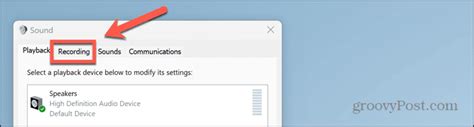
To access these settings, navigate to "Hardware and Sound" and then select "Sound" to open the Sound settings window. From there, click on the "Recording" tab. Choose the microphone you intend to use for recording and click on "Properties" situated at the bottom of the window.
Within the "Levels" tab, you have the ability to adjust the microphone boost. This setting can be crucial in minimizing background noise. If your microphone exhibits self-noise, a characteristic hum or static inherent to the device, reducing the microphone boost level can significantly help in its reduction.
You may or may not find an "Enhancements" tab. If it is present, click on it to locate options such as "Acoustic Echo Cancellation" and "Noise Suppression." By checking the corresponding boxes, you can enable these features to actively combat unwanted audio elements.
Optimizing Your Physical Recording Environment
Beyond software solutions, the physical setup of your recording space plays a pivotal role in minimizing background noise. For users employing an external microphone for audio and video calls, utilizing a microphone stand, or a makeshift alternative, is essential to prevent the transmission of buzzing sounds caused by accidental movements or vibrations.
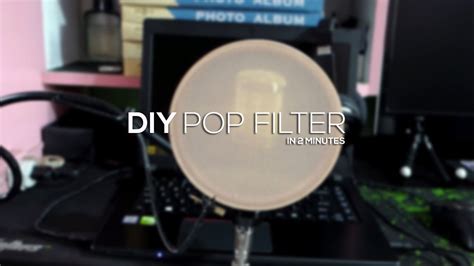
A pop filter is another invaluable tool in reducing unwanted noises, particularly those generated by plosive consonant sounds like "p" and "b." These filters act as a barrier, diffusing the direct impact of air from your voice before it hits the microphone diaphragm. While commercially available pop filters are widely accessible, a cost-effective DIY solution can be created using a thin sock stretched over a wire hanger, offering a surprisingly effective alternative.
Choosing your recording room with care is paramount. Ensure that there are no significant sources of loud noise in the vicinity and that windows and doors are securely closed to form a sound barrier. Some individuals opt for recording in closets, which naturally offer a degree of sound dampening due to their enclosed nature and the presence of clothing. Others may choose to treat their rooms by incorporating soft furnishings like carpets and covering flat, reflective surfaces with materials like acoustic foam or heavy drapes. Optimizing your room's acoustics by managing sound reflections can dramatically improve the clarity of your recordings and reduce intrusive background noise.
Harnessing the Power of Audio Editing Tools
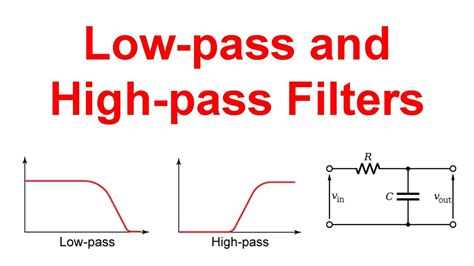
If your workflow involves editing audio in a Digital Audio Workstation (DAW) or a dedicated audio editor, you likely have access to equalization (EQ) tools that can be employed through high-pass and low-pass filters. These filters are powerful in selectively allowing certain frequency ranges to pass through while attenuating others.
A high-pass filter, for instance, permits only the higher frequencies within an audio signal to be transmitted, effectively removing lower-frequency ambient sounds such as humming or rumbling. This is particularly useful for mitigating low-frequency noise. Conversely, if the unwanted noise is of a high-pitched nature, like a persistent hiss, you can apply a low-pass filter. This filter works by attenuating the higher frequencies, thereby removing the hiss while preserving the desired audio content.
Exploring Dedicated Noise-Canceling Software
When operating in environments with significant background noise, the built-in tools offered by Windows 11 may not always suffice. Fortunately, a range of dedicated noise-canceling software solutions for Windows is available, specifically designed to tackle ambient noise reduction and enhance the quality of your audio recordings.
These software applications operate in two primary ways: either by enhancing audio quality within your audio editor after a recording has been made, or by applying noise reduction in real-time during live audio streams, such as video calls.
Leading Noise-Canceling Software for Windows
CrumplePop Noise Cancelling Software: For persistent background noise that plagues your sound recordings, CrumplePop's noise-canceling software offers an AI-powered solution. It can automatically identify and reduce a wide spectrum of unwanted sounds, including wind noise, plosive sounds, rustling, and traffic, often within seconds. The ease of use is a significant advantage; simply install the plug-ins, open your DAW, and apply CrumplePop's noise suppression tools to your audio clips. You can then adjust the intensity of the noise suppression in real-time until the background noises are effectively eliminated.
Introducing CrumplePop AI Audio Plugins by Boris FX
Zoom: For those frequently engaged in online video conferences and meetings, Zoom is likely a familiar platform. Zoom includes an integrated option for suppressing intermittent background noise and performing echo cancellation, accessible within the audio settings. By navigating to your profile, then "Settings," and subsequently the "Audio" tab, you can select "Zoom optimized audio" under the "Audio Profile." Here, you can choose from various levels of background noise suppression to find the optimal setting for your environment.
Google Meet: Google Meet also provides tools for ambient noise reduction, enabling clearer communication regardless of your location. However, unlike Zoom, Google Meet's noise reduction functionality is less customizable; you can either activate it or deactivate it within your audio settings. Access this feature by going to "Settings" > "Audio" and enabling the "ambient noise reduction" option.
Discord: Renowned for its robust voice chat capabilities, particularly within the gaming community, Discord offers excellent audio quality. Discord integrates with Krisp.ai, a powerful AI-driven noise removal technology, to eliminate microphone background noise during calls. To enable this, navigate to your user settings, then "Voice & video settings," and under "Advanced settings," you'll find options for "echo cancellation" and "noise suppression." While these settings are primarily functional within the Discord application, a standalone Krisp.ai app is available for broader system-wide noise cancellation.
Krisp.ai: If you desire Krisp.ai's noise enhancement capabilities across various applications beyond Discord, their free tier offers 60 minutes of daily noise cancellation. For unlimited usage, a subscription is available, providing access to unlimited AI noise and echo cancellation. Krisp.ai is compatible with any audio hardware, allowing you to select "Krisp Speaker" as your default output device in your computer's sound settings to enhance audio quality.
NVIDIA RTX Voice: Users with NVIDIA GTX or RTX graphics cards can benefit from NVIDIA RTX Voice. This software leverages machine learning to remove background noise from a wide range of applications, including video call software, in-game voice chats, and streaming platforms. It functions with any microphone connected to your system, offering a versatile solution.
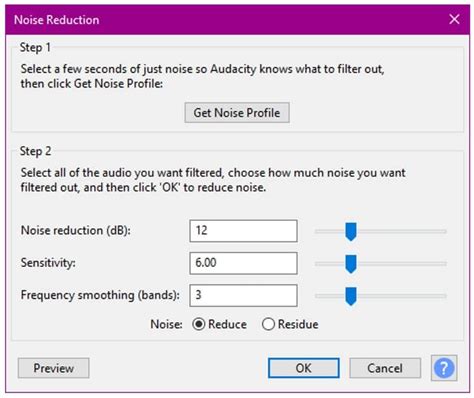
Audacity: As a free and open-source audio editor for Windows 11, Audacity provides a comprehensive suite of tools for recording and enhancing audio quality. Its "Noise Reduction" tool is particularly effective and straightforward to use for removing background noise. The process typically involves selecting a section of audio that contains only the unwanted noise, using Audacity's "Get Noise Profile" function, and then applying the noise reduction to the entire recording.
Additional Strategies for Noise Reduction
Beyond software and environmental controls, several other practical methods can significantly contribute to reducing microphone background noise.
Noise-Canceling Microphones: While investing in a dedicated noise-canceling microphone might seem like a significant step, it can yield substantial long-term benefits for video calls and audio recordings. If a specialized noise-canceling microphone is not immediately feasible, consider a dynamic microphone. Dynamic microphones are generally less sensitive to ambient sounds compared to condenser microphones or the built-in microphones found in most laptops and computers, making them inherently better at isolating your voice.
Wearing Headphones: Using headphones during audio recording is a simple yet effective practice. It helps to prevent audio feedback loops that can occur when sound from your monitor speakers is picked up by your microphone. For voice calls, a headset with a dedicated, often noise-canceling, microphone is an excellent choice, combining audio monitoring with improved voice capture.
Identifying and Mitigating Noise Sources: Proactively identifying and reducing sources of noise in your environment is crucial. This involves paying attention to audio devices that might produce inherent self-noise, such as certain home appliances or air conditioning units. Adjusting your microphone's volume can also help mitigate its self-noise. Simple actions like turning off fans, radios, and televisions during recording sessions can make a substantial difference. Furthermore, examine your audio setup, including audio cables and the power sockets you are using, for any potential sources of electrical interference or circuits that might be contributing to background sounds.
Troubleshooting Audio Enhancements in Windows 11
In Windows 11 specifically, a feature known as "Audio Enhancements" can be instrumental in removing and dampening background noise, by prioritizing what the system detects as your voice. In certain scenarios, this feature proves highly beneficial. However, when the objective is to record audio information other than vocals, such as music from MIDI controllers or other sound sources, these enhancements can inadvertently lead to a muffled sound, or in some cases, complete audio signal suppression. In such instances, disabling "Audio Enhancements" within the Windows 11 system audio settings is recommended to ensure the faithful capture of all desired audio information.
tags: #remove #background #noise #from #microphone #windows