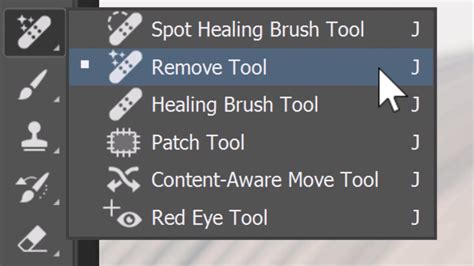
Photoshop's Remove Tool, a groundbreaking feature introduced in Photoshop 2023, has revolutionized the way users approach object removal and image retouching. Leveraging the power of artificial intelligence (AI) and machine learning, this tool allows for the instant elimination of people, objects, or distracting elements from photographs with remarkable ease. By simply painting over the unwanted areas, users can achieve clean and seamless results, significantly streamlining their photo editing workflow.
Understanding the Evolution of the Remove Tool
The Remove Tool's journey began with its initial release in Photoshop 2023, where its core functionality was to eliminate distractions by painting over them. However, Adobe has continuously refined this powerful tool, introducing significant enhancements in subsequent versions. A key development in Photoshop 2024 is the addition of a "Subtract mode." This feature addresses a common frustration from the 2023 version: the inability to correct mistakes made during the selection process. Previously, if a user accidentally painted over an area they intended to keep, there was no direct way to deselect it before the removal process commenced. The Subtract mode elegantly solves this by allowing users to easily refine their selections, ensuring greater precision and control.
Enhancements in Photoshop 2024: Subtract Mode and Workflow Improvements
The introduction of Subtract mode in Photoshop 2024 marks a significant leap in user experience. Previously, in Photoshop 2023, the Remove Tool operated solely in an "Add to brushed area" mode. This meant that any area painted over was intended for removal. The new Subtract mode, however, offers a crucial layer of flexibility. Users can now subtract areas they may have highlighted by mistake before the removal process takes place. To enable this functionality, it's necessary to ensure that "Sample all layers" is turned on in the Options Bar. Furthermore, for the Subtract option to work effectively, the "Remove after each stroke" setting must be temporarily turned off. When this is done, holding down a specific key (as indicated by a change in the brush cursor icon from a '+' to a '-') activates Subtract mode. This allows users to meticulously refine their selections, even subtracting areas within a larger selection where original detail needs to be preserved, such as sand or water showing through a painted-over object.
From Full Coverage to Outline Selection: A More Efficient Approach
Another notable improvement, particularly evident when comparing Photoshop 2023 to Photoshop 2024, concerns the method of selecting objects for removal. In the earlier 2023 version, users were required to paint over the entire object they wished to remove, including any associated shadows. This could be a time-consuming process, especially for larger or more complex items. Photoshop 2024 has streamlined this significantly. Now, there's no need to meticulously cover the entire area. Instead, users can simply paint an outline around the object. The AI then intelligently interprets this outline to remove the intended element. This change drastically reduces the time and effort required for object removal, making the process much more efficient.
The Power of AI and Machine Learning
At its core, the Remove Tool is powered by sophisticated AI and machine learning algorithms. These technologies enable Photoshop to analyze the surrounding pixels and intelligently generate a replacement for the removed object, aiming to seamlessly integrate the edited area with the rest of the image. While this AI-driven approach is incredibly powerful, it's important to note that it's not always as potent as Generative Fill, another AI-powered feature in Photoshop. Occasionally, the Remove Tool might produce unexpected results, such as introducing peculiar artifacts or repetitive textures. Therefore, users may sometimes need to apply the Remove Tool over an area multiple times to achieve the desired outcome.
Understanding the "Auto" Mode and its Implications
The Remove Tool offers an "Auto" mode in its settings. When this mode is enabled, Photoshop dynamically decides whether to employ traditional Content-Aware technology or its more advanced Generative AI capabilities. This intelligent switching allows the tool to adapt to the complexity of the removal task at hand, potentially leveraging the most effective method for each specific situation.
Comparing the Remove Tool with Other Photoshop Healing Tools
The Remove Tool is not an isolated solution for image retouching. Photoshop offers a suite of tools designed for similar purposes, each with its strengths and weaknesses. Understanding these differences helps users select the most appropriate tool for their specific needs.
Spot Healing Brush Tool
The Spot Healing Brush Tool is an excellent choice for addressing minor imperfections or small, isolated objects. It works by sampling pixels from surrounding areas and blending them to cover the selected spot. While it can be effective for quick touch-ups on blemishes or tiny distractions, it often requires repeated applications for larger or more complex areas and may not produce as seamless results as the Remove Tool for more significant removals.
Content-Aware Fill
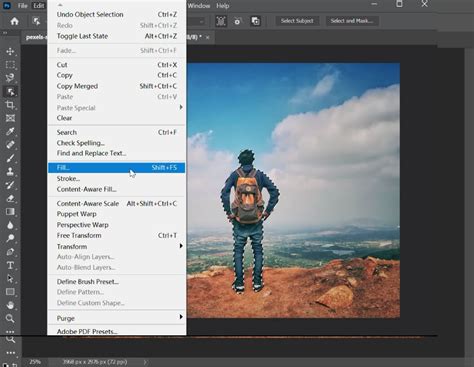
Content-Aware Fill is a more advanced technique for removing objects. When an object is selected, users can access Content-Aware Fill via Edit > Fill. Photoshop then analyzes the surrounding pixels and attempts to fill the selected area intelligently. While this can yield good results, users might sometimes observe abrupt transitions or mismatched areas. A more refined version is the dedicated Content-Aware Fill workspace, which offers a preview of the fill and allows users to control which areas Photoshop samples from. However, even this advanced feature can struggle with highly complex scenes, where the Remove Tool often proves to be a superior option.
Clone Stamp Tool
The Clone Stamp Tool, a long-standing feature in Photoshop, operates on a different principle. It allows users to manually copy pixels from one area of an image and paint them onto another. This offers a high degree of precision and control, making it invaluable for intricate retouching tasks or when dealing with specific patterns that AI might struggle to replicate. However, it is a manual process that requires skill and patience, especially for removing larger objects. Some users even employ the Clone Stamp Tool to clean up minor imperfections or repetitive patterns that the Remove Tool might inadvertently introduce.
Generative Fill vs. Remove Tool: A Crucial Distinction
It's important to clarify a common point of confusion: the Remove Tool should not be mistaken for Generative Fill, even though Adobe initially referred to Generative Fill by a similar name. While both leverage AI, their underlying mechanisms differ. The Remove Tool primarily uses AI that scans and analyzes the existing pixels within your image to intelligently repair the selected area. In contrast, Generative Fill utilizes AI that draws upon its vast knowledge base of countless images to create new pixels that best fit the selected spot. This distinction is crucial for understanding their respective capabilities and limitations. Generative Fill can be more creative and capable of introducing entirely new elements, while the Remove Tool focuses on seamless integration and removal of existing content.
REMOVE TOOL vs GENERATIVE FILL : which one erases best ?
Advanced Techniques and Best Practices
To maximize the effectiveness of the Remove Tool, several advanced techniques and best practices can be employed.
Working Non-Destructively with "Create New Layer"
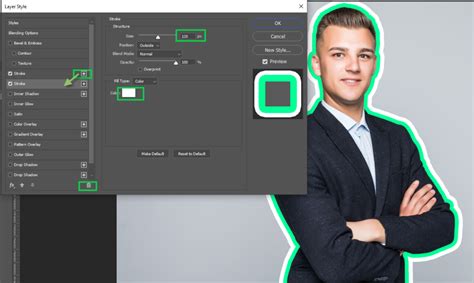
A fundamental principle of non-destructive editing in Photoshop is to avoid making permanent changes directly to the original image layer. The Remove Tool offers an option to "Create New Layer." When this is enabled, Photoshop places all removals on a separate layer. This is incredibly beneficial as it allows users to easily hide, move, or delete the generated content without affecting the original image. Working non-destructively provides greater flexibility and control throughout the editing process.
Leveraging "Find Distractions" for Specific Objects
The Remove Tool includes a "Find Distractions" feature, which is particularly useful for automatically removing common problematic elements like wires, cables, or even people. With a single click, Photoshop can identify and eliminate these distractions. While this feature is remarkably effective, it's worth noting that it might sometimes miss subtle elements like wire shadows, which may require manual cleanup using the Remove Tool or other healing brushes.
Adjusting Brush Settings and Overlay Opacity
The size of the brush used with the Remove Tool can be adjusted to match the area being worked on. For users working with pressure-sensitive drawing tablets like Wacom, brush size can often be controlled by pen pressure, allowing for more nuanced selections. Additionally, the red overlay that indicates the painted selection can sometimes be difficult to see against certain backgrounds. Users can adjust the opacity of this overlay via the gear icon in the Remove Tool's options, improving visibility and precision.
Precision with Manual Selections
While painting directly with the Remove Tool is often sufficient, complex shapes or objects that require very precise selection can benefit from a more manual approach. Users can utilize selection tools like the Lasso Tool to carefully outline the object. Once the object is selected, the "Remove" option can be accessed from the contextual toolbar, providing a more controlled method for removal.
Troubleshooting and Achieving Optimal Results
Despite the power of the Remove Tool, achieving perfect results isn't always immediate. Several factors can influence the outcome, and understanding how to troubleshoot is key.
Iterative Refinement and Undoing Mistakes
As mentioned earlier, AI-generated results are not always perfect on the first attempt. If a removal looks unusual or contains unwanted artifacts, the best course of action is to undo the operation (Ctrl+Z or Cmd+Z) and try again. Experimenting with different brush sizes, coverage areas, or even slightly adjusting the selection can often lead to a better outcome. If Photoshop generates unexpected shapes or textures, undoing the action, deleting the generated layer (if working non-destructively), and retrying the removal is a standard procedure.
Understanding the "Remove Tool's Fingerprint"
In some instances, the Remove Tool can leave behind a subtle but discernible pattern within the replaced area. This has been referred to as the "Remove Tool's fingerprint" and can be a significant issue if not addressed. To rectify this, experienced users may resort to using the Clone Stamp Tool to manually blend and break up these repetitive patterns, effectively restoring a more natural appearance to the edited area.
Resetting Tools and Preferences
Before embarking on extensive editing with the Remove Tool or any other Photoshop feature, it's a good practice to reset your tools and workspace. This can prevent unexpected behavior caused by outdated settings. To reset all tools, right-click on any tool icon in the toolbar and select "Reset All Tools." Resetting your workspace can be done via the "Window > Workspace" menu. Additionally, resetting Photoshop preferences (found under "Photoshop > Settings > General" on Mac or "Edit > Preferences" on Windows) can resolve deeper-seated issues. Choosing "Reset All Warning Dialogs" and "Reset Preferences on Quit" can help ensure a clean slate.
Conclusion: A Powerful Addition to the Photoshop Toolkit
Photoshop's Remove Tool represents a significant advancement in digital image editing. Its AI-powered capabilities, coupled with user-friendly enhancements like Subtract mode and efficient selection methods, make it an indispensable tool for photographers, designers, and hobbyists alike. While it's essential to understand its nuances and compare it with other editing tools, the Remove Tool undoubtedly streamlines the process of eliminating unwanted elements, allowing users to focus on enhancing the creative aspects of their images. The continuous development and refinement of this tool promise even more powerful and intuitive object removal capabilities in the future.