Changing the size of an image in Adobe Photoshop is a fundamental skill, but the terms "resizing" and "resampling" often cause confusion. While they both alter an image's dimensions, they operate on different principles and have distinct impacts on image quality and data. Understanding the nuances between these processes is crucial for achieving desired output, whether for on-screen viewing or high-quality printing. This article delves into the definitions, methods, and implications of resampling and resizing in Photoshop, aiming to clarify these concepts for users of all levels.
The Core Concepts: Resolution, Resizing, and Resampling
At its heart, digital image manipulation involves understanding how detail is represented and how that representation can be altered.
Resolution: The Foundation of Detail
Resolution refers to the amount of detail an image contains. It is typically measured in dots per inch (DPI) for printing or pixels per inch (PPI) for on-screen display. A higher resolution means more dots or pixels are packed into a given area, resulting in a sharper, more detailed image. Printing generally requires a higher resolution than viewing a photo on a computer monitor to achieve satisfactory quality.
Resizing vs. Resampling: A Crucial Distinction
The terms "resizing" and "resampling" are often used interchangeably, but they signify different operations within Photoshop.
- Resizing refers to changing a photo's print dimensions - its physical length and width. This can be done with or without resampling, depending on the user's intent.
- Resampling, on the other hand, means changing the pixel dimensions of an image. This involves either adding new pixels or removing existing ones, thereby altering the total amount of data within the image file. Resampling is primarily done for on-screen viewing or when a specific pixel count is required, and it almost always leads to some degradation in image quality.
The Mechanics of Resampling: Upsampling and Downsampling
When you resample an image in Photoshop, you are fundamentally altering the number of pixels it contains. This process can be categorized into two main operations: downsampling and upsampling.
Downsampling: Reducing Pixel Count
If you decrease the number of pixels in an image, you are performing downsampling. This process permanently discards data from the image. Photoshop uses an interpolation method to determine how pixels are deleted, attempting to maintain as much visual information as possible. Downsampling is often preferred over upsampling because removing data is generally more straightforward and results in less noticeable quality loss compared to adding data. When you downsample, the image quality can degrade to some extent, but the resulting file size is reduced, and the image may appear sharper.
Upsampling: Increasing Pixel Count
Upsampling involves creating new pixels to expand the image's dimensions. When you upsample, Photoshop guesses which new pixels to add based on the surrounding pixels. The interpolation method you choose dictates how these new pixels are generated. Upsampling always requires Photoshop to add data, which can lead to a noticeable loss of image quality, often manifesting as pixelation or a softened appearance. This procedure is more complex than guessing which pixels to remove when you downsample, and consequently, it carries a higher risk of compromising image integrity.
Interpolation Methods: How Photoshop Creates New Pixels
The way Photoshop creates or discards pixels during resampling is governed by interpolation methods. These algorithms dictate how the software calculates the color values of new pixels or how it averages existing ones when reducing pixel count. Photoshop offers several interpolation methods, each with its own characteristics and best-use scenarios.
Understanding the Interpolation Options
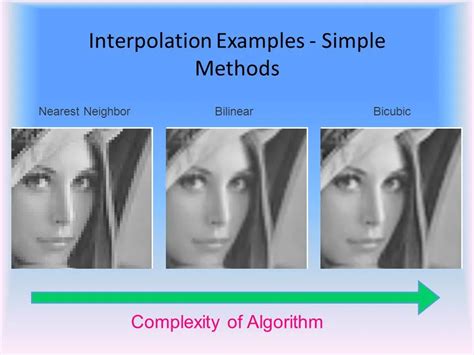
- Nearest Neighbor (Row based): This method is fast but not precise. It simply duplicates the nearest pixel, which can result in jagged edges and a blocky appearance, especially when upsampling.
- Bilinear: This approach uses pixel averaging. It considers the color values of adjacent pixels to create a new one, offering a smoother result than Nearest Neighbor but still not ideal for significant enlargements.
- Bicubic: This method is slower but more precise than the first two. Photoshop spends more time examining surrounding pixels before interpolating new ones. It uses a cubic function to calculate pixel values, generally producing smoother gradients and sharper details.
- Bicubic Smoother: This is a refinement of Bicubic, specifically designed to produce smoother results, making it more suitable for upsampling (enlarging images).
- Bicubic Sharper: This is another refinement of Bicubic, intended to enhance sharpness, making it useful for downsampling (shrinking images) where preserving edge detail is important.
- Preserve Details 2.0: Ever since Preserve Details 2.0 came out, many users have employed it for upsampling with great success. This method is often considered superior for enlargements, as it aims to retain finer details.
- Automatic: This option allows Photoshop to automatically switch among the three bicubic methods based on the task at hand, offering a convenient way to leverage the best interpolation for the specific operation.
Photoshop allows you to choose a default interpolation method. This default will be used when you invoke a sizing command, such as the Free Transform or Image Size command, unless you manually select a different method.
Resizing Without Resampling: Maintaining Pixel Data
While resampling changes the number of pixels, resizing without resampling maintains the original pixel dimensions of an image. This is achieved by altering the image's physical size (e.g., inches or centimeters) or its resolution (PPI/DPI) while keeping the total pixel count constant.
The Image Size Dialog Box: Controlling Dimensions and Resolution
The Image Size dialog box (found under the Image menu) is the primary tool for both resizing and resampling in Photoshop. It is divided into two main sections: Pixel Dimensions and Document Size.
- Pixel Dimensions: This section displays the width and height of your image in pixels, along with the file size. These are the actual attributes of the image.
- Document Size: This section shows the physical dimensions (Width and Height) at which the image will print and the resolution (PPI). These are essentially instructions or "recommendations" for how the image should be rendered.
How Resizing Without Resampling Works
When you deselect the "Resample Image" option in the Image Size dialog box, the pixel dimension fields become unavailable, as you are not changing the number of pixels. Instead, you can only modify the physical size or the resolution.
- Changing Physical Size: If you change the physical size (e.g., from 4 inches to 2 inches) without resampling, Photoshop compensates by increasing the resolution (PPI). For instance, reducing the physical size by half will double the resolution, as twice as many pixels can now fit into the same space.
- Changing Resolution: Conversely, if you change the resolution (e.g., from 100 PPI to 200 PPI) without resampling, Photoshop will automatically adjust the physical size to accommodate the increased pixel density.
In essence, when you resize without resampling, you are telling Photoshop how to interpret the existing pixels for printing. You are not adding or removing data, but rather changing the instructions for how that data is laid out on a physical medium. This method is ideal when you need to adjust the print size of an image without compromising its inherent detail or introducing artifacts from pixel manipulation.
When to Resample and When to Resize
The choice between resampling and resizing depends entirely on your intended output and the source image quality.
Resampling: For On-Screen Viewing and Specific Pixel Needs
You resample primarily for on-screen viewing or when you need to meet specific pixel dimension requirements for web use, digital displays, or certain printing workflows where the pixel count is paramount. Resampling to smaller dimensions (downsampling) reduces file size and can sharpen the appearance, making it useful for web optimization. Upsampling, while often necessary, should be approached with caution due to potential quality degradation.
Resizing Without Resampling: For Print Quality and Maintaining Detail
You resize without resampling when your primary goal is to adjust the physical print size of an image while preserving its original pixel data and quality. This is especially important for professional printing, where maintaining the integrity of the original pixels is crucial for sharp, detailed results. For example, if you need to place a high-resolution image into a layout program like InDesign, resizing without resampling ensures that the image's pixel count remains consistent, preventing unexpected quality issues when the layout is printed.
Understanding Image Size in Photoshop - About Pixels, Resampling, and Resizing a Photoshop Image
Advanced Techniques and Considerations
Beyond the basic Image Size dialog, other tools and features in Photoshop can influence image dimensions and quality.
The Crop Tool: Flexible Dimension Control
The Crop tool can also be used to resize an image, and its behavior regarding resampling can be nuanced. When you use the Crop tool, you are essentially defining a new boundary for your image. Depending on the settings you choose in the Crop tool options bar, you can either resample the image (changing pixel dimensions) or resize without resampling (adjusting physical size and resolution).
- Cropping with Resampling: If you specify pixel dimensions or a resolution that differs from the original image, and "Resample" is enabled in the options, Photoshop will add or remove pixels accordingly.
- Cropping Without Resampling: By default, the Crop tool often attempts to maintain the original resolution. If you set a specific physical size (e.g., inches) in the options bar without changing the resolution, Photoshop will adjust the pixel dimensions proportionally to fit the new physical size while trying to retain the original resolution. Conversely, if you set pixel dimensions and a resolution, Photoshop will calculate a new physical size.
Super Resolution in Lightroom and Photoshop
Modern advancements in artificial intelligence (AI) and machine learning (ML) have introduced powerful tools for enhancing image resolution, particularly for upsampling. Features like "Super Resolution" in Adobe Lightroom and Photoshop can significantly improve the quality of enlarged images. These tools analyze the image context and use AI to intelligently add pixels, often doubling the image size and quadrupling the pixel count while minimizing the artifacts associated with traditional upsampling. This approach offers a way to achieve high-quality results even when starting with lower-resolution images, bridging the gap between what was once possible and movie-magic-like enhancements.
Practical Advice and Common Misconceptions
Navigating image resizing and resampling can be tricky, and several common misconceptions persist.
The "Enhance" Fallacy
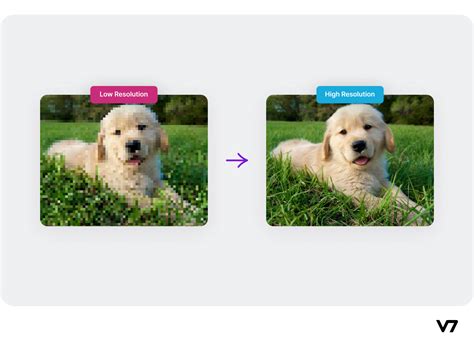
The familiar scene from movies where a detective "enhances" a blurry image to reveal crucial evidence is largely a work of fiction. While AI tools have made remarkable progress, they cannot conjure detail that was never captured. Upsampling can make an image larger and smoother, but it cannot magically add missing information.
PPI vs. DPI: A Subtle Difference
It's important to remember that Pixels Per Inch (PPI) is a measure of digital image resolution, while Dots Per Inch (DPI) relates specifically to printers and the ink dots they use. Generally, there are 2.5 to 3 dots of ink per pixel. While often used interchangeably in casual conversation, understanding this distinction is key when preparing images for print.
The "Opposite" Behavior in Photoshop
Some users report that when they uncheck "resample" and change the PPI, the image size doesn't change, while checking "resample" and changing PPI does change the image size, appearing opposite to what is often written. This can be understood by realizing that PPI is an instruction. When "resample" is unchecked, you are instructing Photoshop on how to print the existing pixels. Changing PPI without resampling changes how those pixels are interpreted for print, thus changing the physical print size without altering the pixel count. When "resample" is checked, you are instructing Photoshop to change the pixel count to meet a new PPI or dimension requirement, and it interpolates to achieve this, thus altering both pixel count and physical size.
Ultimately, the best way to achieve high-resolution images is to capture them at the appropriate resolution from the start. However, for improving older digital photos or adapting images for specific outputs, Photoshop and Lightroom offer powerful tools to help you achieve the best possible results. Experimentation with features like Super Resolution, resampling with appropriate interpolation methods, and careful resizing without resampling will help you maximize your image quality.
tags: #resample #photoshop #definition