Adobe Lightroom Classic is a powerful tool for photographers, offering robust cataloging and non-destructive editing capabilities. However, many users, from hobbyists to seasoned professionals, report experiencing performance issues that can significantly hinder their workflow. This article delves into the common causes of sluggishness in Lightroom Classic and provides a comprehensive guide to optimizing its performance, focusing on a smoother, more responsive editing and management experience.
Understanding Lightroom Classic's Performance Demands
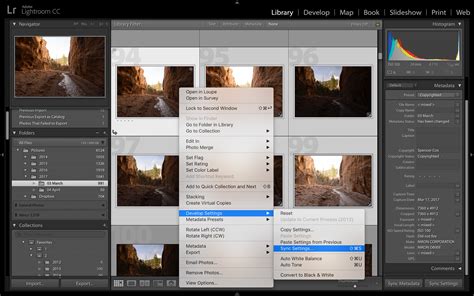
Lightroom Classic's performance is intrinsically linked to how it manages and processes image data. The software builds a large database of your images, enabling advanced features like searching by specific camera settings or keywords, managing labels, and applying non-destructive edits. This non-destructive nature means every adjustment is calculated against previous edits, requiring significant processing power. Furthermore, the creation and management of various preview types - minimal, standard, and 1:1 - play a crucial role in how quickly you can navigate and interact with your images.
The way Lightroom Classic handles these previews can impact your system's resources. Minimal previews are fast to create, being small, low-resolution JPEGs embedded within the camera's generated files. Standard previews are generated by Lightroom Classic using the Camera Raw engine, offering a balance between speed and accuracy, though they can sometimes differ from embedded previews due to the RAW processor's interpretation. The most resource-intensive are 1:1 previews, which represent a 100% view of actual pixels and are also processed by the Camera Raw engine. While essential for detailed inspection, their creation can be time-consuming and consume substantial disk space.
Managing Previews for Optimal Performance
The management of previews is a cornerstone of improving Lightroom Classic performance. When you import images, you have the option to generate different types of previews. While importing with only minimal or embedded previews might seem faster initially, Lightroom Classic often generates standard and 1:1 previews automatically as you work, which can disrupt your workflow. To mitigate this, it's advisable to manage when and how you render these previews.
Consider rendering 1:1 previews on import using the File Handling panel within the import window. Alternatively, for a speedier import process, you can opt to render minimal or standard previews initially. You can then select multiple photos in the Library module's Grid view and choose Library > Previews > Render 1:1 Previews at a later time.
The size of standard previews is also configurable. For optimal performance, choose a standard preview size that closely matches the longest edge of your screen resolution, without being shorter. Larger monitors with higher resolutions naturally require Lightroom to perform more calculations for previews and pixel updates during editing.
The Role of the Catalog and Camera RAW Cache
Lightroom Classic's catalog file (.lrcat) stores all your image edits and metadata. Optimizing this catalog is a crucial step for maintaining performance. Regularly choose File > Optimize Catalog to improve its stability and speed. Furthermore, when exiting Lightroom Classic and backing up your catalog, select the "Test Integrity Before Backing Up" and "Optimize The Catalog After Backing Up" options for enhanced catalog health.
The Camera Raw cache also plays a significant role. This cache stores image data for faster access when you switch to the Develop module. The default setting is typically 5 GB, but increasing this to around 20 GB or more can yield substantial performance benefits. For maximum speed, ensure your Camera Raw cache is located on a fast Solid State Drive (SSD). Anecdotal evidence suggests that placing the Camera Raw cache on a separate drive from your system files might further improve performance, though this is not definitively proven.
Leveraging Hardware and System Resources
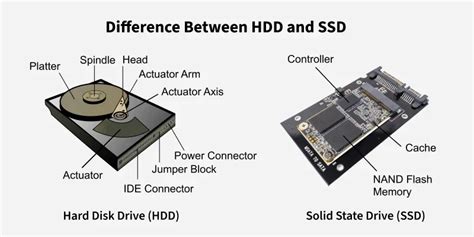
The hardware your computer possesses directly influences Lightroom Classic's performance. The speed of an SSD is paramount. Lightroom Classic stores its preview files alongside the catalog file, and an SSD ensures that this preview data can be accessed much faster. For users with large catalogs and extensive preview generation, a dedicated SSD for the Lightroom catalog can be a worthwhile investment, making management of the growing preview file size more feasible.
Modern graphics processing units (GPUs) can also accelerate certain tasks within Lightroom Classic. Adobe has optimized the software to leverage the GPU, though its impact is not universal across all functions. Larger, higher-resolution monitors tend to benefit most from GPU acceleration. You can configure Lightroom Classic to use your system's graphics card by selecting "Custom" in the GPU settings and enabling "Full graphics acceleration." This can lead to a noticeable improvement in image editing tasks.
Managing Background Processes and Syncing
Lightroom Classic performs various background tasks that can consume system resources and slow down your editing. Image syncing with Creative Cloud, for instance, uses CPU and system resources to create previews and upload/download images. Temporarily pausing "Sync With Lightroom" while importing and editing on your desktop can significantly improve responsiveness. Similarly, background processes like face detection and address lookup can be paused if they are impacting performance.
How to Automatically Batch Edit And Sync Photos In Lightroom Classic #2MinuteTutorial
Optimizing Editing Workflows
The way you edit images can also influence Lightroom Classic's speed. For instance, the order in which you apply develop edits can impact performance. Global non-detail corrections like Exposure and White Balance should ideally be applied before more complex adjustments. Some filters can inherently slow down the Develop module.
The Spot Removal Tool and Local Corrections Brush are not designed for an extensive number of corrections. If you find yourself applying hundreds or thousands of local adjustments, it's worth checking your History panel. While the History panel itself has no limits and is not deleted unless specified, a large number of local corrections can tax the system.
Editing images sequentially in the filmstrip can also improve performance, as Lightroom Classic preloads the next and previous images into memory. Hopping randomly between images can lead to delays as the software struggles to load the necessary data.
Advanced Considerations and Workarounds
The "Automatically write changes into XMP" setting, while convenient for cross-application compatibility (e.g., with Adobe Bridge and Camera Raw), can significantly degrade Lightroom Classic's performance. If you don't regularly use these other applications, consider disabling this preference. Even with it off, you can manually save metadata changes to individual files when needed. Lightroom Classic has, however, improved this by temporarily pausing automatic XMP writing during imports.
Smart Previews offer a way to manage large image libraries, especially when traveling, by creating smaller, editable versions of your RAW files. While editing Smart Previews can be faster, it's important to note that when you zoom to 1:1, Lightroom Classic will still need to render the original file. Therefore, their effectiveness for performance gains in the Develop module, especially at 1:1 zoom, can be limited.
Some users report issues with smooth scrolling in the Library module, describing it as "jumping" rather than fluid. While this can be frustrating, it's important to investigate system-specific settings and potential conflicts.
Issues with previews not rendering properly after applying presets can also occur. In such cases, forcing the image onto the main screen or opening it in the Develop module might be necessary to trigger the preview update.
The presence of numerous presets can also impact performance. Lightroom Classic generates thumbnails for each preset in the Navigator panel, and having thousands of presets can lead to a noticeable slowdown.
For users experiencing persistent performance issues, upgrading hardware, particularly investing in a desktop computer with greater expansion options and higher-powered components, may be the most effective solution. Regular restarts of Lightroom Classic, while a temporary fix, can also resolve transient slowdowns.
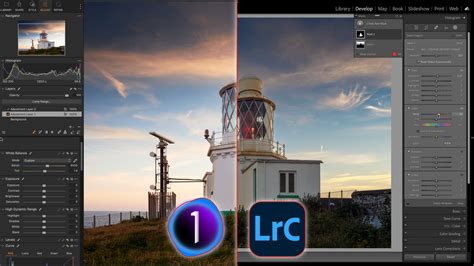
Finally, staying updated with the latest Lightroom Classic releases is crucial. Adobe consistently releases updates that include performance improvements, bug fixes, and new features designed to enhance the user experience and efficiency of the software. For example, updates have improved library navigation, GPU acceleration, metadata handling, and batch editing speeds.
By systematically addressing these areas - from preview management and catalog optimization to hardware utilization and workflow adjustments - photographers can significantly improve the performance of Adobe Lightroom Classic, leading to a more fluid and productive editing experience.