The world of video editing and color grading is constantly evolving, with new tools and techniques emerging to enhance creative workflows. For professionals and enthusiasts alike, optimizing efficiency and precision is paramount. One such tool that has gained significant traction is the Elgato Stream Deck Plus, particularly when paired with specialized software profiles. This article delves into how the Stream Deck Plus, in conjunction with the SideshowFX Color Panel system, can revolutionize your DaVinci Resolve experience, offering an affordable yet powerful way to customize and expand your control surface.
Understanding the Stream Deck Plus and Its Potential in DaVinci Resolve
The Elgato Stream Deck Plus is a versatile device that combines physical buttons with a touch-sensitive strip and rotary dials. This unique combination allows for a highly customizable user interface, enabling users to assign a vast array of functions and shortcuts to each element. When integrated with DaVinci Resolve, a professional-grade video editing and color grading software, the Stream Deck Plus can significantly streamline complex tasks, especially within the Color page.
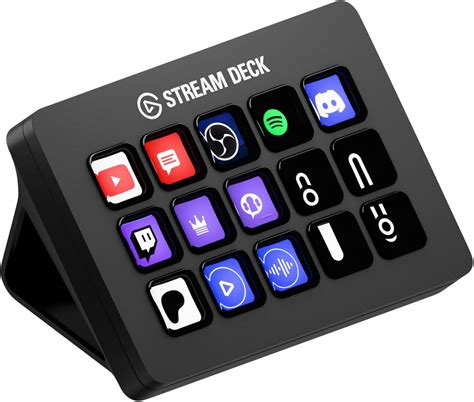
The primary advantage of using the Stream Deck Plus with DaVinci Resolve lies in its ability to provide tactile control over functions that are typically accessed via a mouse and keyboard. This is particularly beneficial for colorists, editors, and Digital Imaging Technicians (DITs) who spend extensive hours making precise adjustments. The addition of dials on the Stream Deck Plus offers a "more/less" tactile interaction with a multitude of controls in DaVinci Resolve and other creative software, making adjustments feel more intuitive and responsive.
For those already invested in a smaller control panel, such as a Tangent Ripple, the Stream Deck Plus offers a way to add extra functionality and custom controls at an affordable price point. It acts as a potent expansion to an existing setup, allowing users to place a vast array of bespoke controls at their fingertips.
The SideshowFX Color Panel: Unlocking DaVinci Resolve's Depths
The true power of the Stream Deck Plus in DaVinci Resolve is unlocked through specialized software profiles, such as those offered by SideshowFX. Their Color Panel system, with its bespoke mouse-pointer plugin, opens up access to a comprehensive range of DaVinci Resolve controls in a highly satisfying manner. This system has been designed to be exhaustive, attempting to map "all of the accessible" controls within the software.
The SideshowFX Color Panel includes pre-built profiles for common single display resolutions, such as 1440 x 900, 2048 x 1152, and 2560 x 1440, alongside a "Generic" profile for those who prefer to build their setup from scratch. A significant benefit of these profiles is the inclusion of hundreds of custom shortcut icons, which are invaluable for clearly labeling each button on the Stream Deck Plus. This visual aid greatly enhances usability and reduces the cognitive load during demanding editing sessions.
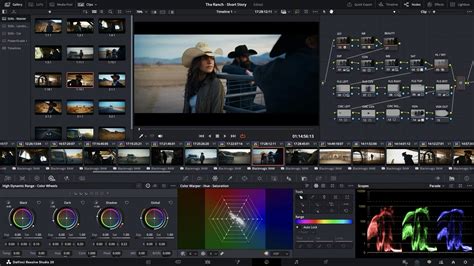
One of the hallmarks of SideshowFX's products is their excellent supporting documentation. This is crucial, as the sheer number of controls that the Color Panel maps can initially seem overwhelming. The setup process, while detailed, is designed to be relatively straightforward.
Essential Setup Tips for DaVinci Resolve Studio Users
For users of DaVinci Resolve Studio, a crucial initial step involves enabling HDR functions. This is done by navigating to DaVinci Resolve > Project Settings > Color Management and turning on the HDR options. It is advisable to perform this before any other customisation of the header icons, as enabling HDR functions can shift the position of other icons.
The process of mapping mouse-point coordinates for each control can be time-consuming. To mitigate this, users are advised to explore accessibility features like "Mouse Keys" on macOS. This feature allows control of the mouse pointer using the number pad or keyboard, facilitating finer control during the setup process.
The integration of the Stream Deck Plus with DaVinci Resolve is facilitated by a specialized "Mouse move" plugin. This plugin enables the Stream Deck Plus to interact with any adjustable control on any page within Resolve, or indeed, any application. This offers immense flexibility, allowing users to extend the tactile control of their Stream Deck Plus beyond just the Color page.
Embracing Customization for Optimal Workflow
While pre-built profiles are a fantastic starting point, the SideshowFX Color Panel system acknowledges that every user's workflow is unique. Therefore, it is highly recommended to duplicate any pre-built profile and then customize it to fit individual needs. This involves copying and pasting keys around, remapping shortcuts, and generally tailoring the interface to optimize efficiency. The process of customization can be made more enjoyable by listening to a podcast, allowing for a relaxed approach to fine-tuning your setup.
The quad-function buttons on the touch strip of the Stream Deck Plus have also proven to be surprisingly effective. While initial testing with Adobe Premiere Pro showed mixed results due to how Premiere interpreted scrolling mouse movements, the potential for experimentation outside of Resolve is significant. The power to play with these functionalities is certainly present for users to explore.
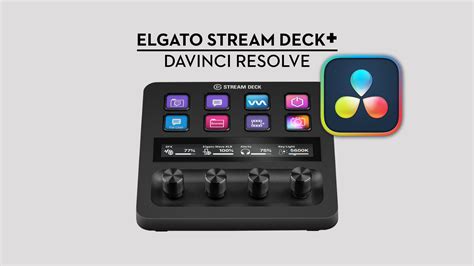
The ability to combine access to different functionalities is also a key benefit. For instance, one might remap a specific key, like the 'Printer Lights' on a DaVinci Main SD+ Mac profile, to a different profile, such as the Mac Color Panel SD+ MAIN Generic profile. This allows for seamless switching between distinct sets of controls tailored for different tasks.
Navigating the Nuances: Strengths and Limitations
The process of grading with the Stream Deck Plus can be both fun and productive, provided users embrace its inherent limitations. Certain controls work exceptionally well with a dial interface. All sliders and number inputs, for example, function effectively when assigned a mouse point coordinate. These types of adjustments are perfectly suited for the "more/less" interaction offered by the dials.
However, other UI elements, such as the color wheels and some of the secondary adjustments, can be more cumbersome to work with when controlled via a dial and mouse proxy. In these specific cases, using a traditional mouse might prove to be better and faster. This is a crucial point to understand: while the Stream Deck Plus offers immense control, it doesn't always replace the precision and speed of a direct mouse interaction for every single element.
A significant limitation compared to dedicated color grading panels is the ability to adjust only one control at a time. This is due to the underlying mouse-proxy mechanism; otherwise, the system wouldn't know which control to target. This is a trade-off for the affordability and flexibility that the Stream Deck Plus and SideshowFX combination offers.
One control that many colorists have long wished for more tactile interaction with is the RGB Mixer. The Stream Deck Plus, when configured with the SideshowFX Color Panel, can provide this, allowing for more intuitive adjustments to individual Red, Green, and Blue channels.
Stream Deck Profile for Editing in DaVinci Resolve
Who Benefits Most from This Setup?
The Stream Deck Plus, in conjunction with the SideshowFX Color Panel, is an ideal solution for colorists, editors, and DITs looking to expand and customize their existing control surfaces. It offers an affordable and flexible option to enhance workflow efficiency. The tactile interaction provided by the dials allows for precise adjustments on a vast array of DaVinci Resolve controls, making complex grading tasks more manageable and enjoyable.
If you already own the Stream Deck Plus and work extensively within DaVinci Resolve, purchasing the SideshowFX Color Panel plugin and profiles is a no-brainer. It provides immediate access to a powerful set of customized controls, saving significant time and effort in setup. The advice to "Donât miss reading the manual!" cannot be overstated, as understanding the intricacies of the system will maximize its benefits.
The desire for customizable interfaces is a driving force in modern creative workflows. The combination of the Stream Deck Plus and SideshowFX Color Panel directly addresses this need, making it a compelling option for anyone looking to refine their DaVinci Resolve experience. The systemâs flexibility even sparked a desire for having two such interfaces, highlighting its potential for further workflow optimization.