The landscape of video creation has been dramatically transformed by the advent of sophisticated AI technologies, among which Unscreen stands out as a revolutionary tool for background removal. This cloud-based software empowers users to accurately isolate foreground subjects from video footage, effectively eliminating the need for traditional green screen setups. Whether you're a professional filmmaker, a marketing specialist aiming to enhance content, or a videographer bringing client visions to life, Unscreen offers a streamlined and accessible solution. Its capabilities extend to creating dynamic social media content, engaging school projects, and even full-length feature films, making it a versatile asset for a wide range of users.

The Genesis of Unscreen: Building on AI Expertise
Unscreen's foundation lies in the advanced AI-driven background removal technology developed by its creator, Kaledio. Since 2018, Kaledio has been dedicated to refining this technique for still images, garnering significant recognition and a loyal customer base worldwide. The process involves feeding machine learning software with thousands of user-provided videos, meticulously teaching the AI to differentiate between foreground subjects and backgrounds. Through continuous refinement and prioritizing successful outcomes, the tool’s accuracy and efficiency have steadily improved. Engineers have further trained the software to recognize specific elements, such as hair accessories, as integral parts of the subject, thereby enhancing the precision of the background removal process.
How Unscreen Works: The AI Behind the Magic
At its core, Unscreen leverages artificial intelligence to perform complex video editing tasks with remarkable ease. The AI is trained on a vast dataset of videos, learning to identify and separate the main subject from its surroundings. This is achieved through sophisticated algorithms that analyze pixel data, motion, and object recognition patterns. For instance, the AI learns to recognize consistent patterns of movement and form that define a subject, while simultaneously identifying the static or less consistent elements that constitute the background.
One of the key challenges in background removal is dealing with intricate details like fine hair, semi-transparent objects, or reflective surfaces. These elements can often create "holes" or artifacts in the subject if not handled properly. Unscreen's AI is designed to tackle these challenges by understanding context and prioritizing the integrity of the subject. It can even be trained to recognize specific objects that should be considered part of the subject, such as a hat or glasses worn by a person. This continuous learning process ensures that Unscreen becomes progressively more adept at handling diverse and challenging video scenarios.
STOP Wasting Credits & Master Higgsfield AI in 8 Min
Addressing Common Challenges in Background Removal
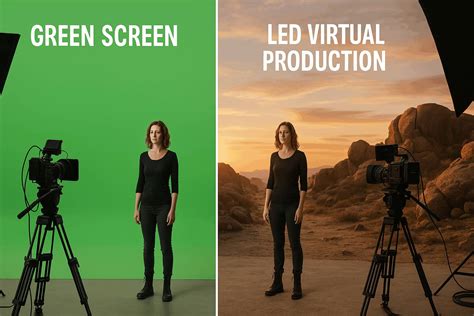
Traditional methods of background removal, such as using a green screen (chroma keying), require specific lighting conditions, a uniformly colored background, and often considerable post-production effort. Unscreen bypasses these requirements entirely. It can effectively remove backgrounds from videos shot in any environment, eliminating the cost and logistical complexities associated with green screen technology.
However, even advanced AI is not without its limitations. Reflective surfaces in the original footage can sometimes lead to the background being incorrectly incorporated into the subject. Similarly, very fine details like wisps of light hair or thin, translucent materials can pose challenges, potentially creating gaps or incomplete cutouts. The AI's ability to handle these situations is a testament to its ongoing development, with engineers actively working to improve its performance in these nuanced areas. The software also includes features to optimize videos, mitigating unwanted glowing effects or color spills that might occur when a subject is filmed against an intense background, thereby preserving finer details in the final cutout.
User Applications: From Education to Entertainment
The versatility of Unscreen has found a broad range of applications across various sectors. During periods of remote learning, educators have utilized Unscreen to create engaging content for their students. This includes crafting personalized "meet-the-teacher" GIFs, animating themselves to deliver information, and even integrating animated elements into their teaching materials. For example, a Spanish teacher might insert a talking animated pet into their lesson to make learning more interactive.
Marketing professionals leverage Unscreen to add a professional polish and extra visual appeal to their promotional content, making advertisements and corporate videos more dynamic and captivating. Videographers find it invaluable for bringing their clients' creative visions to life, enabling them to produce visually stunning results without the constraints of traditional studio setups. For social media content creators, Unscreen offers a quick and easy way to produce eye-catching GIFs and video clips that stand out in crowded feeds. Even for personal projects, such as school assignments or creative storytelling, Unscreen democratizes advanced video editing capabilities, making professional-looking results achievable for everyone.
Accessing Unscreen: Free vs. Pro Versions
Unscreen offers two primary avenues for users to access its powerful background removal capabilities: a free version and a paid subscription service, Unscreen Pro.
Unscreen Free Video Background Remover
The free version of Unscreen is designed for simplicity and immediate use. Users can upload video clips of up to 5 seconds directly to the Unscreen homepage. By signing up, this limit can be extended to 10 seconds. This allows for quick background removal from videos and GIFs, entirely online and free of charge. The processed clips can be downloaded in several formats, including GIF, Animated PNG, or as a ZIP file containing individual PNG/JPG frames. While this free tier is convenient, the output resolution is capped at 360p, and the downloaded files will feature an unobtrusive Unscreen watermark. Supported upload formats for the free version include MP4, MOV, WEBM, OGG, and GIF, depending on the user's web browser.
Unscreen Pro: Enhanced Features and Quality
For users requiring more advanced features, higher quality output, and extended video lengths, Unscreen Pro provides a comprehensive solution. With a Unscreen Pro subscription or through a Pay-As-You-Go option, users gain access to several significant benefits. The quality of the cutouts is noticeably higher, and there is no limit to the duration of the videos that can be processed, unlike the free version's short clip limitation. Unscreen Pro supports full HD resolution (1080p) for output, and crucially, processed videos can include sound. The watermark is also removed in the Pro version.
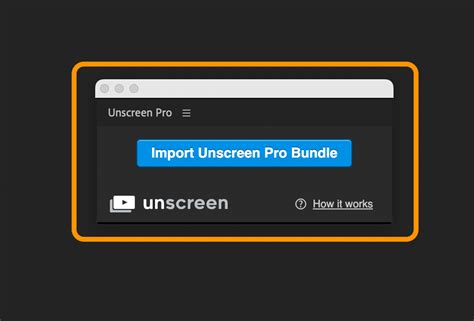
Unscreen Pro accommodates a wider range of upload formats, including MP4, MOV, AVI, MPG, GIF, WEBM, and OGG, with support for numerous codecs. While there's a file size limit of 2GB (approximately 2048 MB), larger files can be accommodated on a bespoke basis. The Pro version offers three main output formats: MP4 for general sharing, GIF for autoplaying animations, and the Pro Bundle. The Pro Bundle is particularly valuable for users of professional video editing software, allowing seamless integration into workflows in applications like Adobe After Effects and Premiere Pro.
Even without professional editing software, Unscreen Pro enables users to easily replace backgrounds in their videos. The software is adept at optimizing video output to minimize undesirable effects like glowing or color bleeding, which can occur when a subject is filmed against a very intense background. This optimization helps to bring out finer details in the subject's cutout.
For users who need to integrate Unscreen's capabilities into their existing professional video editing pipelines, the Pro Bundle output format is key. This format is designed for import into software like After Effects. The workflow typically involves uploading the video to Unscreen, selecting the Pro Bundle output, and then importing the processed file into After Effects via the "Extensions" menu. Alternatively, selecting the Video (MP4) output format allows for easy sharing with a new background.
Pricing and Payment Options for Unscreen Pro
The most suitable payment method for Unscreen Pro depends on individual usage patterns. For one-off projects, a pay-as-you-go option might be ideal, offering flexibility for occasional users. For those who regularly require background removal services, a monthly subscription plan provides a more cost-effective solution.
The pricing structure reflects these different needs:
- Free Preview: A complimentary option to test short clips and experience the basic functionality.
- Plus Premium Plan: Priced around $9.99 per month, this plan removes watermarks, supports unlimited video processing, and delivers full HD resolution.
- Pro Premium Plan: At approximately $99 per month, this tier offers faster processing speeds, a significant credit allowance (10,000 credits), and is geared towards users with high-volume or more demanding needs, with future support for 4K resolution anticipated.
- Pay-As-You-Go: This option is priced at around $4.99 per minute of processed video, making it an economical choice for users who only need the service sporadically.
Advanced Workflow and Integration
Unscreen also caters to developers and power users through its API, enabling programmatic integration of its background removal technology into other applications. With just a few lines of code, developers can scale video processing and automate outputs in MP4, Pro Bundle, and Animated GIF formats. This opens up possibilities for custom video processing pipelines and automated content generation.
For those seeking to delve deeper into specific editing techniques, Unscreen provides resources like blog posts and guides. For instance, a detailed guide on removing video backgrounds in After Effects can offer advanced users more control and customization options. The process of removing a background from a GIF, while potentially daunting for those unfamiliar with graphic design tools, is made remarkably simple with Unscreen.
Removing Backgrounds from GIFs
The process for removing a background from a GIF using Unscreen is exceptionally straightforward:
- Navigate to the Unscreen website.
- Drag and drop the desired GIF file onto the designated upload area.
- Within seconds, Unscreen's AI will process the GIF and remove its background.
Once the background is removed, Unscreen provides the option to easily change it. Users can select from a range of pre-set backgrounds or upload their own custom images or videos to replace the original background.
For users who prefer or require more granular control, professional video editing software such as After Effects and Photoshop offer advanced tools like the Roto Brush. While Unscreen automates the process, manual tools like the Roto Brush allow for precise outlining of subjects, with options to refine selections by painting to include or exclude specific areas. This method, though more labor-intensive, can yield extremely precise results, especially for complex or artistic edits.
The final export settings in software like After Effects are crucial for preserving transparency. When rendering a GIF with a transparent background, settings such as "RGB + Alpha" for channels and "Millions of Colors +" for depth are essential. Presets like "GIF 126 Dithered" can be selected for optimal GIF output.
Unscreen vs. Traditional Methods
The core advantage of Unscreen lies in its ability to eliminate the need for green screens and complex chroma keying techniques. This not only saves time and money but also removes the technical barriers that often prevent individuals from achieving professional-looking results. The accessibility of Unscreen, particularly its free tier, democratizes video editing, allowing anyone to enhance their video content without specialized knowledge or expensive equipment.
While Unscreen is remarkably effective, it is important to acknowledge its limitations. As with any AI-driven tool, perfection is not always guaranteed. In challenging scenarios, such as videos with rapid motion, highly complex backgrounds, or subjects with very fine, wispy details, minor imperfections might occur. For users who demand absolute precision, especially in high-stakes professional productions, a combination of Unscreen for initial processing followed by manual refinement in advanced editing software might be the optimal approach. The feedback from users, including those who have tested Unscreen Pro, often highlights its impressive speed and convenience, making it an invaluable tool for content creators focused on efficiency and visual impact. The ability to achieve professional-quality background removal with just a few clicks represents a significant leap forward in video editing technology.
tags: #unscreen #gif #background #remover