The High Efficiency Image File Format (HEIC) has become increasingly prevalent, largely due to its adoption by Apple as the default image format for iPhones and iPads running iOS 11 and later. This format is lauded for its ability to deliver superior image quality while simultaneously reducing file sizes, a significant advantage for storage-conscious users. However, for those operating on Windows, encountering HEIC files can present a challenge. Unlike macOS, Windows operating systems historically lacked native support for this format, leading to difficulties in opening, viewing, and editing these images. Fortunately, a variety of methods and tools have emerged to bridge this compatibility gap, allowing Windows users to seamlessly integrate HEIC files into their digital workflow.
Understanding the HEIC Format
HEIC, or High Efficiency Image Format, is a relatively new image file format developed by the Moving Picture Experts Group (MPEG). It is essentially a container format that can store multiple images, metadata, and even sequences of images, such as those captured in burst mode or Live Photos. The underlying technology relies on the High-Efficiency Video Coding (HEVC) standard, also known as H.265. This advanced compression technology is what enables HEIC files to achieve better image quality and smaller file sizes compared to older formats like JPEG.
Apple's decision to adopt HEIC for its devices was driven by the desire to optimize storage space and improve overall device performance. By using a more efficient compression method, iPhones and iPads can store more photos and videos without rapidly depleting available memory. This move has made HEIC a de facto standard for many mobile photographers. Recognizing the growing importance of HEIC, other technology giants, including Microsoft and camera manufacturers like Canon, have also begun to incorporate support for this format into their products. Nevertheless, as HEIC is a relatively new format, some applications and operating systems, including older versions of Windows 10, may not support it natively, necessitating the use of additional software or conversion tools to open and work with HEIC files.
Unlocking HEIC Files on Windows 10/11 Through Native Extensions
One of the most straightforward ways to enable HEIC support on Windows 10 and Windows 11 is by installing the necessary extensions directly from the Microsoft Store. While Windows may not come with native HEIC support out-of-the-box, the required codecs can be added, transforming your system into a HEIC-compatible environment.
Method 1: Utilizing the Photos App and HEIF Image Extension
The default Photos app on Windows 10/11 can be leveraged to open HEIC files, provided the necessary extension is installed.
Step 1: Locate the HEIC file you wish to open in File Explorer. Double-click on it, and the image should launch in the Photos app. Alternatively, you can right-click the HEIC file, select 'Open with,' and then choose 'Photos' from the provided options.
Step 2: If the HEIC file does not open automatically, Windows will likely prompt you to download the required HEIC extension. You will see a message indicating that "The HEIF Image Extension is required to display this file." Click on "Download and install now" and then confirm with 'Yes' to be directed to the Microsoft Store.
Step 3: Follow the on-screen instructions within the Microsoft Store to install the HEIF Image Extension. Once the installation is complete, you should be able to double-click your HEIC files and view them without issue on Windows 10.
Method 2: Resetting HEIF Image Extensions for Troubleshooting
In some instances, even with the extension installed, you might encounter issues. Resetting the HEIF Image Extension can often resolve these problems, restoring it to its default settings.
Step 1: Navigate to the Windows Settings by pressing Windows key + I. Select 'Apps and Features.'
Step 2: In the search box under 'Apps and features,' type "HEIF." The "HEIF Image Extensions" option should appear. Click on it, and then select 'Advanced options' from the menu that appears.
Step 3: On the HEIF Image Extensions window, scroll down to find the reset option. Click on the 'Reset' button. A confirmation prompt will appear; click 'Reset' again to confirm your action.
Once the reset process is complete, attempt to open your HEIC files on Windows 10 again. This process can also be applied to HEVC Video Extensions if you encounter issues with video playback.
Method 3: Installing HEVC Video Extensions (Potentially Paid)
While the HEIF Image Extension is typically free, the HEVC Video Extensions, which are crucial for decoding the HEVC codec used by HEIC, have historically been a point of contention. Microsoft has sometimes offered these extensions for free, especially for certain device manufacturers, but for general users, they have often been a paid download from the Microsoft Store.
It's important to note that Microsoft has, at times, removed the free HEVC codec from the Microsoft Store. However, there are unofficial methods to obtain it, though these should be used at your own risk.
Unofficial Method to Install HEVC Video Extensions:
- Open your preferred web browser and navigate to the Adguard Store page.
- In the settings, choose the "Productid" option from the first dropdown menu.
- In the middle input box, copy and paste the Microsoft Store ID for the HEVC Video Extensions:
9n4h0z6vhq. - From the last dropdown menu on the right, select the "RP" option.
- Click the "Generate temporary links" button.
- Right-click on the link that starts with "Microsoft.HEVCVideoExtension_" and choose "Save link as" to download the ".appxbundle" package.
- Double-click the downloaded ".appxbundle" package and click the "Install" button.
After installing these extensions, you should be able to view HEIC files and play HEVC-encoded videos. If the free HEVC codec isn't working, you can remove it from Settings > Apps > Apps & features, select "Microsoft Store ID for the HEVC Video Extensions for Device Manufacturer," and click "Remove." You might then consider purchasing the paid version if it's essential for your workflow.
Converting HEIC Files to Widely Supported Formats
For users who prefer not to install extensions or require broader compatibility across different devices and applications, converting HEIC files to more universally supported formats like JPEG or PNG is an excellent alternative. Numerous online services and desktop applications can facilitate this conversion process.
Method 4: Online HEIC Converters
Online image-converting services offer a quick and convenient way to transform HEIC files into JPEGs or PNGs without requiring any software installation.
Some recommended online options include:
- Heic to jpg
- CloudConvert
- FreeConvert
- CopyTrans HEIC for Windows
The process is generally straightforward: simply upload your HEIC files to the chosen online service, select JPEG, PNG, or another desired output format, and initiate the conversion. Once the conversion is complete, you can download the newly formatted files and open them easily on your Windows 10/11 computer.

Method 5: Using VLC Media Player for Conversion
While VLC Media Player is primarily known for its extensive video and audio playback capabilities, it can also be utilized for file conversion, including HEIC to JPEG.
Step 1: Open VLC Media Player.Step 2: Navigate to Media > Convert / Save....Step 3: In the "Open Media" window, click the 'File' tab and then the 'Add…' button to select your HEIC file(s).Step 4: Click the 'Convert / Save' button at the bottom.Step 5: In the "Convert" window, choose a profile from the "Profile" dropdown menu that supports image conversion, such as "Image to JPEG."Step 6: Designate an output file name and location by clicking the 'Browse' button next to "Destination file."Step 7: Click "Start" to begin the conversion process. Once completed, you can open the converted HEIC file (now a JPEG) on your Windows 10/11.
It's important to note that while VLC can convert HEIC files, it does not natively open HEIC files for direct viewing within the player itself.
Adjusting iPhone Settings for Seamless Transfer
To avoid the HEIC compatibility issue altogether when transferring photos from an iPhone to a Windows PC, you can adjust your iPhone's camera settings to capture photos in a more universally compatible format.
Method 6: Setting iPhone to Transfer Photos in JPEG Format
This method ensures that photos are automatically converted to JPEG before they are transferred to your computer.
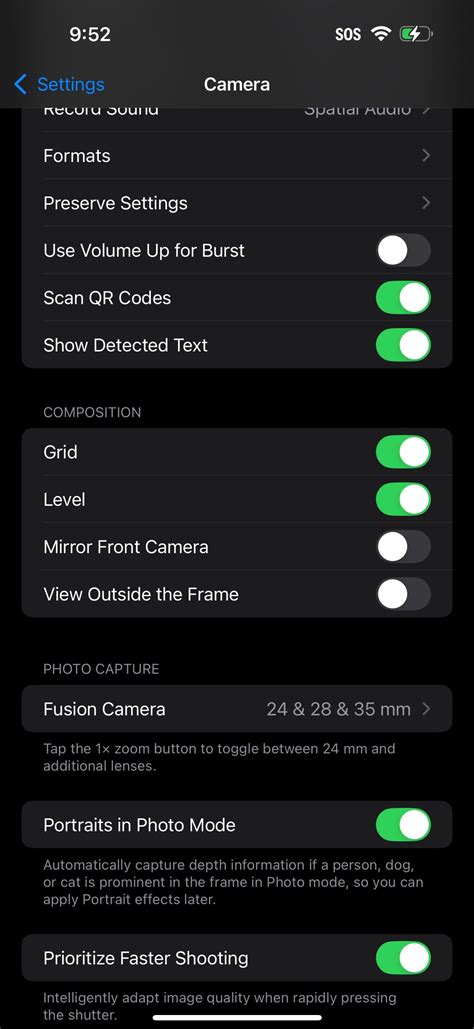
Step 1: On your iPhone, go to Settings.Step 2: Scroll down and tap on Camera.Step 3: Tap on Formats.Step 4: Under the "Transfer to Mac or PC" section, select Most Compatible.
With this setting enabled, your iPhone will automatically convert HEIC files to JPEG format when transferring them to a Windows PC or other non-Apple devices, ensuring smooth compatibility without needing additional software on your computer.
Specialized Software for HEIC Management
Beyond native extensions and online converters, several third-party software solutions offer robust HEIC management capabilities for Windows users. These tools often provide advanced features for previewing, organizing, and batch converting HEIC files.
Method 7: DearMob iPhone Manager
DearMob iPhone Manager is a comprehensive tool designed to manage iPhone data on Windows. It offers direct preview and management of HEIC photos without altering iPhone settings or navigating complex Windows Photo View albums.
Step 1: Install DearMob iPhone Manager on your Windows computer.Step 2: Connect your iPhone to your Windows PC using a USB cable.Step 3: Launch DearMob iPhone Manager and click on the "Photo" icon.Step 4: You can then find and view your HEIC photos directly within the software. The tool allows you to preview them by date, month, or year, and importantly, export them as JPG in batch without any loss of quality.
Method 8: AnyMP4 Video Converter Ultimate
AnyMP4 Video Converter Ultimate is a versatile program that can handle HEIC files on Windows PCs. While primarily a video converter, it also functions as an image converter that supports various input formats, including HEIC.
Step 1: Download and install AnyMP4 Video Converter Ultimate on your computer.Step 2: Launch the program and navigate to the "Converter" tab.Step 3: Click the "Add File(s)" button to import your HEIC files. The program supports batch conversion, allowing you to convert multiple files simultaneously.Step 4: Select your desired output format, such as JPG or PNG, from the available options. You can also adjust image settings like size and quality for optimal results.Step 5: Choose the destination folder where you want to save the converted files and click "Convert" to start the process.
Method 9: AnyMP4 iPhone Transfer Pro
Similar to its Video Converter counterpart, AnyMP4 iPhone Transfer Pro offers a dedicated HEIC Converter tool to manage HEIC files on your Windows PC.
Step 1: Download and install AnyMP4 iPhone Transfer Pro on your Windows PC.Step 2: Open the program and click on the "Toolbox" tab on the left-hand side.Step 3: Select "HEIC Converter" from the available tools.Step 4: In the dialogue window, choose your upload option: "Add file(s) from device" or "Add file(s) from PC."Step 5: Select the HEIC files you wish to convert from your local storage or connected device.Step 6: From the bottom right-hand corner, choose your desired output format (e.g., JPG, PNG).Step 7: Specify the file destination using the "Save to PC" option and click "Convert."
Alternative Viewing and Management Solutions
Beyond the primary methods, other applications and services can assist in viewing and managing HEIC files, offering flexibility for different user preferences.
Method 10: Preview on Mac (for reference, not Windows)
While this article focuses on Windows, it's worth noting that macOS has built-in support for HEIC files through its Preview application. Preview allows users to open, view, and even set HEIC as the default reader. This highlights the native compatibility within the Apple ecosystem.
Method 11: HEIC Image Viewer Decoder (Online)
For a quick, browser-based solution, HEIC Image Viewer Decoder is a free online tool that allows you to open and view HEIC and HEIF files directly within your web browser without any downloads. Simply upload your file, and the tool will decode and display it.
Method 12: Google Photos
Google Photos is a popular cloud-based photo management service that offers native HEIC viewing capabilities on mobile devices and through its web interface. By syncing your iPhone photos to Google Photos, you can access and view them on any device, including Windows PCs, regardless of native OS support.
Method 13: Dropbox
Similar to Google Photos, Dropbox, a cloud storage service, also acts as a HEIC viewer. The Dropbox app, available on both Android and iOS, can smoothly display HEIC files without compromising their quality, making them accessible across various platforms.
How To Convert HEIC To JPG - Windows & Mac
Addressing Common HEIC-Related Issues and Misconceptions
Several recurring questions and misunderstandings surround HEIC file compatibility. Understanding these can help users navigate the landscape more effectively.
The VLC Player and HEIC Files
A common misconception is that VLC Media Player can open HEIC files. While VLC is renowned for its extensive support for a vast array of audio and video formats, VLC is NOT capable of opening HEIC files directly. It can play H.265 encoded videos, but the HEIC container format for images is not supported within the player.
HEIC vs. HEIF vs. HEVC
It's important to distinguish between these related terms:
- HEIC (High-Efficiency Image Container): This is the file extension used for images saved using the HEIF format.
- HEIF (High-Efficiency Image File Format): This is the actual image file format standard, designed for better compression and quality. HEIC is simply the container that holds HEIF images.
- HEVC (High-Efficiency Video Coding) / H.265: This is the video compression standard that HEIF utilizes for its advanced compression capabilities.
To view HEIC files on Windows, you generally need support for both HEIF (the image format) and HEVC (the underlying codec).
Licensing and Cost of HEVC Codecs
The HEVC codec has licensing implications, which is why Microsoft sometimes charges for the HEVC Video Extensions. Hardware manufacturers often include these codecs pre-installed on their devices, having already accounted for licensing costs in their hardware pricing. Enterprise licenses from Microsoft may also include these codecs at no additional cost. For individual users, the $0.99 HEVC download from the Microsoft Store is often the most straightforward way to enable HEVC playback and HEIC image viewing if the free extensions are not available or functional.
In conclusion, while HEIC files may initially pose a challenge for Windows users, a robust ecosystem of solutions exists. From installing native extensions and utilizing conversion tools to adjusting device settings and employing specialized software, accessing and managing HEIC images on Windows has become increasingly seamless. By understanding the underlying technology and available options, users can confidently navigate the HEIC landscape and enjoy the benefits of this advanced image format.