VSCO is more than just a photo editing app; it's a thriving community-driven platform designed to empower photographers, both creatively and professionally. For iPhone users, VSCO offers a powerful suite of tools and a rich ecosystem to elevate your mobile photography from casual snapshots to polished, artistic expressions. This guide delves into the extensive features of the VSCO app on iPhone, providing tutorials and insights to help you harness its full potential.
Understanding the VSCO App Interface
Upon launching VSCO on your iPhone, you'll be greeted by a user-friendly interface designed for intuitive navigation. The app is broadly divided into several key sections, accessible via the icons at the bottom of your screen:
- Home: This is your personalized feed, showcasing images from the creators you follow within the VSCO community. It’s a space for inspiration and staying updated on the work of other photographers.
- Discover: Here, you can explore a vast array of inspiring content, find creative prompts to spark your imagination, and utilize the search function to locate specific styles or photographers.
- Studio: This serves as your private workspace. It's where you import and organize your photos and videos, ready for editing. Importantly, content in your Studio is not publicly visible until you choose to share it. Images are also retained in your iPhone's camera roll, so deleting them from there will remove them from VSCO as well.
- AI Lab: This innovative section houses VSCO's AI-powered tools, including features for object removal, editing with descriptive prompts, and image upscaling.
- Profile: This is your personal space to showcase your published work, manage your account details, and build your VSCO Site - a professional online portfolio.
Beyond these main tabs, a side menu offers access to your activity feed, messages, favorited images, follower/following lists, and account/privacy settings. From this menu, you can also navigate to VSCO Canvas for moodboarding and VSCO Capture, the app's dedicated camera functionality.
Importing and Editing Your Photos in VSCO Studio
The journey to transforming your photos begins in the Studio. To import images from your iPhone's camera roll:
- Navigate to the Studio tab.
- Tap the import button (often represented by a '+' icon).
- Select the photos (and even videos) you wish to edit from your camera roll.
- Tap 'Add'. Your selected media will now appear in your VSCO Studio as drafts.
Once an image is in your Studio, you can select it and choose from various actions: editing, using AI Lab tools, creating collages, syncing to the desktop editor, or sharing.
Leveraging VSCO Presets for Instant Aesthetics
VSCO is renowned for its extensive library of presets, which are essentially pre-made filters designed to achieve a wide range of looks. These offer a quick and effective way to imbue your photos with a specific mood or style.
- Select your desired image in the Studio.
- Tap 'Edit Image' to open the photo editor.
- You'll initially be in the Presets tab. Here, you can browse through various preset categories.
- The 'For This Photo' feature is particularly useful, employing AI to suggest presets that are likely to complement your image's content and colors.
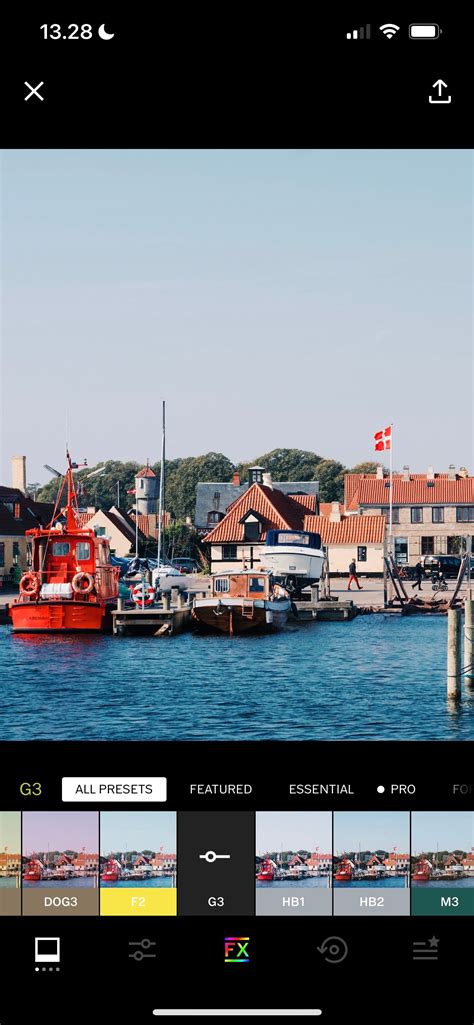
- Tap on a preset to apply it. You can then adjust the Strength of the preset using a slider to fine-tune its intensity.
- To explore how a preset looks on your image, tap and hold on the photo to see the original, then release to view the edited version.
VSCO offers over 200 presets, including:
- Free Presets: Available to all users upon signup (e.g., B1, F2, G3, M3, M5, P5, T1, X1).
- Standard Presets: A broad collection with various stylistic applications, including Legacy, Analog, Artificial Lighting, Black & White, Chromatic, Portrait, Infrared, Mood, Instant, Bright, and Low Contrast series.
- Film Presets: Recreate the authentic look of classic analog film stocks from brands like Kodak, Fuji, Agfa, and Ilford.
- We the Creators Presets: Signature styles developed in collaboration with professional photographers.
- VSCO Pro Presets: An enhanced set offering advanced controls for contrast, color, and tone, building upon popular looks.
Tapping on the name of a preset will often reveal a description and examples of its use by the community, offering valuable insights.
Advanced Photo Editing Tools in VSCO
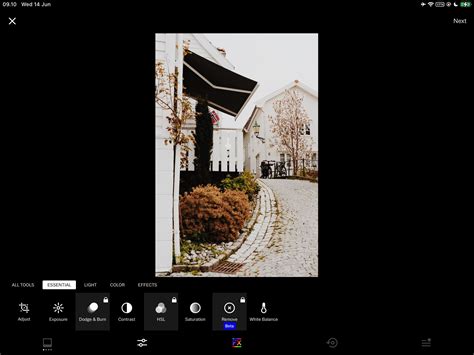
Beyond presets, VSCO provides a comprehensive suite of manual editing tools to refine your images with precision. Access these by tapping the Tools tab after applying a preset, or by directly selecting the Edit icon (two sliders).
- Adjust: This fundamental tool allows you to crop, rotate, straighten, and skew your image. You can crop to specific aspect ratios (e.g., 1:1, 4:5, 16:9) or freely adjust the frame. The straighten and skew options are invaluable for correcting perspective issues, especially in architectural or landscape photography.
- Exposure: Control the overall brightness of your photo. Adjusting exposure can help recover details in both overly dark (underexposed) and overly bright (overexposed) areas.
- Contrast: Manipulate the difference between the darkest and brightest parts of your image. Increasing contrast adds drama and depth, while decreasing it creates a softer, more subdued look.
- Tone: Fine-tune the brightness of highlights and shadows independently. This is crucial for balancing extreme lighting conditions and bringing out detail without affecting the overall exposure.
- Dodge and Burn: These brush tools allow for selective brightening (dodge) and darkening (burn) of specific areas. This is a powerful technique for directing the viewer's eye and enhancing specific elements within the frame.
- Saturation: Control the intensity of colors. Boost saturation for vibrant, eye-catching hues or reduce it for a more muted, desaturated aesthetic.
- White Balance: Correct color casts and set the overall mood by adjusting the temperature (warmth/coolness) and tint (green/magenta). This is essential for accurate color representation and can be used artistically to evoke specific emotions.
- HSL (Hue, Saturation, Lightness): This advanced tool offers granular control over individual colors. You can adjust the hue (the specific shade), saturation (intensity), and lightness (brightness) of each color channel independently, allowing for precise color grading and correction.
- Sharpen: Enhance the clarity and definition of details in your image. Use with care to avoid introducing unwanted noise or a harsh look.
- Clarity: Similar to sharpening, clarity enhances local contrast, making textures and details more pronounced and giving the image a sense of depth and definition.
- Bloom: Adds a soft, ethereal glow to highlights, creating a dreamy, atmospheric, and cinematic feel.
- Halation: Mimics the subtle halo effect often seen in vintage film, adding a warm, cinematic quality to bright areas without being overpowering.
- Grain: Introduce realistic film grain to digital images, adding texture, grit, and a classic analog aesthetic.
- Vignette: Darken or lighten the edges of the frame to draw attention to the center of the image, adding a classic photographic touch.
- Fade: Reduces the overall contrast, creating a softer, washed-out, and vintage print aesthetic.
- Skin Tone: A specialized tool for portraits, allowing subtle adjustments to balance reds and greens to achieve natural-looking skin tones.
- Split Tone: Apply different color tints to the shadows and highlights independently, offering sophisticated color grading possibilities.
- Borders: Add customizable frames to your images, providing structure and a polished finish.
- Text: Overlay text onto your images, with options to adjust scale, color, and alignment for integrated typography.
- Blur: Control focus by softening backgrounds or specific areas to guide attention and add depth.
Editing Videos with VSCO
VSCO extends its powerful editing capabilities to video. You can apply the same premium presets and advanced editing tools used for photos to your mobile videos, transforming them with consistent aesthetics and creative flair.
- Upload a video from your Camera Roll into VSCO Studio.
- Select 'Edit Video' to access the video editing interface.
- Apply presets to quickly establish a visual style.
- Utilize standard editing tools like Exposure, Contrast, and Saturation to refine light and color.
- Experiment with tools like HSL for precise color grading and Grain for adding cinematic texture.
Additional video-specific tools include:
- Trim: Adjust the start and end points of your video clips.
- Speed: Control playback speed, creating slow-motion or fast-forward effects.
- Reverse: Play video clips in reverse.
- Volume: Adjust or mute the audio track.
- Video Effects: Apply creative filters like VHS, digital glitches, kaleidoscope, and chroma split for unique visual styles.
Creating Collages and Montages
VSCO empowers you to go beyond single image edits with its collage and montage features.
Photo Collages
Within VSCO Studio, you can create photo collages:
- Select the collage option.
- Choose a pre-designed template or start with a blank canvas.
- Use intuitive drag-and-drop controls to scale, rotate, flip, and layer images.
- Add solid color backgrounds or geometric shapes.
- Incorporate text with adjustable size, color, and alignment.
- Utilize opacity controls for double-exposure effects.
- Apply filters or film effects to individual elements or the entire collage.
Montages
For more complex visual storytelling, create a Montage:
- In VSCO Studio, select a photo or video and tap 'More'.
- Choose 'Create Montage'.
- Layer photos, videos, shapes, and colors onto a blank canvas.
- Sequence these elements into scenes to build dynamic visual narratives.

VSCO Capture: The Integrated Camera App
For those who want more control directly within the shooting process, VSCO offers VSCO Capture, a dedicated camera app designed for precision. It can be integrated with your iPhone's lock screen and action button for instant access.
- Live Presets: Apply over 50 live presets in real-time as you shoot.
- Manual Controls: Adjust shutter speed, ISO, white balance, and focus for professional-level command.
- RAW Format: Shoot in RAW for maximum editing flexibility.
- Real-time Film Effects: Apply effects like Bloom and Halation during capture.
- Grid and Tiltmeter: Assist with composition and leveling.
- Exposure Compensation: Fine-tune exposure levels on the fly.
Photos and videos captured with VSCO Capture sync seamlessly to the VSCO app for further editing.
Saving and Sharing Your Work
Once your edits are complete, VSCO provides flexible options for saving and sharing:
- Tap 'Save' at the top of the editor to save your edited image to your VSCO Studio.
- To save the image to your iPhone's camera roll, select the image(s) in your Studio, tap the Options icon (three dots), and choose 'Save To Camera Roll'. Select 'Actual Size' for the highest quality.
When ready to share:
- Share to…: Post your image to other apps installed on your iPhone.
- Post to VSCO: Share your image with the VSCO community, making it visible on your public profile and in the VSCO Feed. You can enable discussions for community engagement.
- Save your recipe: Share your unique editing process (a sequence of applied presets and adjustments) with others.
- Sync to Cloud: For Pro members, this sends the image to the VSCO desktop editor for continued editing on a larger screen.
Engaging with the VSCO Community
The VSCO Feed is a chronological stream of images from users you follow. Under each post, you'll find several icons:
- Favorite (Star): A private way to show appreciation for a creator's work.
- Repost (Chasing Arrows): Share an image you love with your own followers, adding it to your Profile's Reposts tab.
- Discussion (Chat Bubble): If enabled by the creator and you are a Plus or Pro member, you can start or join conversations about the image.
Your Profile displays all your published work, reposts, and your bio. Pro members can further organize their content into albums.
VSCO Membership Tiers and Subscription
VSCO offers different membership levels to cater to varying user needs:
- Free Tier: Provides access to a basic set of presets and core editing tools.
- VSCO Plus: Offers access to a larger library of presets and enhanced editing features. In-app purchases like 'The Aesthetic Series' and 'Distortia Pack' are also available.
- VSCO Pro: Includes unlimited edits, access to all premium presets and advanced editing tools, AI Lab features, and the ability to sync with the desktop editor. Subscription costs are typically billed annually or monthly.
A free 7-day trial is usually available for VSCO memberships, allowing you to explore the premium features before committing. Memberships automatically renew unless auto-renewal is turned off at least 24 hours before the current period ends, managed through your iPhone's App Store subscriptions.
System Requirements and Age Rating
To run the VSCO app on Apple devices:
- iPhone: Requires iOS 15.0 or later.
- iPad: Requires iPadOS 15.0 or later.
- iPod touch: Requires iOS 15.0 or later.
- Apple Vision: Requires visionOS 1.0 or later.
- Apple TV: Requires tvOS 10.0 or later.
The app supports multiple languages, including English, Dutch, French, German, Indonesian, Italian, Japanese, Korean, Malay, Portuguese, Russian, Simplified Chinese, Spanish, Thai, Traditional Chinese, and Turkish.
VSCO has an age rating of 13+. While some content may be rated higher, the developer manages access through in-app controls, including age assurance measures. The app also contains user-generated content, messaging, and advertising, with in-app purchases available.
Conclusion: Unleashing Your Creative Potential
The VSCO app on iPhone is a comprehensive toolkit for mobile photographers. From its intuitive interface and extensive preset library to its advanced editing tools, video capabilities, and integrated camera, VSCO empowers users to refine their vision and share their stories. By mastering its features and engaging with the vibrant community, you can truly take your iPhone photography to the next level.