Our phones have become our most accessible tools for capturing life's moments. With increasingly sophisticated cameras, taking crystal-clear photos is as simple as reaching into our pockets. However, when it comes to editing those countless images, the native tools in camera apps often fall short of achieving the desired aesthetic. This is where the VSCO app steps in, offering hundreds of built-in presets and powerful, user-friendly editing tools that make it easy to personalize photos and enhance your most celebrated shots. VSCO empowers users to bring out the best in their imagery, and a particularly engaging technique is the creation of "mirror pics," which add a new dimension and a touch of intrigue to any scene.
Understanding the VSCO Ecosystem
Before diving into the specifics of mirror pics, it's beneficial to understand the VSCO app's core components. You can access the VSCO Camera within the VSCO Studio area by tapping a designated icon. VSCO has undergone redesigns, introducing new and exciting features, with some of the new camera capturing filters being exclusive to iOS devices.
The VSCO app is structured to facilitate both capturing and editing:
- Home: This is your feed, showcasing images from the VSCO community members you follow.
- Discover: Here, you'll find inspiring content, creative prompts, and the search function to explore new artists and trends.
- Studio: This serves as your private workspace where you can gather and edit the images and videos you intend to work on.
- AI Lab: This section houses VSCO's AI-powered tools, such as object removal, editing with descriptive prompts, and image upscaling.
- Profile: This is where you can view your published work, update your personal details, and manage your VSCO Site.
- Spaces: Within Spaces, you can join or create collaborative groups focused on specific themes or interests.
Additionally, a side menu provides access to activity on your published content, messages from other users, favorited images, follower/following lists, and various account and privacy settings. From this sidebar, you can also navigate to VSCO Canvas for moodboarding or VSCO Capture to access the camera app for direct shooting.
Capturing the Moment: VSCO Camera Features
VSCO has redesigned its camera app, introducing new features that enhance the capturing experience. While some advanced capturing filters are iOS-exclusive, the core functionality remains powerful.
New Camera Capturing Filters (iOS-only):
- Prism Filter: This innovative filter allows you to manipulate light in various ways during image and video capture. Its key capability is enabling "mirroring" of your media through lateral reversing, a crucial element for creating mirrored effects.
- Retro Filter: For those seeking a vintage aesthetic, this filter adds a distinct old-world charm to your photos and videos.
- Burst Filter: This feature enables continuous shooting mode, allowing you to capture a rapid sequence of photos, ideal for capturing action or fleeting expressions.
- Layer Filter: This filter facilitates double exposures, a technique that merges two images to create a dreamy, ethereal effect.
- Aurora Filter: As the name suggests, this filter imbues your photos with the mood and visual characteristics of the Northern Lights.
Basic Camera Controls:
Regardless of the advanced filters, fundamental camera controls are essential for any shot:
- Focusing: To set a focal point, simply tap on an area or subject on the screen. This ensures that your intended subject is sharp and clear.
- Exposure Adjustment: After tapping to focus, you can adjust the exposure by swiping up or down on the screen. Alternatively, a dedicated exposure slider on the right side of the screen offers precise control over the brightness of your image or video.
- Zooming: To zoom in or out while capturing, use your pointer finger and thumb in a pinching or spreading motion on the live image or video.
The Art of the Mirror Pic: Techniques and Presets
Mirroring your media, particularly through lateral reversing, is a simple yet effective way to add a new dimension to a scene. This technique can be achieved both in-camera with specific filters and through post-processing using VSCO's robust editing tools.
In-Camera Mirroring with the Prism Filter:
The Prism Filter, available on iOS devices, is designed to bend light and offers the ability to "mirror" your media, allowing for lateral reversing directly during capture. This can be particularly useful for creating symmetrical compositions or adding an abstract quality to your shots. Experiment with different angles and light sources to see how the Prism Filter can transform your scene.
Achieving Mirror Effects in Post-Processing:
Even without the in-camera Prism Filter, you can effectively create mirrored looks within VSCO's editing suite. This often involves utilizing specific presets and then fine-tuning them with editing tools.
Leveraging VSCO Presets for Mirroring:
While VSCO doesn't have a dedicated "mirror" preset, certain presets can lay the groundwork for a mirrored aesthetic or enhance the effect when combined with other techniques. The key is to look for presets that offer a clean base or can be adjusted to create a sense of symmetry and depth.
For Portraiture and Natural Tones: When editing shots where people are the focus, creating even, warm, and natural skin tones is paramount. The AL5 preset is a good starting point. By turning up the Temperature within the White Balance tool, you can capture natural warmth. The Tone tool, specifically increasing Highlights, helps recover detail in bright areas. Finishing by fine-tuning Exposure creates definition and a natural glow. While not directly for mirroring, a well-balanced base image is crucial for any subsequent creative edits.
For Landscapes and Depth: For outdoor shots, creating higher Contrast in shadows adds depth and defines natural features. Smooth, seamless Highlights are achieved by bumping up Exposure. The White Balance tool, increasing Temperature, can offset deep blue tones. The A6 preset is often recommended as a starting point for these adjustments, dialing in the perfect look for the great outdoors.
For Timeless Black and White: To achieve a timeless, classic look, the FN16 preset, which recreates Fuji's classic Neopan 1600 film stock, is an excellent choice. In black and white photography, adjusting Exposure can dramatically alter detail. Increasing it can lead to a bright, cheerful image, while keeping it lower can evoke a more pensive mood. Lower Contrast and brighter edits ensure more detail in the blacks, especially important for printing.
For Cohesive Cityscapes: Cityscapes can be busy, with many elements competing for attention. The L7 preset can help by toning down Saturation and Temperature slightly, bringing out cooler colors that suit urban environments and seaside villas alike, creating cohesion.
For Sunny Days and Bright Light: For images with strong light sources, the M5 preset is recommended. Adding a small amount of Exposure and Contrast can bring out the light and balance the brightness.
General Editing Philosophy for Mirror Pics:
A guiding principle in VSCO editing, and particularly relevant for mirror pics, is that "less is more." The aim is to stay true to the original image while emphasizing its best qualities. A little "pop" never hurts, and Exposure is often a best friend - bumping it up at least one notch before further editing can significantly improve an image.
Experimental Techniques for Mirrored Looks:
VSCO encourages experimentation, and there are several ways to achieve mirrored or reflective aesthetics:
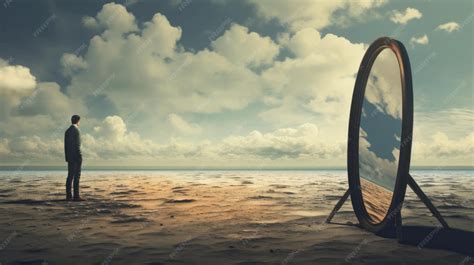
Mirrored Looks: A mirrored reflection is a simple yet impactful way to add a new dimension to a scene. Look for natural reflections in water, glass, or polished surfaces to include in your image. For videos, the Kaleido effect can create mesmerizing mirrored patterns.
Translucent Layers: Placing a layer of material in front of your subject can create a tactile physical filter, adding depth and visual interest. This could be anything from a sheer curtain to patterned glass.
Distortions: Embrace the digital nature of image editing by getting creative with effects like the Glitch video effect or the Distortia filter. While not strictly mirroring, these can create abstract, fragmented visuals that play with perception.
Time Travel: For a retro feel that can complement mirrored imagery, consider the VHS video effect or the KC25 Kodachrome filter for a vintage look.
Essential VSCO Editing Tools for Mirror Pics
Beyond presets, VSCO offers a comprehensive suite of tools that are invaluable for refining mirror pics and any other photographic endeavor.
Core Editing Tools:
- Adjust: This tool allows for basic composition adjustments like cropping to specific aspect ratios, straightening, rotating, and skewing images.
- Exposure: Crucial for controlling the overall brightness of your image, helping to recover detail in both over- and underexposed areas.
- Contrast: Adjusting contrast shapes the light, depth, and mood of your photograph, allowing for subtle refinements or bold, high-contrast looks.
- Tone: This tool balances highlights and shadows, pulling back harsh contrast while preserving important details.
- Dodge and Burn: With exposure brush tools, you can selectively brighten or darken specific areas, guiding the viewer's eye precisely where you want it.
- Saturation: Control the intensity of colors, from vibrant, high-saturation looks to muted, desaturated aesthetics.
- White Balance: Correct color casts and set the mood by adjusting temperature (warmth/coolness) and tint.
- HSL (Hue, Saturation, Lightness): This advanced tool allows for fine-tuning individual colors, shifting their hue, saturation, and lightness to make specific tones stand out or to maintain a balanced, intentional image.
- Sharpen: Bring back texture and clarity, subtly refining details without sacrificing the natural feel.
- Clarity: Enhance texture and depth, cutting through softness while keeping the image clean and natural.
- Bloom: Soften highlights to create a hazy, dreamlike glow, adding an atmospheric, cinematic feel.
- Halation: Achieve a warm, cinematic glow with a subtle halo, reminiscent of vintage film.
- Grain: Introduce film-like texture and grit to digital images, giving them the character of analog photography.
- Vignette: Apply a darkening or lightening effect around the edges of an image to draw the eye inward, creating a classic, cinematic focus.
- Fade: Lower contrast for a softer, time-worn feel, creating a muted, vintage print aesthetic.
- Skin Tone: Subtly balance reds and greens to refine facial and body tones without disrupting the rest of the image.
- Split Tone: Introduce color into highlights and shadows independently, shaping mood with subtle tints.
- Borders: Add structure and a finished edge to your images with customizable borders.
- Text: Overlay text onto your images, adjusting scale, color, and orientation for integrated typography.
- Blur: Control focus intentionally by softening backgrounds or specific areas to guide attention and add depth.
Film (FX) Effects for Added Character:
The FX tab offers overlays that can significantly enhance the aesthetic of your photos and videos, lending them a distinct character:
- Distressed Photo Effects: These film-inspired textures include burn marks, light leaks, and imperfections found in expired or damaged film, giving photos and videos an authentic, analog edge.
- Film Frame Overlays: Mimic the charm of analog film formats like 35mm, 16mm, or 8mm, adding cinematic grit or nostalgic texture to digital work.
- Light Effects: Introduce realistic lens flares and light leaks using customizable overlays, adding natural-looking rays of light, depth, atmosphere, and movement.
- Texture: Layer grain, dust, and scratches from real film scans to imbue vintage photography's unmistakable grit.
Experimenting with Self-Portraiture and Mirror Pics
Self-portraiture offers a unique avenue for creative exploration, allowing photographers to experiment without external pressure. This practice is ideal for honing skills in lighting, composition, and concept development, and it's a perfect space to experiment with mirror pics.
Tips for Creative Self-Portraiture:
Define Your Creative Intent: Before taking a self-portrait, brainstorm ideas and establish an objective. Visualize the final image and consider incorporating elements that represent you or capture a specific emotion. For instance, using long hair as a prop can create striking visuals.
Embrace the Unexpected: Don't shy away from the "weird." Doing one unexpected thing can make a portrait more striking and memorable.
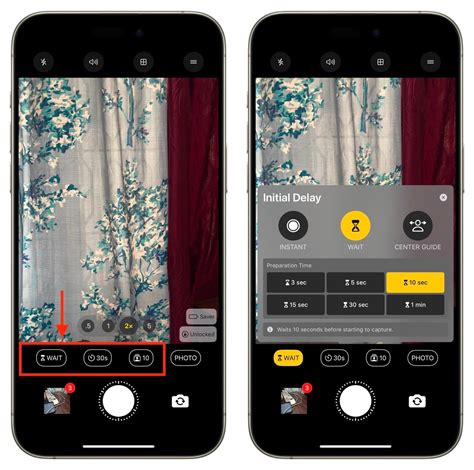
Simple Tools, Increased Possibilities: A tripod, combined with your camera's timer, opens up a world of compositional options, freeing you from arm's length limitations. If a tripod isn't available, a stable stool or a stack of books can suffice. A remote control can further enhance ease of use.
Utilize Reflections: Photographing your reflection in a mirror is a classic technique for self-portraiture and a direct route to creating mirror pics. When composing such shots, set up the camera with extra space, as it can be challenging to frame precisely when you're not looking through the viewfinder. You can always crop the image later to achieve your desired framing.
Curate Your Results: Rarely is the perfect shot achieved on the first attempt. Take multiple photos for each concept and then select the strongest image. Sharing only the best one or two, especially if they are similar, will have a greater impact. Curating your public work is a vital part of being an artist.
Sharing Your Creations:
VSCO provides avenues to share your edited images and the "recipes" (your custom editing sequences) you create.
- Sharing to VSCO: Posting an image to VSCO makes it visible to the community. You can add descriptions and enable discussions for engagement.
- Sharing Your Recipe: Share your favorite edits with others, allowing them to replicate your style.
- Saving to Camera Roll: Directly save your edited images to your device's photo library.
- Sync to Cloud: For Pro members, this feature allows seamless editing between mobile and desktop.
VSCO for Video: Extending Creative Control
VSCO is not just for still images; it's also a capable video editing app. The approach is similar to photo editing: start simple, trust your eye, and build from there using familiar tools.
Video Editing Tools:
- Trim: Refine video clips by adjusting the start and end points for a focused and deliberate feel.
- Speed: Control playback speed, from slow motion to fast-forward effects (0.1x to 16x).
- Reverse: Reverse playback, flip clips, or create seamless loops.
- Volume: Adjust or remove video audio to create a quieter, more visual experience.
- Video Effects: Explore retro and creative looks with VHS filters, digital glitch distortions, kaleidoscope mirroring, and chroma split effects.
Easy Kaleidoscope/Mirror Effect in DAVINCI RESOLVE 16 the easy way.
Advanced Creative Workflows: Collages and Montages
VSCO Studio offers tools for more complex creative projects:
Photo Collages: Start with designer templates or a blank canvas. Scale, rotate, flip, and overlay images with intuitive drag-and-drop controls. Add backgrounds, shapes, and text. Opacity controls allow for double-exposure effects, and filters or film effects can be applied to individual elements to unify the collage's aesthetic.
Montages: By selecting a photo or video in your VSCO Studio and clicking 'More,' you can create a Montage. This allows you to layer photos, videos, shapes, and colors onto a blank canvas, sequencing them into visual stories.
VSCO Capture: Precision Shooting
For those who desire more control over their shooting process, VSCO Capture is a standalone camera app. It's designed for photographers seeking precision with their iPhone shots, offering manual controls for shutter speed, ISO, white balance, and more. You can shoot with VSCO presets applied or utilize effects like Bloom and Halation directly in-camera, then bring your photos into VSCO for further editing and sharing.
Experimenting with Effects Challenges
VSCO regularly hosts #Effects Challenges, encouraging users to get experimental with their creative process. These challenges are a fantastic way to discover new looks and techniques, with featured favorites shared across social channels. Participating in these challenges can push your perspective into new directions, crafting effects that keep viewers guessing.
The Power of Recipes and Organization
- Save Your Own Recipes: The Recipes tab allows you to save a custom set of edits for quick recall, significantly speeding up your workflow.
- Organize Your Space: The Organize tab lets you personalize your editor space by favoriting and arranging tools and presets to your preference.
By mastering the various tools and techniques within VSCO, from basic exposure adjustments to advanced layering and mirroring effects, you can transform your mobile photography and videography into captivating visual narratives. The app's intuitive design and powerful features empower both beginners and seasoned creators to achieve their artistic vision, making the creation of stunning mirror pics and much more an accessible and rewarding process.