Watermarking images in Photoshop is a crucial skill for photographers, designers, and content creators alike. It serves as a vital tool for protecting intellectual property, establishing brand identity, and deterring unauthorized use of your visual assets in an increasingly digital world. While the process might seem daunting to newcomers, Photoshop offers a versatile suite of tools and techniques that can transform this perceived complexity into a streamlined and efficient workflow. This guide will delve into various methods for creating and applying watermarks, from simple text overlays to sophisticated logo integration and automated actions, ensuring your work is protected and professionally presented.
Adding Your Logo as a Watermark
One of the most straightforward and rapid methods to watermark your images involves using a pre-existing logo. This approach is ideal if you already have a designed logo file, either created by a professional or by yourself. The primary requirement is having your logo readily available in a suitable digital format.
File Format Considerations
For optimal flexibility when incorporating your logo into Photoshop, it is recommended to use PNG or PSD file formats. These formats excel at supporting transparency, which is essential for creating seamless watermarks that don't obscure the underlying image. While JPEG files can also be used, it's important to note that they do not support transparency. Consequently, any JPEG logo watermark will necessitate an opaque background, which might not always be desirable.
Maintaining Quality Through Resizing
A common pitfall when using logos as watermarks is improper resizing. If your original logo file is of high resolution and large dimensions, you can comfortably scale it down without significant loss of quality. However, attempting to enlarge a small-sized watermark can lead to a blurry, pixelated, and unprofessional appearance. Therefore, it is imperative to ensure your watermark logo is of a sufficiently large size before importing it into Photoshop to maintain its crispness and clarity across various image dimensions.
Automating the Process with Actions
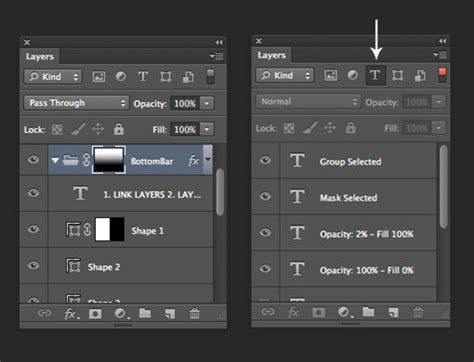
To significantly expedite the watermarking process, especially when dealing with multiple images, recording a Photoshop Action is highly beneficial. This allows you to apply your logo watermark with just a few clicks after the initial setup.
- Access the Actions Panel: Navigate to "Window" > "Actions" to open the Actions panel.
- Create a New Action: Click the "Create new action" icon (often a plus sign or a folded page) within the Actions panel.
- Name Your Action: Assign a descriptive name to your action, such as "Logo Watermark" or simply "Watermark."
- Begin Recording: Click the "Record" button. A red record indicator will appear, signifying that Photoshop is now capturing your subsequent steps.
Should you make an accidental step that you do not wish to record, you can stop the recording by clicking the stop button (square icon), select the erroneous step, and delete it using the trash can icon. You can then resume recording by clicking the record button again.
Importing and Positioning Your Logo
With the action recording initiated, you can now import your logo:
- Place Embedded: Go to "File" > "Place Embedded."
- Select Your Logo: Browse to the location of your logo file, select it, and click "Choose."
Crucial Note on File Location: Once you place an embedded logo, it is vital not to move its source file to a different folder. If you relocate the logo file after recording the action, Photoshop will be unable to find it when you attempt to run the action on other photos, resulting in an error. If you must move the file, you will need to delete the existing action and re-record it, sourcing the logo from its new location.
Your logo will appear on your canvas, typically within a bounding box. You can resize and rotate it by dragging the corner handles. To position the watermark precisely, select both your logo layer and the background image layer in the Layers panel. Then, activate the Move Tool and utilize the alignment buttons in the top toolbar. Alternatively, you can simply drag the logo to your desired position with the cursor.
For fine-tuning the placement, particularly if the watermark appears too close to the image edges, select only the logo layer. Hold down the Shift key and use the arrow keys on your keyboard for precise nudges.
To adjust the size or angle of your logo during the recording, press "Ctrl + T" (or "Command + T" on Mac) to activate Free Transform. Once satisfied, press "Enter" to confirm the changes.
Adjusting Opacity and Effects
To make your watermark less obtrusive, you can reduce its opacity. With the logo layer selected, go to the "Opacity" setting in the Layers panel and input your desired percentage.
You can also enhance your watermark with visual effects, such as a drop shadow. Ensure only the watermark layer is selected, then go to "Layer Style" (or click the "FX" button at the bottom of the Layers panel) and choose "Drop Shadow." Experiment with the settings to achieve the best aesthetic.
Once you have finalized all the steps for applying your logo, return to the Actions panel and click the "Stop" button to end the recording. Your action is now ready to be applied to other images.
Creating a Tiled Watermark in Photoshop
A tiled watermark, which repeats across an image, offers a robust method for protection. This technique can be applied using text or a logo.
Text-Based Tiled Watermarks
- Create Your Text: Select the "Horizontal Type Tool" (T). Choose your desired font color and click anywhere on your canvas to type your brand name or any other text you wish to use as a watermark.
- Transform and Style: Press "Ctrl + T" (or "Command + T") to enable Free Transform. Adjust the size and rotation of your text as needed, then press "Enter." To add effects like a shadow, click the "FX" button in the Layers panel and select "Drop Shadow" or explore other styling options.
- Isolate the Text: Select only the background layer and press "Delete." This will leave you with your text watermark on a transparent background. Use the Crop Tool to trim any unnecessary space around the text.
- Define as a Pattern: Go to "Edit" > "Define Pattern." Name your new pattern (e.g., "Text Watermark") and click "OK."
- Apply to Your Image: Open the image you want to watermark. In the History panel, revert the image to its open state by deleting all previous steps before "Open." In the Layers panel, unlock the background layer by clicking the lock icon. Double-click this layer to open the Layer Style dialog.
- Pattern Overlay: In the Layer Style dialog, enable "Pattern Overlay." Open the "Pattern" dropdown menu and select the pattern you just created. Adjust the opacity, scale, and angle as desired. You can also click on the pattern itself within the dialog box and drag it to reposition it on your image.
- Save as a Style: Click the "New Style" button, name your style (e.g., "Tiled Text Style"), and click "OK." Click "OK" again to apply the layer style.
- Record the Action: Reset the History panel again to the "Open" state. Open the Actions panel, create a new action, name it, and start recording. Click the lock icon on the background layer to set it. Go to "Window" > "Styles," select the style you just created, and your tiled watermark will appear. Stop recording the action.
This action can now be applied to any image with a single click.
Tiled Logo Watermarks
The process for creating a tiled watermark with a logo is similar to the text-based method. After importing your logo and preparing it on a transparent background, you would define it as a pattern using "Edit" > "Define Pattern." Then, you would proceed to create a Layer Style that applies this logo pattern, adjust its settings, and save it. Finally, you would record an Action that applies this saved style to your images.
Creating a Textual Watermark with a Glass-like Effect
This method focuses on achieving a sophisticated, semi-transparent "glass-like" effect for your text watermarks.
Recording the "Glass Watermark" Action
- Initiate Recording: Open the Actions panel, create a new action, name it (e.g., "Glass Watermark"), and hit "Record."
- Add Text: Select the "Horizontal Type Tool" (T) and click on your image to add text. Type your desired watermark content, including copyright symbols if applicable (e.g., Alt + 0169 for © on Windows, Alt/Option + G on Mac).
- Transform Text: Press "Ctrl + T" (or "Command + T") to resize and rotate the text. Press "Enter" to commit changes.
- Align Text: Select both the text layer and the background image layer. Use the Move Tool and the alignment buttons in the top toolbar to center your text, or reposition it manually with the cursor.
- Apply Bevel & Emboss: Select only the text layer. Click the "FX" button and choose "Bevel & Emboss."
- Adjust Fill Opacity: In the Layers panel, set the "Fill" opacity to 0%. This will retain the Bevel & Emboss effect while making the text itself invisible, creating the desired glass-like appearance.
- Stop Recording: Go to the Actions panel and stop recording.
Exporting Your Watermarked Image
To export your watermarked image:
- Export As: Go to "File" > "Export" > "Export As."
- Configure Settings: Specify your desired image format (e.g., JPEG, PNG), quality settings, and choose your export folder. Click "Export."
Photoshop vs. Dedicated Watermarking Software
While Photoshop offers powerful tools for watermarking, the process can involve multiple steps, especially for beginners. Dedicated watermarking software, such as Visual Watermark, often simplifies this workflow.
Advantages of Dedicated Software
- Ease of Use: Visual Watermark is designed for quick and intuitive watermarking, often requiring fewer steps than Photoshop.
- Design Flexibility: It allows for easy customization of text and logo watermarks, with straightforward controls for font, color, size, and opacity.
- Tiled Watermark Creation: Creating tiled watermarks, including straight or diagonal patterns with adjustable spacing, is significantly simplified. You can also tile logos.
- Batch Processing: Like Photoshop Actions, dedicated software excels at applying watermarks to multiple images simultaneously.
- Advanced Effects: Many programs offer pre-set effects that can be applied with a single click, often more efficiently than replicating them in Photoshop.
While Photoshop provides unparalleled editing flexibility, for the sole purpose of watermarking, specialized tools can offer a more efficient and user-friendly experience.
Creating a Watermark from a Signature
Transforming your handwritten signature into a digital watermark is a personal and professional touch.
Capturing and Preparing Your Signature
- Sign on Paper: Sign your name clearly on a plain white piece of paper.
- Photograph or Scan: Take a high-resolution photo of your signature or scan it.
- Import into Photoshop: Open the image of your signature in Photoshop.
- Crop and Adjust: Use the Crop Tool to isolate the signature. Then, go to "Image" > "Adjustments" > "Levels." Drag the right input slider arrow to the left until the background becomes pure white and the signature becomes black.
- Select and Invert: Go to "Select" > "Color Range." In the Color Range panel, select "Grayscale" for the Selection Preview and check the "Invert" box. Click "OK."
- Create Solid Color Layer: In the Layers panel, click the "Create new fill or adjustment layer" icon (half-black, half-white circle) and select "Solid Color." Choose your desired watermark color (e.g., black).
- Delete Background: In the Layers panel, delete the original background layer. You should now have your signature on a transparent background.
- Save as PNG: Go to "File" > "Save As." Choose PNG as the file format and give your signature watermark a name (e.g., "Signature Watermark").
This PNG file can then be used as a logo watermark in Photoshop, following the methods described earlier.
Automating Watermarking with Photoshop Actions and Batch Editing
For efficient handling of multiple images, Photoshop's Actions and Batch Edit functions are invaluable.
Recording a Watermarking Action
As detailed in the logo watermarking section, you can record a sequence of steps to apply a watermark. This includes importing the watermark, positioning it, adjusting its opacity, and potentially flattening the image.
Applying Actions with Batch Edit
- Access Batch: Go to "File" > "Automate" > "Batch."
- Configure Batch Settings:
- Play: Select the watermark action you previously recorded.
- Source: Choose the folder containing the images you want to watermark.
- Destination: Select a separate folder where the watermarked images will be saved.
- Override Action "Open" Commands: Check this box.
- Override Action "Save As" Commands: Check this box.
- Suppress File Open Options Dialogs: Check this box.
- Suppress Color Profile Warning Boxes: Check this box.
- File Naming: Add a suffix (e.g., "-watermarked") to the original filename to easily identify the processed files.
- Run Batch: Click "OK." Photoshop will then process all images in the source folder, applying your recorded watermark action and saving the results to the destination folder.
This batch processing capability can save a significant amount of time when watermarking large volumes of images.
Strategic Placement and Considerations for Watermarks
The effectiveness of a watermark extends beyond its creation and application; its placement and visibility play crucial roles.
Optimal Placement
The most common locations for watermarks are the lower-right or lower-left corners of an image. However, this is not a strict rule. The primary consideration should be to place the watermark in an area where it is difficult to remove or crop out without significantly altering the image. Using patterns within the image itself can also serve as a deterrent and enhance security.
Visible vs. Hidden Watermarks
Visible watermarks, whether text or logos, provide clear identification and act as a deterrent against casual theft. They assert ownership and contribute to brand recognition. Hidden watermarks, on the other hand, are typically embedded within the image data and are not immediately apparent. While they can serve purposes like tracking or embedding secret messages, they are less effective as a deterrent against unauthorized use compared to visible watermarks. For general protection and brand presence, visible watermarks are generally preferred.
The Debate: To Watermark or Not to Watermark?
The decision to watermark images is a common dilemma for many creators. Watermarked images can sometimes appear less aesthetically pleasing, but in an era rife with digital plagiarism, they offer a robust method for asserting ownership and preventing unauthorized use. The choice often involves balancing artistic integrity with the need for protection.
How to create a Custom Watermark on Photoshop ( Step-by-Step )
Conclusion
Mastering watermarking in Photoshop empowers creators to safeguard their work and enhance their brand presence. By understanding and utilizing the various techniquesâfrom simple logo integration and text overlays to advanced actions, pattern creation, and signature conversionâyou can efficiently protect your visual assets. Whether you choose to leverage Photoshop's comprehensive features or opt for specialized watermarking software, the consistent application of a well-placed watermark is an indispensable practice for any digital artist or photographer.