In the digital age, where images traverse the globe at the speed of light, protecting your photographic work from unauthorized use has become a paramount concern. If you’ve ever experienced the frustration of seeing your images shared without credit or, worse, claimed as someone else’s, the impulse to add a watermark is a natural one. This guide delves into the intricacies of watermarking within Adobe Lightroom Mobile, empowering you to safeguard your creative output and ensure proper attribution.
Understanding the Purpose and Efficacy of Watermarking
Before embarking on the technical steps of applying a watermark, it's crucial to clarify your objectives. What do you truly hope to achieve by watermarking your photographs? For some, a watermark serves as an extension of their personal or professional brand identity. It can be an aesthetic choice, perhaps inspired by admired photographers who utilize watermarks, or a perceived indicator of professionalism. While these motivations are understandable, it's important to acknowledge that a watermark is not an impenetrable shield against image theft.

Watermarks can act as a deterrent, making potential infringers aware that the image is not freely available. If your primary goal is to prevent clients from illegally printing or posting image proofs on social media platforms like Instagram, employing a large, centrally positioned watermark can be an effective strategy. However, it's essential to recognize that even a prominent watermark doesn't offer absolute protection.
The decision to watermark is ultimately a personal one, weighing the potential benefits against the drawbacks. While watermarking is a debated topic among photographers, understanding how to implement it efficiently within your workflow, should you choose to do so, is key.
Crafting Your Watermark: Text or Graphics
Lightroom Mobile offers two primary methods for applying watermarks: text and graphics. Each has its own set of customization options, allowing you to tailor the watermark to your specific needs.
Text-Based Watermarks
Creating a text-based watermark is a straightforward process that allows you to embed your name, business name, or copyright notice directly onto your images.
Accessing the Watermark Editor: Within Lightroom Mobile, navigate to the export options. You will find a dedicated "Watermark" section.
Typing Your Text: Under the preview area, you'll see a textbox where you can type the desired text. For instance, you might type your name or a copyright symbol followed by your name. On a Mac, the shortcut for the copyright symbol is Option+g.
Customizing Text Properties: A range of options are available to fine-tune your text watermark:
- Font: Select a font that aligns with your brand aesthetic. Take the time to choose a font that you like, rather than settling for the default setting, as it significantly impacts the overall look.
- Style: Options for bold, italic, or regular text may be available depending on the font.
- Alignment: Choose how your text is aligned within its designated space (left, center, or right).
- Color: Select a color that complements your image or stands out effectively.
- Drop Shadow: While an option, many photographers choose to disable this to maintain a cleaner appearance.
- Fit: This setting can size the watermark across the width of the photo.
- Proportional Size: Ensure this box is checked to maintain the aspect ratio of your text as you resize it. Adjust the size with a slider to a reasonable proportion of your image.
- Inset: This allows for micro-adjustments to the position of your text, fine-tuning its placement with precision.
- Anchor: This crucial setting dictates the nine primary positions where your text can be placed on the image. The lower-left or lower-right corners are common choices for subtle branding.
Saving Your Text Watermark: Once you are satisfied with the appearance and placement of your text watermark, you can save these settings as a preset. Click "Save" and give your watermark a simple, clear name (e.g., "My Name Text Watermark"). This allows you to quickly reapply it in the future. You can also choose to save the current settings as a new preset from the preset menu in the upper-left corner of the window, even while continuing to work within the Watermark Editor. To edit an existing watermark, simply select it from the preset menu and adjust the settings.
Graphic Watermarks
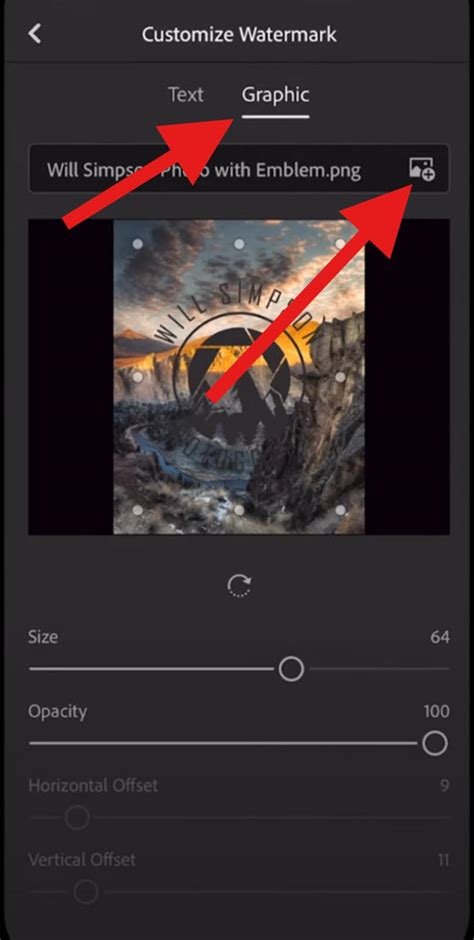
For a more personalized touch, you can use a graphic, such as your logo or a custom signature, as a watermark. This requires a PNG file with a transparent background.
Preparing Your Graphic: Ensure your graphic watermark is saved as a PNG file with a transparent background. If your graphic file still has a visible background layer, you'll need to deselect its visibility in an image editing program (like Photoshop) by clicking the eye icon on the layer. This will leave your logo or signature on a transparent background.
Uploading Your Graphic: In Lightroom Mobile's watermark customization window, tap on "Graphical." You will then see a folder icon (often represented by a "+" sign) that allows you to choose the PNG file you want to use as your watermark.
Adjusting Graphic Properties: Similar to text watermarks, graphic watermarks offer several adjustment options:
- Opacity: Controls the transparency of your watermark, making it more or less visible. Lowering the opacity is a good strategy to minimize distraction from the main image.
- Horizontal Offset & Vertical Offset: These settings allow you to precisely control how close your watermark is to the edges of the image. These options might be unavailable if you've chosen a centered placement for one of the directions. If your starting point is a corner, these offsets let you place your watermark anywhere on the image.
- Size: Adjust the size of your graphic watermark using a slider. When working with graphics, it's important to consider that a light image with a light watermark, or a dark image with a dark watermark, can make the watermark difficult to discern.
Saving Your Graphic Watermark: After customizing your graphic watermark, tap the arrow in the top-left corner to close the window. Your settings will be automatically applied to exported photos as long as the "Include Watermark" option is toggled on. You can save these settings as a preset by naming it (e.g., "Signature Graphic Right").
Applying Watermarks in Lightroom Mobile
Lightroom Mobile streamlines the process of applying watermarks, whether to a single image or multiple files. The key is to utilize the export functions effectively.
Applying to a Single Image
- Exporting Individually: Open the image you wish to watermark.
- Access Sharing Options: Tap the share icon.
- Select Export Method: Choose either "Export as" or tap the gear icon to access export settings.
- Enable Watermark: In the export settings window, toggle on "Include Watermark."
- Customize and Export: Tap "Customize" to select your preferred watermark (text or graphic) and adjust its properties. Once satisfied, tap the arrow to go back, and then proceed with exporting your photo. The chosen watermark and its settings will be applied.
Applying to Multiple Images
Lightroom Mobile allows for efficient batch watermarking, saving you considerable time.
- Select Multiple Images: In your library, select all the images you wish to watermark.
- Initiate Sharing: Tap the share icon.
- Access Export Settings: Select "Export as" or tap the gear icon.
- Include Watermark: Ensure the "Include Watermark" option is enabled.
- Choose Watermark and Export: Select your saved watermark preset or customize it as needed. Then, proceed with exporting the selected images. All images will receive the applied watermark.
Applying Watermarks to Print Proofs
When preparing client proofs, you can apply watermarks to each image on a single page.
- Navigate to Print Tab: Select the "Print" tab within Lightroom Mobile.
- Arrange Images: Select and arrange the images you want on your proof page.
- Enable Watermarking: Scroll down the right-hand panel to find and check the "Watermarking" option.
- Select Watermark: Choose the watermark you wish to apply.
- Print/Export: Proceed with printing or exporting the proof sheet, with each image now bearing your watermark.
The settings you choose for your watermark will be retained for all subsequent exports as long as the "Include Watermark" option remains active. If you wish to export photos without a watermark, simply toggle the setting off. Your watermark settings are not deleted and can be reactivated at any time.
How to Add a Watermark to Photos in Lightroom Mobile (Edit With Me)
Lightroom Desktop vs. Lightroom Mobile Watermarking
While Lightroom Mobile has significantly advanced its watermarking capabilities, it's worth noting the differences compared to the desktop version. The desktop version of Lightroom offers a more robust set of watermarking tools, including more granular control over placement, sizing, and the ability to import custom watermark files directly.
For users who primarily work on a desktop, the process involves navigating to "Edit" > "Preferences" (on Windows) or "Lightroom Classic" > "Preferences" (on Mac), then selecting the "Watermarking" tab. Here, you can create and manage both text and graphic watermarks with a wide array of customization options. When exporting from the desktop, you can select your saved watermarks from the export dialog box.
For those committed to a mobile-first workflow, the integration of graphical watermarks in Lightroom Mobile (introduced in version 6.0 in October 2020) has been a significant enhancement. Previously, users might have had to export their images from Lightroom Mobile and then use a separate application like Photoshop Mix or PicsArt to add watermarks. The "Export as" function in Lightroom Mobile is particularly useful as it allows for individual settings to be defined each time, rather than relying on the last-used settings.
Beyond Watermarking: Copyright and Image Protection
While watermarking is a valuable tool for image protection, it's essential to understand its context within broader copyright principles. The moment you create a photograph, you legally own the copyright to it. This ownership is inherent to the act of creation and does not require registration in most countries.

However, the ease with which digital images can be copied and shared online can lead to confusion and infringement. By using a watermark, you are making a clear statement that the image is your intellectual property. It serves as a layer of protection, making it more difficult for unauthorized individuals to claim ownership or use your images without permission.
It's also important to be aware of the terms of service for any platform where you share your images. For instance, when you upload photos to social media, you grant those platforms a license to use your images in accordance with their terms. Understanding these agreements is part of a comprehensive strategy for protecting your work.
Considering Alternatives and Best Practices
While this guide focuses on Lightroom Mobile, other software options exist for watermarking, such as PhotoMarks, which offers batch watermarking capabilities outside of Lightroom or Photoshop.
Ultimately, the decision to watermark your images rests with you. By understanding the tools available in Lightroom Mobile, you can implement this practice efficiently and effectively should you choose to do so. Whether you opt for a subtle text overlay or a prominent graphic logo, watermarking can be a valuable addition to your photographic workflow, offering an additional layer of security and brand reinforcement for your creative endeavors. Remember to test your watermark on a single file before applying it to a large batch of images to ensure it appears as intended and doesn't detract from the visual impact of your work.