In the ever-evolving landscape of digital imagery, understanding and effectively utilizing various file formats is paramount for seamless integration and optimal display across platforms. Among the prevalent formats, WebP has emerged as a modern contender, celebrated for its advanced compression capabilities that lead to smaller file sizes without significant compromise on quality. However, this efficiency sometimes comes at the cost of universal compatibility. This is where the necessity for tools that can convert WebP to PNG arises, ensuring that your images are accessible and usable in virtually any application, browser, or operating system.
The Nuances of WebP and PNG: A Comparative Look
WebP, a format developed by Google, stands out with its dual approach to compression, offering both lossy and lossless methods. This flexibility allows for significant file size reduction, making it an attractive option for web use where faster load times and reduced bandwidth are critical. Lossy compression in WebP can lead to even smaller files, though it may introduce some artifacts. Lossless compression, on the other hand, aims to preserve image data without degradation, similar to PNG.
PNG, or Portable Network Graphic, is a well-established raster image format renowned for its lossless compression algorithm. It employs a two-stage compression method and is particularly favored for web graphics due to its support for the RGB color model and, crucially, alpha transparency. This transparency support means that transparent areas in an image are preserved perfectly, making PNG an ideal choice for logos, icons, and any graphic design elements that need to be overlaid on different backgrounds.
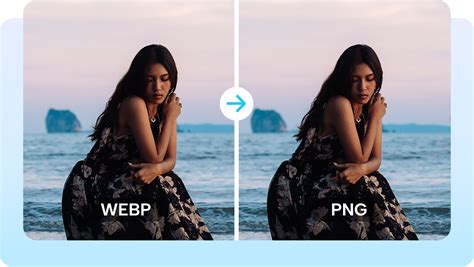
While WebP offers superior compression and reduced file size, its adoption, though widespread, is not yet universal. Some browsers, image editors, and older software might not natively support WebP files. This is precisely why the ability to convert WebP to PNG is so valuable. PNG, conversely, enjoys near-universal compatibility, ensuring that an image saved in this format will be readily viewable and editable across a vast array of devices and applications. The quality of a PNG image can be enhanced compared to some other formats due to its lossless nature, preserving every pixel without compression artifacts, unlike formats like JPEG.
The Imperative of Conversion: Why Switch from WebP to PNG?
The primary driver for converting WebP to PNG is to ensure broad accessibility and compatibility. While WebP excels in delivering smaller files for web optimization, there are numerous scenarios where PNG's universal acceptance is indispensable. For instance, in professional graphic design workflows or when preparing images for high-quality printing, PNG's lossless quality and robust transparency support are often preferred. Repeatedly saving a file in a lossy format can degrade its quality over time, a risk mitigated by PNG's lossless nature, making it a preferred format for editing.
gzip file compression in 100 Seconds
Furthermore, for users who may not have access to the latest browsers or image editing software that fully supports WebP, converting to PNG provides a straightforward solution. This conversion process makes your pictures compatible with all browsers and image editors, eliminating the risk of encountering unsupported formats. The convenience of having images that "just work" across all platforms cannot be overstated, simplifying workflows and reducing potential technical hurdles.
Seamless Conversion: Tools and Techniques for WebP to PNG
The process of converting WebP to PNG has been made remarkably accessible through various online and offline tools, often integrated into browser extensions or standalone applications. These converters aim to simplify the workflow, allowing users to transform their WebP files into universally supported PNGs with minimal effort.
One of the most intuitive methods involves using browser extensions. These extensions often integrate directly into your operating system's context menu, allowing for a simple right-click operation. By right-clicking on a WebP file, you can select an option like "Save image as PNG" directly from the context menu, eliminating the need to open separate applications or websites.
Another user-friendly approach is the drag-and-drop functionality. Many online converters and extensions provide an area where you can simply drag a WebP file from your computer and drop it onto the designated zone. The conversion process then begins automatically, and once completed, you can download the resulting PNG file. This method streamlines the workflow significantly, making it an efficient solution for converting single or multiple files.
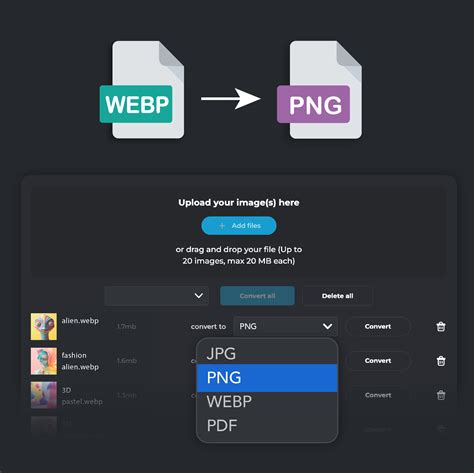
For those dealing with a large number of WebP files, batch conversion capabilities are highly beneficial. Some advanced tools and services offer the ability to upload and convert multiple WebP files simultaneously, saving considerable time and effort. Services like CloudConvert, for example, are described as universal apps for file conversions, handling various formats including images, and are ISO 27001 certified, emphasizing their commitment to data security since their founding in 2012. They assure users that their files will not be accessed by the service, and they offer APIs for custom integrations and discounts for high-volume customers.
When choosing a converter, several factors are worth considering:
- Ease of Use: The interface should be intuitive, with simple steps for uploading, converting, and downloading. Right-click and drag-and-drop functionalities are prime examples of user-friendly design.
- Speed and Efficiency: The conversion process should be swift, especially when dealing with multiple files.
- Quality Preservation: The tool should ensure that the image quality is maintained during conversion, especially regarding transparency.
- Privacy and Security: For online converters, understanding their data privacy policies is crucial. Reputable services will state that they do not collect or use your data and employ security measures like SSL encryption.
- Batch Conversion: The ability to convert multiple files at once is a significant advantage for users with large image libraries.
- Cost: Many converters offer a free tier with a certain number of conversions, with paid options for higher usage.
Advanced Features and Considerations
Beyond basic conversion, some tools offer additional functionalities that can enhance the image editing workflow. For instance, some platforms allow you to edit your WebP files before converting them to PNG. This might include cropping, flipping, rotating, resizing, adjusting brightness, saturation, contrast, or even adding filters, effects, text, and borders. Such features empower users to refine their images and produce professional-looking graphics or logos before finalizing them in the universally compatible PNG format.
When uploading files for conversion, it's also helpful to be aware of any potential limitations, such as maximum file size (e.g., under 25MB) or dimension restrictions (e.g., less than 100 million total pixels). These are often in place to ensure the conversion process remains easy, quick, and effortless for all users.
The landscape of image formats is continually evolving, with newer formats like AVIF and JPEG-XL emerging alongside WebP, offering even more advanced compression and features. However, the fundamental need for reliable conversion to established formats like PNG remains. Tools that support conversions not only between WebP and PNG but also to and from other formats like JPG, GIF, and AVIF provide a comprehensive solution for managing diverse image assets. For example, services that can convert AVIF to PNG effortlessly, or allow for PNG to WebP conversion, offer a complete toolkit for image format management.
Embracing the Future of Image Conversion
In conclusion, while WebP presents compelling advantages in terms of file size and compression efficiency, its limitations in universal compatibility necessitate reliable conversion methods to formats like PNG. The availability of user-friendly online converters, browser extensions, and integrated tools has made the process of transforming WebP images into PNGs straightforward and accessible. Whether for professional design, printing, or simply ensuring broad accessibility, mastering the WebP to PNG conversion empowers users to leverage the best of both worlds â the efficiency of modern compression and the ubiquity of established image standards. The ongoing development of such tools, coupled with a commitment to user privacy and data security, ensures that managing and utilizing digital imagery remains as streamlined and effective as possible.